
1. محصول تمام شدview
The NEWSKILL Chiron Pro is an ambidextrous wireless gaming mouse designed for precision and comfort. It features a high-performance optical sensor, programmable buttons, and customizable RGB lighting.

تصویر: زاویه دار view of the NEWSKILL Chiron Pro Wireless Gaming Mouse, showcasing its ergonomic shape and design.
2. محتویات بسته
- NEWSKILL Chiron Pro Wireless Gaming Mouse
- گیرنده بیسیم USB 2.4 گیگاهرتز
- کابل شارژ/داده USB-C به USB-A
- راهنمای کاربر (این سند)
۱. دستورالعملهای راهاندازی
3.1 شارژ اولیه
Before first use, it is recommended to fully charge the mouse. Connect the provided USB-C cable to the mouse's front port and the USB-A end to a powered USB port on your computer or a USB wall adapter. A full charge takes approximately 2 hours and provides up to 80 hours of usage.

تصویر: جلو view of the mouse, highlighting the USB-C charging port.
۴.۲ اتصال بیسیم (۲.۴ گیگاهرتز)
- Locate the USB 2.4GHz wireless receiver. It is typically stored in a compartment on the underside of the mouse.
- گیرنده USB را به درگاه USB موجود در رایانه خود وصل کنید.
- با استفاده از کلید روشن/خاموش که در پایین ماوس قرار دارد، ماوس را روشن کنید.
- Your computer should automatically detect and install the necessary drivers. The mouse is ready for use once the RGB lighting activates.
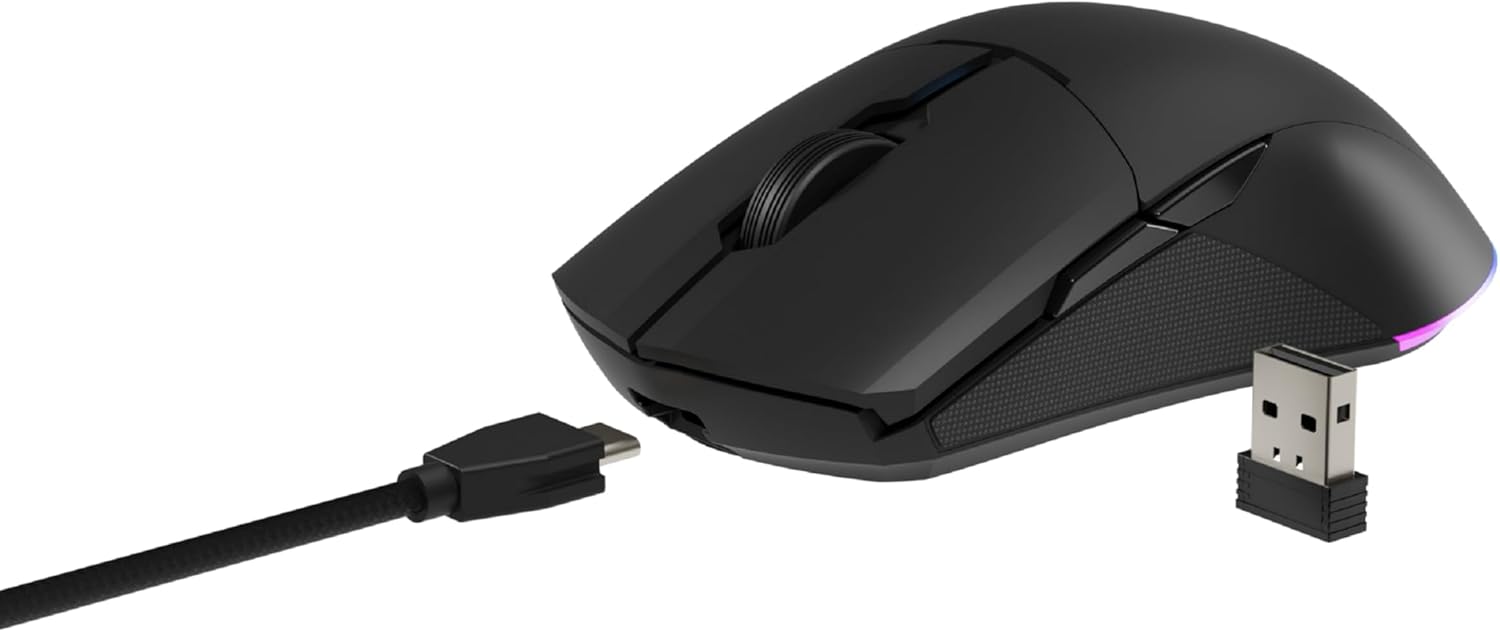
Image: The NEWSKILL Chiron Pro mouse shown with its USB-C cable and the 2.4GHz wireless receiver.
3.3 اتصال سیمی
The mouse can also be used in wired mode. Simply connect the USB-C cable to the mouse and the USB-A end to your computer. The mouse will function as a wired device and charge simultaneously.
4. دستورالعمل های عملیاتی
4.1 توابع اساسی
- دکمه کلیک چپ: اقدام اولیه.
- دکمه کلیک راست: منوی اقدام/زمینه ثانویه.
- چرخ اسکرول: بالا/پایین بروید، کلیک وسط.
- Side Buttons (8 programmable): Default functions may vary, but are customizable via software.

تصویر: کنار view of the mouse, showing the textured grip and two side buttons.
4.2 تنظیم DPI
The mouse features a Pixart PMW3335 optical sensor with up to 16000 configurable DPI. The DPI button on the underside of the mouse allows you to cycle through preset DPI levels. For fine-tuning and custom DPI settings, use the advanced software.

Image: Underside of the mouse, showing the DPI button, optical sensor, and ON/OFF switch.
۳.۳ سفارشیسازی نورپردازی RGB
The Chiron Pro features customizable RGB lighting. To personalize lighting effects, colors, and brightness, download and install the dedicated NEWSKILL software from the official website. The software also allows for button remapping and macro creation.

Image: The NEWSKILL Chiron Pro mouse displaying its customizable RGB lighting.
5. تعمیر و نگهداری
5.1 تمیز کردن
برای حفظ عملکرد بهینه، مرتباً ماوس خود را تمیز کنید. از یک پارچه نرم و خشک برای پاک کردن سطح آن استفاده کنید. برای آلودگیهای سرسخت، کمی ...amp میتوان از پارچهای آغشته به صابون ملایم استفاده کرد و مطمئن شد که هیچ مایعی وارد ماوس نمیشود. از پاککنندهها یا حلالهای ساینده خودداری کنید.
5.2 مراقبت از باتری
برای افزایش عمر باتری، از خالی شدن کامل شارژ ماوس به طور مکرر خودداری کنید. وقتی نشانگر باتری، شارژ کم را نشان میدهد، ماوس را شارژ کنید. در صورت عدم استفاده طولانی مدت، ماوس را در جای خشک و خنک نگهداری کنید.
6 عیب یابی
- ماوس پاسخ نمیدهد:
Ensure the mouse is turned ON. Check if the USB receiver is securely plugged into a working USB port. If using wired mode, ensure the USB-C cable is properly connected. Try a different USB port. - مشکلات اتصال بیسیم:
Ensure the mouse is within range of the USB receiver (typically up to 10 meters). Avoid placing the receiver near other wireless devices that might cause interference. Re-pair the mouse if necessary (refer to software instructions). - DPI or button issues:
Ensure the NEWSKILL software is installed and up-to-date. Check your settings within the software. Reset to default settings if custom configurations are causing issues. - مشکلات شارژ:
Verify the USB-C cable is not damaged and is properly connected. Try a different USB port or charging adapter. Ensure the mouse is not in an extremely hot or cold environment during charging. - گیرنده USB گم شده است:
The USB receiver is typically stored in a compartment on the underside of the mouse for safekeeping. Please check this compartment thoroughly. If it is genuinely missing, contact customer support.
7. مشخصات
| ویژگی | مشخصات |
|---|---|
| نام تجاری | مهارت جدید |
| نام مدل | CHIRON PRO |
| شماره مدل | 10831240 |
| رنگ | مشکی |
| فناوری اتصال | Wireless (2.4GHz), USB (Wired) |
| نوع سنسور | Optical (Pixart PMW3335) |
| DPI | حداکثر 16000 DPI |
| تعداد دکمه ها | ۶ (قابل برنامهریزی) |
| طول عمر را تغییر دهید | Huano switches (up to 20 million clicks) |
| جهت گیری دست | دوسویه |
| عمر باتری | تا 80 ساعت |
| زمان شارژ | تقریبا 2 ساعت |
| ابعاد محصول | 12.4 × 6.75 × 0.1 سانتی متر |
| وزن محصول | 500 گرم |
| سیستم عامل های سازگار | Windows 10, Windows 7, Windows Vista, Windows XP, Linux |
8. گارانتی و پشتیبانی
8.1 اطلاعات گارانتی
NEWSKILL products are covered by a manufacturer's warranty. For specific warranty terms and conditions, please refer to the warranty card included with your product or visit the official NEWSKILL webسایت. فاکتور خرید خود را برای موارد گارانتی نگه دارید.
8.2 پشتیبانی مشتری
If you encounter any issues or have questions regarding your NEWSKILL Chiron Pro Wireless Gaming Mouse, please visit the official NEWSKILL support website or contact their customer service team. You can find contact information on the NEWSKILL webسایت: www.newskillgaming.com