
1. مقدمه
The Phomemo M950 Label Maker is a versatile, portable thermal label printer designed for both home and office use. It offers dual printing modes: direct input via its integrated keyboard and wireless printing via Bluetooth connection to a mobile application. This device utilizes thermal printing technology, eliminating the need for ink cartridges, and supports various label tape types for diverse labeling needs.
2. اطلاعات ایمنی
- برای جلوگیری از برق گرفتگی یا آسیب، دستگاه را از آب و رطوبت زیاد دور نگه دارید.
- خودتان دستگاه را جدا نکنید و سعی نکنید آن را تعمیر کنید. برای کمک با پشتیبانی مشتری تماس بگیرید.
- Use only Phomemo-approved label tapes to ensure optimal performance and prevent damage to the print head.
- دور از دسترس کودکان نگهداری شود.
- از قرار دادن دستگاه در معرض نور مستقیم خورشید یا دمای شدید خودداری کنید.
- Charge the device using a compatible Type-C USB power adapter.
3. محتویات بسته
Please check the package contents upon unboxing. If any items are missing or damaged, contact your retailer or Phomemo customer support.
- لیبل ساز Phomemo M950
- 12mm Label Tape Roll (pre-installed or included separately)
- کابل شارژ USB نوع C
- راهنمای کاربر (این سند)
4. محصول تمام شدview
Familiarize yourself with the components of your Phomemo M950 Label Maker.

Image: Phomemo M950 Label Maker showing its main features including no ink, one-touch key, keyboard editing, app editing, 203 DPI resolution, backlight support, Type-C recharge, and built-in cutter.
ویژگی های کلیدی:
- ورودی صفحه کلید: Integrated QWERTY keyboard for direct label creation.
- قابلیت اتصال بلوتوث: Connects to smartphones for advanced label design via the Phomemo app.
- چاپ حرارتی: No ink required, uses thermal label tapes.
- صفحه نمایش با نور پس زمینه: دید در شرایط کم نور را تضمین می کند.
- برش داخلی: For clean and precise label cutting.
- باتری قابل شارژ: Integrated 1200mAh battery, rechargeable via Type-C port.
5. راه اندازی
5.1. شارژ کردن دستگاه
Before first use, fully charge the label maker.
- Connect the provided USB Type-C cable to the charging port on the side of the label maker.
- سر دیگر کابل را به یک آداپتور برق USB سازگار (که همراه دستگاه نیست) یا پورت USB کامپیوتر وصل کنید.
- The charging indicator light will show the charging status. Once fully charged, the indicator will change or turn off.

Image: Phomemo M950 Label Maker highlighting the Type-C charging port and its compact dimensions.
۲.۲ بارگذاری نوار برچسب
Ensure the device is powered off before loading or replacing tape.
- Open the tape compartment cover located on the top or back of the device.
- Insert the label tape roll with the label side facing up, ensuring it sits securely in the compartment.
- Feed the end of the label tape through the tape guide until it protrudes slightly from the output slot.
- درب محفظه نوار را محکم ببندید.
5.3. روشن/خاموش کردن
Press and hold the Power button (usually marked with a power symbol) for a few seconds to turn the device on or off.
6. دستورالعمل های عملیاتی
The Phomemo M950 offers two primary methods for creating labels.

Image: Phomemo M950 Label Maker illustrating the two usage modes: direct printing from the keyboard and printing via a mobile device using the 'Print Master' app.
6.1. Keyboard Printing
This mode allows you to create labels directly on the device without needing a smartphone.
- روشن کردن: Turn on the label maker. The screen will illuminate.
- Type Text: Use the QWERTY keyboard to type your desired label text. The text will appear on the display.
- سفارشی کردن: Use the function keys (e.g., 'Fn', 'Shift', 'Symbol', 'Caps', 'Accent') to access various customization options such as font styles, sizes, symbols, and borders. The device supports multiple languages, borders, and symbols.
- قبلview: Use the 'Preview' button to see how your label will look before printing.
- چاپ: Press the 'Print' button to print the label. The built-in cutter will automatically cut the label after printing.

Image: Phomemo M950 Label Maker showcasing its extensive features including support for 23+ languages, 103+ borders, and 790+ symbols and icons for label customization.
6.2. Bluetooth App Printing
For more advanced design options, connect your label maker to the 'Print Master' mobile app.
- بارگیری برنامه: Download the 'Print Master' app from your mobile device's app store (App Store for iOS, Google Play for Android).
- بلوتوث را فعال کنید: Ensure Bluetooth is enabled on your mobile device and the Phomemo M950.
- اتصال: Open the 'Print Master' app and follow the on-screen instructions to connect to your M950 label maker via Bluetooth.
- برچسب طراحی: Use the app's interface to design your label. The app offers massive templates, additional fonts, borders, and icons.
- چاپ: Once your design is complete, tap the print icon in the app to send the label to the M950 for printing.

Image: Phomemo M950 Label Maker demonstrating the use of the 'Print Master' app with numerous templates, 270+ borders, 110+ fonts, 1500 icons, and 14+ languages for creative label design.
6.3. Adjusting Print Density
For optimal print quality, especially with ribbon tapes, adjust the print density.
- Press the 'Fn' key, then select 'Pinter Densities' (Printer Densities).
- Choose 'High' for clearer prints, particularly when using ribbon tapes.

Image: Step-by-step guide on how to set the print density to 'High' on the Phomemo M950 Label Maker for clear prints, especially for ribbon tapes.
7. تعمیر و نگهداری
۴.۱ تمیز کردن هد چاپ
Regular cleaning ensures consistent print quality.
- Turn off the label maker and open the tape compartment.
- Gently wipe the print head with a soft, lint-free cloth dampهمراه با ایزوپروپیل الکل
- Allow the print head to dry completely before closing the compartment and powering on the device.
۵.۳ ذخیرهسازی نواری
Store label tapes in a cool, dry place away from direct sunlight to preserve their quality and adhesive properties.
8 عیب یابی
If you encounter issues with your Phomemo M950, refer to the following common problems and solutions.
| مشکل | علت احتمالی | راه حل |
|---|---|---|
| بدون قدرت | باتری ضعیف؛ دستگاه خاموش | Charge the device; Press and hold power button to turn on. |
| کیفیت چاپ ضعیف | Print head dirty; Incorrect print density; Low battery | Clean print head; Adjust print density to 'High'; Charge device. |
| Label not feeding | Tape incorrectly loaded; Tape jammed; Out of tape | Re-load tape correctly; Clear any jams; Replace tape roll. |
| اتصال بلوتوث خراب شد | Bluetooth off; Device not paired; App issue | Ensure Bluetooth is on for both devices; Re-pair in app; Restart app/device. |
| کاتر کار نمیکند | Tape jammed; Cutter mechanism obstructed | Clear any tape jams; Ensure no debris is blocking the cutter. |
9. مشخصات
| ویژگی | جزئیات |
|---|---|
| نام مدل | M950 |
| نام تجاری | فومو |
| فناوری چاپ | حرارتی |
| فناوری اتصال | Bluetooth, Keyboard |
| خروجی چاپگر | تک رنگ |
| حداکثر وضوح چاپ | 203 نقطه در اینچ |
| حداکثر اندازه رسانه | 12 میلی متر * 4000 میلی متر |
| دستگاه های سازگار | گوشی های هوشمند |
| قدرت | 10 وات |
| نوع باتری | لیتیوم یون داخلی 1200 میلی آمپر ساعت |
| پورت شارژ | USB Type-C |
| ابعاد محصول | 15.2 × 5.4 × 11.2 سانتی متر |
| وزن مورد | 490 گرم |
| رنگ | سفید |
| ویژگی خاص | Portable, Backlight Screen, Built-in Cutter |
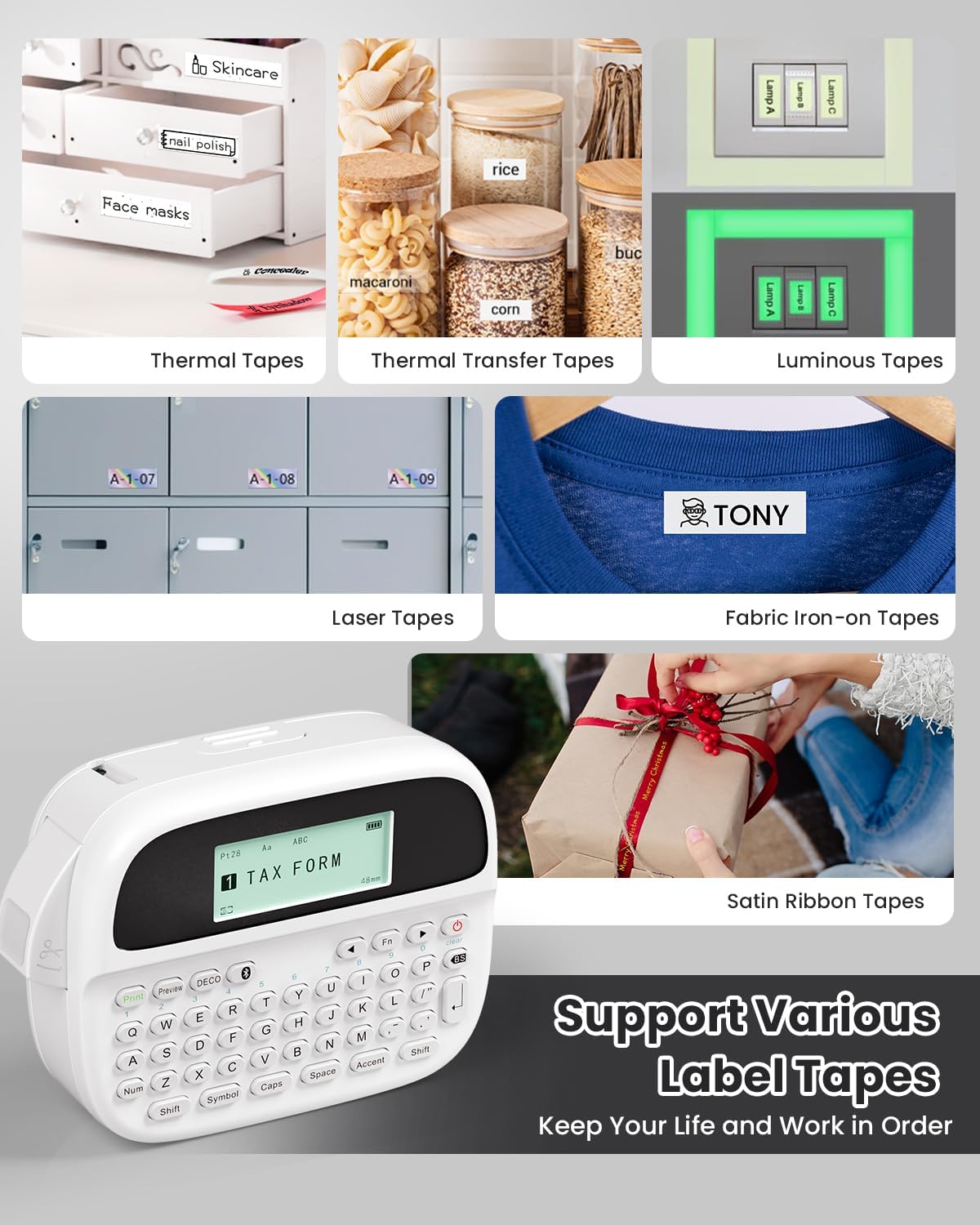
Image: Phomemo M950 Label Maker supporting various label tape types including Thermal, Thermal Transfer, Luminous, Laser, Fabric Iron-on, and Satin Ribbon tapes.

Image: Phomemo M950 Label Maker demonstrating its backlight screen feature, allowing for comfortable use even at night.
10. گارانتی و پشتیبانی
برای اطلاعات گارانتی، پشتیبانی فنی یا سوالات مربوط به خدمات، لطفاً به وبسایت رسمی Phomemo مراجعه کنید. webبه سایت مراجعه کنید یا مستقیماً با خدمات مشتریان آنها تماس بگیرید. رسید خرید خود را به عنوان مدرک خرید برای درخواستهای گارانتی نگه دارید.
رسمی فوممو Webسایت: Visit Phomemo Store