
مقدمه
The CIAO TECH WiFi Extender is designed to enhance your wireless network coverage, eliminating dead zones and providing a strong, consistent signal throughout your home or office. With speeds up to 300Mbps and robust security features, it ensures a seamless online experience for multiple devices.

جلو view of the CIAO TECH WiFi Extender, showing the WPS button and indicator lights.
محتویات بسته
- 1 x CIAO TECH WiFi Extender
- 1 عدد کابل اترنت
- ۱ عدد دفترچه راهنمای کاربر (این سند)
راهنمای راه اندازی
روش 1: راه اندازی سریع از طریق دکمه WPS
- وصل کردن: Plug the WiFi Extender into an electrical outlet near your main router. Wait for the Power indicator light to turn solid.
- فعال کردن WPS روی روتر: Press the WPS button on your main wireless router. Refer to your router's manual for the exact location and procedure.
- فعال کردن WPS روی اکستندر: Within 2 minutes of pressing WPS on your router, press the WPS button on the front of the CIAO TECH WiFi Extender.
- منتظر اتصال باشید: The Extender's signal indicator lights will flash and then turn solid when a connection is established. This may take a few moments.
- جابجایی (اختیاری): Once connected, you can unplug the extender and move it to a location halfway between your router and the Wi-Fi dead zone. Ensure the signal indicator lights remain solid, indicating a good connection.
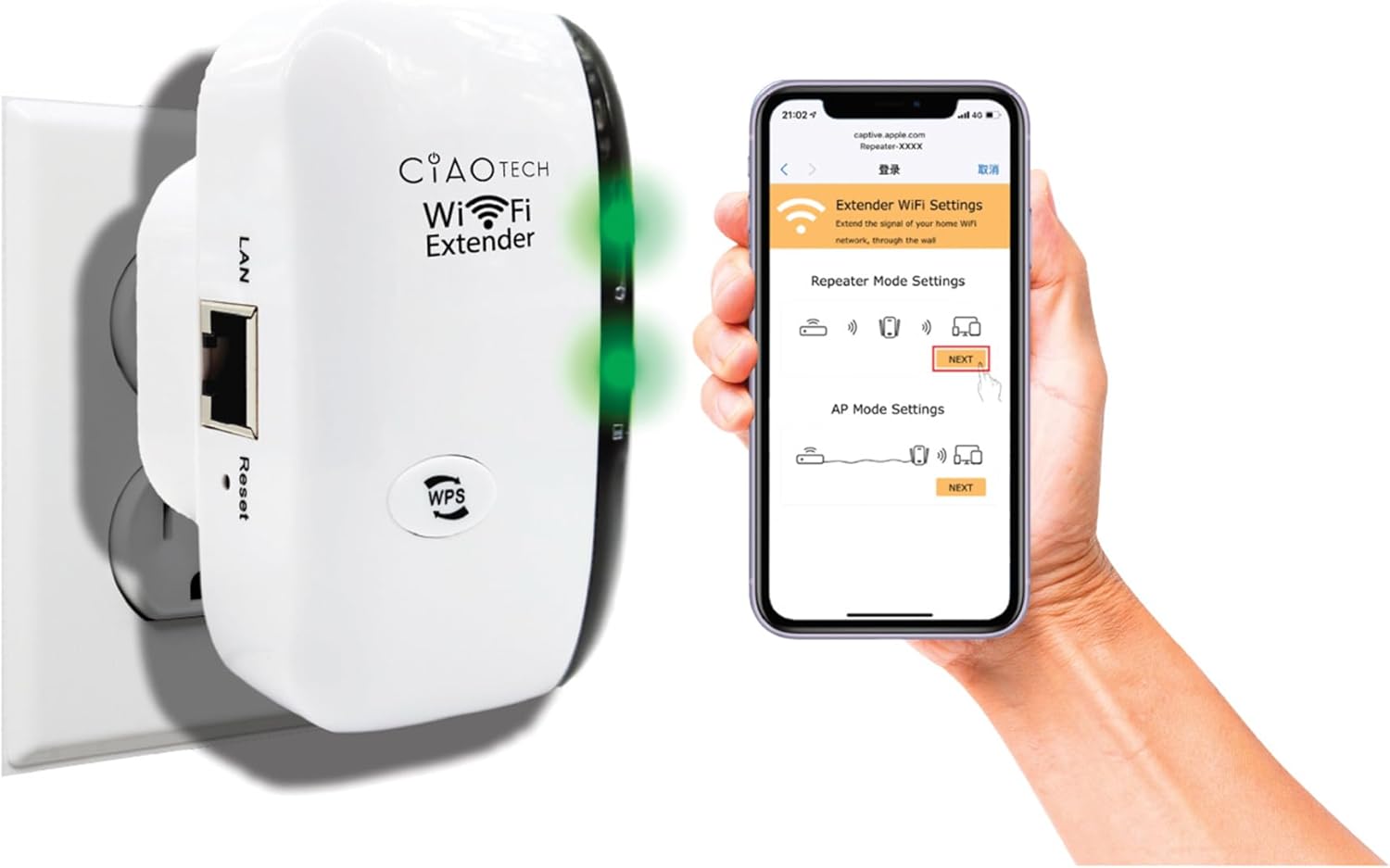
The WiFi Extender plugged into a wall outlet, with a smartphone displaying the extender's setup interface.
Method 2: Setup via Web مرورگر
- وصل کردن: Plug the WiFi Extender into an electrical outlet near your main router. Wait for the Power indicator light to turn solid.
- به وایفای اکستندر متصل شوید: On your computer or mobile device, connect to the Wi-Fi network named "WiFi Repeater-XXXXXX" (where XXXXXX are the last 6 digits of the extender's MAC address, found on the label). There is no password initially.
- دسترسی به صفحه تنظیمات: a را باز کنید web browser (e.g., Chrome, Firefox, Safari) and enter 192.168.11.1 در نوار آدرس
- ورود به سیستم: If prompted, the default username and password are "admin" (or refer to the label on the device).
- انتخاب حالت: Choose your desired operating mode (Repeater Mode or AP Mode).
- پیکربندی تنظیمات:
- حالت تکرار کننده: Select your existing Wi-Fi network from the list, enter its password, and optionally change the extender's SSID.
- حالت AP: Connect an Ethernet cable from your router to the extender's LAN port. The extender will create a new Wi-Fi network. Configure the new SSID and password.
- اعمال تنظیمات: Save the settings and wait for the extender to restart.
- Connect to Extended Network: On your devices, connect to the newly configured extended Wi-Fi network.

عقب view of the WiFi Extender, displaying the LAN port and the label with default settings and IP address.
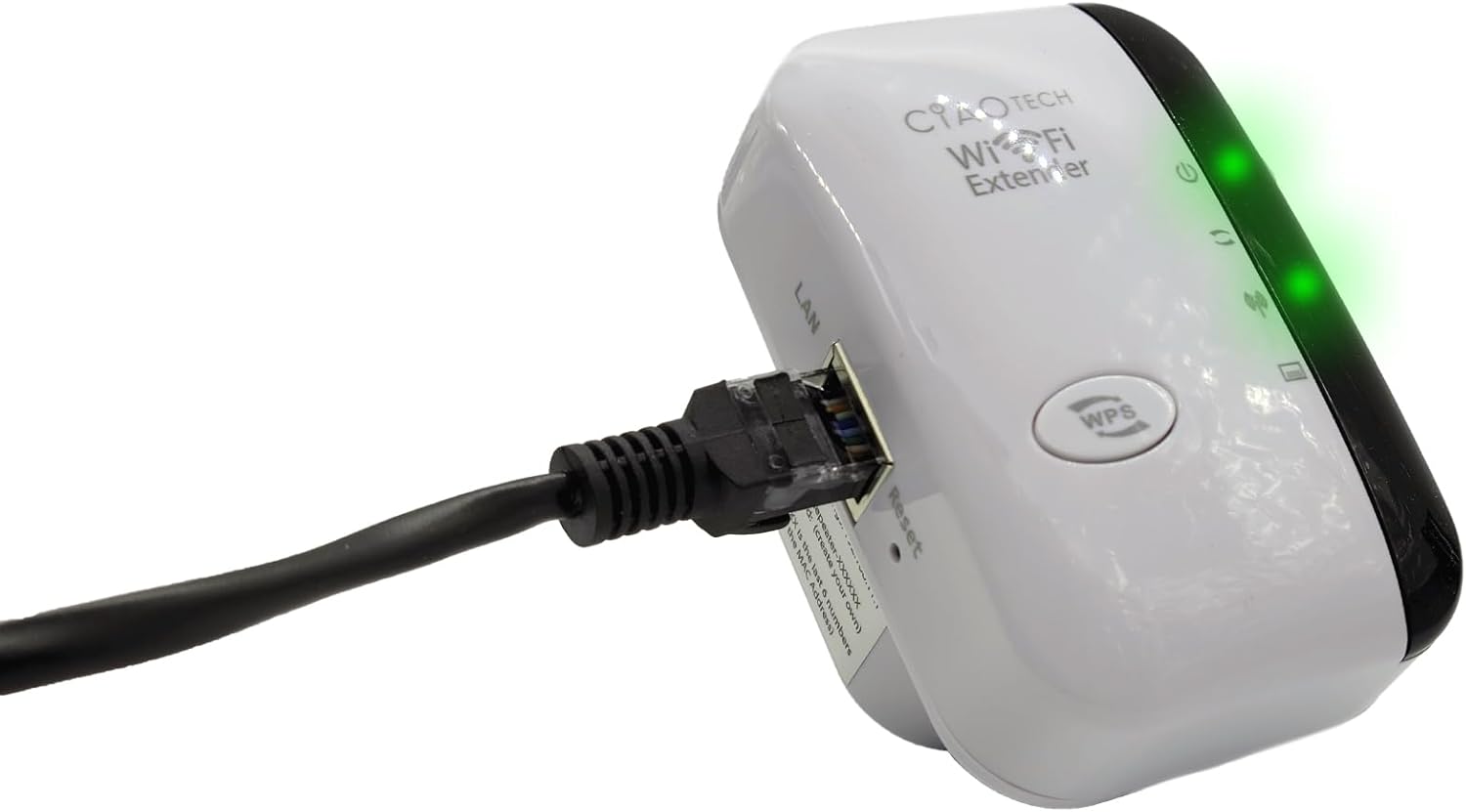
The WiFi Extender with an Ethernet cable connected to its LAN port, indicating a wired connection option.
حالت های عملیاتی
حالت تکرار
In Repeater Mode, the extender wirelessly connects to your existing Wi-Fi network and re-broadcasts it, extending the coverage area. This mode is ideal for eliminating Wi-Fi dead zones and improving signal strength in areas with weak coverage.
حالت AP (نقطه دسترسی)
In AP Mode, the extender connects to your router via an Ethernet cable and creates a new wireless network. This mode is suitable for converting a wired network connection into a wireless one, or for creating a separate Wi-Fi network.
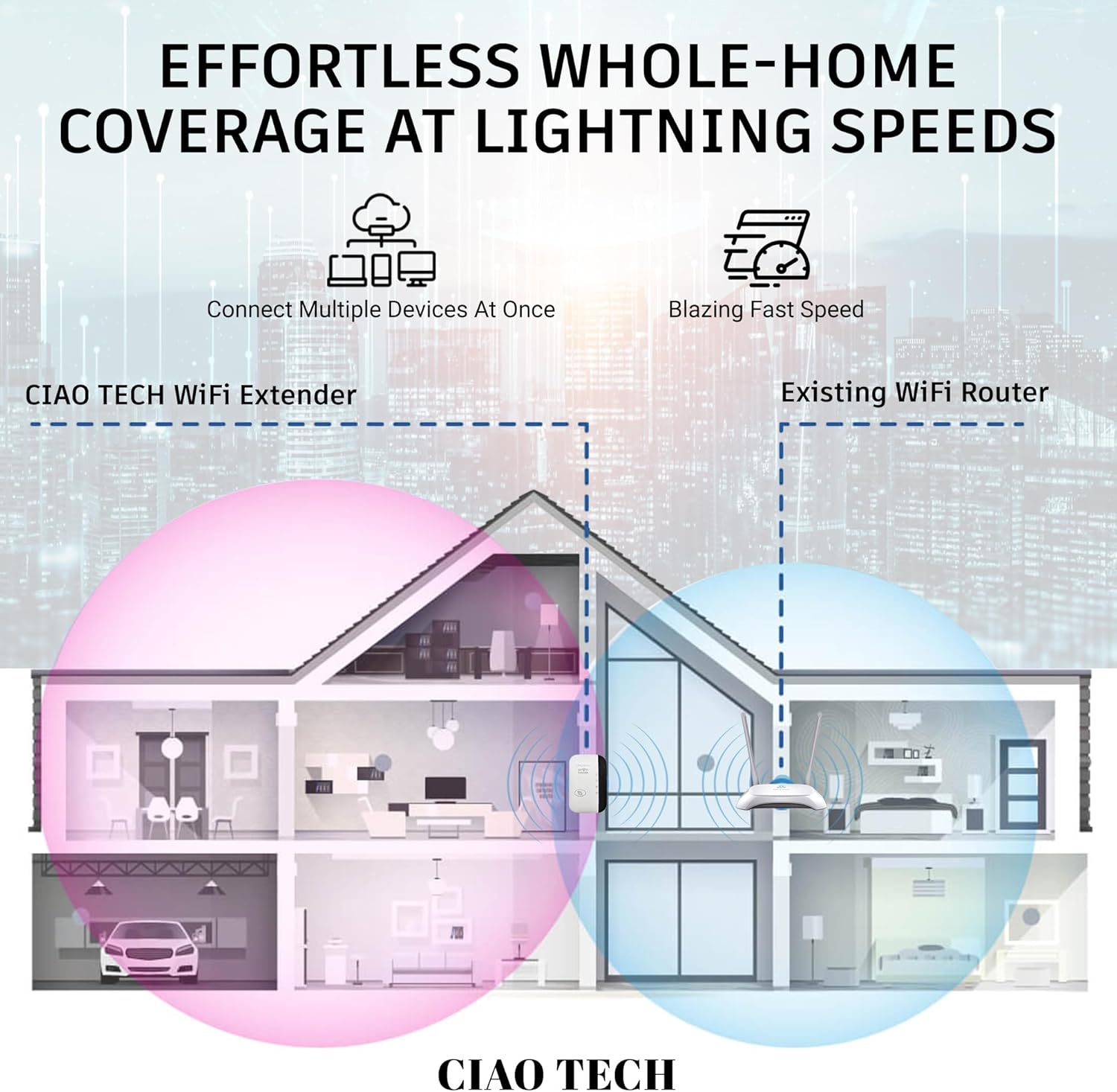
A diagram illustrating how the WiFi Extender provides expanded coverage throughout a home, connecting multiple devices.
تعمیر و نگهداری
- قرارگیری بهینه: Place the extender in a location that is roughly halfway between your main router and the area where you need improved Wi-Fi. Avoid placing it near large metal objects, concrete walls, or other electronic devices that may cause interference.
- تمیز نگه دارید: دستگاه را به صورت دورهای با یک پارچه نرم و خشک پاک کنید تا گرد و غبار آن پاک شود. از پاککنندههای مایع یا اسپری استفاده نکنید.
- به روز رسانی سیستم عامل: سازنده را بررسی کنید website periodically for firmware updates. Keeping the firmware updated can improve performance and security.
- چرخه قدرت: If you experience persistent issues, try power cycling the extender by unplugging it from the outlet for 10 seconds and then plugging it back in.
عیب یابی
- عدم دسترسی به اینترنت پس از راهاندازی:
- Ensure the extender is within range of your main router.
- Verify that the password entered for your main Wi-Fi network during setup was correct.
- Try restarting both your main router and the extender.
- If using Repeater Mode, ensure your main router has internet access.
- Weak Signal from Extender:
- دستگاه توسعهدهنده را به روتر اصلی خود نزدیکتر کنید.
- Avoid physical obstructions like thick walls or large appliances.
- منابع تداخل (مثلاً مایکروویو، تلفنهای بیسیم) را بررسی کنید.
- دسترسی امکان پذیر نیست Web صفحه مدیریت (192.168.11.1):
- Ensure your device is connected to the extender's Wi-Fi network (e.g., "WiFi Repeater-XXXXXX").
- کش و کوکیهای مرورگرتون رو پاک کنید یا با یه مرورگر دیگه امتحان کنید.
- هرگونه نرمافزار VPN یا فایروال را روی رایانه خود موقتاً غیرفعال کنید.
- Reset the extender to factory defaults (use a paperclip to press the reset button for 5-10 seconds) and try setup again.
- سرعت آهسته:
- Ensure the extender is placed in an optimal location, not too far from the router and not too far from the devices.
- Check for network congestion or too many devices connected to the extended network.
- Verify your main internet speed.
مشخصات
| شماره مدل | OWEWM00-001 |
| استاندارد بی سیم | 802.11ac |
| نرخ انتقال داده | تا 300 مگابیت بر ثانیه |
| ویژگی های امنیتی | 64/128/152-bit Encryption |
| پورت ها | 1 x RJ45 Ethernet Port |
| ابعاد | 4.61 x 4.45 x 2.72 اینچ |
| وزن | 3.84 اونس |
گارانتی و پشتیبانی
For warranty information and technical support, please refer to the contact details provided with your purchase or visit the official CIAO TECH webسایت رسید خرید خود را برای ادعای گارانتی نگه دارید.