Neideso N300

User Manual for Neideso 360° Dash Cam

مدل: N300

مقدمه

The Neideso N300 360° Dash Cam is an advanced vehicle recording system designed to provide comprehensive surveillance for your car. Featuring four Full HD 1080P channels, built-in Wi-Fi, GPS, voice control, and enhanced night vision, it ensures all-around protection and detailed recording of your journeys and parking incidents. This manual provides detailed instructions for installation, operation, maintenance, and troubleshooting to help you maximize the functionality of your dash cam.

Neideso N300 360 degree dash cam with phone app interface and various features highlighted.

تمام شدview of the Neideso N300 Dash Cam and its key features.

آنچه در جعبه است

لطفا از موجود بودن تمام اقلام در بسته اطمینان حاصل کنید:

  • 1 x Neideso N300 Dash Cam
  • 1 x دوربین عقب
  • 1 x 64GB SD Memory Card (pre-inserted)
  • 1 x 3M Adhesive Mount
  • 1 x Car Charger with Type-C USB Cable (3.5m)
  • 1 x 19.6ft کابل دوربین عقب
  • 1 x Car Wiring Tool
  • 1 x Electrostatic Film for 3M Mount
  • 1 x دفترچه راهنمای کاربر
Contents of the Neideso N300 Dash Cam box, including the main unit, rear camera, cables, mount, SD card, and tools.

All components included in the Neideso N300 package.

راه اندازی

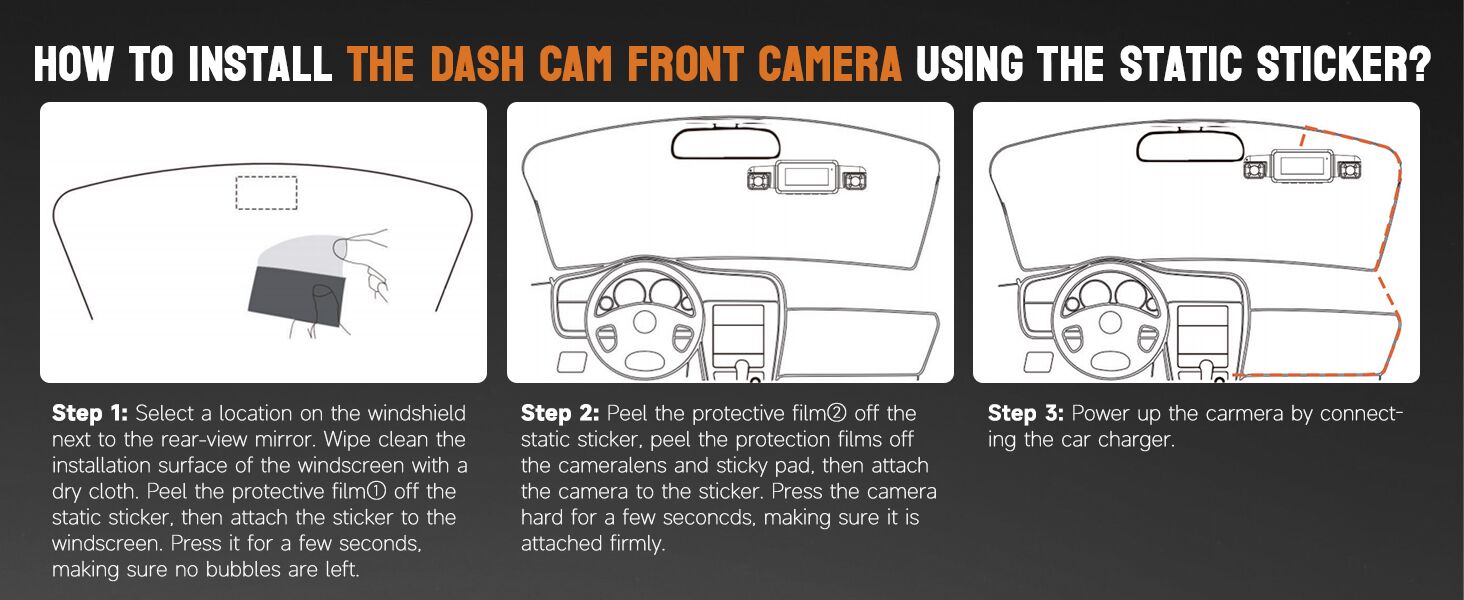
1. Installing the Front Dash Cam

  1. سطح نصب را آماده کنید: Select a location on the windshield next to the rear-view mirror. Clean the installation surface of the windscreen with a dry cloth.
  2. برچسب الکترواستاتیک را اعمال کنید: Peel the protective film off the static sticker, then attach the sticker to the windscreen. Press it firmly for a few seconds, ensuring no bubbles are left. Let it adhere for 30 minutes before attaching the dash cam.
  3. دوربین داشبورد را وصل کنید: Peel the protection films off the camera lens and sticky pad. Then, attach the camera to the sticker. Press the camera hard for a few seconds, making sure it is attached firmly.
  4. مسیر کابل برق: Use the included trim tool to tuck the power cable along the windshield edge and A-pillar, ensuring it doesn't obstruct visibility. Connect the Type-C USB cable to the dash cam and the car charger.
Diagram showing steps for installing the front dash cam using the static sticker and routing the power cable.

Step-by-step guide for front dash cam installation.

2. Installing the Rear/Interior Camera

  1. Find Mounting Spot: Find the right spot on the rear windshield or inside the car for the interior camera. Clean the installation surface with a dry cloth.
  2. دوربین را وصل کنید: Peel the protective film off the static sticker, then attach the sticker to the windscreen. Peel the protection films off the camera lens and sticky pad. Select an installation location on the windscreen to fix the rear camera.
  3. کابل اتصال: Connect the jack end of the 19.6ft rear camera cable to the interior port of the front camera. Conceal the power cord through gaps (e.g., front windshield to roof, passenger-side ceiling, rear seat to ceiling).
Diagram showing the connection of the rear camera to the main dash cam unit and power source.

Wiring diagram for the dash cam system, including front, rear, and power connections.

دستورالعمل های عملیاتی

روشن/خاموش کردن

The dash cam will automatically power on and begin recording when connected to your vehicle's power supply and the engine is started. It will power off automatically when the engine is turned off.

Recording Modes (4-Channel FHD)

The N300 supports 4-channel recording, capturing video from the front, rear, left, and right interior cameras simultaneously. You can choose from various resolution modes:

  • 4K + 1080P
  • 2K+1080P+1080P
  • 1080P+1080P+1080P+1080P

Adjust the resolution settings via the dash cam's menu or the smartphone app.

Image showing the four camera views: front, left, right, and rear, all recording in 1080P resolution.

The N300 captures comprehensive 4-channel video footage.

کنترل صدا

Operate the dash cam hands-free using simple English voice commands. This allows you to focus on driving while managing recordings.

  • "عکس بگیر"
  • «شروع ویدیو»
  • «روشن/خاموش کردن صدا»
  • «روشن/خاموش کردن وای‌فای»
  • "Turn On/Off Screen"

Note: Only the voice option in the menu is supported. Ensure minimal background noise for optimal recognition.

A person using voice commands to control the dash cam while driving, with examples of commands like 'Take Photo' and 'Video Start'.

Hands-free operation with voice control for safer driving.

کنترل از طریق وای‌فای و اپلیکیشن

The built-in Wi-Fi allows you to connect your smartphone to the dash cam via a dedicated app (e.g., TsCam App). This enables live preview, playback, download, and sharing of recorded videos and photos.

  1. Download the app from your smartphone's app store.
  2. Connect to the dash cam's Wi-Fi network (SSID) on your phone. The default password is usually 12345678.
  3. برنامه را باز کنید تا view زندگی کن footagدسترسی ثبت شده files, download them to your phone, and adjust settings.

Note: The built-in Wi-Fi is for connecting the camera to the app, not for internet access.

Smartphone screen showing the dash cam app interface with options to view, save, and share recordings.

Easily manage and share recordings using the smartphone app.

Screenshots of the app interface demonstrating steps to connect, view, and manage dash cam content.

Detailed steps for connecting to the dash cam via Wi-Fi and using the app.

GPS داخلی

The integrated GPS module accurately tracks your vehicle's location, speed, and route. This data is embedded in the recorded video and can be viewed on the smartphone app or a dedicated PC player (GXPlayer).

هوایی view of a car on a road with GPS tracking points overlaid, indicating the dash cam's ability to record driving tracks.

GPS module records driving tracks for accurate evidence.

Laptop screen showing GPS tracking data on a map with video playback, and a smartphone showing the app interface.

GPS tracking data can be viewed on the app or PC player.

دید فوق العاده شبانه

Equipped with 8 LED infrared lights and Wide Dynamic Range (WDR) technology, the N300 provides clear and color-accurate images even in low-light or overly bright conditions. It automatically adjusts brightness to prevent overexposure from headlights.

Comparison images showing dash cam footage in too dark, WDR corrected, and too bright conditions, highlighting improved visibility with Super Night Vision.

Enhanced night vision ensures clear recordings in challenging light.

24-Hour Parking Mode

When your vehicle is parked and turned off, the dash cam automatically switches to parking mode, providing continuous surveillance. This feature requires a separate hardwire kit (ASIN: B0CDWT8BF4) for continuous power.

Two parking monitor modes are available:

  • Motion & Collision Detection: If a moving object is detected within 3-4 meters in front of the car, the dash cam will automatically start recording for 1 minute.
  • Only Collision Detection: The dash cam will record if a collision is detected.
Illustration of the 24-hour radar parking monitor detecting movement around a parked car, with a note about the required hardwire kit.

24-hour parking mode provides continuous surveillance.

Diagram illustrating two parking monitor modes: Motion Detection and Collision Detection, showing how they are triggered.

Choose between motion and collision detection for parking monitoring.

G-Sensor و Loop Recording

The built-in G-sensor automatically detects sudden shakes or collisions. When an event is detected, the footage is locked to prevent it from being overwritten, even during loop recording. These protected files are saved in the "Event" folder for quick access.

Loop recording ensures continuous recording by overwriting the oldest unlocked footage when the SD card is full. Each recording segment is typically 3 minutes long.

Graphic illustrating the G-Sensor detecting a collision and automatically locking the relevant video footage.

G-Sensor protects critical footage during incidents.

Visual representation of seamless loop recording, showing how older footage is overwritten except for locked files.

Loop recording ensures continuous operation without manual SD card management.

Wide Dynamic Range (WDR) Technology

WDR technology automatically adjusts light sensitivity to avoid high exposure to strong sunlight while also capturing clear and color-accurate images at night or in low-light conditions. This ensures balanced exposure across the entire frame.

Image demonstrating how Wide Dynamic Range (WDR) technology improves image clarity in varying light conditions.

WDR technology provides balanced exposure in diverse lighting.

تعمیر و نگهداری

Proper maintenance ensures the longevity and optimal performance of your dash cam.

  • مدیریت کارت SD: Regularly format the SD card (at least once a month) to prevent data corruption and ensure smooth recording. Use a high-quality Class 10 or U3 microSD card.
  • تمیز کردن لنز: Gently clean the camera lenses with a soft, lint-free cloth to remove dust or smudges that may affect video clarity. Do not use abrasive cleaners.
  • به روز رسانی سیستم عامل: سازنده را بررسی کنید webبرای به‌روزرسانی‌های میان‌افزار، به‌طور دوره‌ای به سایت مراجعه کنید. به‌روزرسانی مداوم میان‌افزار می‌تواند عملکرد را بهبود بخشد و ویژگی‌های جدیدی اضافه کند.
  • کنترل دما: Avoid exposing the dash cam to extreme temperatures for prolonged periods. If parked in direct sunlight, consider removing the dash cam or using a sunshade.
  • بازرسی کابل: Periodically inspect all cables for any signs of wear or damage. Replace damaged cables immediately to prevent power issues.

عیب یابی

If you encounter issues with your Neideso N300 Dash Cam, refer to the table below for common problems and solutions.

مشکلعلت احتمالیراه حل
دوربین داشبورد روشن نمی‌شود.منبع تغذیه قطع است؛ کابل/شارژر معیوب است؛ اتصال شل است.Check car charger connection. Ensure vehicle's power outlet is working. Try a different USB cable/charger.
ضبط متوقف یا متوقف می‌شود.SD card error; full SD card; incompatible SD card.Format the SD card. Use a high-quality Class 10 or U3 microSD card. Replace the SD card if damaged.
کیفیت ویدیو ضعیف.لنز کثیف؛ لایه محافظ هنوز روی لنز است؛ تنظیمات رزولوشن نادرست است.Clean the camera lenses. Remove any protective films. Adjust video resolution settings in the menu.
مشکلات اتصال وای فای.رمز عبور نادرست؛ برنامه به‌روزرسانی نشده است؛ تداخل.Ensure correct Wi-Fi password (default: 12345678). Update the app to the latest version. Move closer to the dash cam.
کنترل صوتی پاسخگو نیست.Background noise; voice control disabled; unrecognized command.Reduce background noise. Ensure voice control is enabled in settings. Use exact commands listed in the manual.
حالت پارک کار نمی‌کند.Hardwire kit not installed; incorrect settings.Install the required hardwire kit (ASIN: B0CDWT8BF4). Check parking mode settings in the menu.

مشخصات

نام مدلNeideso N300 Dash Cam
وضوح تصویربرداری4K+1080P / 2K+1080P+1080P / 1080P+1080P+1080P+1080P
جهت گیریFront, Rear, and Inside (4-channel)
فناوری اتصالوای‌فای، جی‌پی‌اس
ویژگی های خاص360 درجه view, App Control, Voice Control, Super Night Vision, 24-Hour Parking Mode (Radar Detection), G-Sensor, Loop Recording, WDR
نوع نصبWindshield Mount (3M Adhesive)
ابعاد محصول3.39 x 1.5 x 2.28 اینچ
وزن مورد6.4 اونس
اجزای شاملDash Cam, Rear Camera, 64GB SD Card, 3M Mount, Car Charger, Cables, Wiring Tool, User Manual
Image showing the compact size of the dash cam with dimensions of 6.8 inches length and 1.9 inches height.

Compact design of the Neideso N300 Dash Cam.

گارانتی و پشتیبانی

Neideso products are designed for reliability and performance. For specific warranty details, please refer to the warranty card included in your product packaging or visit the official Neideso webسایت

If you require technical assistance, have questions about your product, or need to claim warranty service, please contact Neideso customer support through the following channels:

  • ایمیل: Refer to your product packaging or the official Neideso webسایتی برای جدیدترین آدرس ایمیل پشتیبانی.
  • پشتیبانی آنلاین: Visit the Neideso official webسایتی برای سوالات متداول، راهنماهای عیب‌یابی و فرم‌های تماس.

Please have your product model (N300) and purchase information ready when contacting support.

اسناد مرتبط - N300

قبلview TIESFONG ON DASH A7-WB User Manual - Your Guide to Advanced Vehicle Recording
Comprehensive user manual for the TIESFONG ON DASH A7-WB Multi-Channel Dash Cam. Learn about installation, features, operation, and specifications for optimal vehicle monitoring.
قبلview GT806 3-Channel Dash Cam User Manual
Explore the features and setup of the GT806 3-Channel Dash Cam, offering 2.5K+1080P+1080P recording, Wi-Fi connectivity, G-sensor, night vision, and 24-hour parking monitoring. Supports up to 256GB storage.
قبلview دفترچه راهنمای دوربین داشبورد ROVE R2-4K PRO: ویژگی‌ها، تنظیمات و پشتیبانی
دفترچه راهنمای جامع دوربین داشبورد ROVE R2-4K PRO. در مورد نصب، ویژگی‌ها، تنظیمات، اتصال Wi-Fi، حالت‌های پارک، عیب‌یابی و اطلاعات گارانتی برای ضبط کننده پیشرفته رانندگی وسیله نقلیه خود اطلاعات کسب کنید.
قبلview دفترچه راهنمای دوربین داشبورد سه کاناله Zenfox T3: تنظیمات، نحوه کار و ویژگی‌ها
دفترچه راهنمای جامع دوربین داشبورد سه کاناله Zenfox T3. اطلاعات مربوط به نصب، عملکرد، تنظیمات سیستم، GPS، Wi-Fi و اتصال برنامه برای دستگاه ضبط 2K جلو، 1080P داخلی و 1080P عقب. شامل راهنماهای راه‌اندازی و اطلاعات پشتیبانی مشتری.
قبلview دفترچه راهنمای دوربین داشبورد دو کاناله WOLFBOX X3 2.5K | نصب، ویژگی‌ها و پشتیبانی
دفترچه راهنمای جامع دوربین داشبورد دو کاناله WOLFBOX X3 2.5K. شامل نصب، ویژگی‌هایی مانند ADAS، Wi-Fi، GPS، صفحه لمسی، عیب‌یابی و موارد دیگر برای افزایش ایمنی و ضبط خودرو.
قبلview دفترچه راهنمای دوربین داشبورد WOLFBOX i17
دفترچه راهنمای جامع دوربین داشبورد WOLFBOX i17، که جزئیات نصب، ویژگی‌ها، تنظیمات و عیب‌یابی این دوربین داشبورد ۳ کاناله را شرح می‌دهد.

Ask a question about this manual

Ask about setup, troubleshooting, compatibility, parts, safety, or missing instructions. Manuals+ will review the question and use this page’s manual context to help answer it.