
SUPVAN E10 Black
دستگاه لیبل ساز بلوتوث SUPVAN E10
راهنمای کاربر
مقدمه
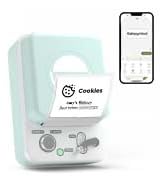
The SUPVAN E10 Bluetooth Label Maker Machine is a versatile and inkless labeler designed for efficient organization in various environments, including home, kitchen, school, and office. This compact device connects wirelessly via Bluetooth to your smartphone, allowing you to create customized labels using a dedicated mobile application. Its thermal printing technology eliminates the need for ink or toner, offering a cost-effective and convenient labeling solution. The E10 supports both continuous and fixed-size label tapes, providing flexibility for different labeling needs.

آنچه در جعبه است
Upon unboxing your SUPVAN E10 Label Maker, please ensure all the following components are present:
- چاپگر لیبل
- White Continuous Label * 1
- کابل USB-C
- دستی

راه اندازی
1. شارژ کردن دستگاه
Before initial use, fully charge your SUPVAN E10 Label Maker using the provided USB-C cable. A full charge can provide approximately one month of standby time, ensuring readiness for your labeling tasks.

۴. نصب نوار برچسب
The SUPVAN E10 supports both continuous and fixed-size label tapes. To install, open the label compartment, insert the tape roll with the label side facing up, and feed the leading edge of the tape through the output slot. Ensure the tape is properly aligned for optimal printing.

۱۲. دانلود و اتصال برنامه
The SUPVAN E10 operates via the "Katasymbol" mobile application, available for both Android and iOS devices. There are no fees or registration required to use the app.
- دانلود اپلیکیشن: Scan the QR code on the product packaging or search for "Katasymbol" in your device's app store.
- بلوتوث را فعال کنید: اطمینان حاصل کنید که بلوتوث در گوشی هوشمند شما فعال است.
- اتصال به چاپگر: Open the Katasymbol app. The app will guide you to connect to your E10 label maker via Bluetooth. Select "E10" from the list of available devices.

Video: This video demonstrates the process of connecting the SUPVAN E10 Label Maker to its mobile application via Bluetooth.
دستورالعمل های عملیاتی
۵.۱ ایجاد و ویرایش برچسبها
Once connected, use the Katasymbol app to design your labels. The app offers extensive customization options:
- متن: Input your desired text.
- فونت ها: Choose from over 40 available fonts.
- نمادها و نمادها: Access over 1000 icons and 450+ symbols to enhance your labels.
- قاب ها: Select from 30 frames to add decorative borders.
- سایر ویژگی ها: The app also supports QR codes, barcodes, and integration with Excel for batch printing.


Video: This video demonstrates how to create and customize labels using the E10 label maker and its app.
2. چاپ لیبل
After designing your label, tap the "Print" button in the app. The E10 will quickly print your label using thermal technology. The built-in cutter allows for a precise and clean cut of the label tape.
3. برنامه سابقamples
The SUPVAN E10 is suitable for a wide range of labeling applications:
- سازمان خانه: Label storage boxes, spice jars, food containers, and personal items.
- دفتر و مدرسه: سازماندهی کنید files, label office supplies, and create name tags.
- مدیریت کابل: Identify cables and wires for electronic devices.
- آشپزخانه و حمام: Labels are waterproof, oil-proof, anti-scratch, and heat-resistant, making them ideal for these environments. They leave no residue upon removal.


تعمیر و نگهداری
To ensure the longevity and optimal performance of your SUPVAN E10 Label Maker, follow these maintenance guidelines:
- تمیز کردن: Periodically wipe the exterior of the device with a soft, dry cloth. If print quality degrades, gently clean the print head with a cotton swab lightly dampened with rubbing alcohol. Ensure the device is powered off before cleaning.
- تعویض نوار: Replace label tape rolls as needed. Always use genuine SUPVAN label tapes for best results.
- ذخیره سازی: دستگاه برچسب زن را در جای خشک و خنک و دور از نور مستقیم خورشید و دمای شدید نگهداری کنید.
عیب یابی
If you encounter issues with your SUPVAN E10 Label Maker, refer to the following common solutions:
| مشکل | علت احتمالی | راه حل |
|---|---|---|
| دستگاه روشن نمی شود | باتری کم یا بدون شارژ. | Connect the device to a power source using the USB-C cable and charge it fully. |
| نمی توان به برنامه متصل شد | Bluetooth is off, device is out of range, or app issue. | Ensure Bluetooth is enabled on your phone. Move the device closer to your phone. Restart the app and the label maker. |
| کیفیت چاپ پایین / برچسبهای محو شده | Print head is dirty or tape is improperly installed. | Clean the print head. Reinstall the label tape, ensuring it is correctly aligned. |
| Label tape not feeding | Tape jam or incorrect installation. | Open the compartment and check for any obstructions. Reinstall the tape correctly. |
مشخصات
| ویژگی | جزئیات |
|---|---|
| نام تجاری | SUPVAN |
| نام مدل | E10 |
| ابعاد محصول | 1.1 اینچ × 3.07 اینچ × 5.12 اینچ |
| وزن مورد | ۳.۵۳ اونس (۱۰۰ گرم) |
| فناوری اتصال | بلوتوث |
| فناوری چاپ | حرارتی |
| حداکثر اندازه رسانه چاپگر | 0.59in x 19.68ft (Continuous) |
| قطعنامه | 203 DPI |
| روش کنترل | App (Android / iOS) |
| ویژگی های خاص | Waterproof, Lightweight, High Clarity, Works with continuous & fixed-size labels, Inkless |
| اجزای شامل | USB-C Cable, Label Printer, Manual, White Continuous Label * 1 |
| منبع تغذیه | Rechargeable Battery (1 A battery required) |
گارانتی و پشتیبانی
For detailed warranty information and further support, please refer to the official user guide provided with your product or visit the SUPVAN official website. You can also download the comprehensive User Guide in PDF format:
For direct assistance, please contact SUPVAN customer support through their official channels.
Ask a question about this manual
Ask about setup, troubleshooting, compatibility, parts, safety, or missing instructions. Manuals+ will review the question and use this page’s manual context to help answer it.