
1. مقدمه
Thank you for choosing the iClever GK08 Wireless Keyboard and Mouse Combo. This full-size keyboard with a numeric keypad and a silent mouse offers a stable 2.4 GHz connection, USB-C recharging, and dual-layout compatibility for Mac and Windows systems. This manual provides detailed instructions to help you set up, operate, and maintain your new device.
2. اطلاعات ایمنی
- دستگاه را از آب، آتش و دمای بالا دور نگه دارید.
- سعی نکنید دستگاه را جدا کنید یا تغییر دهید.
- برای شارژ، فقط از کابل USB-C ارائه شده استفاده کنید.
- از افتادن یا قرار دادن دستگاه در معرض ضربه های شدید خودداری کنید.
- باتریها و قطعات الکترونیکی را طبق مقررات محلی، مسئولانه دور بیندازید.
3. راهنمای راه اندازی
3.1 محتویات بسته
- iClever GK08 Wireless Keyboard
- iClever Wireless Mouse
- USB-A Nano Receiver (stored inside the mouse)
- کابل شارژ USB-C
- Washable Dust Cover
- راهنمای کاربر
3.2 شارژ اولیه
قبل از اولین استفاده، مطمئن شوید که هم کیبورد و هم ماوس کاملاً شارژ شدهاند.
- Connect the provided USB-C charging cable to the keyboard's USB-C port (located on the top edge).
- سر دیگر کابل را به یک منبع تغذیه USB (مثلاً پورت USB کامپیوتر، آداپتور دیواری USB) وصل کنید.
- The charging indicator light on the keyboard will illuminate during charging and turn off when fully charged.
- For the mouse, connect the USB-C cable to its charging port. The mouse also has an indicator light.
- A full charge takes approximately 2 hours and provides up to 45 days of use for the keyboard.
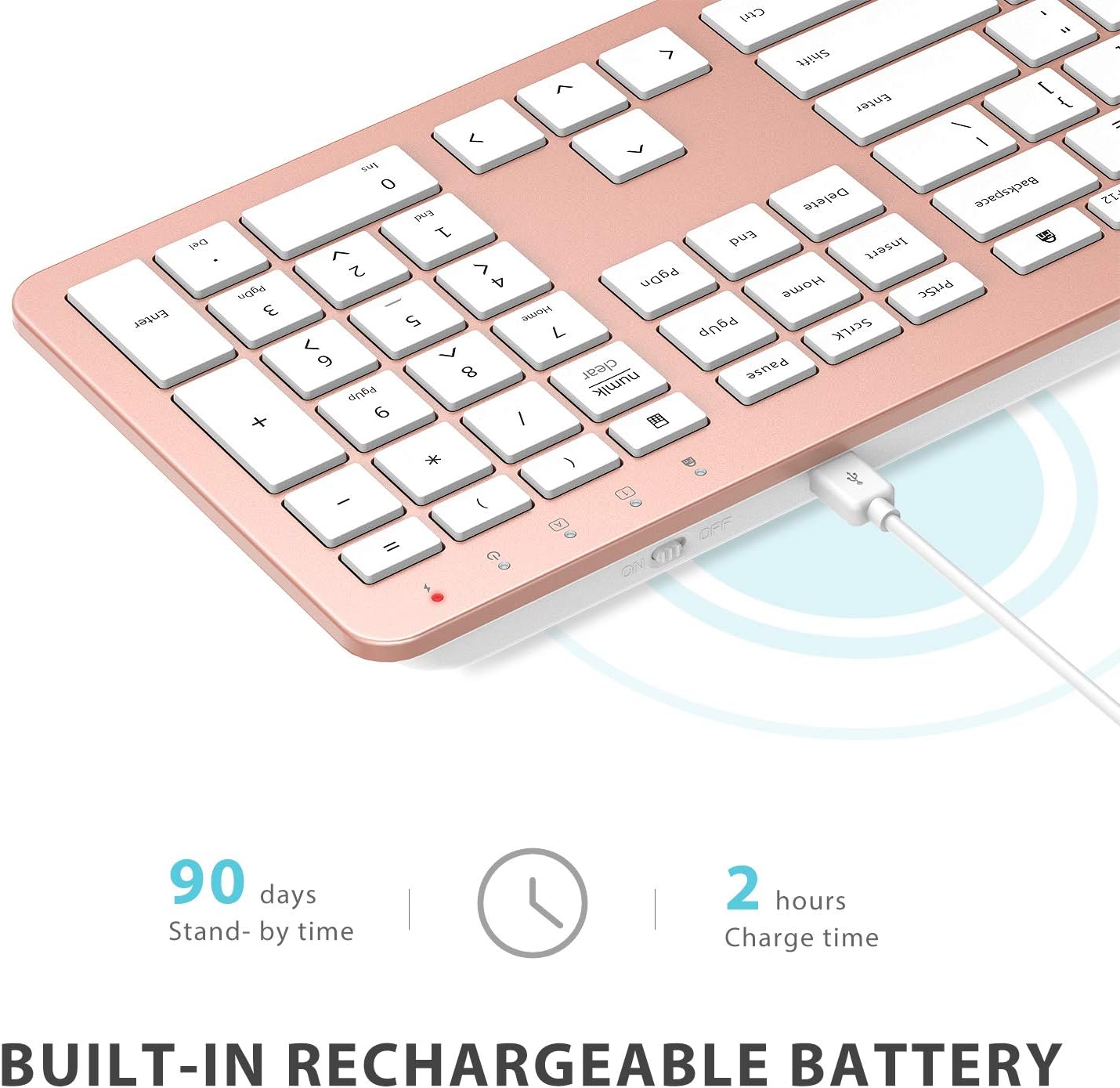
Image: The iClever GK08 keyboard connected to a USB-C charging cable, illustrating the charging process and battery life indicators.
3.3 Connecting to Your Computer (2.4 GHz Wireless)
The keyboard and mouse connect via a single 2.4 GHz USB-A nano receiver.
- Locate the USB-A nano receiver. It is typically stored in a compartment on the underside of the mouse.
- Plug the nano receiver into an available USB-A port on your computer.
- Turn on the keyboard using the ON/OFF switch (usually on the top edge).
- Turn on the mouse using the ON/OFF switch (located on the underside).
- Your computer should automatically detect and install the necessary drivers. The devices are ready for use once recognized.
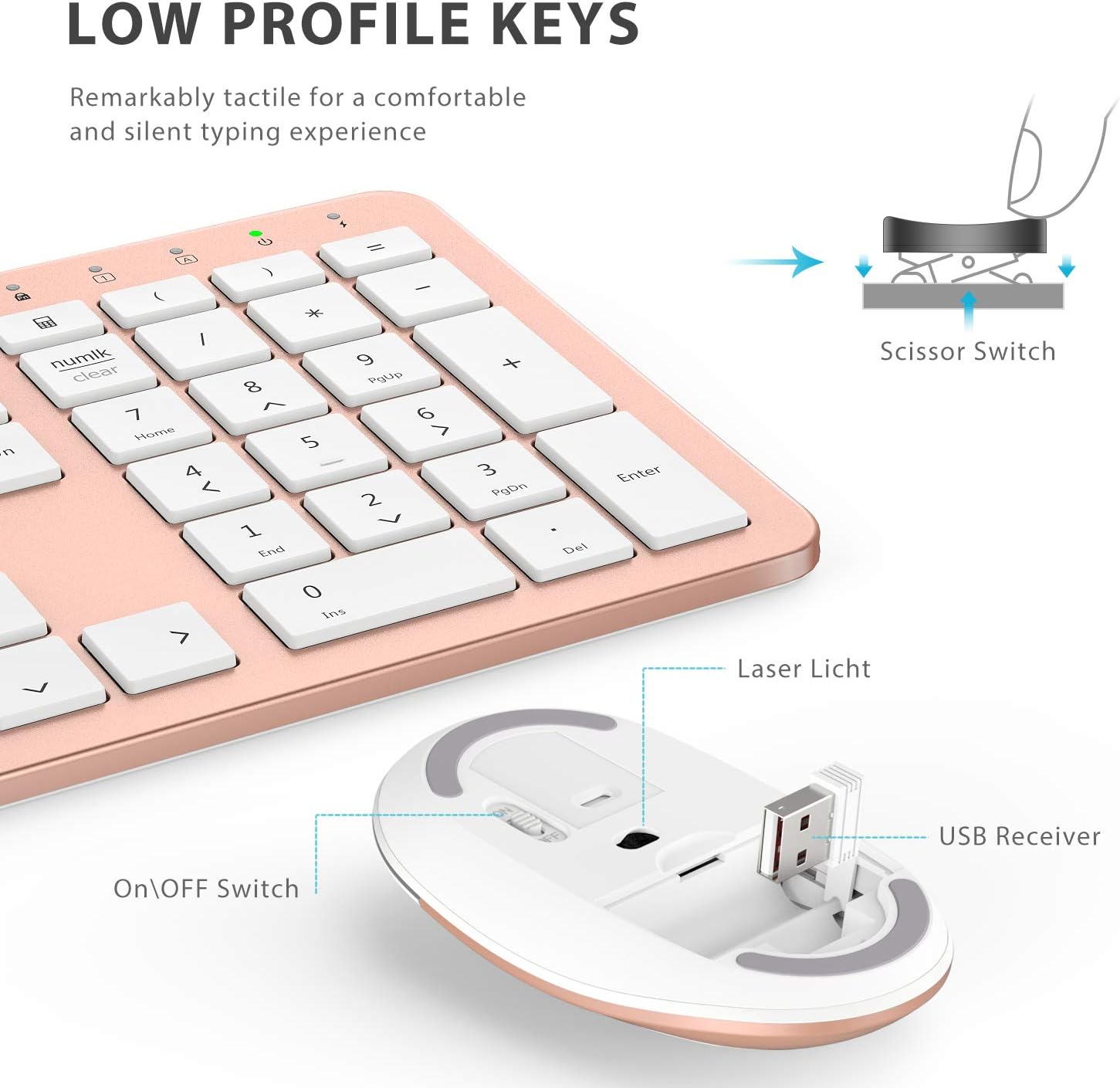
تصویر: نمای نزدیک view of the iClever mouse, highlighting the compartment where the USB nano receiver is stored for convenience.
۱.۱ بررسی سازگاری
This combo requires an available USB-A port for the nano receiver. For newer Macs with only USB-C ports, a USB-C to USB-A adapter (not included) is required. It is compatible with:
- Windows 10/11 PC & laptop
- macOS desktops / notebooks with USB-A port (e.g., iMac Retina 4K/5K, MacBook Air/Pro ≤ 2017)
- سیستم عامل کروم

Image: A visual representation emphasizing the requirement of a USB-A port for the 2.4G wireless receiver, with a note about USB-C adapters for newer devices.
4. دستورالعمل های عملیاتی
4.1 توابع صفحه کلید
- چیدمان در اندازه کامل: The keyboard features a 110-key layout with a dedicated numeric keypad for efficient data entry.
- کلیدهای قیچیشکل بیصدا: Enjoy a comfortable and quiet typing experience with low-profile keys that produce less than 50 dB of sound.
- Media Shortcuts: Access common media functions directly from the keyboard.
- Dual-Layout Compatibility: The keyboard has clearly printed Mac and PC legends.
Switching Between Mac and Windows Layouts:
- برای ویندوز: فشار دهید Fn + W to activate Win, Alt, NumLK functions.
- برای سیستم عامل مک: فشار دهید Fn + Q to activate Alt (Option), Cmd, Clear functions.

Image: The iClever GK08 keyboard displaying the dual Mac and Windows key legends, with instructions for switching between operating system layouts using the Fn key combinations.
۶.۲ عملکردهای ماوس
- کلیک بی صدا: The mouse is designed for quiet operation, minimizing distractions.
- DPI قابل تنظیم: The mouse features 3 adjustable DPI levels (800/1200/1600) to customize cursor sensitivity. Press the DPI button (usually located near the scroll wheel) to cycle through the settings.

Image: A visual demonstrating the quiet operation of the iClever mouse and the three adjustable DPI settings (800, 1200, 1600) for varied precision needs.
۵.۴ ویژگی خواب خودکار
To conserve battery life, both the keyboard and mouse will enter an auto-sleep mode after 10 minutes of inactivity. To wake them up, simply press any key on the keyboard or move the mouse.
Video: A seller-provided video demonstrating the plug-and-play functionality and long battery life of the iClever Wireless Keyboard and Mouse. This video highlights the ease of setup and extended usage between charges.
5. تعمیر و نگهداری
- تمیز کردن: استفاده از نرم، دamp cloth to clean the surfaces of the keyboard and mouse. Avoid harsh chemicals.
- پوشش گرد و غبار: Utilize the included washable dust cover to protect the keyboard from dust and spills when not in use.
- ذخیره سازی: When not in use for extended periods, turn off both devices to conserve battery. Store the USB receiver inside the mouse.
6 عیب یابی
- بدون اتصال:
- Ensure both keyboard and mouse are turned ON.
- Verify the USB nano receiver is securely plugged into a working USB-A port on your computer.
- Try plugging the receiver into a different USB-A port.
- Check if the devices are charged.
- تأخیر یا اتصال متناوب:
- Ensure the devices are within the 33 ft / 10 m operating range of the receiver.
- Avoid placing the receiver near strong interference sources (e.g., other wireless devices, large metal objects).
- Re-pair the devices by unplugging and re-plugging the receiver.
- Keyboard Not Typing Correctly (Mac/Windows):
- Ensure you have selected the correct operating system layout using Fn + W برای ویندوز یا Fn + Q برای مک
- نشانگر ماوس میپرد یا دقیق نیست:
- با استفاده از دکمه DPI روی ماوس، DPI را تنظیم کنید.
- مطمئن شوید که حسگر ماوس تمیز و عاری از هرگونه مانع است.
- از ماوس روی سطح مناسبی استفاده کنید (سطحی که بازتاب زیادی نداشته باشد یا شفاف نباشد).
7. مشخصات
| ویژگی | جزئیات |
|---|---|
| نام تجاری | iClever |
| شماره مدل | GK08 |
| رنگ | رزگلد |
| فناوری اتصال | 2.4 GHz wireless (USB-A nano receiver) |
| محدوده بی سیم | تا 33 فوت / 10 متر |
| چیدمان صفحه کلید | QWERTY, Full-size 110-key with Numpad |
| نوع کلید | Scissor Switch (Quiet typing < 50 dB) |
| منبع تغذیه | Rechargeable Lithium Ion Battery (Keyboard) |
| پورت شارژ | USB-C |
| زمان شارژ | تقریبا 2 ساعت |
| عمر باتری (کیبورد) | تا ۶۰ روز (استفاده معمول) |
| تنظیمات DPI ماوس | 800 / 1200 / 1600 DPI |
| سیستم عامل های سازگار | Windows 8/10/11, macOS, Chrome OS |
| ویژگی های خاص | Dual Mac/Windows layout, 10-min auto-sleep, Washable dust cover |
8. گارانتی و پشتیبانی
iClever products typically come with a standard manufacturer's warranty. Please refer to the warranty card included in your product packaging or visit the official iClever webبرای مشاهده شرایط و ضوابط دقیق گارانتی به سایت مراجعه کنید.
برای پشتیبانی فنی، کمک در عیبیابی یا هرگونه سوال مربوط به محصول، لطفاً از طریق خدمات رسمی مشتریان iClever با آنها تماس بگیرید. webسایت یا اطلاعات تماس ارائه شده در مستندات محصول شما.
پشتیبانی آنلاین: www.iclever.com/support