
HXSJ MIS-C8634-EN
HSXJ Wired Gaming Keyboard and Mouse Combo User Manual
Model: MIS-C8634-EN
مقدمه
ممنون از خریدتونasing the HXSJ Wired Gaming Keyboard and Mouse Combo. This high-performance combo is designed to enhance your gaming and computing experience with its ergonomic design, adjustable backlighting, and precise optical tracking. This manual provides detailed instructions for setup, operation, maintenance, and troubleshooting to ensure optimal performance and longevity of your product.
محصول تمام شده استview
The HXSJ Gaming Combo includes a wired gaming keyboard with 114 keys and a wired optical gaming mouse. Both devices feature LED backlighting for an immersive experience.
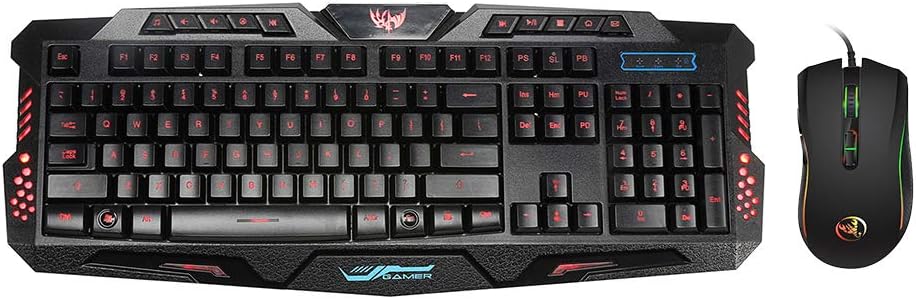
Figure 1: HXSJ Wired Gaming Keyboard and Mouse Combo. This image displays the full keyboard and the accompanying mouse, both featuring LED backlighting.
ویژگی های صفحه کلید:
- 114-key layout with dedicated multimedia keys.
- Adjustable 3-color LED backlighting (Blue, Purple, Red).
- Four levels of brightness adjustment.
- طراحی ارگونومیک برای راحتی در استفاده طولانی مدت.
- ساختار پلاستیکی بادوام.
- Wired USB 2.0 connection.
ویژگی های ماوس:
- 7 buttons: Left, Right, Scroll Wheel, DPI +, DPI -, Advance, Retreat.
- Adjustable DPI settings: 1200/1600/2400/3200dpi.
- High-end optical tracking system for precise positioning.
- Colorful LED light effect.
- طراحی ارگونومیک برای گرفتن راحت در دست.
- Wired USB 2.0 connection.
دستورالعمل های راه اندازی
Follow these steps to set up your HXSJ Gaming Keyboard and Mouse Combo:
- Unpack the keyboard and mouse from their packaging.
- یک پورت USB 2.0 موجود در رایانه خود پیدا کنید.
- رابط USB کیبورد را به پورت USB وصل کنید.
- رابط USB ماوس را به پورت USB دیگری که در دسترس است وصل کنید.
- Your operating system (Windows 7/8/10/2000/XP/Vista, Mac OS or latest) should automatically detect and install the necessary drivers. No additional software installation is typically required.
- Once drivers are installed, the keyboard and mouse are ready for use.
دستورالعمل های عملیاتی
عملکرد صفحه کلید
کنترل نور پس زمینه:
- Switching Backlight Colors: را فشار دهید FN + SL keys simultaneously to cycle through the three available backlight colors (Blue, Purple, Red).
- تنظیم روشنایی نور پس زمینه:
- را فشار دهید FN + ↑ (فلش بالا) برای افزایش روشنایی نور پس زمینه.
- را فشار دهید FN + ↓ (فلش رو به پایین) برای کاهش روشنایی نور پس زمینه.
- There are four brightness levels: High, Medium, Weak, and Off.

Figure 2: Keyboard displaying blue backlight. The image highlights the FN and SL keys, indicating their use for switching backlight colors.
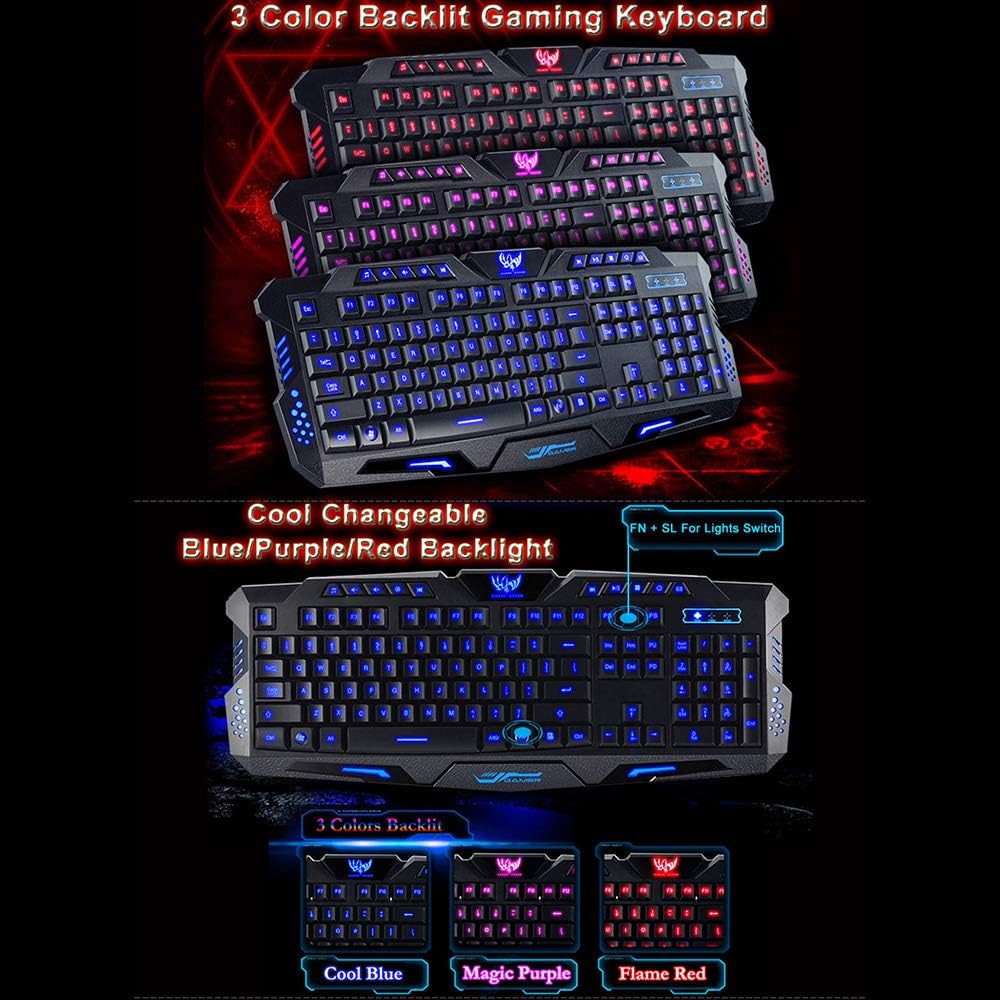
شکل 3: مثالamples of the three changeable backlight colors: Cool Blue, Magic Purple, and Flame Red.

Figure 4: Illustration of backlight brightness adjustment using FN + Up/Down arrow keys. Shows visual examples of highest, middle, low, and no light settings.

Figure 5: Visual representation of the four brightness adjustment levels: High Light, Medium Light, Weak Light, and Switch OFF.
کلیدهای چند رسانه ای:
The keyboard features 10 dedicated multimedia keys for quick access to various functions. These keys are located at the top of the keyboard.
- پخش کننده موسیقی: Open default music player.
- کاهش حجم: کاهش حجم صدا.
- افزایش صدا: افزایش حجم صدا
- بی صدا: قطع/وصل صدا.
- آهنگ قبلی: برو به آهنگ قبلی.
- آهنگ بعدی: Go to the next song.
- پخش/مکث: Play or pause current media.
- متوقف کردن: Stop current media playback.
- Web مرورگر: پیش فرض را باز کنید web مرورگر.
- ایمیل: Open default email client.

Figure 6: Keyboard displaying the layout of the multimedia function keys at the top, providing quick access to various controls.

شکل 7: دیگری view of the keyboard, emphasizing the 10 multimedia keys and their functionality for quick and easy access to media controls.
Key Design:

شکل 8: نمای نزدیک view of a key, illustrating the wide space design for precise key control.

Figure 9: Image highlighting the ergonomic design and the textured wrist rest area, designed for utmost comfort during extended use.
عملیات موس
تنظیم DPI:
The mouse features adjustable DPI (Dots Per Inch) settings, allowing you to change cursor sensitivity on the fly. This is useful for different tasks, such as precise aiming in games or faster navigation on the desktop.
- را فشار دهید DPI+ button to increase the DPI setting.
- را فشار دهید DPI- button to decrease the DPI setting.
- Available DPI settings are 1200, 1600, 2400, and 3200. The mouse's LED lighting may change to indicate the current DPI level.
تعمیر و نگهداری
Proper maintenance ensures the longevity and optimal performance of your gaming combo.
- تمیز کردن:
- برای پاک کردن سطوح کیبورد و ماوس از یک پارچه نرم و خشک استفاده کنید.
- برای کثیفیهای سرسخت، کمی dampen the cloth with water or a mild, non-abrasive cleaner. Ensure no liquid enters the device.
- Use compressed air to remove dust and debris from between keyboard keys.
- ذخیره سازی: دستگاهها را در جای خشک و خنک و دور از نور مستقیم خورشید و دمای شدید، در صورت عدم استفاده، نگهداری کنید.
- اجتناب از مایعات: Do not expose the keyboard or mouse to liquids. Spills can cause permanent damage.
- مراقبت از کابل: Avoid bending or twisting the cables excessively to prevent internal wire damage.
عیب یابی
If you encounter issues with your HXSJ Gaming Combo, refer to the following common problems and solutions:
| مشکل | علت احتمالی | راه حل |
|---|---|---|
| صفحه کلید/ماوس پاسخ نمیدهد | اتصال USB شل، پورت USB معیوب، مشکل درایور. |
|
| Backlight not working or stuck on one color | Incorrect key combination, software glitch. |
|
| نشانگر ماوس نامنظم است یا به نرمی حرکت نمیکند | حسگر نوری کثیف، سطح نامناسب پد ماوس، تنظیم نادرست DPI. |
|
مشخصات
مشخصات صفحه کلید:
| مواد | پلاستیک |
| رنگ | مشکی |
| زبان | انگلیسی / روسی |
| پشتیبانی سیستم | Windows XP, Windows 7, Windows Vista, Mac OS, Windows 8, Windows 2000, Windows 10 |
| رابط | Wired USB2.0 |
| جلد کارtage | DC 5 ولت |
| جریان عملیات | 400 میلیون پوند |
| طول کابل | 1.5 متر |
| اندازه مورد (L*W*H) | 48 * 18.5 * 2.5 cm / 18.86 * 7.27 * 0.98 in |
| وزن مورد | تقریبا 620 گرم / 21.87 اونس |
| تعداد کلیدها | 114 |
مشخصات ماوس:
| رنگ | مشکی |
| مواد | ABS |
| سیستم ردیابی | نوری |
| جلدtage Rating / Current | DC 5 ولت / 100 میلی آمپر |
| اتصال | سیمی |
| طول کابل | تقریبا 150 سانتی متر |
| بندر | USB 2.0 |
| DPI | 1200/1600/2400/3200dpi |
| زندگی را تغییر دهید | 10 میلیون چرخه |
| دکمه ها | Left, Right, Scroll Wheel, DPI +, DPI -, Advance, Retreat |
| اثر نور | ال ای دی رنگارنگ |
| سیستم پشتیبانی | Windows 7/8/10/2000/XP/Vista Mac OS or latest |
| اندازه مورد (L*W*H) | 12.7 * 7 * 4 cm / 5 * 2.76 * 1.57 in |
| وزن مورد | تقریبا 131 گرم / 4.62 اونس |
گارانتی و پشتیبانی
For warranty information or technical support, please refer to the product packaging or contact the retailer/manufacturer directly. Keep your purchase receipt for warranty claims.
Manufacturer: MIS-C8634-EN
Ask a question about this manual
Ask about setup, troubleshooting, compatibility, parts, safety, or missing instructions. Manuals+ will review the question and use this page’s manual context to help answer it.