
HUION GS2201
HUION KAMVAS 22 User Manual
Model: GS2201 | Brand: HUION
مقدمه
The HUION KAMVAS 22 is a 21.5-inch pen display designed for digital artists and creative professionals. It features a vibrant 120% sRGB color gamut, a stunning 1920x1080 FHD resolution, and an anti-glare matte film for a comfortable drawing experience. Powered by PenTech 3.0 technology, the battery-free PW517 stylus offers 8192 pressure levels and tilt response, ensuring precise and natural pen performance. This manual provides essential information for setting up, operating, maintaining, and troubleshooting your KAMVAS 22 drawing tablet.
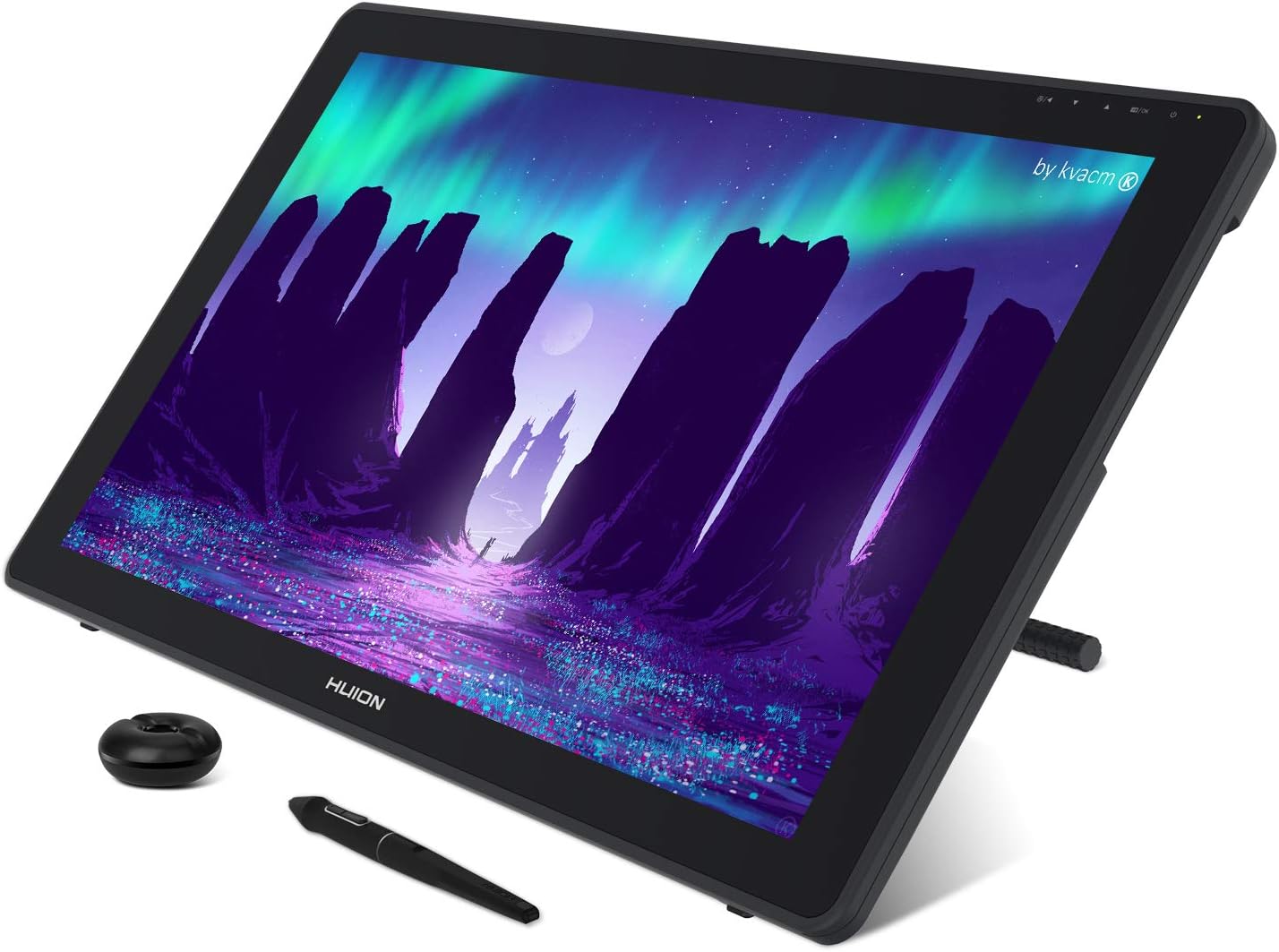
The HUION KAMVAS 22 drawing tablet with its included PW517 stylus and pen holder.
محتویات بسته
لطفاً بررسی کنید که تمام موارد زیر در بسته شما موجود باشد:
- Huion KAMVAS 22 Pen Display
- پایه قابل تنظیم
- PW517 Battery-Free Stylus
- Pen Holder (with 10 replacement Pen Nibs and a Nib Clip inside)
- کابل 3 در 1
- آداپتور برق
- دستکش
- پارچه تمیز کردن
- راهنمای شروع سریع

All items included in the HUION KAMVAS 22 retail package.
راهنمای راه اندازی
1. اتصال تبلت
The Kamvas 22 offers flexible connectivity options:
- 3-in-1 Cable Connection: Connect the 3-in-1 cable to the tablet's USB-C port, and then connect the HDMI, USB-A, and power connectors to your computer and power outlet.
- USB-C to USB-C Cable Connection (Optional): If your computer or Android device supports USB3.1 GEN1 and DP1.2, you can use a single full-featured USB-C to USB-C cable (not included) for both video and data. An extra power supply may be needed for Android devices.
The USB-A port on the tablet is designed for connecting external peripherals such as a keyboard or USB disk.

Connection methods for the HUION KAMVAS 22.
2. نصب درایور
After connecting the tablet, you will need to install the latest drivers from the official HUION website. Ensure any previous tablet drivers are uninstalled before installing the new ones to prevent conflicts. Follow the on-screen instructions during installation.
3. سازگاری
The HUION KAMVAS 22 is compatible with:
- ویندوز 7 یا بالاتر
- macOS 10.12 یا بالاتر
- Android devices that support USB3.1 GEN1 and DP1.2
It works with popular creative software such as Sketchbook, Medibang, Clip Studio, Photoshop, and Ibis Paint.

سازگاری تمام شده استview for the HUION KAMVAS 22.
دستورالعمل های عملیاتی
1. Stylus Usage (PW517)
The PW517 battery-free stylus utilizes PenTech 3.0 technology, offering enhanced stability and precision. It supports 8192 pressure levels and ±60° tilt recognition, providing a natural drawing experience. The stylus features two programmable buttons for customizable shortcuts.

Details of HUION PenTech 3.0.

Key specifications of the PW517 Stylus.
۵.۴ پایه قابل تنظیم
The included ergonomically designed stand allows you to adjust the tablet's angle from 20° to 80°, providing a comfortable working posture and improving productivity.

پایه قابل تنظیم برای بهینه viewing and drawing angles.
3. تنظیمات منوی OSD
The On-Screen Display (OSD) menu allows you to adjust various display settings such as brightness, contrast, and color temperature. Use the physical buttons on the top edge of the tablet to navigate and select options.
Video tutorial on how to set OSD (On-Screen Display) settings on Kamvas 22 and Kamvas 22 Plus. This video demonstrates navigating the menu to adjust color temperature and other display parameters.
۴. سناریوهای استفاده
The Kamvas 22 is versatile and can be used for various applications:
- Digital Art Creation: Ideal for drawing, painting, and graphic design.
- Distance Learning: Facilitates interactive online education.
- Second Monitor: Functions as a deputy screen for laptops or desktops.
- بازی: Can be connected to game consoles for an immersive experience.

Various applications and usage scenarios for the HUION KAMVAS 22.
تعمیر و نگهداری
1. Cleaning the Screen and Stylus
To maintain optimal performance and appearance, regularly clean your Kamvas 22. Use the provided cleaning cloth or a soft, lint-free cloth. For stubborn smudges, slightly dampپارچه را با آب یا پاککنندهی مخصوص صفحه نمایش تمیز کنید. از مواد شیمیایی قوی یا ساینده خودداری کنید.

The anti-glare film helps reduce reflections and provides a paper-like texture.
2. تعویض نوک
The stylus nibs will wear down with use. Replace them when they become too short or sharp to ensure smooth drawing. The pen holder contains 10 replacement nibs and a nib clip for easy removal and insertion.
عیب یابی
مسائل و راه حل های رایج:
- No Signal / Display Not Turning On:
- Ensure all cables are securely connected to both the tablet and your computer/power source.
- Verify that your computer's display settings are configured to extend or duplicate the display to the Kamvas 22.
- If using a USB-C to USB-C cable, ensure your device supports USB3.1 GEN1 and DP1.2. Try connecting the power adapter to the tablet if the single USB-C cable isn't providing enough power.
- Stylus Not Responding / Incorrect Pressure:
- Reinstall the latest drivers from the HUION webسایت
- Calibrate the stylus in the HUION driver settings.
- Check if the stylus nib is worn out and replace it if necessary.
- مشکلات سازگاری macOS:
- Some macOS versions may have compatibility issues with external USB devices. Ensure your macOS is updated and check the HUION website for specific driver updates or troubleshooting steps for your macOS version.
- Adjust security and privacy settings in macOS to allow the HUION driver to function correctly.
- Screen Scratches:
- The anti-glare film is designed to be replaceable. If scratches appear on the film, it can be replaced without damaging the underlying screen. Ensure stylus nibs are smooth and not overly sharp to prevent premature wear.
For further assistance, refer to the official HUION user guide or contact HUION customer support.
مشخصات محصول
| ویژگی | مشخصات |
|---|---|
| ابعاد محصول | 21.5 x 12.72 x 0.75 اینچ |
| وزن مورد | 8.6 پوند |
| شماره مدل مورد | GS2201 |
| نام تجاری | HUION |
| فناوری اتصال | HDMI، USB |
| حساسیت به فشار | 8192 سطح |
| سازگاری سیستم عامل | Windows 7 or later, Mac OS 10.12 or later, Android devices (USB3.1 GEN1, DP1.2 support required) |
| ویژگی خاص | 60° Tilt Support, Stylus Dock |
| مورب صفحه نمایش قابل مشاهده | 55 سانتیمتر / 22 اینچ |

Physical dimensions of the HUION KAMVAS 22.
گارانتی و پشتیبانی
For detailed warranty information, please refer to the warranty card included with your product or visit the official HUION webشرایط و ضوابط گارانتی ممکن است بر اساس منطقه متفاوت باشد.
For additional support, driver downloads, FAQs, and contact information, please visit the official HUION support page or refer to the comprehensive User Guide PDF:
You can also reach out to HUION customer service for technical assistance or product inquiries.
Ask a question about this manual
Ask about setup, troubleshooting, compatibility, parts, safety, or missing instructions. Manuals+ will review the question and use this page’s manual context to help answer it.