
دستورالعمل های ایمنی مهم
To ensure safe operation and prolong the life of your monitor, please read and follow these instructions carefully:
- قبل از تمیز کردن مانیتور، همیشه سیم برق را از پریز برق جدا کنید.
- برای جلوگیری از برق گرفتگی، مانیتور را در معرض باران یا رطوبت قرار ندهید.
- برای جلوگیری از گرمای بیش از حد، از تهویه مناسب در اطراف مانیتور اطمینان حاصل کنید. منافذ تهویه را مسدود نکنید.
- فقط از آداپتور برق و کابلهای ارائه شده توسط سازنده استفاده کنید.
- از قرار دادن اشیاء سنگین روی سیم برق یا مانیتور خودداری کنید.
- If the monitor is damaged or malfunctions, do not attempt to repair it yourself. Contact qualified service personnel.
محتویات بسته
Before proceeding with the setup, please check the contents of your package to ensure all items are present:
- Acer CB272U smiiprx LED Monitor
- پایه مانیتور (پایه و دسته)
- سیم برق
- کابل HDMI
- راهنمای شروع سریع / کارت گارانتی
راه اندازی
۱. مونتاژ پایه مانیتور
- Carefully remove the monitor from its packaging. Place the monitor face down on a soft, clean cloth or surface to prevent scratches to the screen.
- Attach the stand arm to the back of the monitor panel. Ensure it is securely fastened, typically by sliding it into place until it clicks or by tightening screws.
- Connect the stand base to the bottom of the stand arm. Secure the base by tightening the captive screw located underneath the base.

شکل 1: عقب view of the Acer CB272U smiiprx monitor with the stand attached, illustrating the assembly points.
2. Connecting the Monitor to Your Computer
- یک سر کابل HDMI ارائه شده را به پورت HDMI روی مانیتور وصل کنید.
- Connect the other end of the HDMI cable to the HDMI output port on your computer or graphics card.
- سیم برق را به ورودی برق مانیتور وصل کنید، سپس سر دیگر آن را به پریز برق دارای اتصال زمین وصل کنید.

شکل ۴.۳: عقب زاویهدار view showing the input ports of the monitor, including HDMI and power connections.
عملکرد مانیتور
روشن و خاموش کردن
Locate the power button on the monitor's bezel. Press it once to turn the monitor on. The power indicator light will illuminate. Press it again to turn the monitor off.
Adjusting Display Settings (OSD Menu)
The On-Screen Display (OSD) menu allows you to customize various monitor settings. Use the control buttons (usually located on the back or bottom right of the monitor) to navigate the OSD menu. Common adjustments include:
- روشنایی/کنتراست: روشنایی کلی و تفاوت بین نواحی روشن و تاریک را تنظیم کنید.
- تنظیمات رنگ: دمای رنگ، گاما و سطوح RGB را به صورت جداگانه تغییر دهید.
- منبع ورودی: ورودی ویدیو (مثلاً HDMI) را به صورت دستی انتخاب کنید.
- صوتی: Control volume for the built-in speakers.
تنظیمات ارگونومیک
The Acer CB272U smiiprx monitor stand offers multiple ergonomic adjustments to optimize your viewراحتی:
- تنظیم ارتفاع: مانیتور را تا سطح چشم بالا یا پایین بیاورید.
- شیب: Adjust the screen angle forward or backward to reduce glare.
- چرخش: Rotate the monitor horizontally to share your screen or adjust viewزاویه
- محور: Rotate the screen to a portrait orientation for document viewنویسی یا کدنویسی.
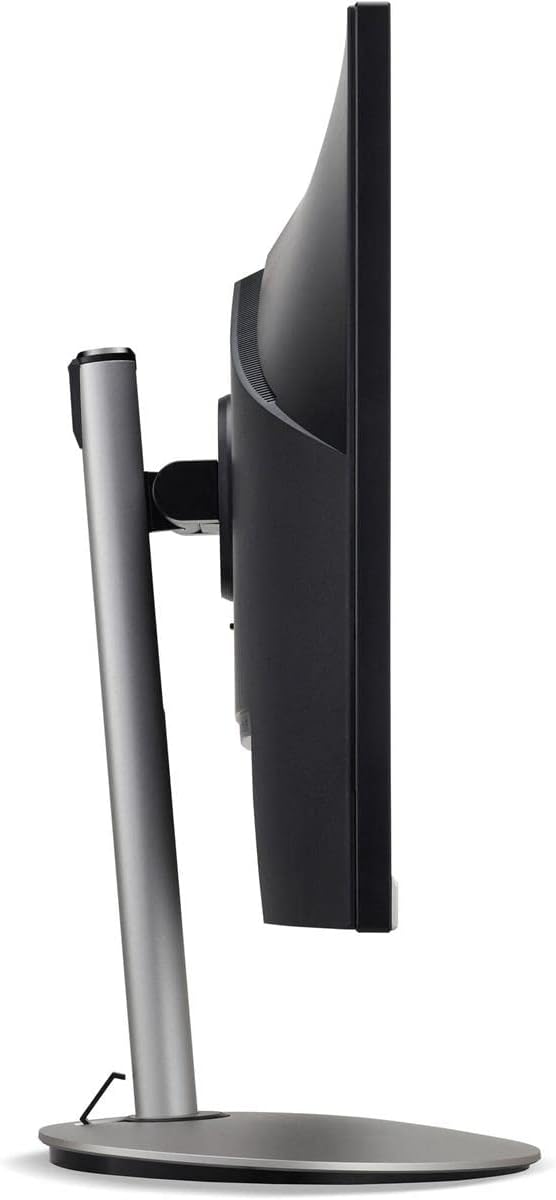
شکل ۴.۳: طرفدار جانبیfile of the monitor, illustrating its adjustable stand for ergonomic positioning.
تعمیر و نگهداری
Cleaning the Monitor Screen and Casing
To clean your monitor, first ensure it is turned off and unplugged from the power outlet. Use a soft, lint-free cloth. For stubborn marks, lightly dampen the cloth with water or a specialized non-abrasive screen cleaner. Do not spray liquid directly onto the screen or casing. از استفاده از مواد شیمیایی قوی، پاککنندههای ساینده یا حلالها خودداری کنید.
دستورالعمل های ذخیره سازی
If you need to store the monitor for an extended period, it is recommended to use its original packaging to protect it from dust, moisture, and physical damage. Store in a cool, dry environment away from direct sunlight and extreme temperatures.
عیب یابی
برای مشکلات رایج و راهحلهای آنها به جدول زیر مراجعه کنید:
| مشکل | علت احتمالی | راه حل |
|---|---|---|
| هیچ تصویری روی صفحه وجود ندارد | کابل برق قطع شده است؛ کابل ویدیو قطع شده است؛ منبع ورودی نادرست انتخاب شده است. | Check power and video cable connections; Ensure the monitor is powered on; Select the correct input source via the OSD menu. |
| تصویر تار یا تحریف شده است | Incorrect resolution setting; Faulty video cable. | Set the display resolution to 2560 x 1440 at 75 Hz; Try a different HDMI cable. |
| هیچ صدایی از بلندگوها نمی آید | Monitor volume too low or muted; Incorrect audio output selected on computer. | Adjust monitor volume via OSD; Unmute audio; Select the monitor as the audio output device in your computer's sound settings. |
| سوسو زدن مانیتور | Refresh rate mismatch; Interference; Faulty cable. | Ensure refresh rate is set to 75 Hz; Check for nearby electronic devices causing interference; Replace video cable. |
مشخصات
Key technical specifications for the Acer CB272U smiiprx LED Monitor:
| ویژگی | جزئیات |
|---|---|
| نام مدل | CB272U smiiprx |
| اندازه صفحه نمایش | 24.1 اینچ |
| وضوح بومی | 2560x1440 (WQHD) |
| نرخ تازه سازی | 75 هرتز |
| زمان پاسخگویی | 1 Millisecond (VRB) |
| نسبت تصویر | 16:9 |
| نوع نمایشگر | LED-backlit LCD / TFT active matrix (IPS) |
| روشنایی | 350 سی دی در متر مربع |
| نسبت کنتراست | 1000:1 (ایستا) |
| قابلیت اتصال | HDMI |
| همگام سازی تطبیقی | FreeSync |
| بلندگوهای داخلی | بله |
| Dimensions (WxDxH with stand) | 24.1 x 9.2 x 20.5 اینچ |
| وزن (با پایه) | 18.1 پوند |

Figure 4: Monitor dimensions with stand, indicating width, depth, and height.
اطلاعات گارانتی
The Acer CB272U smiiprx LED Monitor comes with a ۲ سال گارانتی محدود سازنده. This warranty covers defects in materials and workmanship under normal use. For complete details regarding warranty coverage, limitations, and how to make a claim, please refer to the warranty documentation included with your product or visit the official Acer support webسایت
لطفاً رسید خرید (یا فاکتور) خود را نگه دارید زیرا برای هرگونه خدمات گارانتی لازم خواهد بود.
پشتیبانی مشتری
Should you require further assistance, technical support, or wish to download the latest drivers and firmware updates for your monitor, please visit the official Acer support webسایت:
همچنین میتوانید اطلاعات تماس خدمات مشتریان ایسر در منطقه خود را در بخش پشتیبانی پیدا کنید. webسایتی برای کمکهای شخصیسازیشده.