
1. مقدمه
This manual provides instructions for the ROCCAT KONE Aimo Gaming Mouse. The KONE Aimo features an Owl-Eye Optical Sensor, customizable RGB AIMO LED illumination, and 23 programmable keys. It is designed for precision and ergonomic comfort during extended use.
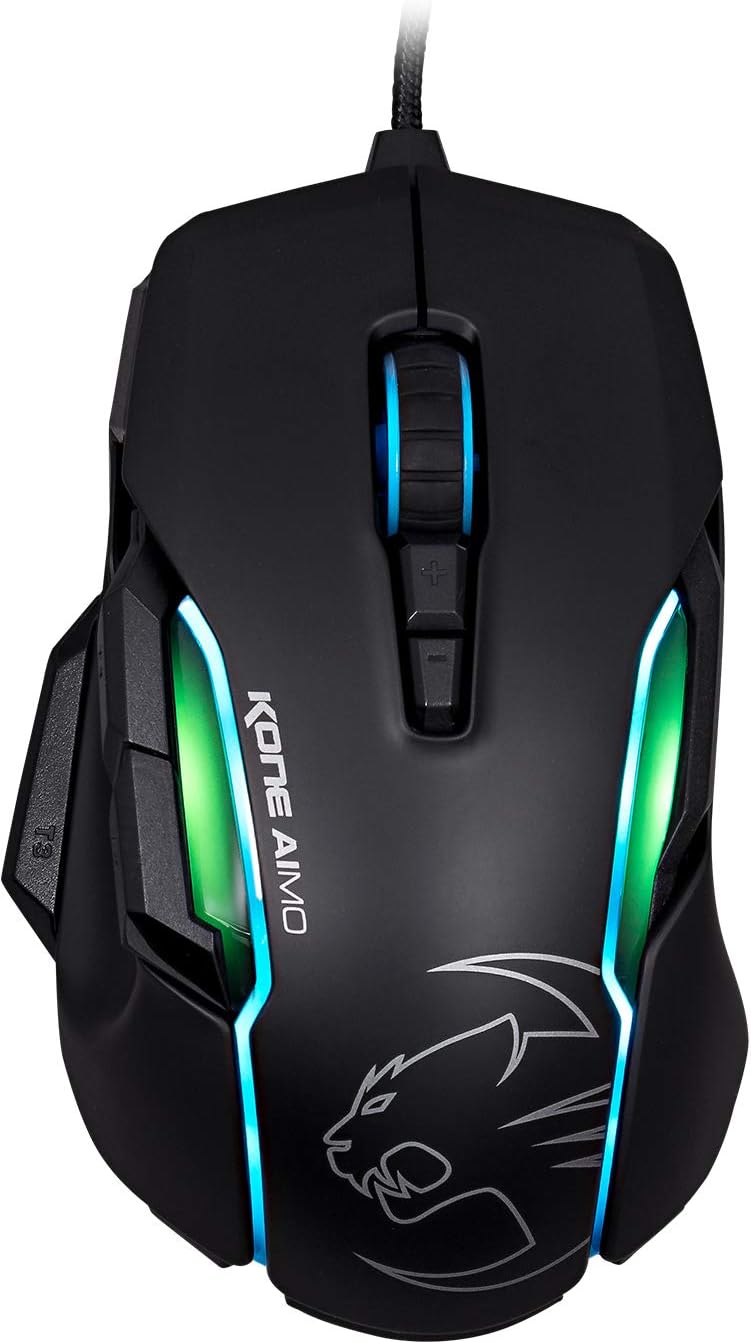
شکل 1: بالا view of the ROCCAT KONE Aimo Gaming Mouse, showcasing its ergonomic shape and RGB lighting zones.
2. محتویات بسته
بررسی کنید که آیا همه اقلام در بسته موجود است یا خیر:
- KONE AIMO Mouse with Attached Braided USB Cable
- راهنمای سریع
- ROCCAT Stickers

Figure 2: Retail packaging of the ROCCAT KONE Aimo Gaming Mouse.
3. راه اندازی
- ماوس را وصل کنید: Plug the USB cable of the ROCCAT KONE Aimo mouse into an available USB port on your computer.
- نصب درایور: Your operating system (Windows 7, 8, 8.1, 10) should automatically detect and install the necessary drivers.
- نرمافزار ROCCAT Swarm را نصب کنید: For full customization of DPI settings, button assignments, and AIMO lighting, download and install the ROCCAT Swarm software from the official ROCCAT website. This software allows you to create and manage profiles.

Figure 3: The ROCCAT KONE Aimo mouse in use on a mouse pad, connected to a computer.
4. دستورالعمل های عملیاتی
4.1. توابع دکمه
The KONE Aimo features 23 programmable keys, including a tri-button thumb zone and a 4D tilting Titan wheel. These can be customized via the ROCCAT Swarm software.
- کلیک چپ/راست: عملکردهای استاندارد ماوس
- Scroll Wheel (4D Titan Wheel): Scrolls vertically and can tilt horizontally for additional functions. Also acts as a clickable button.
- دکمههای تنظیم DPI: Located above and below the scroll wheel, these buttons allow for on-the-fly DPI sensitivity changes. Settings are configured in the Swarm software.
- Thumb Buttons (T1, T2, T3): Three buttons located on the left side, easily accessible by the thumb. The bottom-most button (T3) is often defaulted to the Easy-Shift[+] function.
- Easy-Shift[+] Button: This exclusive ROCCAT feature doubles the number of programmable functions for other buttons when held down, effectively expanding the total programmable keys.

شکل 4: با جزئیات view of the programmable thumb buttons (T1, T2, T3) on the left side of the mouse.
4.2. AIMO Lighting System
The AIMO lighting system provides intelligent, reactive RGB illumination across four independently configurable LED light zones and the glowing mouse wheel. It can synchronize with other compatible ROCCAT devices and is programmable through the ROCCAT Swarm software.

Figure 5: The KONE Aimo mouse displaying its multi-zone RGB AIMO illumination.
4.3. Owl-Eye Optical Sensor
The mouse is equipped with the ROCCAT Owl-Eye Optical Sensor, a modified PixArt 3361 sensor, offering adjustable DPI from 100 to 12,000. This sensor provides precise tracking and responsiveness. A built-in tracking distance control unit monitors the lift-off distance for enhanced accuracy.

Figure 6: The bottom of the mouse, highlighting the Owl-Eye Optical Sensor.
4.4. ارگونومی
The KONE Aimo features refined ergonomics designed for comfort during extended use. Its shape provides a natural fit for the hand, with a dedicated thumb rest area.

Figure 7: A hand gripping the KONE Aimo mouse, illustrating its ergonomic design.
5. تعمیر و نگهداری
- تمیز کردن: برای تمیز کردن سطح ماوس از یک پارچه نرم و خشک استفاده کنید. برای آلودگیهای سرسخت، کمی ...amp میتوان از پارچه استفاده کرد، و مطمئن شد که هیچ رطوبتی وارد اجزای داخلی نمیشود.
- مراقبت از سنسور: Keep the optical sensor on the underside of the mouse clean and free of dust or debris to ensure optimal tracking performance.
- مدیریت کابل: برای جلوگیری از آسیب، از خم شدن شدید یا کشیدن بیش از حد کابل USB بافته شده خودداری کنید.
6 عیب یابی
- ماوس پاسخ نمیدهد:
- مطمئن شوید که کابل USB به طور ایمن به یک پورت USB فعال وصل شده است.
- Try a different USB port or another computer to rule out port or system issues.
- کامپیوتر خود را مجددا راه اندازی کنید.
- Tracking Issues / Inaccurate Movement:
- حسگر نوری در پایین ماوس را تمیز کنید.
- Ensure you are using the mouse on a clean, suitable mouse pad or surface.
- Check DPI settings in the ROCCAT Swarm software.
- نورپردازی RGB کار نمیکند/نادرست است:
- تأیید کنید که نرمافزار ROCCAT Swarm در حال اجرا و بهروزرسانی است.
- تنظیمات روشنایی را در نرمافزار Swarm بررسی کنید.
- Ensure no conflicting software is controlling RGB lighting.
- دکمهها کار نمیکنند:
- Check button assignments in the ROCCAT Swarm software.
- Ensure the software is not experiencing issues (try restarting it).
7. مشخصات
| ویژگی | جزئیات |
|---|---|
| نام تجاری | ROCCAT |
| شماره مدل | ROC-11-815-BK |
| سنسور | Owl-Eye Optical Sensor (modified PixArt 3361) |
| محدوده دقت (DPI) | 100 to 12,000 DPI |
| دکمه های قابل برنامه ریزی | ۲۹ (با Easy-Shift[+]) |
| روشنایی | RGBA AIMO LED Illumination (4 independent zones + scroll wheel) |
| قابلیت اتصال | USB (سیمی) |
| سازگاری سیستم عامل | Windows 7, Windows 8, Windows 8.1, Windows 10 (32-bit and 64-bit versions) |
| وزن مورد | 11.2 اونس (تقریباً 317.5 گرم) |
| ابعاد محصول (LxWxH) | 5.12 x 2.95 x 1.57 اینچ (تقریباً 13 x 7.5 x 4 سانتیمتر) |
8. ضمانت و پشتیبانی
For warranty information, technical support, and additional resources, please visit the official ROCCAT webبه سایت مراجعه کنید یا با خدمات مشتریان ROCCAT تماس بگیرید. فاکتور خرید خود را برای موارد گارانتی نگه دارید.
شما همچنین می توانید بازدید کنید فروشگاه ROCCAT در آمازون برای اطلاعات بیشتر محصول