
Zebra ET55AE-W22E
دفترچه راهنمای تبلت زبرا ET55AE-W22E ET55 8.3 اینچی
Model: ET55AE-W22E
مقدمه
This manual provides essential instructions for the proper setup, operation, and maintenance of your Zebra ET55AE-W22E ET55 8.3" Tablet. Please read this manual thoroughly before using the device to ensure optimal performance and longevity.
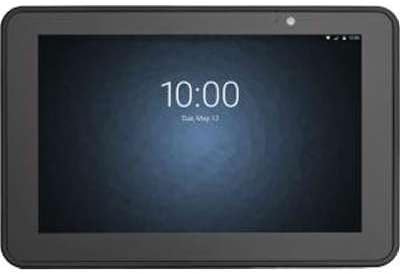
تصویر: جلو view of the Zebra ET55AE-W22E ET55 8.3" Tablet. The screen displays the time "10:00" and the date "Tue, May 12". The tablet has a dark gray bezel and a front-facing camera visible at the top center.
محتویات بسته
Upon unpacking, verify that all items are present and undamaged. The standard package for the Zebra ET55AE-W22E includes:
- Zebra ET55AE-W22E ET55 8.3" Tablet unit
- (Additional accessories such as power adapter, USB cable, and documentation may be sold separately or included depending on region/bundle.)
راه اندازی
۱. شارژ اولیه
Before first use, fully charge the tablet's battery. Connect the appropriate power adapter (not included with all models) to the tablet's charging port and then to a power outlet. The charging indicator will typically illuminate during this process.
2. روشن/خاموش کردن
- روشن کردن: دکمه پاور (روشن/خاموش) که در کنار تبلت قرار دارد را فشار داده و نگه دارید تا صفحه نمایش روشن شود.
- برای خاموش کردن: Press and hold the Power button, then select "Shut down" from the options that appear on the screen.
3. Initial Configuration (Windows 8.1)
Upon first power-on, the tablet will guide you through the Windows 8.1 setup process. This includes:
- انتخاب زبان و منطقه شما.
- پذیرش شرایط مجوز.
- Connecting to a Wi-Fi network (if available).
- ایجاد یا ورود به سیستم با حساب مایکروسافت.
- Setting up basic privacy and security settings.
دستورالعمل های عملیاتی
Navigating Windows 8.1
The Zebra ET55AE-W22E runs on Windows 8.1, optimized for touch interaction. Key navigation elements include:
- صفحه اغازین: Swipe in from the right edge of the screen or press the Windows button to access the Start screen with live tiles.
- Charms Bar: Swipe in from the right edge of the screen to access the Charms bar (Search, Share, Start, Devices, Settings).
- تعویض برنامه: Swipe in from the left edge to switch between open applications.
- دسکتاپ: Tap the Desktop tile on the Start screen to access the traditional Windows desktop environment.
اتصال به شبکه ها
- وای فای: Access the Charms bar, select تنظیمات, then click the Wi-Fi icon to view available networks. Select your desired network and enter the password if prompted.
- بلوتوث: Access the Charms bar, select تنظیمات، سپس تنظیمات کامپیوتر را تغییر دهید، و پیمایش کنید PC and devices > Bluetooth. Turn Bluetooth on and pair with desired devices.
- WAN (Wireless Area Network): This model supports WAN connectivity. Insert your SIM card (if applicable and provided by your service provider) into the designated slot. Follow on-screen prompts or consult your service provider for configuration details.
با استفاده از دوربین
The tablet is equipped with a camera. To use it, locate and tap the Camera application icon on the Start screen or Desktop. Follow the on-screen instructions to capture photos or record videos.
تعمیر و نگهداری
تمیز کردن دستگاه
- برای تمیز کردن صفحه نمایش و قسمت بیرونی آن از یک پارچه نرم و بدون پرز استفاده کنید.
- برای علائم سرسخت، کمی dampپارچه را با آب یا محلول تمیزکننده صفحه نمایش بپوشانید.
- از استفاده مستقیم مواد شیمیایی قوی، پاککنندههای ساینده یا اسپریهای آئروسل روی دستگاه خودداری کنید.
مراقبت از باتری
- از قرار دادن تبلت در معرض دمای شدید خودداری کنید.
- برای عمر بهینه باتری، از تخلیه کامل و مکرر باتری خودداری کنید.
- اگر قرار است دستگاه برای مدت طولانی استفاده نشود، قبل از انبار کردن، آن را تقریباً تا ۵۰٪ شارژ کنید.
به روز رسانی نرم افزار
Regularly check for and install Windows 8.1 updates to ensure system stability, security, and performance. Access Settings > Change PC settings > Update and recovery > Windows Update.
عیب یابی
| مشکل | راه حل ممکن |
|---|---|
| دستگاه روشن نمی شود. | Ensure the battery is charged. Connect the tablet to a power source and attempt to power on after a few minutes. |
| نمی توان به وای فای متصل شد. | Verify Wi-Fi is enabled in settings. Check if the network password is correct. Restart the tablet and the Wi-Fi router. |
| صفحه نمایش پاسخ نمی دهد. | Perform a soft reset by holding the power button until the device restarts. Ensure the screen is clean and free of debris. |
| برنامهها کند یا از کار میافتند. | Close unnecessary applications. Check for and install system updates. Consider uninstalling recently installed applications that may be causing issues. |
مشخصات
| ویژگی | جزئیات |
|---|---|
| مدل | Zebra ET55AE-W22E |
| اندازه صفحه نمایش | 8.3 اینچ |
| وضوح صفحه نمایش | 1920 x 1080 پیکسل |
| RAM | 4 گیگابایت |
| ذخیره سازی حافظه | 64 گیگابایت فلش |
| سیستم عامل | ویندوز 8.1 |
| نام تجاری پردازنده | اینتل |
| نوع بی سیم | Bluetooth, WAN |
| وزن مورد | 2 پوند |
| ابعاد محصول (LxWxH) | 1 x 1 x 1 اینچ |
گارانتی و پشتیبانی
For information regarding warranty coverage, technical support, or service, please refer to the official Zebra webبه سایت مراجعه کنید یا با بخش خدمات مشتریان آنها تماس بگیرید. شرایط گارانتی خاص ممکن است بر اساس منطقه و تاریخ خرید متفاوت باشد.
پشتیبانی آنلاین: Visit the official Zebra support portal for drivers, FAQs, and additional documentation.
اطلاعات تماس: Refer to your product packaging or the Zebra website for current contact details for technical assistance.