
1. محصول تمام شدview
The TP-Link TL-WA750RE is a 150Mbps Universal Wireless Range Extender designed to expand the coverage of an existing wireless network. It eliminates Wi-Fi dead zones by boosting the wireless signal to previously unreachable or hard-to-wire areas. Its compact, wall-mounted design allows for flexible deployment and easy relocation within your home or office.
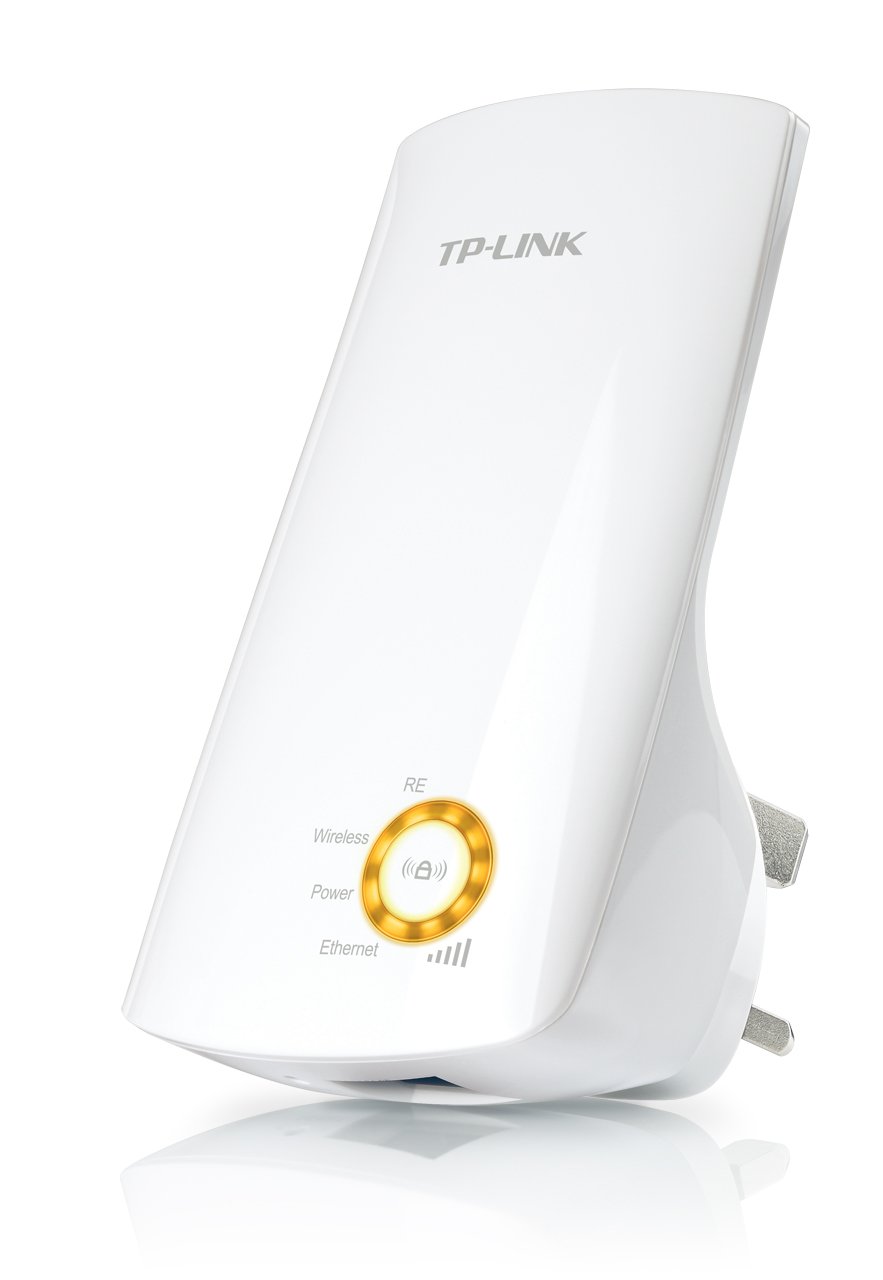
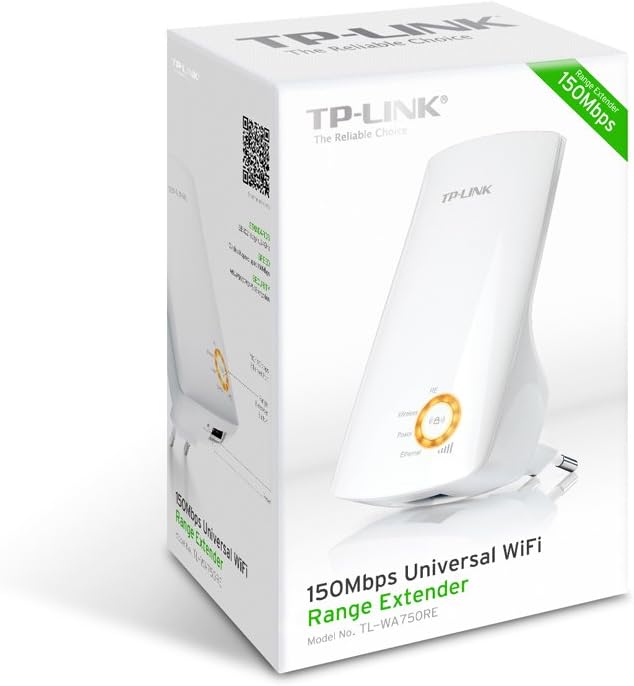
شکل 1: TP-Link TL-WA750RE Universal Wireless Range Extender. This image shows the device in its retail packaging, highlighting its compact design and wall-plug form factor.
2. ویژگی های کلیدی
- حالت گسترش دهنده محدوده: Boosts wireless signal to eliminate Wi-Fi dead zones and extend network coverage.
- طراحی فشرده: Small size and wall-mounted design for easy deployment and flexible movement.
- دکمه WPS: Allows for instant setup and secure connection with compatible routers.
- نشانگر سیگنال هوشمند: Helps users find the optimal location for placing the range extender for best performance.
- سازگاری جهانی: Works seamlessly with all 802.11n/g/b wireless devices.
3. محتویات بسته
بسته محصول معمولاً شامل موارد زیر است:
- TP-Link TL-WA750RE 150Mbps Universal Wireless Range Extender
- راهنمای دستورالعمل
4. راهنمای راه اندازی
۳.۱. راهاندازی سریع با استفاده از دکمه WPS
- وصل کردن: Plug the TL-WA750RE into an electrical outlet near your wireless router.
- فعال کردن WPS روی روتر: Press the WPS button on your main wireless router. Refer to your router's manual for the exact location and procedure.
- فعال کردن WPS روی اکستندر: Within two minutes, press the WPS button on the TL-WA750RE. The Signal LED on the extender should begin to flash.
- منتظر اتصال باشید: The Signal LED will turn solid blue or green when a successful connection is established.
- تغییر مکان توسعه دهنده: Unplug the extender and move it to a location between your router and the Wi-Fi dead zone. Ensure the Signal LED indicates a strong connection (e.g., solid blue or green) in the new location.
4.2. Manual Setup via Web مرورگر
- وصل کردن: Plug the TL-WA750RE into an electrical outlet near your computer.
- اتصال به توسعه دهنده: Connect your computer to the extender's Wi-Fi network (e.g., "TP-LINK_Extender_XXXXXX"). No password is required initially.
- دسترسی داشته باشید Web رابط کاربری: a را باز کنید web مرورگر و تایپ کنید http://tplinkrepeater.net or the extender's default IP address (usually 192.168.0.254) into the address bar.
- ورود به سیستم: وقتی از شما خواسته شد، برای نام کاربری و رمز عبور، «admin» را وارد کنید.
- دستورالعمل های روی صفحه را دنبال کنید: Use the Quick Setup wizard to select your main Wi-Fi network and enter its password.
- تغییر مکان توسعه دهنده: Once configured, unplug the extender and move it to an optimal location between your router and the desired coverage area.
شکل 2: سمت view of the TL-WA750RE. This image illustrates the physical layout of the device, including the WPS button and Ethernet port, which are crucial for setup and operation.
۵. کار با افزایشدهنده برد
Once the TL-WA750RE is successfully set up, it will automatically extend your existing Wi-Fi network. Devices within the extended range can connect to the network name created by the extender (e.g., "YourNetworkName_EXT").
5.1. Smart Signal Indicator
The Smart Signal Indicator LEDs on the front of the device provide real-time feedback on the signal strength received from your main router. This helps you determine the best placement for the extender:
- آبی/سبز یکدست: Excellent signal strength.
- قرمز جامد: Weak signal strength. Consider relocating the extender closer to your router.
- خاموش: No connection to the main router.
5.2. Ethernet Port Usage
The TL-WA750RE includes an Ethernet port. This port can be used to connect a wired device, such as a desktop computer, gaming console, or smart TV, to your wireless network, providing a stable wired connection in the extended Wi-Fi area.
6. تعمیر و نگهداری
- تمیز کردن: برای تمیز کردن دستگاه از یک پارچه نرم و خشک استفاده کنید. از پاک کننده های مایع یا آئروسل استفاده نکنید.
- قرار دادن: Avoid placing the extender in direct sunlight, near heat sources, or in areas with high humidity.
- به روز رسانی سیستم عامل: به صورت دورهای، نمایندگی رسمی TP-Link را بررسی کنید webسایتی برای بهروزرسانیهای میانافزار جهت تضمین عملکرد و امنیت بهینه.
- چرخه قدرت: If the device experiences issues, try unplugging it from the power outlet for 10 seconds and then plugging it back in.
7 عیب یابی
- Q1: What should I do if I cannot access the extender's web صفحه مدیریت؟
- A1: Ensure your computer is connected to the extender's network. Verify that http://tplinkrepeater.net is correctly typed in the browser. If issues persist, try using the extender's IP address (e.g., 192.168.0.254) or reset the extender to factory defaults.
- Q2: My extended network has poor signal or frequent disconnections.
- A2: Check the Smart Signal Indicator on the extender. If it's red or off, the extender is too far from your main router. Relocate the extender to a position where the indicator shows a strong signal (solid blue/green). Ensure there are no major obstructions between the router and the extender.
- Q3: How do I reset the extender to factory default settings?
- A3: With the extender powered on, use a pin to press and hold the Reset button (usually a small hole) for approximately 5-10 seconds until all LEDs flash briefly. The extender will then restart with factory default settings.
8. مشخصات
| نام تجاری | تی پی لینک |
| شماره مدل | TL-WA750RE |
| استاندارد بی سیم | 802.11b/g/n |
| نرخ انتقال داده | 150 مگابیت بر ثانیه |
| فرکانس | 2.4 گیگاهرتز |
| ویژگی های خاص | Smart Signal Indicator, WPS Button |
| نوع رابط | RJ45 (پورت اترنت) |
| وزن مورد | 0.4 پوند |
| رنگ | سفید |
9. گارانتی و پشتیبانی
9.1. اطلاعات گارانتی
This TP-Link TL-WA750RE device comes with a 2 سال گارانتی از تاریخ خرید. لطفاً فاکتور خرید خود را برای موارد گارانتی نگه دارید. گارانتی شامل نقص در مواد و ساخت در شرایط استفاده عادی میشود.
9.2. پشتیبانی فنی
برای کمک فنی، عیبیابی یا سوالات بیشتر، لطفاً از پشتیبانی رسمی TP-Link دیدن کنید webسایت یا با خدمات مشتریان آنها تماس بگیرید. میتوانید منابع پشتیبانی دقیق، سوالات متداول و اطلاعات تماس را در اینجا پیدا کنید. www.tp-link.com/support.