1. محصول تمام شدview
The Brother MFC-J430W is a compact, wireless all-in-one inkjet printer designed for home or small office use. It integrates printing, scanning, copying, and faxing capabilities into a single device. Its wireless networking feature helps reduce cable clutter, allowing for flexible placement.
ویژگی های کلیدی عبارتند از:
- Wireless connectivity for easy setup and shared use.
- Fast printing speeds: up to 10 pages per minute in black, 8 in color (ISO standard).
- 20-sheet automatic document feeder (ADF) for efficient multi-page scanning, copying, and faxing.
- 1.9-inch color screen for previewعکس گرفتن و پیمایش منوها.
- High-resolution printing up to 6000 x 1200 dpi for professional-quality output.
- Energy Star compliant design for energy efficiency.
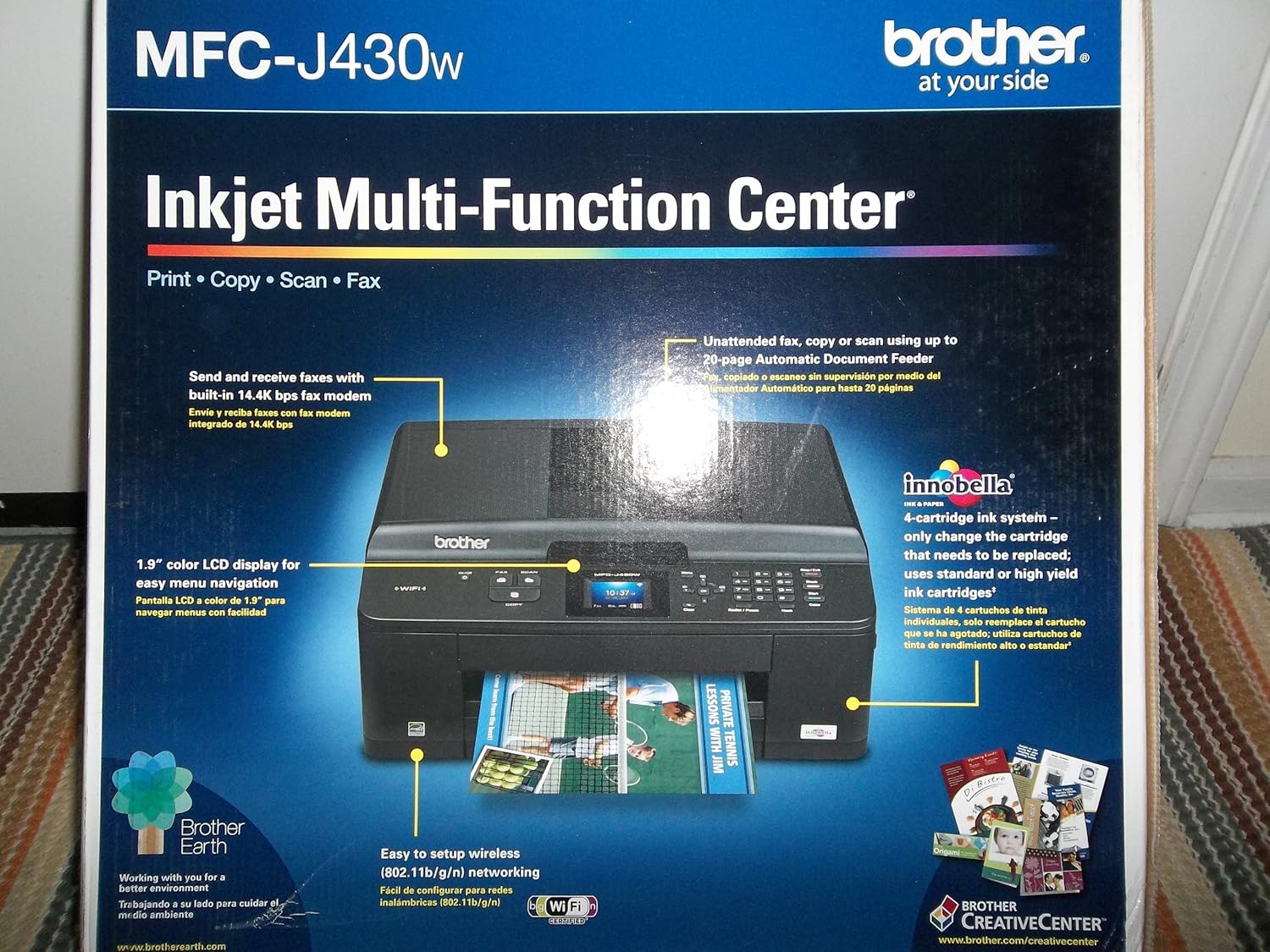
شکل 1.1: جلو view of the Brother MFC-J430W packaging, highlighting key features like wireless connectivity and the 1.9-inch color LCD.
2. راهنمای راه اندازی
۴.۱ باز کردن بستهبندی و جایگذاری اولیه
Carefully remove the printer from its packaging. Ensure all protective tapes and packing materials are removed from the exterior and interior of the device. Place the printer on a stable, flat surface with adequate space for paper trays and cable connections.
2.2 اتصال برق
Connect the power cord to the printer and then to a grounded electrical outlet. Do not connect the USB cable yet if you plan to use a USB connection.
۳.۲ نصب کارتریج جوهر
Open the ink cartridge cover and install the included ink cartridges into their corresponding slots. Ensure each cartridge clicks into place. The MFC-J430W uses separate ink cartridges for each color (Black, Cyan, Magenta, Yellow).
2.4 بارگذاری کاغذ
Open the paper tray and load paper. The printer supports various paper sizes including Letter, Legal, Executive, A4, and photo sizes (4"x6", 3.5"x5", 5"x7", 5"x8", 8"x10"). Ensure the paper guides are adjusted to fit the paper size snugly.
۲.۴ نصب نرمافزار و درایور
For wireless setup, follow the on-screen instructions on the printer's 1.9-inch color LCD. For a wired connection, connect the USB cable to the printer's USB port, which is located under the scanner bed. Install the printer drivers and software from the provided CD-ROM or download the latest versions from the official Brother support website. The printer supports Windows and Mac operating systems.

شکل 2.1: عقب view of the Brother MFC-J430W packaging, detailing system requirements and wireless networking capabilities.
3. دستورالعمل های عملیاتی
3.1 چاپ
To print a document or photo, select the print option from your computer's application. Choose the Brother MFC-J430W as your printer and adjust settings such as paper size, print quality, and color options as needed. The printer supports both black and white and color printing.
۵.۳ کپی کردن
Place the document face down on the scanner glass or face up in the Automatic Document Feeder (ADF). Use the printer's control panel to select the "Copy" function. You can adjust settings like number of copies, zoom, and quality before initiating the copy process. The ADF can handle up to 20 sheets for unattended copying.
3.3 اسکن
Documents can be scanned using either the flatbed scanner or the ADF. Select the "Scan" function from the printer's control panel or initiate a scan from your computer using the installed software. Scanned documents can be saved to your computer as various file types, including PDF.
۳.۵ فکس
The MFC-J430W includes a built-in 14.4K bps fax modem. To send a fax, place the document on the scanner glass or in the ADF. Enter the recipient's fax number using the control panel and press the "Fax" button. Ensure your phone line is connected to the printer's LINE jack.
4. تعمیر و نگهداری
۵.۱ تعویض کارتریجهای جوهر
When an ink cartridge is low or empty, a message will appear on the printer's display. To replace, open the ink cartridge cover, press the release lever for the empty cartridge, and remove it. Insert a new genuine Brother ink cartridge firmly until it clicks into place. Close the cover.
۶.۱ تمیز کردن هد چاپ
If print quality deteriorates (e.g., missing lines, streaky prints), the print head may need cleaning. Access the cleaning utility through the printer's control panel menu or the printer driver on your computer. Perform a nozzle check first to confirm the issue, then run the cleaning cycle. Multiple cleaning cycles may be required for severe clogs.
4.3 Cleaning the Scanner Glass and ADF
Regularly clean the scanner glass and the white plastic strip under the ADF cover with a soft, lint-free cloth dampened with a mild glass cleaner. This prevents streaks and smudges on scanned or copied documents.
5 عیب یابی
۵.۲ چاپگر پاسخ نمیدهد
- مطمئن شوید که چاپگر روشن است و به کامپیوتر یا شبکه متصل است.
- Check for any error messages on the printer's display.
- Verify that the correct printer is selected in your computer's print dialog.
- هم چاپگر و هم رایانه خود را مجدداً راه اندازی کنید.
5.2 Print Quality Issues (Streaks, Faded Prints)
- سطح جوهر را بررسی کنید و کارتریجهای کم یا خالی را تعویض کنید.
- Perform a print head cleaning cycle (refer to Section 4.2).
- مطمئن شوید که از کاغذ مناسب برای تنظیمات چاپ خود استفاده میکنید.
5.3 گیر کردن کاغذ
- چاپگر را خاموش کنید و آن را از برق بکشید.
- با دقت تمام درپوشها را باز کنید و هرگونه کاغذ گیر کرده را خارج کنید و آن را در جهت مسیر کاغذ بکشید.
- مطمئن شوید که هیچ تکه کاغذ کوچکی داخل آن باقی نمانده باشد.
- تمام درپوشها را ببندید، چاپگر را به برق وصل کنید و روشن کنید.
۵.۱ کارتریج جوهر شناسایی نمیشود
If the printer displays a message indicating an ink cartridge cannot be read, first ensure the cartridge is correctly installed. Remove and reinsert the cartridge firmly. If the issue persists, try a new genuine Brother cartridge. Ensure the cartridge is not expired or damaged.
۷.۳ مشکلات اتصال بیسیم
- مطمئن شوید که روتر وایفای شما روشن است و به درستی کار میکند.
- مطمئن شوید که چاپگر در محدوده روتر بیسیم شما قرار دارد.
- Re-enter your Wi-Fi network password on the printer's control panel.
- Consult your router's manual for network settings or interference issues.
6. مشخصات
| ویژگی | مشخصات |
|---|---|
| نام مدل | MFC-J430W |
| فناوری چاپ | جوهر افشان |
| توابع | پرینت، کپی، اسکن، فکس |
| قابلیت اتصال | Wi-Fi, Micro USB 2.0 Type AB |
| حداکثر سرعت چاپ (مشکی) | 33 ppm (تک رنگ) |
| حداکثر سرعت چاپ (رنگی) | 26 ppm (Color) |
| وضوح چاپ | حداکثر 6000 1200 XNUMX نقطه در اینچ |
| تغذیه خودکار اسناد (ADF) | 20 برگ |
| نمایش | ال سی دی رنگی ۲.۷ اینچی |
| Paper Handling Size | Letter, Legal, Executive, Envelope, A4, Photo (various sizes) |
| ظرفیت ورق ورودی | 15 sheets (Max Input) |
| وزن مورد | 19.8 پوند |
| ابعاد محصول | 14.9 x 7.1 x 15.9 اینچ |
| ظرفیت ذخیره سازی حافظه | 40 مگابایت |
| مصرف برق | ۶۷ وات (حداکثر) |
7. گارانتی و پشتیبانی
The Brother MFC-J430W comes with a Limited Warranty. For specific warranty terms and conditions, please refer to the documentation included with your product or visit the official Brother support webسایت
For technical assistance, driver downloads, and frequently asked questions, please visit the پشتیبانی برادر Webسایت. You may also contact Brother customer service for further assistance.
در حال حاضر هیچ ویدیوی رسمی از محصول فروشنده برای این مدل در دسترس نیست.