
Introducción
The VIOS Smart TV LED 32-inch, Model VI-32T232, is designed to provide a comprehensive entertainment experience. This television features a high-quality LED display with Full HD resolution (1920x1080 pixels), ensuring clear and detailed visuals. Powered by the Android operating system, it offers seamless access to a wide array of popular applications and streaming services. With integrated WiFi, connecting to your home network is straightforward and cable-free. Multiple HDMI and USB ports provide versatile options for connecting external devices such as gaming consoles, media players, and storage devices. Its sleek black design integrates effortlessly into any living space, offering both functionality and a modern aesthetic.

Imagen: Frente view of the VIOS Smart TV, Model VI-32T232, displaying a dynamic blue wave image. This illustrates the display quality and design.
1. Configuración
1.1 Desembalaje e inspección inicial
Carefully remove the television from its packaging. Inspect the TV and all accessories for any signs of damage. Keep the packaging materials for future transport or if service is required.
1.2 Fijación del soporte
Place the TV screen-down on a soft, flat surface to prevent scratches. Align the TV stands with the designated slots on the bottom of the television. Secure them using the provided screws. Ensure the stands are firmly attached before placing the TV upright.
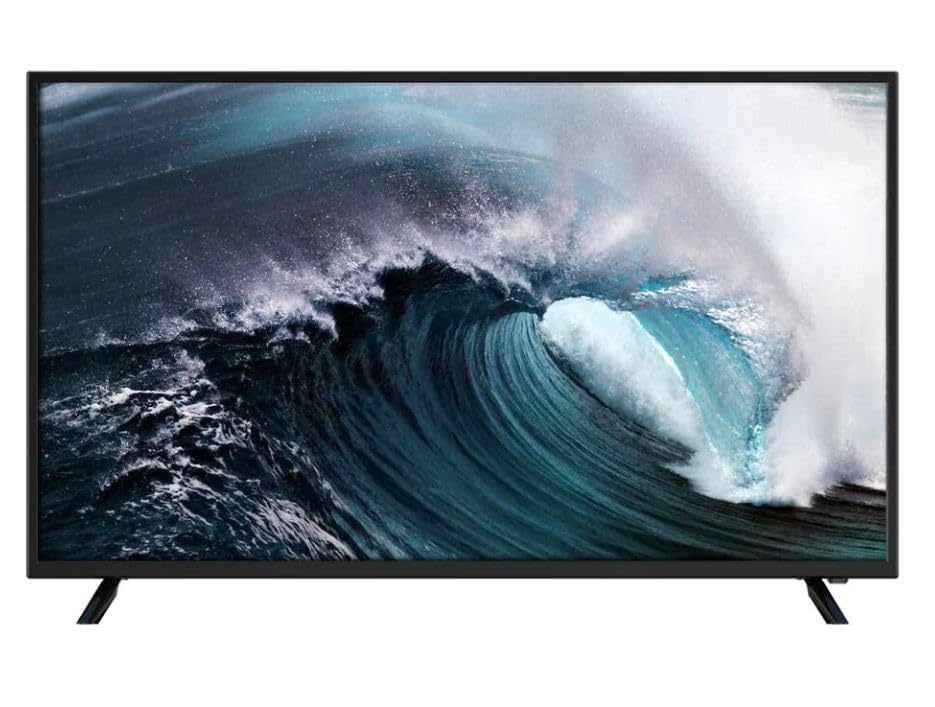
Imagen: Frente view of the VIOS Smart TV, Model VI-32T232, with its two stands securely attached, displaying a vibrant red background. This shows the TV ready for placement.
1.3 Conexión de la alimentación
Connect the power cord to the TV's power input, then plug the other end into a standard electrical outlet. The TV will enter standby mode.
1.4 Conexión de dispositivos externos
The VIOS Smart TV is equipped with multiple ports for various devices:
- Puertos HDMI: Conecte reproductores de Blu-ray, consolas de juegos, decodificadores de cable/satélite u otros dispositivos habilitados para HDMI.
- Puertos USB: Connect USB flash drives for media playback or external hard drives.
- Entrada de antena/cable: Conecte una antena para transmisiones por aire o una conexión por cable.

Imagen: Trasera view of the VIOS Smart TV, Model VI-32T232, highlighting the arrangement of input ports (HDMI, USB, Antenna) and VESA mounting holes for wall installation. This provides a clear view of connectivity options.
1.5 Asistente de configuración inicial
Al encenderlo por primera vez, el televisor lo guiará a través de un proceso de configuración inicial:
- Selección de idioma: Elija su idioma preferido.
- Conexión de red: Conéctese a su red Wi-Fi seleccionando el nombre de su red e ingresando la contraseña.
- Iniciar sesión en la cuenta de Google: Sign in with your Google account to access the full features of Android TV, including app downloads from the Google Play Store.
- Escaneo de canales: If using an antenna, the TV will scan for available channels.
- Zona horaria y fecha: Establezca la zona horaria y la fecha correctas.
2. Instrucciones de funcionamiento
2.1 control remoto sobreview
The remote control allows you to navigate the TV's features. Key functions typically include:
- Botón de encendido: Enciende o apaga el televisor (modo de espera).
- Fuente de entrada: Cambia entre dispositivos conectados (HDMI 1, HDMI 2, TV, etc.).
- Botones de navegación (arriba/abajo/izquierda/derecha) y OK: Para navegar y seleccionar el menú.
- Atrás/Salir: Regresa a la pantalla anterior o sale de un menú.
- Hogar: Accede a la pantalla de inicio de Android TV.
- Subir/Bajar volumen: Ajusta el nivel de audio.
- Silenciar: Silencia el audio del televisor.
- Canal arriba/abajo: Cambia los canales de TV (si corresponde).
- Botones de acceso directo de la aplicación: Acceso directo a servicios de transmisión populares (por ejemplo, Netflix, YouTube).
2.2 Navegación por Android TV
The Android TV home screen provides quick access to your favorite apps, live TV, and recommended content. Use the navigation buttons on your remote to browse through sections like "Apps," "Inputs," and "Settings."
2.3 Acceso a aplicaciones y servicios de streaming
From the home screen, select the "Apps" section to view all installed applications. You can download new apps from the Google Play Store. Ensure your TV is connected to the internet for streaming services to function.
2.4 Ajuste de la configuración de imagen y sonido
Access the "Settings" menu from the home screen. Here you can customize:
- Imagen: Brightness, contrast, color, sharpness, picture mode (Standard, Vivid, Movie, etc.).
- Sonido: Volume, sound mode (Standard, Music, Movie, etc.), equalizer, balance.
- Red e Internet: Administrar conexiones Wi-Fi.
- Preferencias de dispositivo: Date & time, language, keyboard, storage, reset options.
3. Mantenimiento
3.1 Limpieza del televisor
- Pantalla: Limpie suavemente la pantalla con un paño suave que no deje pelusa. Para manchas difíciles, limpie ligeramenteampEn el paño con agua o un limpiador de pantallas especializado. No Rocíe líquido directamente sobre la pantalla.
- Cuerpo: Utilice un paño suave y seco para limpiar el marco y la parte posterior del televisor.
- Advertencia: Desenchufe siempre el televisor antes de limpiarlo. Evite usar limpiadores abrasivos, ceras o disolventes.
3.2 Actualizaciones de software
Revise periódicamente las actualizaciones de software para garantizar un rendimiento óptimo y el acceso a las funciones más recientes. Ir a Configuración > Preferencias del dispositivo > Acerca de > Actualización del sistema. Follow the on-screen prompts to download and install any available updates. Ensure a stable internet connection during updates.
3.3 Precauciones de seguridad
- No bloquee las aberturas de ventilación del televisor.
- Mantenga el televisor alejado de la luz solar directa, fuentes de calor y polvo excesivo.
- Avoid placing liquids near the TV.
- Do not attempt to open the TV casing; delegue cualquier servicio a personal calificado.
4. Solución de problemas
Antes de contactar con el soporte técnico, pruebe estas soluciones comunes:
| Problema | Posible solución |
|---|---|
| Sin poder | Ensure the power cord is securely plugged into both the TV and the electrical outlet. Check if the outlet is working by plugging in another device. |
| Sin imagen / Pantalla negra | Verify the TV is on and not in standby mode. Check the input source (e.g., HDMI 1, TV) is correctly selected. Ensure all cables are securely connected. |
| Sin sonido | Check the volume level and ensure the TV is not muted. Verify external audio devices (if connected) are properly configured and powered on. |
| El control remoto no funciona | Reemplace las pilas. Asegúrese de que no haya obstrucciones entre el control remoto y el sensor infrarrojo del televisor. |
| Problemas de conexión Wi-Fi | Restart your router and modem. Go to Configuración> Red e Internet and try reconnecting to your network. Ensure the Wi-Fi password is correct. |
| Las aplicaciones no se cargan o el rendimiento es lento | Restart the TV. Clear the cache of the problematic app (Settings > Apps > See all apps > [App Name] > Clear cache). Ensure sufficient storage space. |
If these solutions do not resolve the issue, please refer to the warranty and support section for further assistance.
5. Especificaciones
Below are the key technical specifications for the VIOS Smart TV LED 32-inch, Model VI-32T232:
- Marca: VIOS
- Modelo: VI-32T232
- Tamaño de pantalla: 32 pulgadas
- Tipo de pantalla: CONDUJO
- Resolución: Full HD (1920 x 1080 píxeles)
- Sistema operativo: Televisión Android
- Conectividad: Integrated Wi-Fi, Multiple HDMI ports, Multiple USB ports
- Color: Negro
- GTIN/UPC: 724065749055
6. Garantía y soporte
6.1 Garantía del fabricante
This VIOS Smart TV is covered by a manufacturer's warranty. Please refer to the warranty card included in your product packaging for specific terms, conditions, and duration. Keep your purchase receipt as proof of purchase for warranty claims.
6.2 Atención al cliente
For technical assistance, service requests, or further inquiries, please contact your retailer or the official VIOS customer support channel. Contact details can typically be found on the manufacturer's websitio web o en la documentación de su producto.