
1. Producto terminadoview
The MEETION K2000 is a wired ergonomic keyboard designed for comfort and enhanced typing experience. It features a translucent shell, split and curved key layout, integrated wrist rest, and customizable RGB backlighting. It offers broad compatibility with various operating systems via USB-A or USB-C connection.

Imagen 1.1: The MEETION K2000 Ergonomic Wired RGB Keyboard, showcasing su diseño dividido y reposamuñecas integrado.
Vídeo 1.1: Un sobreview of the MEETION K2000 Ergonomic Wired RGB Keyboard, highlighting its features and design.
2. Configuración
2.1 Contenido del paquete
- MEETION K2000 Ergonomic Wired RGB Keyboard
- Adaptador USB-A a USB-C
- Manual de usuario
2.2 Conexión del teclado
- Locate an available USB port on your computer (PC, Laptop, Mac).
- Connect the keyboard's USB-A cable directly to a USB-A port on your computer.
- If your computer only has USB-C ports, attach the provided USB-A to USB-C adapter to the keyboard's USB-A cable, then plug the adapter into a USB-C port on your computer.
- The keyboard is plug-and-play; no additional drivers are required for most operating systems.

Imagen 2.1: The keyboard's USB-A cable and the included USB-A to USB-C adapter for versatile connectivity.
2.3 Ajuste del ángulo del teclado
The keyboard features adjustable flip-out feet at the bottom to customize your typing angle for optimal comfort. You can choose between 2°, 4.07°, or 4.3° incline settings.

Imagen 2.2: The adjustable feet on the underside of the keyboard allow for different typing angles.
3. Instrucciones de funcionamiento
3.1 Ergonomic Design and Wrist Rest
The keyboard's split, curved layout and integrated padded wrist rest are designed to promote a natural hand and wrist posture, reducing strain during extended use. The scissor-switch key design offers a quiet and comfortable typing experience.
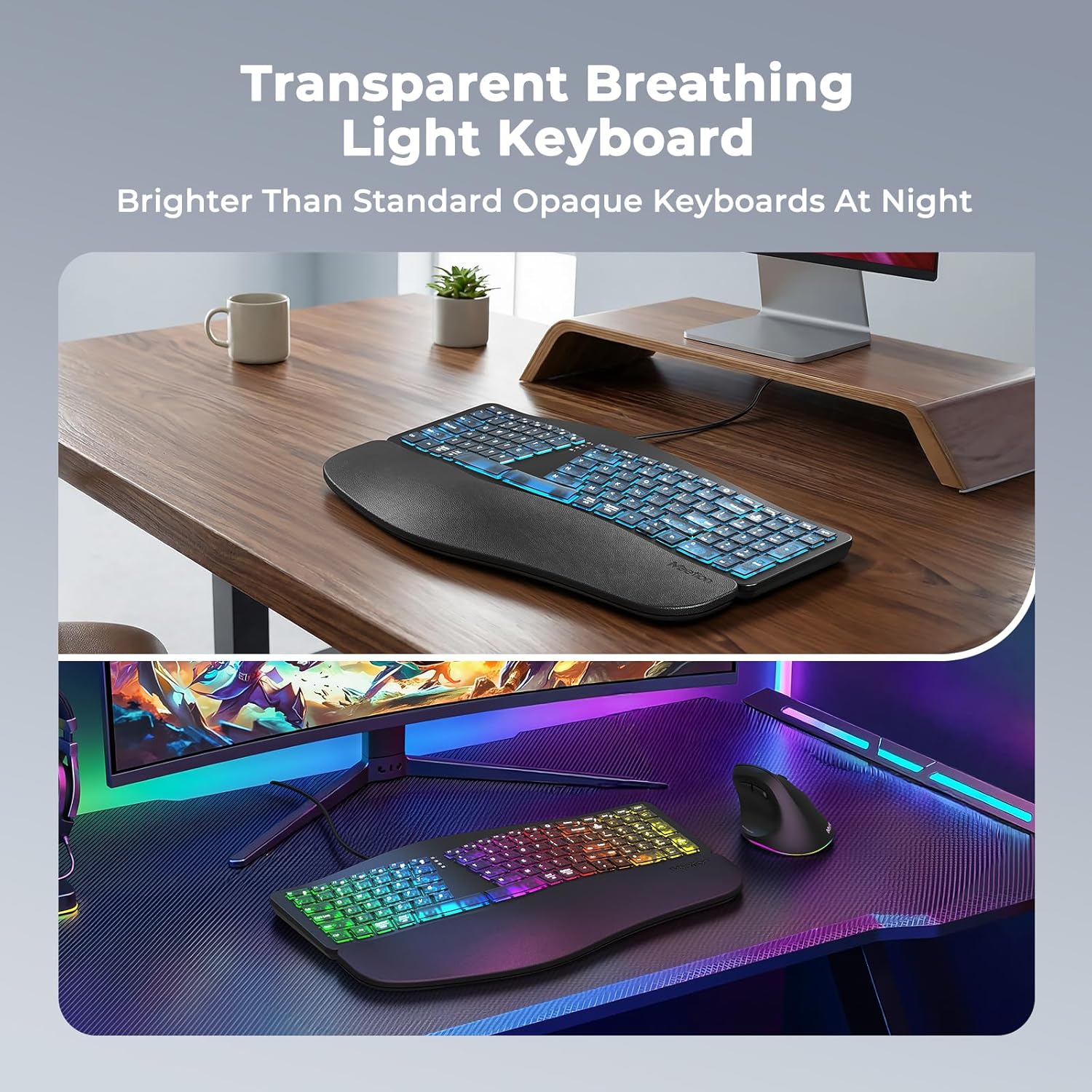
Imagen 3.1: The split ergonomic design of the keyboard helps maintain a comfortable typing posture.
Control de retroiluminación 3.2
The translucent keycaps allow for vibrant backlighting. You can customize the lighting effects and brightness levels:
- Ajustar el brillo: Prensa Fn + Mayús derecha repeatedly to cycle through 25%, 50%, 75%, 100% brightness, or turn the backlight off.
- Change Backlight Mode/Color: Prensa Fn + Right Enter repeatedly to switch between different modes:
- RGB Breathing (dynamic color cycling)
- 7 Static Colors: Red, Green, Blue, White, Purple, Cyan, Yellow
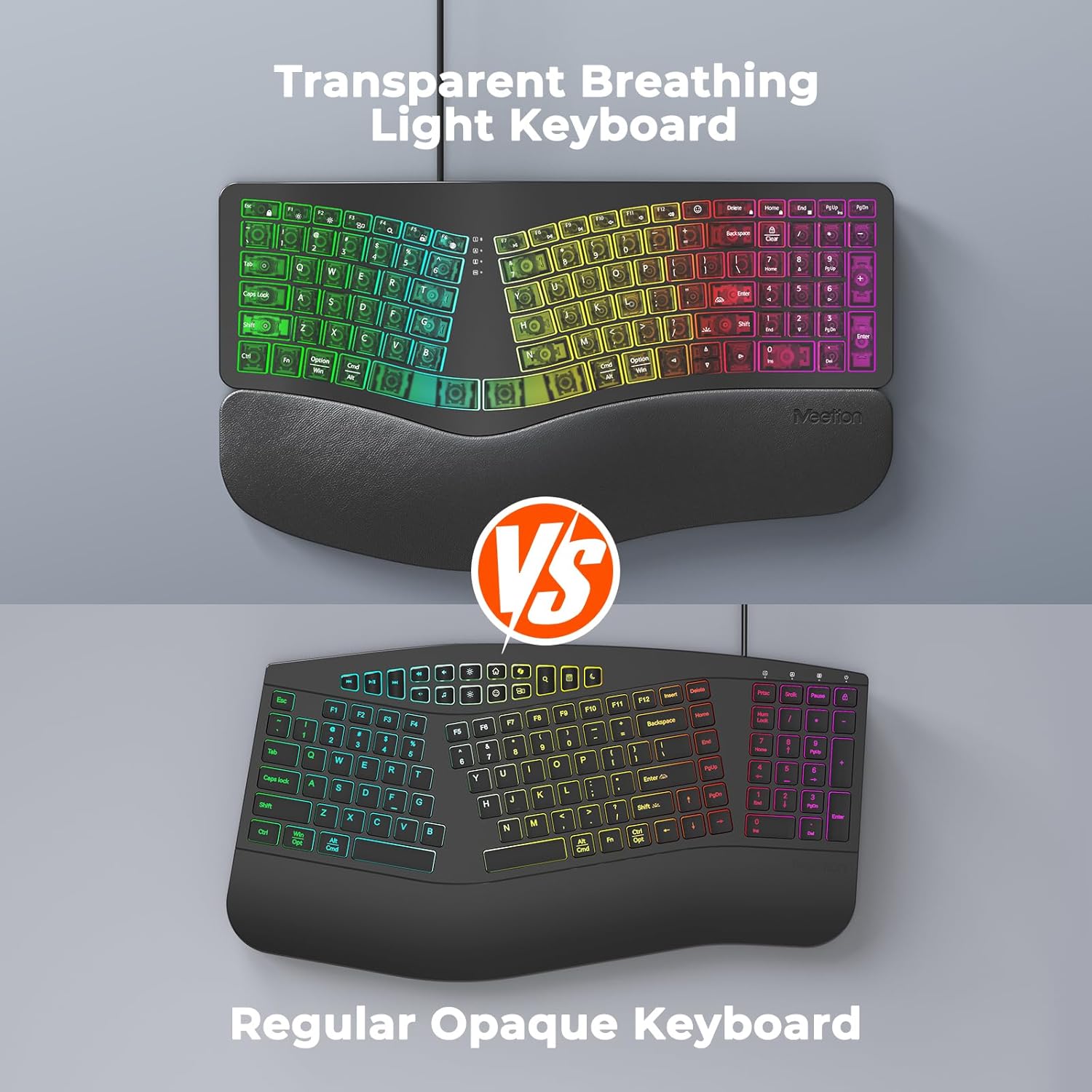
Imagen 3.2: Instructions for adjusting backlight brightness and cycling through various color modes.
Vídeo 3.1: Demonstration of the K2000 keyboard's backlit features and color options.
3.3 System Layout Switching
The keyboard supports both Windows and Mac layouts. To switch between systems:
- Para Ventanas systems: Press Fn + Q
- Para Impermeable systems: Press Fn + W

Imagen 3.3: The keyboard supports both Windows and Mac operating systems, with dedicated function keys for switching layouts.
3.4 Emoji Shortcuts
Access emoji shortcuts by pressing the dedicated Emoji key. This feature is compatible with Windows, MacOS, iPad (iPadOS), and Android Samsung devices. Please note that it does not support iPhone (iOS).

Imagen 3.4: The dedicated emoji shortcut key for quick access to emojis on compatible devices.
4. Mantenimiento
4.1 Limpieza
- Para limpiar el teclado, limpie suavemente la superficie con un paño suave, seco o ligeramente húmedo.amp paño.
- Avoid using harsh chemicals, abrasive cleaners, or solvents, as these may damage the keyboard's finish or keycaps.
- Para limpiar entre las teclas, utilice aire comprimido para eliminar el polvo y los residuos.
4.2 Cuidado de las teclas
- Ensure keycaps are firmly seated. If a keycap feels loose, gently press it down until it clicks into place.
- Avoid excessive force when pressing keys to prevent damage.
5. Solución de problemas
5.1 El teclado no responde
- Asegúrese de que el cable USB esté conectado de forma segura al puerto USB de su computadora.
- Intente conectar el teclado a un puerto USB diferente en su computadora.
- If using the USB-C adapter, ensure it is firmly connected to both the keyboard cable and the computer's USB-C port.
- Test the keyboard on another computer to determine if the issue is with the keyboard or your computer's port/drivers.
5.2 Problemas de retroiluminación
- If the backlight is off, press Fn + Mayús derecha para aumentar el brillo.
- If the color is not desired, press Fn + Right Enter to cycle through different color modes.
- Ensure the keyboard is properly connected, as power issues can affect backlighting.
5.3 Claves que no se registran
- Gently press down on the affected keycap to ensure it is properly seated.
- Clean any debris or dust from under the keycap using compressed air.
- If the issue persists, try the troubleshooting steps for "Keyboard Not Responding".
6. Especificaciones
| Marca | REUNIÓN |
| Número de modelo | K2000 |
| Tecnología de conectividad | USB-A, USB-C |
| Descripción del teclado | Multimedia, Ergonomic, Backlit |
| Características especiales | Backlit, Ergonomic, Wired, Wrist Rest |
| Color | Negro |
| Soporte de color de retroiluminación de teclado | RGB (7 static colors + breathing mode) |
| Material | Acrylonitrile Butadiene Styrene, Thermoplastic Polyurethane (TPU) |
| Disposición del teclado | QWERTY |
| Dispositivos compatibles | Portátil, PC (Windows, Mac) |
7. Garantía y soporte
7.1 Garantía del fabricante
The MEETION K2000 Ergonomic Wired RGB Keyboard comes with a Garantía del fabricante de 1 añosEsta garantía cubre defectos de materiales y mano de obra en condiciones normales de uso.
7.2 Soporte técnico
For technical assistance, troubleshooting, or warranty claims, please contact MEETION customer support. Refer to the product packaging or the official MEETION webSitio para obtener la información de contacto más actualizada.