DELUX GM909 Ergonomic Split Keyboard and M618AIR GX Wireless Vertical Mouse User Manual
Models: GM909 (Keyboard), M618AIR GX (Mouse)
1. Introducción
This manual provides detailed instructions for setting up, operating, and maintaining your DELUX GM909 Ergonomic Split Keyboard and M618AIR GX Wireless Vertical Mouse Combo. This combo is designed to enhance comfort and productivity through its ergonomic features and versatile connectivity options.
2. Keyboard Features (GM909)
2.1. Ultra-thin Ergonomic Split Design
The GM909 keyboard features a scientific wave key layout and a split design with a natural arc and slight arch. This design promotes a more natural typing posture, reducing wrist strain and maximizing comfort during extended use.
Image: The DELUX GM909 Ergonomic Split Keyboard, showcasing its unique wave-shaped, split key layout designed for natural hand positioning.
Vídeo: Un overview of the DELUX Ultra-thin Ergonomic Split Wireless Keyboard (GM909), demonstrating its design and features.
2.2. Comfortable Cushioned Palm Rest
An integrated cushioned palm rest provides support for your hands and wrists, helping to maintain a neutral wrist position and reduce pressure during prolonged typing sessions.
Imagen: Un detalle view of the DELUX GM909 keyboard's comfortable cushioned palm rest, designed to support wrists.
2.3. Conectividad multidispositivo
The keyboard supports both 2.4G wireless and Bluetooth dual channels, allowing seamless switching between up to three connected devices (e.g., computer, tablet, smartphone).
Image: The DELUX GM909 keyboard demonstrating its multi-device connectivity, showing indicators for 2.4G and Bluetooth channels.
2.4. Scissor Switches and Receiver Storage
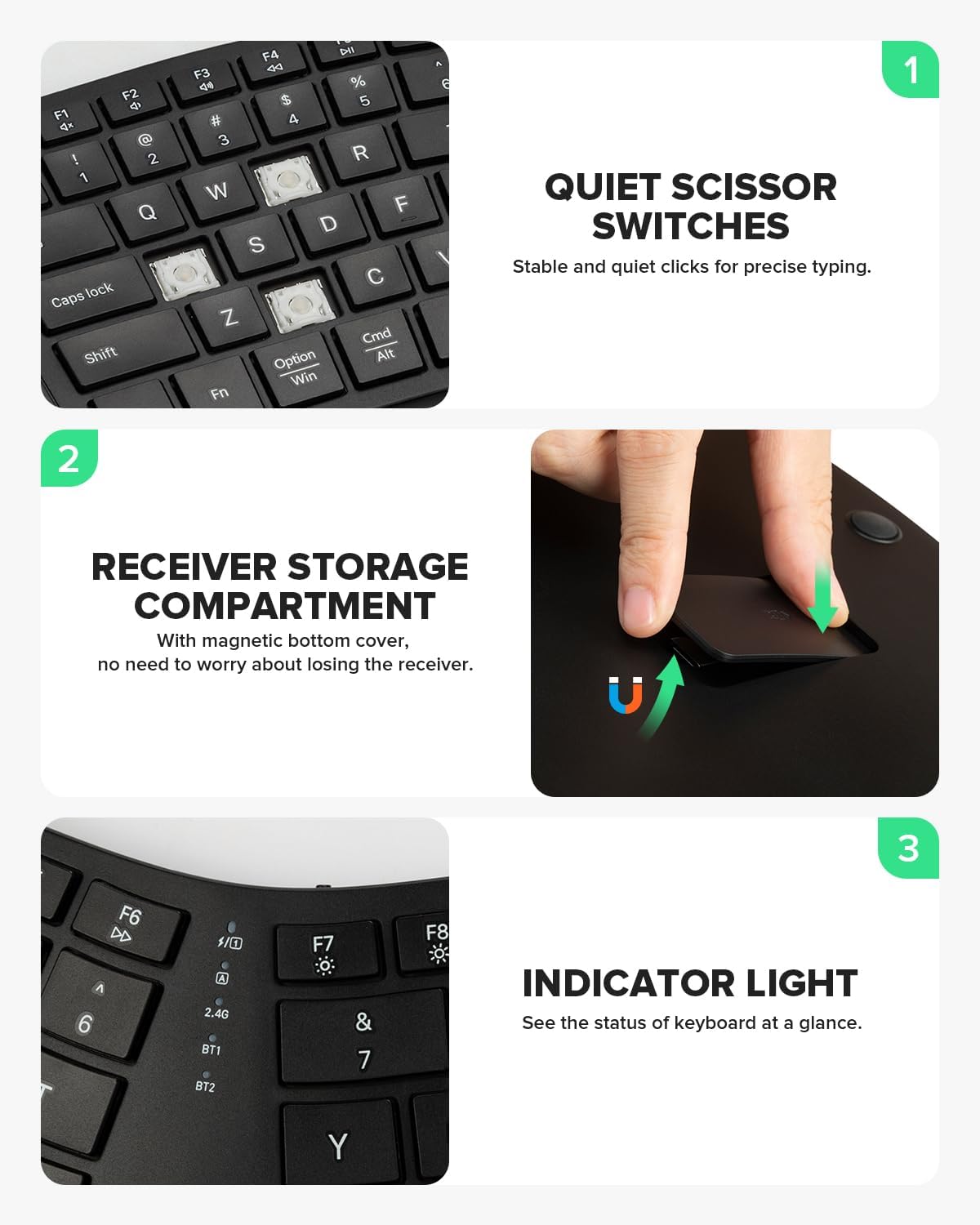
Equipped with scissor-switch keys, the keyboard offers quiet and responsive typing with excellent rebound. The 2.4G USB receiver is conveniently stored in a magnetic compartment on the underside of the keyboard.
Image: A close-up of the DELUX GM909 keyboard keys, highlighting the scissor switch mechanism and the magnetic storage for the 2.4G receiver.
3. Mouse Features (M618AIR GX)
3.1. Ergonomic Vertical Design and Lightweight Build
The M618AIR GX vertical mouse is designed with a natural vertical slope (57° angle) to promote a handshake posture, reducing wrist pronation and muscle strain. Weighing only 75g, it is ideal for small hands and comfortable for long hours of use.
Image: The DELUX M618AIR GX Wireless Vertical Mouse, illustrating its ergonomic 57-degree angle for a natural handshake grip and its lightweight construction.
Video: A demonstration of the DELUX Wireless Ergonomic Vertical Mouse for Small Hands, highlighting its comfortable design.
3.2. Multi-System Compatibility
The mouse offers stable 2.4G wireless connectivity via a USB receiver and is compatible with Windows 7/8/10/11 and Mac systems.
Image: The DELUX M618AIR GX Wireless Vertical Mouse displayed alongside a laptop and desktop, indicating its multi-system compatibility with Windows and Mac.
3.3. Adjustable DPI and Quiet Clicks
The M618AIR GX features three adjustable DPI levels (1000, 1600 (default), 2400) for precise cursor control. Its quiet click design ensures a noise-free working environment.
Image: The bottom of the DELUX M618AIR GX Wireless Vertical Mouse, highlighting the DPI switch button and the on/off switch.
4. Instrucciones de configuración
4.1. Keyboard Setup (GM909)
Cargando: Connect the keyboard to a USB power source using the provided USB-C cable. The charging indicator light will illuminate.
Conexión inalámbrica 2.4G:
Locate the 2.4G USB receiver in the magnetic compartment on the underside of the keyboard.
Conecte el receptor a un puerto USB disponible en su computadora.
Encienda el teclado con el interruptor de encendido. El teclado debería conectarse automáticamente.
Conexión Bluetooth:
Encienda el teclado.
Mantenga pulsado el BT1 or BT2 tecla durante 3-5 segundos hasta que la luz indicadora correspondiente parpadee rápidamente, indicando el modo de emparejamiento.
On your device (computer, tablet, smartphone), go to Bluetooth settings and select "DELUX GM909" from the list of available devices to pair.
Repeat for additional Bluetooth devices using the other BT key.
4.2. Mouse Setup (M618AIR GX)
Encendido: Localice el interruptor de ENCENDIDO/APAGADO en la parte inferior del mouse y deslícelo a la posición "ENCENDIDO".
Conexión inalámbrica 2.4G:
Abra el compartimiento de la batería en la parte inferior del mouse.
Retire el receptor USB 2.4G.
Conecte el receptor a un puerto USB disponible en su computadora.
El ratón debería conectarse automáticamente.
Video: An unboxing and setup guide for the DELUX Wireless Ergonomic Vertical Mouse (M618AIR), showing how to access the USB receiver.
5. Instrucciones de funcionamiento
5.1. Funcionamiento del teclado
Dispositivos de conmutación: Presione el 2.4G, BT1, o BT2 key to switch between connected devices. The corresponding indicator light will show the active connection.
Teclas de función: The F1-F12 keys have secondary functions (e.g., media control, volume). Press the Fn key simultaneously with an F-key to activate its secondary function.
Luces indicadoras:
2.4G/BT1/BT2: Indicates active connection or pairing mode.
Bloq Mayús: Se ilumina cuando la tecla Bloq Mayús está activa.
Num lock: Se ilumina cuando Num Lock está activo.
Indicador de batería: Flashes when battery is low, solid when charging.
5.2. Funcionamiento del ratón
Ajuste de PPP: Presione el DPI button on the bottom of the mouse to cycle through the 1000, 1600, and 2400 DPI settings.
Botones de avance/retroceso: Use the side buttons for navigation in web navegadores o file exploradores.
Rueda de desplazamiento: Scroll up or down for navigation. The scroll wheel also functions as a middle click button.
6. Mantenimiento
Limpieza: Utilice un paño suave y seco.amp cloth to clean the surfaces of the keyboard and mouse. Avoid harsh chemicals or abrasive materials. For keys, use compressed air to remove debris.
Cuidado de la batería: Recharge the keyboard when the battery indicator flashes. For the mouse, replace the AA battery when performance degrades (if applicable, or recharge if it's a rechargeable model).
Almacenamiento: When not in use for extended periods, turn off both devices to conserve battery life. Store the 2.4G USB receiver in its designated magnetic compartment on the keyboard or inside the mouse's battery compartment to prevent loss.
7. Solución de problemas
Dispositivo no conectado:
Asegúrese de que tanto el teclado como el mouse estén encendidos.
Check battery levels and recharge/replace if necessary.
Para una conexión 2.4G, asegúrese de que el receptor USB esté conectado de forma segura a su dispositivo.
For Bluetooth connection, ensure Bluetooth is enabled on your device and re-attempt pairing.
Intente reiniciar su computadora o dispositivo.
Conexión intermitente o con retraso:
Move the devices closer to the USB receiver or your Bluetooth-enabled device.
Avoid placing devices near sources of interference (e.g., Wi-Fi routers, other wireless devices).
Teclas/botones no responden:
Check for debris under the keys/buttons and clean if necessary.
Ensure the correct operating mode (2.4G/BT1/BT2) is selected on the keyboard.
8. Especificaciones
Característica
DELUX GM909 Keyboard
DELUX M618AIR GX Mouse
Conectividad
Conexión inalámbrica 2.4G, Bluetooth (BT1, BT2)
2.4G inalámbrico
Tipo de clave
Interruptores de tijera
Quiet Click Buttons
Ergonomía
Split Design, Cushioned Palm Rest
Vertical (57°), Natural Handshake Posture
Niveles de DPI
N / A
1000/1600 (predeterminado)/2400
Peso
No especificado
75 gramos
Batería
Batería de iones de litio de 500 mAh (recargable)
AA Battery (not specified if rechargeable)
Compatibilidad
Windows, Mac, iOS, Android
Windows 7/8/10/11, Mac OS
9. Garantía y soporte
DELUX products are manufactured to high-quality standards. For warranty information, technical support, or service inquiries, please refer to the warranty card included with your product or visit the official DELUX websitio. Guarde su recibo de compra para reclamos de garantía.
Ask a question about this manual
Ask about setup, troubleshooting, compatibility, parts, safety, or missing instructions. Manuals+ will review the question and use this page’s manual context to help answer it.