
1. Producto terminadoview
The Teamgee KX2 is a 14-inch ultra-light portable screen extender designed to enhance your productivity by providing an additional display for your laptop. Its plug-and-play functionality ensures easy setup without the need for drivers or docking stations. Featuring a 14-inch Full HD (1920x1080) IPS anti-glare panel with 1000:1 contrast and 100% sRGB, it delivers clear and vibrant visuals while reducing eye strain during prolonged use. The device is compatible with laptops ranging from 13 to 17 inches and supports various operating systems including macOS (M1/2/3/4/Pro/Max), Windows, Linux, Chrome, as well as smartphones and gaming consoles.
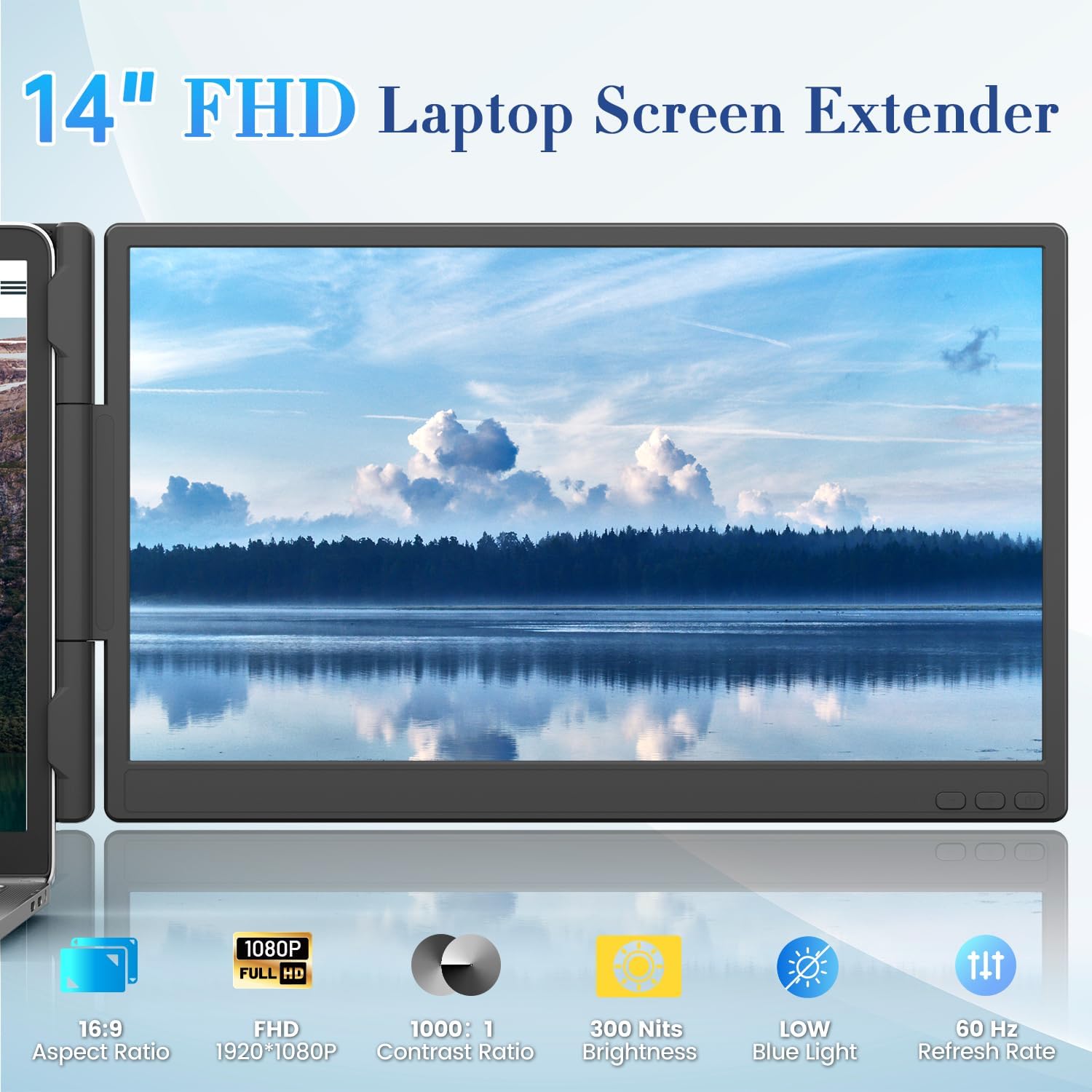
Image 1.1: Teamgee 14-inch Portable Screen Extender KX2, showcasing its sleek design and display quality.
The KX2 is engineered for portability, weighing only 1.94 lbs (0.89 kg) and measuring 0.39 inches (8mm) thick, making it ideal for travel and mobile work. It includes a complete set of USB-C, USB-A, and HDMI cables for direct connection, eliminating the need for additional adapters.

Imagen 1.2: El ultradelgado profile of the Teamgee KX2, highlighting its portability.
2. Contenido del paquete
Por favor verifique que todos los artículos estén presentes en su paquete:
- Teamgee 14-inch Portable Screen Extender (Model KX2)
- Cable USB-C a USB-C
- Cable USB-A a USB-C
- Cable Mini HDMI a HDMI
- Manual de usuario
3. Configuración y conexión
3.1 Attaching the Screen Extender to Your Laptop
The Teamgee KX2 is designed for laptops between 13 and 17 inches. It features an upgraded spring hinge and non-slip clamps para fijación segura.
- Gently pull the sliding arms/double top hooks to extend them.
- Position the extender on top of your laptop screen, ensuring the non-slip clamps securely grip the top edge of your laptop display.
- Adjust the integrated kickstand at the back to provide stable support and balance the weight of the extender. The kickstand is adjustable up to 90 degrees.

Image 3.1: The Teamgee KX2 securely attached to a laptop, demonstrating its fit for 13-17 inch models.

Image 3.2: Close-up of the adjustable kickstand and non-slip top clamps para un montaje seguro.
3.2 Conexión a su dispositivo
The Teamgee KX2 offers flexible connection options:
Option 1: Full-Functioned USB-C Connection (Single Cable)
If your laptop has a full-functioned USB-C port (supporting power, data, and video transfer), you can connect the extender using a single USB-C to USB-C cable. This cable will provide both power and video signal.

Image 3.3: Connection diagram for a single full-functioned USB-C cable.
Option 2: USB-A + HDMI Connection (Two Cables)
If your laptop does not have a full-functioned USB-C port, you will need two cables: one USB-A to USB-C cable for power and one Mini HDMI to HDMI cable for the video signal. Connect the USB-A cable first, then the HDMI cable.

Image 3.4: Connection diagram for USB-A (power) and HDMI (video) cables.
3.3 Identifying Full-Featured USB-C Ports
To utilize the single-cable USB-C connection, your laptop's USB-C port must support data, video (DisplayPort Alt Mode), and power delivery. Refer to your laptop's manual or the port icons to confirm compatibility:
- Full-featured USB-C: Often indicated by a Thunderbolt symbol (lightning bolt), a 'D' for DisplayPort, or a combination of data transfer and video icons.
- Not full-featured USB-C: May only support data transfer (USB symbol) or charging (battery symbol). These ports will require the USB-A + HDMI connection.

Image 3.5: Visual guide for distinguishing full-featured USB-C ports from limited functionality ports.
4. Instrucciones de funcionamiento
4.1 Screen Modes
Once connected, your operating system should automatically detect the external display. You can configure the display mode through your system settings:
- Modo extendido: Expands your desktop across both screens, allowing for increased workspace.
- Modo espejo: Duplicates your primary display onto the extender, showing the same content on both screens.
- Modo retrato: The extender can be rotated and used in a vertical orientation for tasks like coding or document viewing. Adjust this in your operating system's display settings.

Imagen 4.1: Examples of Mirror, Extend, and Portrait display modes for versatile usage.
4.2 Controles e interfaz
The Teamgee KX2 features intuitive controls and ports for easy management:
- Botón Menú/Encendido: Press and hold to power on/off. Short press to access the On-Screen Display (OSD) menu.
- Botón más (+): Navigate up in the OSD menu or increase values.
- Botón menos (-): Navigate down in the OSD menu or decrease values.
- Puerto tipo C1: Multi-function USB-C port for power and video.
- Mini puerto HDMI: Puerto de entrada de vídeo.
- Puerto tipo C2: Multi-function USB-C port for power and video.
- Vocero: Salida de audio integrada.

Imagen 4.2: Detallada view of the user-friendly design, highlighting control buttons and connectivity ports.
4.3 Ajuste de la configuración de la pantalla
Use the Menu/Power, Plus, and Minus buttons to navigate the On-Screen Display (OSD) menu. Here you can adjust settings such as:
- Brillo y contraste
- Temperatura de color
- Relación de aspecto
- Volumen
- Selección de fuente de entrada
5. Mantenimiento
Proper care and maintenance will ensure the longevity of your Teamgee KX2 portable screen extender.
- Limpieza: Utilice un paño suave y sin pelusa para limpiar la pantalla. Para manchas difíciles, frote ligeramente.ampEnjuague el paño con agua o una solución limpiadora segura para pantallas. Evite productos químicos agresivos o materiales abrasivos.
- Almacenamiento: When not in use, fold the extender carefully to protect the screen. Store it in a cool, dry place away from direct sunlight and extreme temperatures.
- Manejo: Evite ejercer presión excesiva sobre la pantalla o las bisagras. No deje caer el dispositivo.
6. Solución de problemas
If you encounter issues with your Teamgee KX2, please refer to the following common solutions:
- Sin señal / Pantalla negra:
- Ensure all cables (USB-C or USB-A + HDMI) are securely connected to both the extender and your laptop.
- Verify that your laptop's USB-C port is full-featured if using a single USB-C cable (refer to Section 3.3).
- Try connecting the extender to a different port on your laptop or a different device to rule out port issues.
- Check your laptop's display settings to ensure the external display is detected and configured correctly (e.g., Extend or Mirror mode).
- Parpadeo de pantalla o visualización inestable:
- Ensure the power supply is stable. If using USB-A + HDMI, ensure the USB-A cable is providing sufficient power.
- Pruebe con un cable diferente para descartar que el cable esté defectuoso.
- Reduce the refresh rate or resolution in your laptop's display settings if the issue persists.
- Not Compatible with Laptop Size (13-17 inches):
- The extender is designed for laptops with screen diagonals between 13 and 17 inches. Ensure your laptop falls within this range.
- Verify that the non-slip clamps are properly adjusted and secured to your laptop's screen bezel.
- Power Issues (Extender not turning on):
- Ensure the power cable (USB-C or USB-A) is correctly connected and receiving power from your laptop or an external power source (if applicable).
- Press the Menu/Power button to ensure the extender is turned on.
7. Especificaciones técnicas
| Parámetro | Valor |
|---|---|
| Fabricante | equipogee |
| Número de modelo del artículo | KX2 |
| País natal | Porcelana |
| Tamaño de pantalla | 14.1 pulgadas |
| Resolución | FHD 1080p (1920 x 1080) |
| Relación de aspecto | 16:9 |
| Descripción de la superficie de la pantalla | Lustroso |
| Relación de contraste de imagen | 1000:1 |
| Tiempo de respuesta | 1 milisegundos |
| Frecuencia de actualización | 60 Hz |
| Característica especial | Portátil |
| Tipo de pantalla | Pantalla LCD |
| Tecnología de visualización | Pantalla LCD |
| Viewángulo de ing | 178 grados |
| Brillo | 300 candelas por metro cuadrado |
| Image Quality Enhancement Technology | IPS, Eye Care |
| Dimensiones del artículo Pr x An x Al | 2.3 profundidad x 34.3 ancho x 20.7 alto centímetros |
| Tecnología de conectividad | HDMI |
| hardware de conectividad | HDMI |
| Color | Negro y Plata |
| Puertos de salida totales | 1 |
For detailed product information and energy efficiency ratings, please refer to the EPREL database:
8. Garantía y soporte
The Teamgee KX2 portable screen extender comes with a manufacturer's warranty.
- Tipo de garantía: Garantía del fabricante
- Periodo de garantía: 1 años
For technical support, compatibility questions, or warranty claims, please contact Teamgee customer service. We offer 24-hour personalized technical support to ensure your satisfaction.
Conserve su comprobante de compra para el servicio de garantía.