
REUNIÓN K9880
MEETION K9880 Foldable Bluetooth Keyboard User Manual
Modelo: K9880
Introducción
Thank you for choosing the MEETION K9880 Foldable Bluetooth Keyboard. This ultra-thin, portable keyboard is designed for business travel and compatible with iOS, Android, Windows, and macOS devices. Its ergonomic split-key layout and multi-device connectivity enhance productivity on the go. Please read this manual carefully to ensure proper use and optimal performance of your device.
¿Qué hay en la caja?
- 1 teclado Bluetooth plegable MEETION K9880
- Cable de carga 1 x USB-C
- 1 x Manual de usuario
- 1 x bolsa de terciopelo
Producto terminadoview
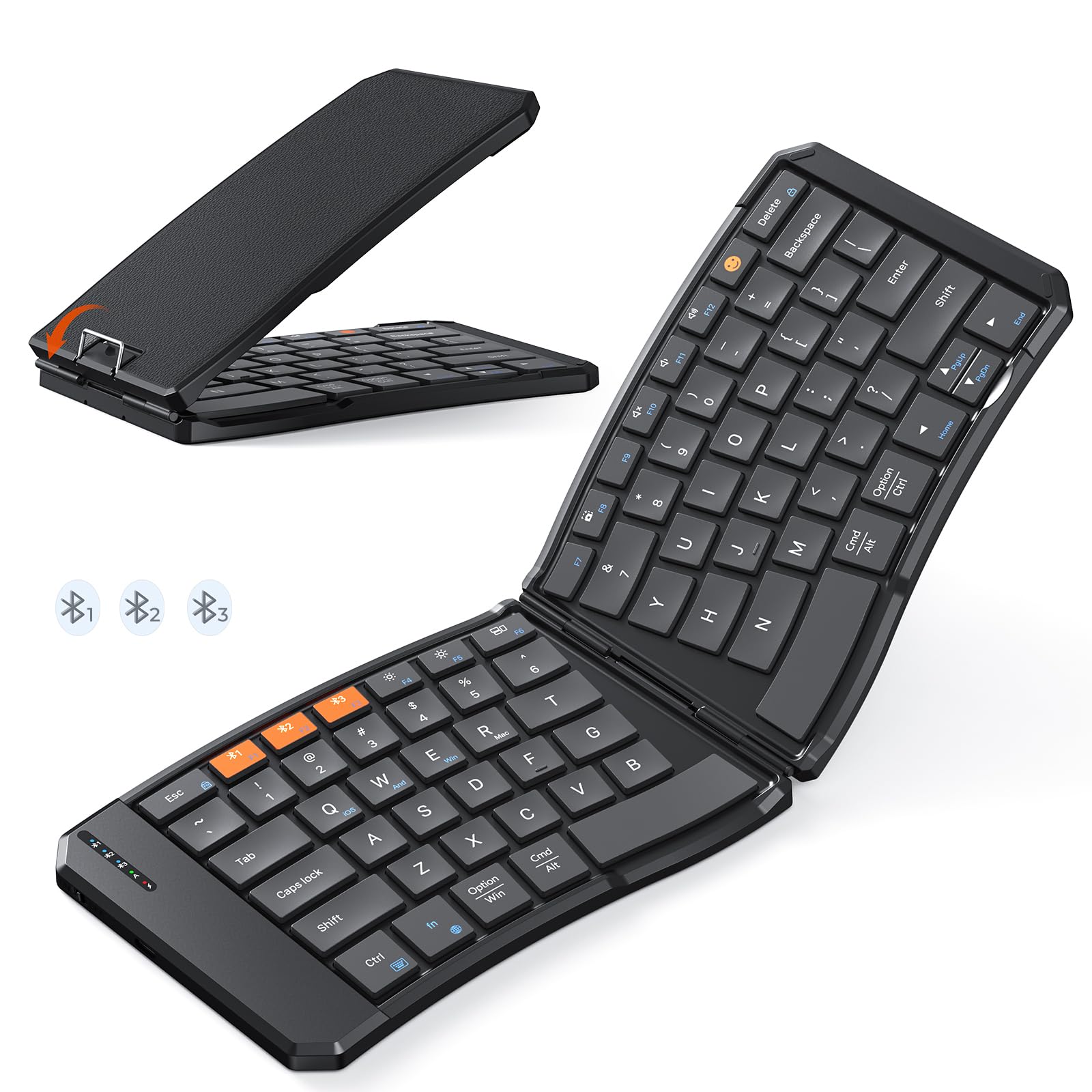
The MEETION K9880 Foldable Bluetooth Keyboard in its compact, folded state, ready for travel.

The keyboard unfolded, showcasing its ergonomic 166-degree V-shaped split-key layout for comfortable typing.

Detallado view of the scissor-switch keys, designed for quiet and responsive typing.

The keyboard being charged via its USB-C port, with indicator lights for Bluetooth, Caps Lock, and Power.
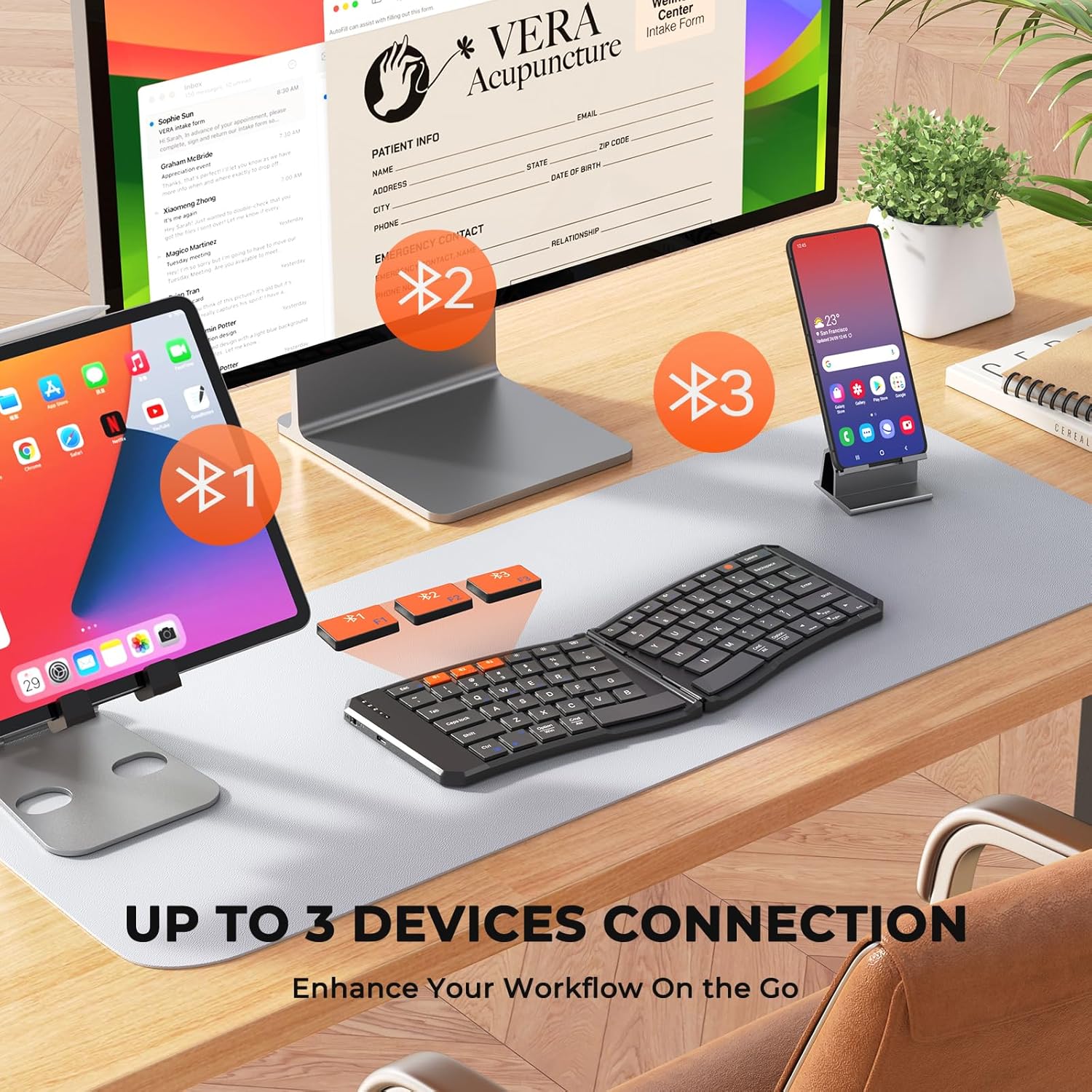
The keyboard's multi-device connectivity, allowing simultaneous connection to up to three devices.

Visual guide for establishing a Bluetooth connection with the keyboard.

Instructions for switching keyboard layouts to match iOS, Android, Windows, or macOS operating systems.
Configuración
1. Encendido / apagado
- To power on the keyboard, slide the power switch located on the side to the 'ON' position.
- Para apagar, deslice el interruptor a la posición “APAGADO”.
- The keyboard features a 20-minute auto-sleep mode to conserve power. Press any key to wake it up.
2. Carga del teclado
- Connect the provided USB-C charging cable to the keyboard's charging port and the other end to a USB power source.
- The red light will flash rapidly when the battery is low.
- The green light will flash during charging and stay solid green when fully charged.
- Una carga completa proporciona hasta 60 horas de tiempo de espera.
3. Bluetooth Pairing (Multi-Device Connection)
- Asegúrese de que el teclado esté encendido.
- Press and hold the Bluetooth button (labeled #1, #2, o #3) for 3 seconds to enter pairing mode. The corresponding blue indicator light will blink rapidly.
- On your device (computer, phone, tablet), enable Bluetooth and search for available devices.
- Select "Meetion-KB-BT1", "Meetion-KB-BT2", or "Meetion-KB-BT3" from the list to connect.
- Once connected, the blue light will stay on for 5 seconds and then turn off.
- To switch between paired devices, simply press the corresponding Bluetooth button (#1, #2, o #3). The blue light will stay on for 5 seconds to indicate the active connection.
4. Conmutación del sistema
Para optimizar la funcionalidad del teclado para su sistema operativo específico, utilice las siguientes combinaciones de teclas:
- Fn + Q:Cambiar al sistema iOS
- Fn + W:Cambiar al sistema Android
- Fn + E:Cambiar al sistema Windows
- Fn + R:Cambiar al sistema macOS
Operación del teclado
1. Experiencia de mecanografía
- The keyboard features X-shaped scissor-switch keys for quiet, precise input with responsive feedback.
- The V-shaped 166° angle and split-key layout promote a natural typing posture, reducing strain on hands and wrists.
- The 6-row layout provides a laptop-like typing experience.
2. Teclas de funciones especiales
El teclado incluye varias teclas de acceso directo para mejorar la productividad:
- Fn + Esc: Toggle between multimedia functions (F1-F12) and standard F-key functionality.
- Emoji Key: Access emoji input (supports Windows, MacBook (macOS), iPad (iPadOS), and Android Samsung devices; does not support iPhone (iOS)).
- Pantalla de bloqueo: Lock your device's screen.
- Teclado virtual: Enable or disable the virtual keyboard on your device.
- Brillo +/-: Ajuste el brillo de la pantalla.
- conmutador de tareas: Switch between open applications.
- Buscar: Open the search function.
- Captura de pantalla: Capture a screenshot.
- Play/Pause, Mute, Volume +/-: Control media playback and volume.
3. Foldable Design and Stability
- The keyboard folds compactly for easy portability. Magnetic adsorption keeps it securely closed when folded.
- A built-in rear metal support wire ensures stability when unfolded, allowing for typing on uneven surfaces like your lap.
Mantenimiento
1. Limpieza
- The keyboard features a scratch-resistant, easy-to-clean PU leather exterior.
- Limpie la superficie con un paño suave, damp Paño. Evite productos químicos agresivos o materiales abrasivos.
- Para limpiar entre las teclas, utilice aire comprimido o un cepillo suave.
2. Cuidado de la batería
- Para prolongar la vida útil de la batería, evite descargar completamente el teclado con frecuencia.
- Guarde el teclado en un lugar fresco y seco cuando no lo utilice durante períodos prolongados.
- Utilize the auto-sleep mode by ensuring the keyboard is idle for 20 minutes to save power.
Solución de problemas
- El teclado no se conecta mediante Bluetooth: Ensure the keyboard is powered on and in pairing mode (blue light blinking). Check your device's Bluetooth settings to confirm it's discoverable and try re-pairing.
- Las teclas no responden: Check the battery level. If the red light is flashing, charge the keyboard. Ensure the keyboard is properly connected to your device.
- Incorrect key layout: Verify that the keyboard is set to the correct operating system mode (Fn + Q/W/E/R).
- Conexión intermitente: Ensure there are no obstructions between the keyboard and your device. Try moving closer to your device. Avoid using the keyboard near strong electromagnetic interference.
- Keyboard not folding/unfolding properly: Check for any debris or obstructions in the hinge mechanism. Do not force the keyboard.
Presupuesto
| Característica | Detalle |
|---|---|
| Marca | REUNIÓN |
| Número de modelo | K9880 |
| Tecnología de conectividad | Bluetooth |
| Dispositivos compatibles | PC, iOS, Android, Windows, macOS devices |
| Características especiales | Ergonómico, plegable, de perfil bajofile Key, Portable, Rechargeable, Multi-device connection (up to 3) |
| Descripción del teclado | Multimedia |
| Material | Plastic (with PU leather exterior) |
| Capacidad de la batería | Batería de litio de 140 mAh |
| Tiempo de espera | Hasta 60 horas |
| Puerto de carga | USB-C |
Garantía
The MEETION K9880 Foldable Bluetooth Keyboard comes with a Garantía del fabricante de 1 año. Please retain your proof of purchase for any warranty claims. This warranty covers manufacturing defects and does not cover damage caused by misuse, accidents, or unauthorized modifications.
Apoyo
For further assistance, technical support, or warranty inquiries, please contact MEETION customer service through the official brand website or your retailer's support channels. You may also refer to the included user manual for additional information.
Ask a question about this manual
Ask about setup, troubleshooting, compatibility, parts, safety, or missing instructions. Manuals+ will review the question and use this page’s manual context to help answer it.