
Introducción
Thank you for choosing the ProtoArc KM310 Wireless Mechanical Keyboard and Mouse. This combo offers a responsive typing experience with low-profile linear red switches and versatile multi-device connectivity. The ergonomic mouse is designed for comfort and precision. This manual provides detailed instructions for setup, operation, maintenance, and troubleshooting to ensure optimal performance.
¿Qué hay en la caja?

Image: Contents of the ProtoArc KM310 package, including the keyboard, mouse, charging cable, and user manual.
- Teclado mecánico inalámbrico ProtoArc KM310
- Ratón inalámbrico ProtoArc
- Cable de carga USB-C
- Manual de usuario
Producto terminadoview
Características del teclado

Imagen: Un primer plano view of the ProtoArc KM310 keyboard, highlighting its low-profile keys and linear red switches.
- Bajo-Profile Teclas mecánicas: Equipped with linear red switches for a smooth, quiet, and responsive typing experience.
- Aluminum Top Case: Provides durability and a sleek, modern aesthetic.
- Patas de inclinación ajustables: Ergonomically designed with 2-stage foot mats offering 6° and 9° tilt options for comfortable typing.
- Diseño de tamaño completo: A 108-key layout suitable for office and business use.
Características del mouse

Image: The ProtoArc KM310 mouse being held, showcasing its ergonomic design for a natural grip.
- 63G Ultra-Lightweight: Reduces hand fatigue during extended use and enhances portability.
- Diseño ergonómico: Contoured shape for a comfortable and natural grip.
- DPI ajustable: Three DPI levels (1000/1600/2400) for tailored control and precision.
- Clic silencioso: Diseñado para un funcionamiento silencioso.
- Botones de avance/retroceso: Integrated for seamless browsing.
Conectividad y energía
- Conectividad multidispositivo: Connects up to 3 devices via 2.4G USB receiver or Dual Bluetooth (BT1, BT2).
- Recargable: Both keyboard and mouse feature Type-C charging. The mouse's USB receiver is stored on its bottom.
- Batería de larga duración: Up to 150-200 days standby time; 2-3 hours for a full charge.
Instrucciones de instalación
1. Carga de los dispositivos

Image: The keyboard and mouse are shown connected to power sources via USB-C cables for charging.
- Conecte el cable de carga USB-C provisto al puerto de carga del teclado (ubicado en el borde superior) y del mouse (ubicado en el borde frontal).
- Conecte el otro extremo del cable a una fuente de alimentación USB (por ejemplo, puerto USB de computadora o adaptador de pared USB).
- The indicator lights will show charging status. Allow 2-3 hours for a full charge.
2. Conexión a dispositivos

Image: A desk setup showing the ProtoArc KM310 keyboard and mouse connected to a laptop, monitor, and tablet, illustrating multi-device capability.
The KM310 combo supports three connection modes: 2.4G wireless via USB receiver, Bluetooth 1 (BT1), and Bluetooth 2 (BT2).
2.1. Conexión inalámbrica 2.4G
- Localice el receptor USB almacenado en el compartimiento en la parte inferior del mouse.
- Conecte el receptor USB a un puerto USB disponible en su computadora.
- Encienda el teclado y el mouse utilizando sus respectivos interruptores de encendido.
- Los dispositivos deberían conectarse automáticamente.
2.2. Conexión Bluetooth (BT1 / BT2)
- Encienda el teclado y el mouse.
- En el teclado, presione la tecla BT1 or BT2 key (usually located on the number pad, indicated by orange keycaps) to select the desired Bluetooth channel. The indicator light will flash.
- On your device (computer, tablet, etc.), go to Bluetooth settings and search for "ProtoArc KM310 Keyboard" and "ProtoArc KM310 Mouse".
- Select the devices to pair. The indicator light will stop flashing once connected.
- Repita este procedimiento para un segundo dispositivo Bluetooth que utilice el otro canal BT.
2.3. Cambiar entre dispositivos
To switch between connected devices, simply press the corresponding connection key on the keyboard (2.4G, BT1, or BT2) and the channel switch button on the bottom of the mouse.
Instrucciones de funcionamiento
Uso del teclado
- Mecanografía: El bajo profesionalfile linear red switches provide a responsive and quiet typing experience.
- Compatibilidad del sistema operativo: The keyboard is compatible with Windows and Mac OS. Keys like 'Win' and 'Alt' also show 'Option' and 'Cmd' for Mac users.
- Ajuste de inclinación: Use the adjustable tilt legs on the underside of the keyboard to set your preferred typing angle (6° or 9°).
Uso del ratón
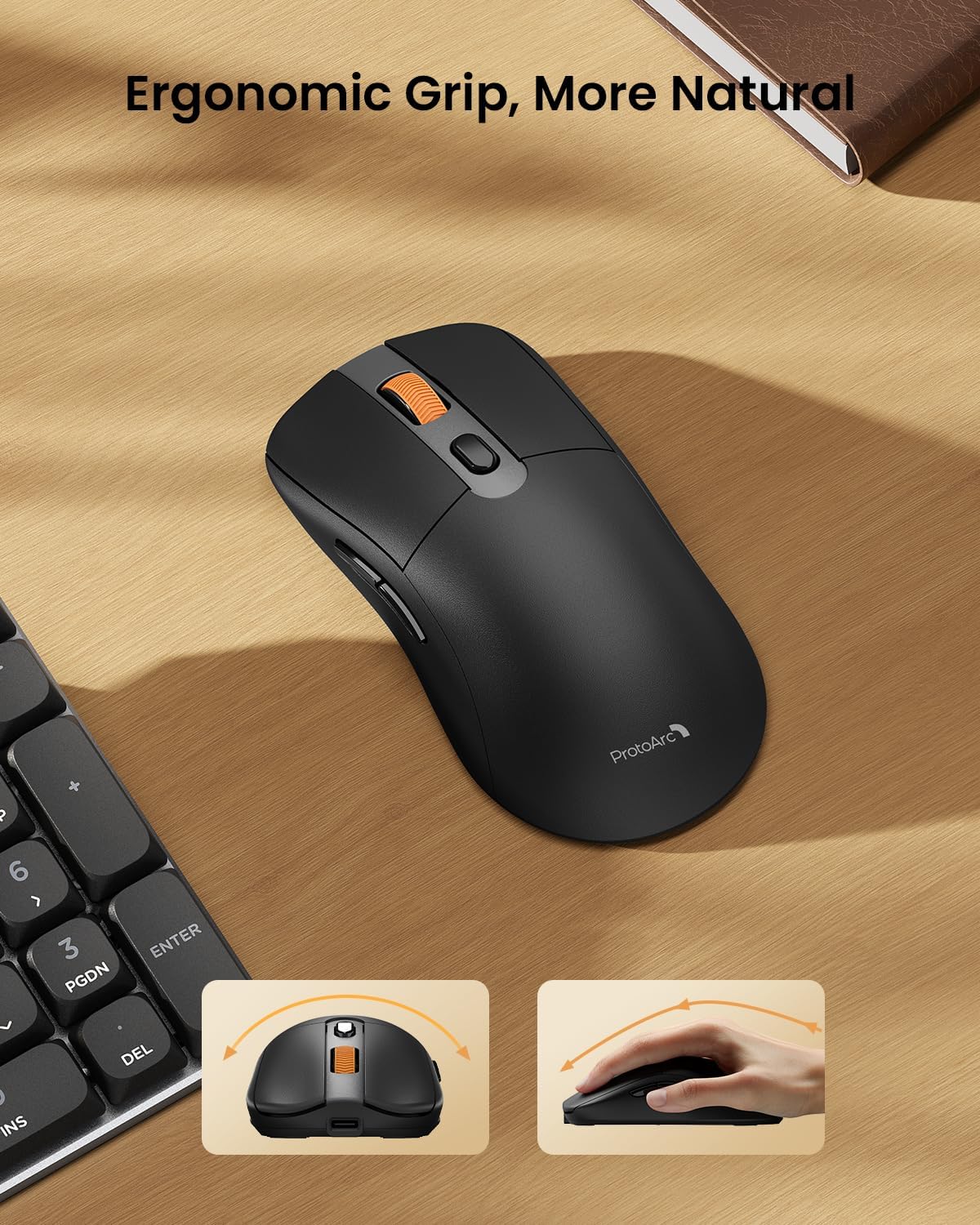
Image: A close-up of the ProtoArc KM310 mouse, illustrating the three adjustable DPI settings (1000, 1600, 2400).
- Ajuste de PPP: Press the DPI switch button (usually located near the scroll wheel) to cycle through the 3 DPI levels (1000/1600/2400) to match your preference for cursor speed and precision.
- Botones de navegacion: Utilice los botones de avance y retroceso en el costado del mouse para navegar rápidamente en web navegadores o file exploradores.
- Clics silenciosos: The mouse features silent click buttons for a quiet working environment.
Mantenimiento
- Limpieza: Utilice un paño suave y seco para limpiar el teclado y el ratón. Para la suciedad difícil, utilice un paño ligeramente seco.amp Se puede utilizar un paño con jabón suave, asegurándose de que no entre líquido en el dispositivo.
- Cuidado de la batería: Recharge the devices when the battery indicator is low. Avoid prolonged exposure to extreme temperatures.
- Almacenamiento: When not in use for extended periods, turn off the devices to conserve battery life. Store the USB receiver inside the mouse to prevent loss.
Solución de problemas
Keyboard/Mouse Not Turning On or Stopping Working
- Comprobar la batería: Ensure both the keyboard and mouse are sufficiently charged. Connect them to a power source using the USB-C cable.
- Re-reparar dispositivos:
- For 2.4G connection, ensure the USB receiver is securely plugged in and the devices are set to 2.4G mode.
- For Bluetooth connection, ensure the devices are set to the correct BT channel (BT1 or BT2) and re-pair them through your device's Bluetooth settings.
- Pruebe con un cable diferente: If charging issues persist, try using a different USB-C cable to rule out a faulty cable.
- Interferencia: Acerque los dispositivos a su computadora o aléjelos de otros dispositivos inalámbricos que puedan causar interferencias.
- Contactar con soporte: If the issue persists, please contact ProtoArc customer support for further assistance.
Presupuesto
| Número de modelo | KM310 |
| Marca | ProtoArc |
| Color | Gris espacial |
| Tecnología de conectividad | Bluetooth, USB (inalámbrico 2.4G) |
| Características especiales | Baja Profile Keys, Linear Red Switches, Ergonomic Design, Ultra-Light Mouse, Ergonomic Mouse |
| Dispositivos compatibles | Laptop, Personal Computer, Tablet (Windows 7/8/10, Mac OS X 10.12, Android 4.3 or higher) |
| Peso del artículo | 2.31 libras |
| Dimensiones del paquete | 17.68 x 8.07 x 2.05 pulgadas |
Garantía y soporte
The ProtoArc KM310 Mechanical Keyboard and Mouse combo comes with a Garantía de 2 años.
For any questions, technical support, or warranty claims, please contact ProtoArc customer service:
- Correo electrónico: soporte@protoarc.com
- Teléfono: +1 866-287-8188
Vídeo oficial del producto
Vídeo: Presentación oficial del productoasing the features and design of the ProtoArc KM310 Aluminum Mechanical Keyboard and Mouse.