
1. Introducción
Welcome to the user manual for your new Samsung Galaxy A16 5G. This guide is designed to help you understand and utilize all the features of your smartphone, from initial setup to advanced functionalities. Whether you are a new smartphone user or looking to explore hidden tips, this manual provides clear, step-by-step instructions to enhance your experience.
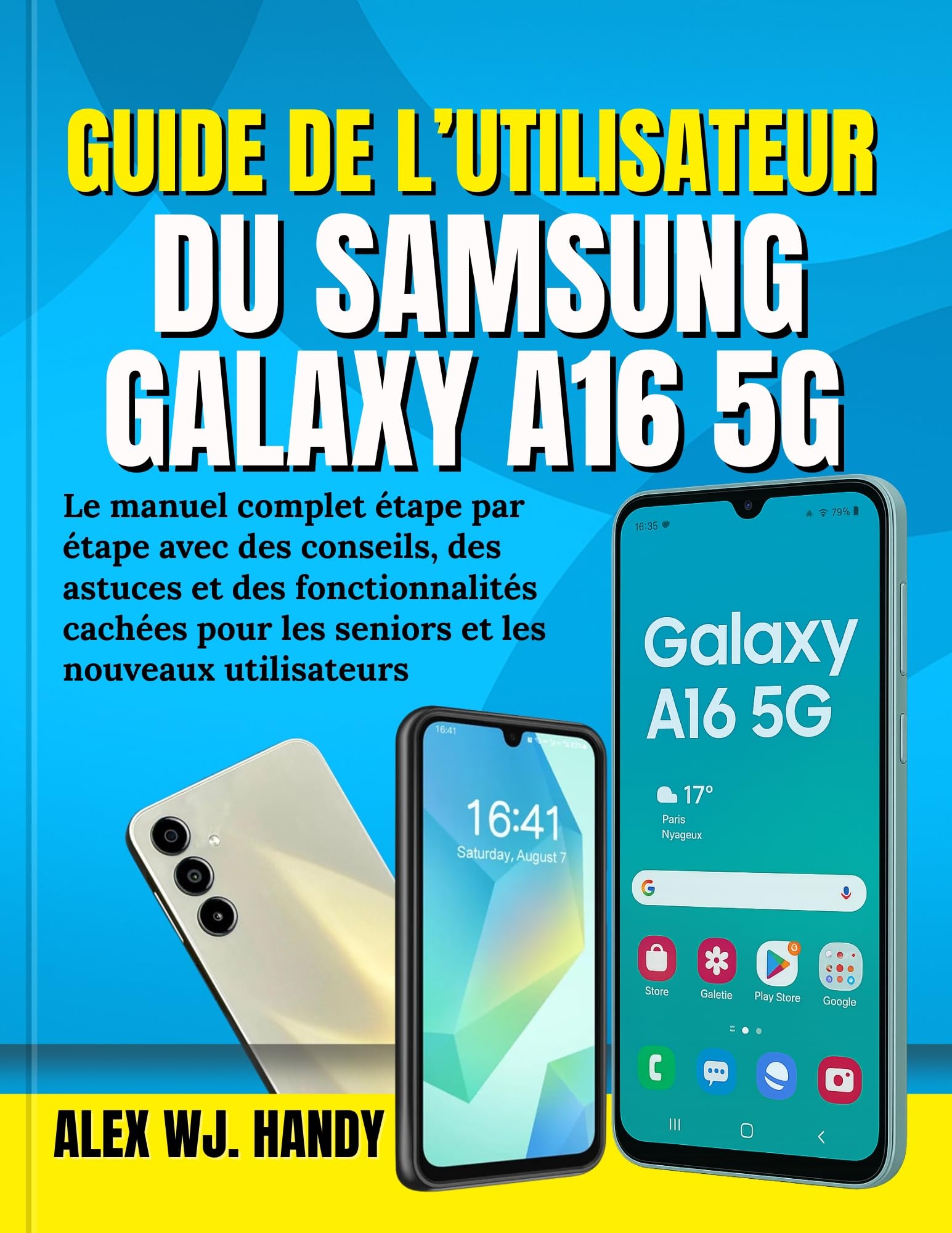
This image displays the Samsung Galaxy A16 5G smartphone. One phone is shown from the rear, highlighting its camera module and a subtle textured finish. Another phone is shown from the front, displaying its screen with the time '16:41' and 'Saturday, August 7', along with a weather widget showing '17° Paris Nyageux' and various app icons like Store, Play Store, and Google. A third phone is partially visible on the right, also showing the 'Galaxy A16 5G' branding on its screen.
2. Primeros pasos: configuración inicial
2.1. Unboxing and Device Overview
Antes de comenzar, asegúrese de que todos los componentes estén presentes en la caja:
- Teléfono inteligente Samsung Galaxy A16 5G
- Cable USB-C
- Pin de expulsión de SIM
- Guía de inicio rápido (si está incluida)
2.2. Inserción de la tarjeta SIM y la tarjeta microSD
- Localice la bandeja de la tarjeta SIM en el costado de su dispositivo.
- Inserte el pin de expulsión de la tarjeta SIM en el pequeño orificio de la bandeja para abrirla.
- Coloque su(s) tarjeta(s) Nano-SIM y/o tarjeta microSD en la bandeja con los contactos dorados hacia abajo.
- Empuje suavemente la bandeja dentro de la ranura hasta que encaje en su lugar.
2.3. First Power On and Basic Configuration
- Mantenga presionado el botón de encendido hasta que aparezca el logotipo de Samsung.
- Siga las instrucciones en pantalla para seleccionar su idioma, conectarse a una red Wi-Fi y aceptar los términos y condiciones.
- Inicia sesión con tu cuenta de Google o crea una nueva para acceder a Google Play Store y otros servicios.
- Set up your screen lock (PIN, pattern, password, or biometrics) for security.
3. Operating Your Samsung Galaxy A16 5G
3.1. Navegación e interfaz de usuario
Your Galaxy A16 5G uses an intuitive touch interface. Swipe, tap, and pinch to navigate. The Home screen provides quick access to your favorite apps and widgets.
- Botón de inicio: Swipe up from the bottom of the screen (or tap the virtual button) to return to the Home screen.
- Aplicaciones recientes: Swipe up and hold (or tap the virtual button) to view aplicaciones usadas recientemente.
- Botón Atrás: Swipe from the left or right edge (or tap the virtual button) to go back to the previous screen.
3.2. Realizar llamadas y enviar mensajes
Para realizar una llamada, abra el Teléfono aplicación, ingresa el número y toca el ícono de llamada. Para enviar un mensaje, abre la aplicación. Mensajes aplicación, toque el ícono de mensaje nuevo, ingrese el destinatario y su mensaje, luego envíe.
3.3. Gestión de contactos
El Contactos app allows you to store and organize contact information. You can add new contacts, edit existing ones, and group them for easier management.
3.4. Uso de aplicaciones
Download new applications from the Tienda Google Play. To manage your installed apps, go to Configuración > Aplicaciones. You can uninstall, force stop, or clear data for any application.
3.5. Características de la cámara
Abrir el Cámara app to capture photos and videos. Swipe left or right to switch between modes like Photo, Video, Portrait, and more. Tap the shutter button to take a picture or the record button to start/stop video recording.
4. Funciones avanzadas y personalización
4.1. Personalización de su dispositivo
Customize your Galaxy A16 5G to suit your preferences:
- Papel pintado: Change your Home and Lock screen backgrounds via Configuración > Fondo de pantalla y estilo.
- Widgets: Long-press on an empty area of your Home screen to add widgets for quick information access.
- Temas: Download and apply themes from the Galaxy Themes store to change the overall look and feel of your device.
4.2. Consejos para optimizar la batería
Extend your battery life with these tips:
- Enable Power saving mode via Ajustes > Batería y cuidado del dispositivo > Batería.
- Reduce el brillo de la pantalla y establece un tiempo de espera de pantalla más corto.
- Deshabilite Wi-Fi, Bluetooth y GPS cuando no estén en uso.
- Restrict background data usage for less critical apps.
4.3. Seguridad y privacidad
Proteja su dispositivo y sus datos:
- Set up a secure screen lock (PIN, pattern, password, fingerprint, or face recognition).
- Regularly update your device software.
- Review app permissions in Configuración > Aplicaciones.
- Use Samsung Knox for enhanced security features.
5. Mantenimiento del dispositivo
5.1. Actualizaciones de software
Mantenga el software de su dispositivo actualizado para garantizar un rendimiento y una seguridad óptimos. Ir a Configuración > Actualización de software > Descargar e instalar para comprobar y aplicar las actualizaciones disponibles.
5.2. Limpieza del dispositivo
Use a soft, lint-free cloth to gently clean your screen and device body. Avoid harsh chemicals or abrasive materials that could damage the finish.
5.3. Cuidado de la batería
To prolong battery lifespan, avoid extreme temperatures and try to keep the battery charge between 20% and 80% for daily use. Avoid leaving the phone plugged in for extended periods after it's fully charged.
6. Solución de problemas comunes
This section addresses common problems you might encounter with your Galaxy A16 5G.
- El dispositivo no se enciende: Ensure the battery is charged. Connect to a charger and try powering on after a few minutes. If unresponsive, perform a force restart by holding the Power and Volume Down buttons simultaneously for about 7-10 seconds.
- Las aplicaciones se bloquean o se congelan: Borre el caché y los datos de la aplicación a través de Configuración > Aplicaciones > [Nombre de la aplicación] > AlmacenamientoSi el problema persiste, desinstale y vuelva a instalar la aplicación.
- Mala conexión de red: Check if Airplane mode is off. Restart your device. Verify your SIM card is properly inserted. Contact your network provider if the issue continues.
- La batería se agota rápidamente: Review battery optimization tips in Section 4.2. Check battery usage in Ajustes > Batería y cuidado del dispositivo > Batería para identificar aplicaciones que consumen mucha energía.
- La pantalla no responde: Restart your device. If the screen remains unresponsive, consider visiting a service center.
7. Especificaciones técnicas
Please note that specific technical specifications can vary by region and carrier. For the most accurate and up-to-date information, refer to Samsung's official website or your device's packaging.
| Característica | Description (General) |
|---|---|
| Modelo | Samsung Galaxy A16 5G |
| Mostrar | Large HD+ or FHD+ display |
| Procesador | Procesador de ocho núcleos |
| RAM | Multiple GB options |
| Almacenamiento | Multiple GB options, expandable via microSD |
| Cámara | Multi-lens rear camera, single front camera |
| Batería | High-capacity Li-Po battery |
| Sistema operativo | Android con One UI |
| Conectividad | 5G, Wi-Fi, Bluetooth, GPS, USB-C |
8. Información y soporte de la garantía
Your Samsung Galaxy A16 5G comes with a limited warranty. For detailed warranty terms and conditions, please refer to the warranty card included with your device or visit the official Samsung support website for your region. For technical assistance, software updates, or service inquiries, please contact Samsung Customer Service or visit an authorized service center.
Soporte oficial de Samsung: www.samsung.com/support/