
Introducción
This manual provides essential information for the proper setup, operation, and maintenance of your Garvee 88-Key Digital Piano Keyboard. Designed for beginners, this portable, USB-powered electric piano offers a comprehensive learning experience with Bluetooth MIDI connectivity and dual speakers. Please read this manual thoroughly before using your instrument to ensure optimal performance and longevity.
Qué incluye
Carefully unpack your Garvee Digital Piano Keyboard and verify that all the following items are present:
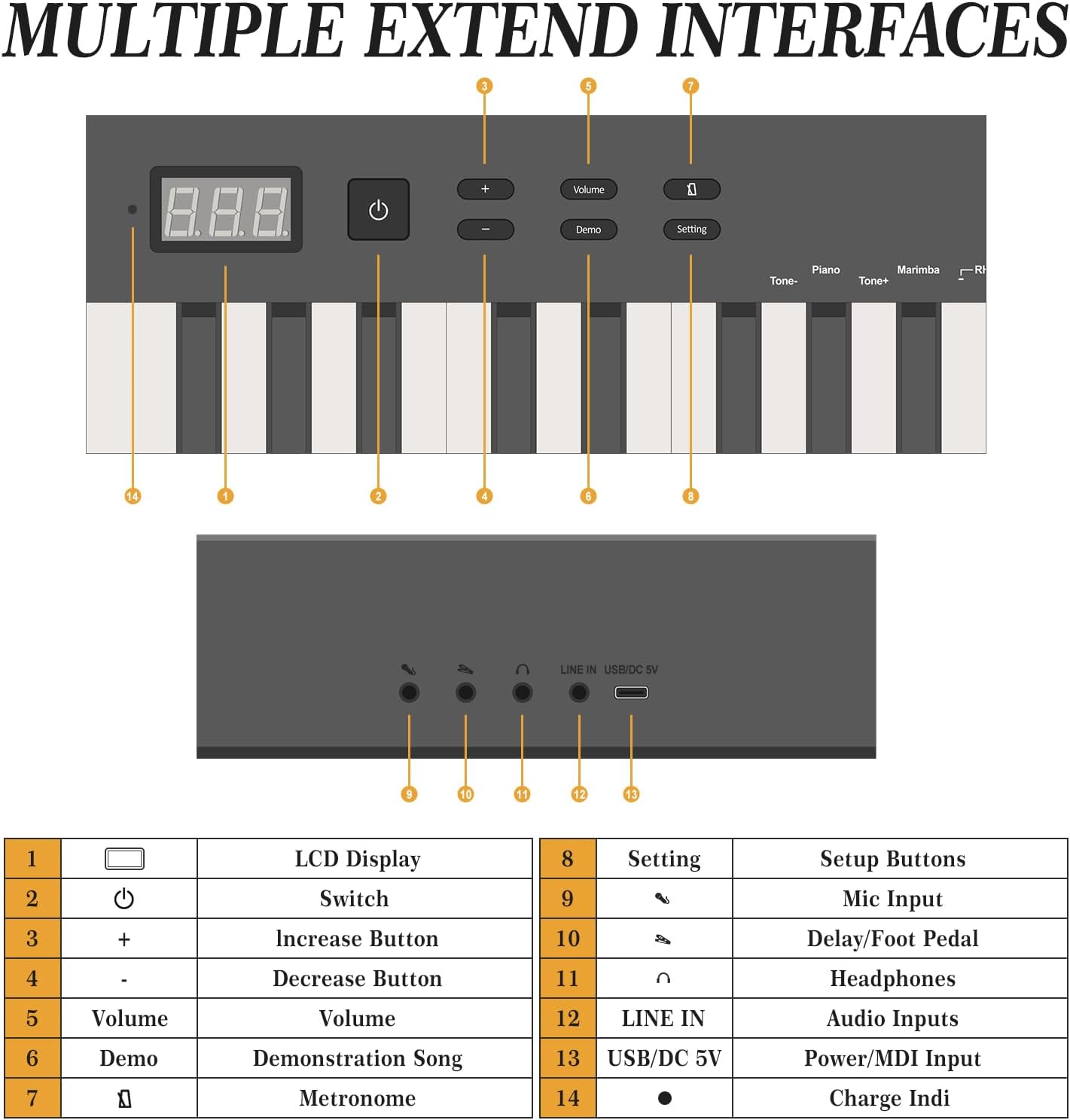
Imagen: All items included in the Garvee 88-Key Digital Piano Keyboard package.
- Garvee 88-Key Digital Piano Keyboard: The main instrument.
- Bolsa de transporte: For convenient transport and protection.
- Book Clip (Music Stand): To hold sheet music or a tablet.
- Pedal de sostenido: For expressive playing.
- Adaptador de corriente: To power the keyboard.
- Auriculares: For private practice sessions.
- Note Stickers: For key identification, especially useful for beginners.
Características del producto
Your Garvee Digital Piano Keyboard is equipped with several features designed to enhance your musical journey:
Bluetooth & MIDI Functionality

Imagen: Bluetooth and MIDI connectivity of the Garvee digital piano with various devices and music applications.
The integrated Bluetooth and MIDI functions allow for wireless connection to external devices such as smartphones, tablets, and computers. This enables interaction with various music learning and production applications like Pop Piano, Perfect Piano, and Garageband, expanding your creative and learning possibilities.
Dual Keyboard Mode

Imagen: Two individuals playing the Garvee digital piano simultaneously in dual keyboard mode.
This feature divides the 88 keys into two independent sections, allowing two players to use the keyboard simultaneously. It is ideal for teaching scenarios where an instructor can play alongside a student, or for duets.
Rich Sound Functions

Imagen: Encimaview of the Garvee digital piano's rich sound functions.
- 129 tonos: Una amplia variedad de sonidos de instrumentos para explorar.
- 128 Polyphony: Allows for complex musical passages without notes cutting off.
- 30 Demos: Pre-recorded songs for listening and learning.
- MIDI: Musical Instrument Digital Interface for connection to other MIDI devices.
- Record & Play: Capturar y review tus actuaciones.
- Metrónomo: Essential tool for rhythm practice.
Semi-Weighted, Touch-Sensitive Keys

Imagen: Visual representation of the semi-weighted, touch-sensitive keys.
The 88 full-sized keys feature a semi-weighted, touch-sensitive design, mimicking the feel of an acoustic piano. This allows for dynamic expression, where the volume and tone change based on how hard or soft you press the keys.
Diseño portátil
Its lightweight and foldable design makes the keyboard easy to transport and store, ideal for practice at home, lessons, or while traveling.
Quiet Practice Option
With adjustable volume and a dedicated headphone jack, you can practice privately without disturbing others, fostering focused learning.
Controles e interfaces
Familiarize yourself with the control panel and various input/output ports:

Imagen: Labeled diagram of the Garvee digital piano's controls and interfaces.
| No. | Control/Puerto | Función |
|---|---|---|
| 1 | Pantalla LCD | Shows current settings, tone, and other information. |
| 2 | Cambiar | Botón de encendido / apagado. |
| 3 | + | Increase button for various settings (e.g., tone, volume). |
| 4 | - | Decrease button for various settings. |
| 5 | Volumen | Ajusta el volumen de salida general. |
| 6 | Manifestación | Plays demonstration songs. |
| 7 | Configuración | Accesses setup buttons and advanced settings. |
| 8 | Entrada de micrófono | Connect an external microphone. |
| 9 | Delay/Foot Pedal | Connect the sustain pedal or other foot controllers. |
| 10 | Auriculares | Conecte auriculares para escuchar en privado. |
| 11 | ENTRADA DE LINEA | Audio input for connecting external audio sources. |
| 12 | USB / CC 5 V | Power input (DC 5V) and USB port for MIDI data transfer. |
| 13 | Indicador de carga | Indica el estado de carga. |
Configuración
- Deshacer: Retire con cuidado todos los componentes del embalaje. Conserve el embalaje para su posterior transporte o almacenamiento.
- Colocación: Place the keyboard on a stable, flat surface. If using the included book clip, attach it to the designated slot.
- Conexión de energía: Connect the provided power adapter to the USB/DC 5V port (12) on the rear of the keyboard and plug it into a standard electrical outlet. The charge indicator (13) will illuminate.
- Pedal de sostenido: Connect the sustain pedal to the Delay/Foot Pedal port (9).
- Auriculares (opcional): For private practice, connect your headphones to the Headphone port (10).
Instrucciones de funcionamiento
Encendido/apagado
- Presione el Cambiar button (2) to turn the keyboard on. The LCD display (1) will light up.
- Presione el Cambiar button (2) again to turn the keyboard off.
Ajuste del volumen
- Utilice el Volumen botón (5) y el + (3) o - (4) buttons to adjust the master volume.
Selección de tonos/voces
- Presione el Tono+ or Tono- buttons (located near the right side of the keyboard, not explicitly numbered but visible in image 71qoxrO3wuL) to cycle through the available 129 tones. The selected tone will be shown on the LCD display (1).
Reproducción de canciones de demostración
- Presione el Manifestación button (6) to start playing demonstration songs.
- Prensa Manifestación again to stop or cycle through different demo songs.
Usando el metrónomo
- Presione el Metrónomo button (located near the right side of the keyboard, not explicitly numbered but visible in image 71qoxrO3wuL) to activate the metronome.
- Utilice el + (3) y - (4) buttons to adjust the tempo.
- Presione el Metrónomo de nuevo para apagarlo.
Grabación y reproducción
- Presione el Registro button (located near the right side of the keyboard, not explicitly numbered but visible in image 71qoxrO3wuL) to begin recording your performance. The record indicator will light up.
- Play your desired piece.
- Presione el Registro de nuevo para detener la grabación.
- Presione el Jugar button (located near the right side of the keyboard, not explicitly numbered but visible in image 71qoxrO3wuL) to listen to your recorded performance.
Conexión MIDI por Bluetooth
- Ensure your Garvee keyboard is powered on.
- On your external device (smartphone, tablet, computer), enable Bluetooth.
- Open a compatible music application (e.g., Pop Piano, Perfect Piano, Garageband).
- Within the app's settings, locate the MIDI or Bluetooth device connection option.
- Select your Garvee keyboard from the list of available devices to establish a connection.
Mantenimiento
- Limpieza: Utilice un paño suave y seco para limpiar la superficie del teclado. Para la suciedad difícil, limpie ligeramenteampEnjuague el paño con agua. Evite usar limpiadores abrasivos, disolventes o ceras, ya que pueden dañar el acabado.
- Limpieza de llaves: Limpie suavemente las teclas con un paño suave y ligeramente húmedo.amp cloth. Do not allow liquid to seep between the keys.
- Almacenamiento: When not in use, store the keyboard in a cool, dry place, away from direct sunlight and extreme temperatures. Use the provided carrying bag for protection.
- Cuidado del adaptador de corriente: Always handle the power adapter and cable with care. Do not bend or twist the cable excessively. Unplug the adapter from the wall when not in use for extended periods.
Solución de problemas
Si encuentra algún problema, consulte los siguientes problemas y soluciones comunes:
- Sin sonido:
- Asegúrese de que el teclado esté encendido.
- Check the volume level using the Volumen button (5) and +/- botones (3, 4).
- If headphones are connected, ensure they are fully plugged in and functioning. Disconnect them to check if sound comes from the internal speakers.
- Verify that the power adapter is correctly connected.
- Las teclas no responden:
- Reinicie el teclado apagándolo y encendiéndolo nuevamente.
- Asegúrese de que no haya objetos extraños alojados entre las teclas.
- Problemas de conexión Bluetooth:
- Ensure Bluetooth is enabled on both the keyboard and your external device.
- Make sure the keyboard is within range of the external device.
- Try restarting both the keyboard and the external device.
- Check the settings within your music application to ensure the correct MIDI device is selected.
- Power Indicator Not Lighting Up:
- Check if the power adapter is securely plugged into both the keyboard and the wall outlet.
- Asegúrese de que el tomacorriente de pared funcione.
- Try using a different compatible USB power source if available.
Presupuesto
| Característica | Especificación |
|---|---|
| Número de modelo | 82Q1wcofATAiavIyw_3k9QRvBefz |
| Número de llaves | 88 |
| Tipo de clave | Semi-weighted, Touch-sensitive |
| Polifonía | 128 notas |
| Tonos | 129 |
| Canciones de demostración | 30 |
| Conectividad | Bluetooth MIDI, USB/DC 5V, LINE IN, Headphone Out, Mic Input, Foot Pedal |
| Fuente de alimentación | DC 5V (USB-powered) |
| Dimensiones del producto | 50.39" de profundidad x 5" de ancho x 10.43" de alto (128 cm de profundidad x 12.7 cm de ancho x 26.5 cm de alto) |
| Peso del artículo | 15.43 libras (7 kg) |
| Características especiales | Foldable design, Dual Speakers |
Garantía y soporte
For warranty information or technical support, please refer to the documentation provided with your purchase or contact Garvee customer service through their official website or the retailer where the product was purchased. Please have your model number (82Q1wcofATAiavIyw_3k9QRvBefz) and proof of purchase ready when contacting support.