
1. Introducción
Welcome to the user manual for your new Lenovo LOQ 15IRX10 Gaming Laptop. This document provides essential information to help you set up, operate, maintain, and troubleshoot your device. Please read this manual thoroughly to ensure optimal performance and longevity of your laptop.

Figure 1.1: Lenovo LOQ 15IRX10 Gaming Laptop with included PCO Notebook Folding Radiator. This image displays the laptop in an open position, showcasing its keyboard and screen, alongside the external cooling accessory.
2. Contenido del paquete
Ensure all items are present in your package. If any item is missing or damaged, contact your retailer.
- Lenovo LOQ 15IRX10 Gaming Laptop
- Adaptador de corriente y cable
- PCO Notebook Folding Radiator (Laptop Cooler)
- Guía de inicio rápido (si está incluida)
- Información de garantía (si está incluida)
3. Producto terminadoview
The Lenovo LOQ 15IRX10 is a high-performance gaming laptop designed for demanding applications and immersive gaming experiences.
3.1 componentes clave
- Procesador: Intel Core i5-13450HX (10 núcleos, 16 subprocesos, hasta 4.6 GHz)
- Gráficos: NVIDIA GeForce RTX 5050
- Mostrar: 15.6-inch Full HD (1920x1080) 144Hz Anti-glare
- Memoria: 32 GB de RAM DDR5 (ampliable hasta 64 GB)
- Almacenamiento: Unidad de estado sólido PCIe NVMe M.2 de 1 TB (ampliable hasta 4 TB)
- Sistema operativo: Inicio de Windows 11
- Conectividad: Wi-Fi 6, Bluetooth
- Teclado: Backlit Keyboard with Numeric Keypad

Figura 3.1: Angulado view of the Lenovo LOQ Gaming Laptop, highlighting its sleek design and display.
3.2 Puertos y Conectores
Familiarícese con los puertos disponibles para conectar dispositivos externos.
- 1x USB-C (USB 10Gbps, with USB PD 65-100W & DP 1.4)
- 1x HDMI
- 1 conector combinado de auriculares/micrófono (3.5 mm)
- 1x RJ-45 (Ethernet)
- 3x USB-A (USB 5Gbps)
- 1x conector de alimentación

Figure 3.2: Diagram illustrating the various ports and connectors on the Lenovo LOQ 15IRX10 laptop, including USB-C, HDMI, audio jack, RJ-45, USB-A, and power connector.
4. Configuración
4.1 Encendido inicial
- Desembale la computadora portátil y el adaptador de corriente.
- Conecte el adaptador de corriente al conector de alimentación de la computadora portátil y luego a una toma de corriente.
- Abra la tapa de la computadora portátil y presione el botón de encendido, generalmente ubicado encima del teclado o en el costado.
- Follow the on-screen instructions to complete the Windows 11 Home initial setup, including language, region, network connection, and user account creation.
4.2 Connecting the PCO Notebook Folding Radiator
For enhanced cooling during intensive tasks, use the bundled PCO Notebook Folding Radiator.
- Unfold the radiator to its desired height and angle.
- Place your Lenovo LOQ laptop on top of the radiator.
- Connect the radiator's USB cable to an available USB-A port on your laptop to power the fans.

Figure 4.1: The PCO Notebook Folding Radiator, designed to provide additional cooling and improve airflow for the laptop.
5. Operación de su computadora portátil
5.1 Gestión de energía
- Encendido: Presione el botón de encendido.
- Modo de sueño: Cierre la tapa o seleccione “Suspender” en el menú Inicio.
- Cerrar: Vaya al Menú Inicio > Energía > Apagar.
- Reanudar: Vaya al Menú Inicio > Energía > Reiniciar.
5.2 Teclado y panel táctil
The laptop features a backlit keyboard and a precision touchpad.
- Teclado retroiluminado: Adjust brightness or toggle the backlight using function keys (Fn + Spacebar, typically).
- Teclado numérico: Use the dedicated numeric keypad for data entry.
- Gestos del panel táctil: Utilize multi-touch gestures for navigation (e.g., two-finger scroll, pinch-to-zoom). Refer to Windows settings for customization.

Figure 5.1: The Lenovo LOQ 15IRX10 laptop showcasing its illuminated backlit keyboard, enhancing visibility in low-light conditions.
5.3 Conectividad de red
- Wifi: Connect to wireless networks via the Wi-Fi 6 module. Access Wi-Fi settings through the Windows taskbar network icon.
- Bluetooth: Pair Bluetooth devices (e.g., headphones, mice) through Windows Settings > Bluetooth & devices.
- Ethernet: For a wired connection, plug an Ethernet cable into the RJ-45 port.
5.4 Configuración de pantalla
The 15.6-inch FHD 144Hz display offers a smooth visual experience.
- Frecuencia de actualización: Ensure the 144Hz refresh rate is active for optimal gaming. Go to Windows Settings > System > Display > Advanced display settings.
- Pantalla externa: Connect an external monitor using the HDMI port. Configure display settings (duplicate, extend) in Windows Display settings.
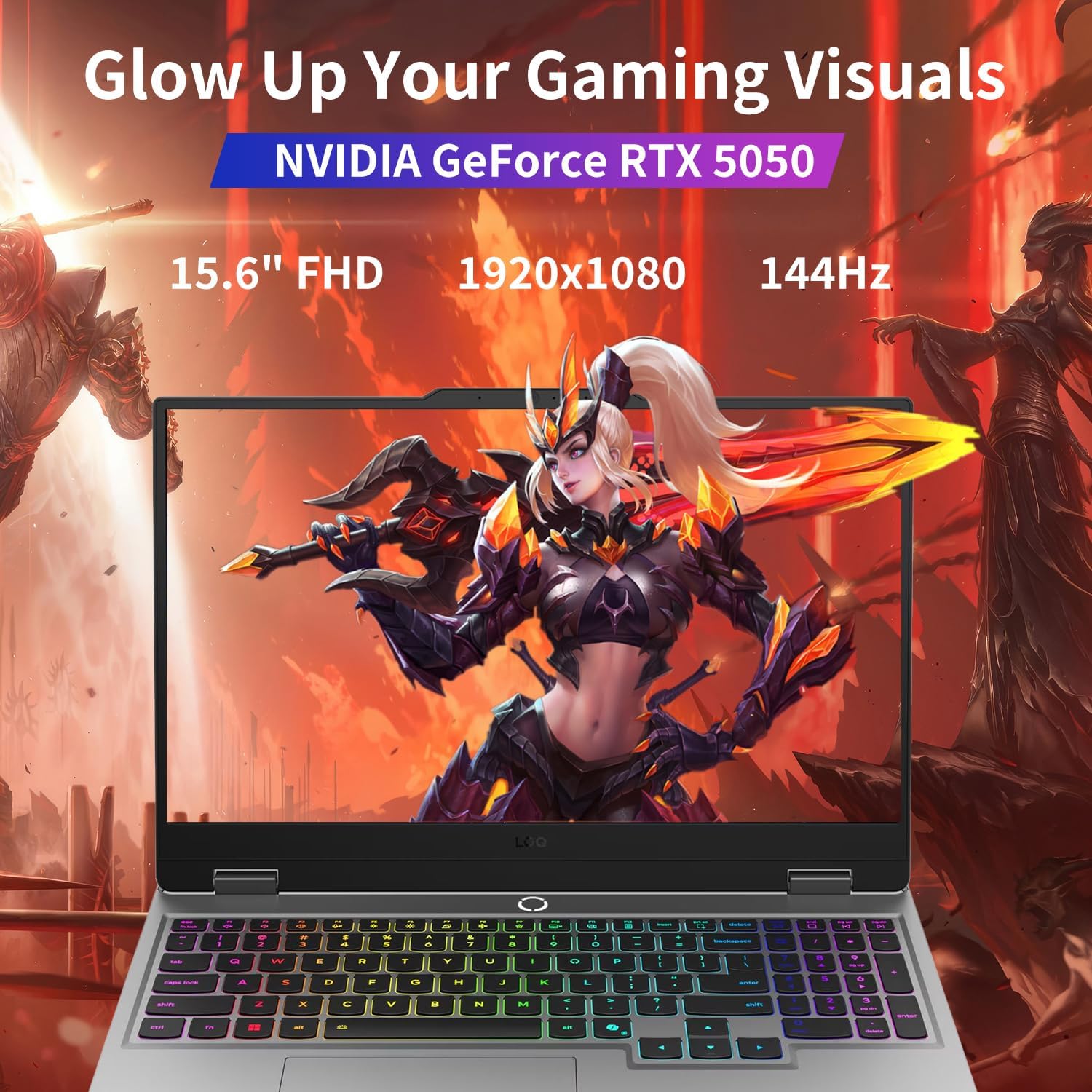
Figure 5.2: The laptop display showcasing vibrant graphics, with text overlays indicating NVIDIA GeForce RTX 5050, 15.6" FHD, 1920x1080 resolution, and 144Hz refresh rate.
6. Mantenimiento
6.1 Limpieza de su computadora portátil
- Utilice un paño suave y sin pelusa ligeramente seco.ampLimpiar con agua o con un limpiador de pantalla.
- Para el teclado y el chasis, utilice un paño suave. Evite productos químicos agresivos.
- Utilice aire comprimido para limpiar el polvo de las rejillas de ventilación periódicamente.
6.2 Cuidado de la batería
- Evite descargar completamente la batería con frecuencia.
- Guarde la computadora portátil en un lugar fresco y seco si no la utiliza durante períodos prolongados.
- For optimal battery health, keep the battery charge between 20% and 80% when possible.
6.3 Actualizaciones de software
- Regularly update Windows 11 through Settings > Windows Update.
- Keep graphics drivers (NVIDIA) and other device drivers updated via Lenovo Vantage software or the official Lenovo support websitio.
7. Solución de problemas
Esta sección aborda problemas comunes que podrías encontrar.
7.1 Problemas de energía
- La computadora portátil no enciende: Asegúrese de que el adaptador de corriente esté bien conectado y que la toma de corriente funcione. Pruebe con otra toma.
- La batería no se carga: Verify the power adapter connection. Check for any visible damage to the adapter or cable.
7.2 Problemas de visualización
- Sin pantalla: Conecte un monitor externo para comprobar si el problema está en la pantalla del portátil. Reinícielo.
- Pantalla parpadeante: Actualice los controladores gráficos. Compruebe las conexiones del cable de pantalla si utiliza un monitor externo.
7.3 Problemas de rendimiento
- Rendimiento lento: Close unnecessary applications. Check Task Manager for high CPU/RAM usage. Ensure sufficient free storage space.
- Calentamiento excesivo: Ensure laptop vents are clear. Use the PCO Notebook Folding Radiator. Monitor temperatures with system utilities.
8. Especificaciones
Detailed technical specifications for the Lenovo LOQ 15IRX10 Gaming Laptop.
| Característica | Especificación |
|---|---|
| Nombre del modelo | LOQ 15IRX10 |
| Procesador | Intel Core i5-13450HX (10 núcleos, 16 subprocesos, hasta 4.6 GHz) |
| Gráficos | NVIDIA GeForce RTX 5050 (Dedicada) |
| Mostrar | 15.6" FHD (1920x1080) 144Hz, Anti-glare, 300 nits |
| RAM | 32 GB DDR5 (4800 MHz) |
| Almacenamiento | SSD PCIe NVMe M.1 de 2 TB |
| Sistema operativo | Inicio de Windows 11 |
| Conectividad inalámbrica | Wi-Fi 6, Bluetooth |
| Puertos | 1x USB-C (10Gbps, PD, DP), 1x HDMI, 1x Headphone/Mic Combo, 1x RJ-45, 3x USB-A (5Gbps), 1x Power Connector |
| Dimensiones (LxAnxAl) | 14.17" x 10.19" x 0.86" |
| Peso | 5.29 libras (solo portátil) |
| Color | Gris |
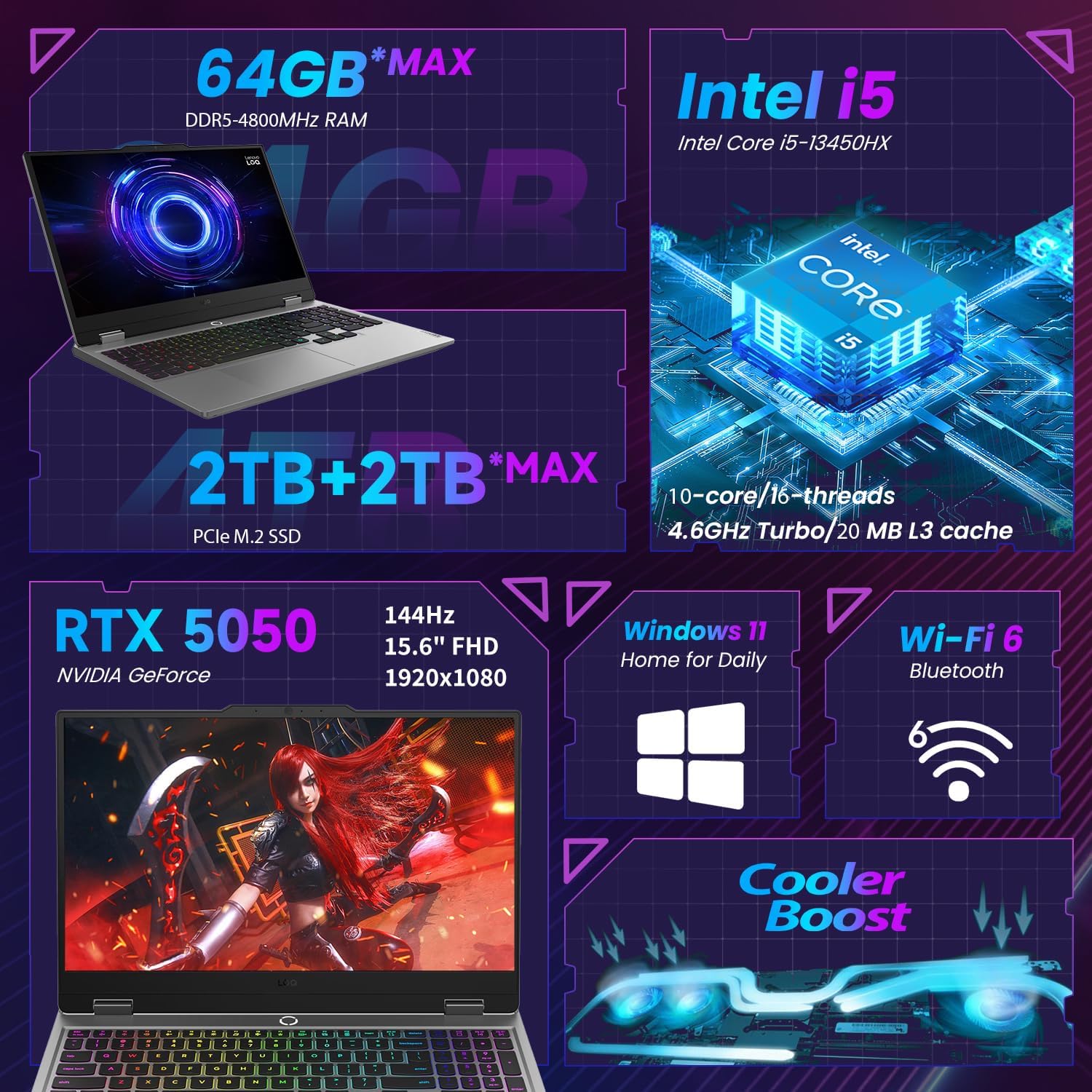
Figure 8.1: An infographic summarizing key specifications of the Lenovo LOQ 15IRX10, including RAM, SSD, CPU, GPU, display, operating system, and Wi-Fi.
9. Garantía y soporte
Your Lenovo LOQ 15IRX10 Gaming Laptop comes with a manufacturer's warranty. Specific terms and duration may vary by region and retailer.
- Información de garantía: Refer to the documentation included with your laptop or visit the official Lenovo support webSitio para conocer los términos y condiciones detallados de la garantía.
- Apoyo técnico: Para obtener asistencia técnica, descargas de controladores o solicitudes de servicio, visite el soporte técnico oficial de Lenovo. websitio o comuníquese con el servicio de atención al cliente de Lenovo.
- Recursos en línea: Soporte de Lenovo Websitio
Note: Modifications by unauthorized third parties may void the manufacturer's warranty. Always ensure any upgrades or repairs are performed by authorized service providers or follow official Lenovo guidelines.