
1. Producto terminadoview
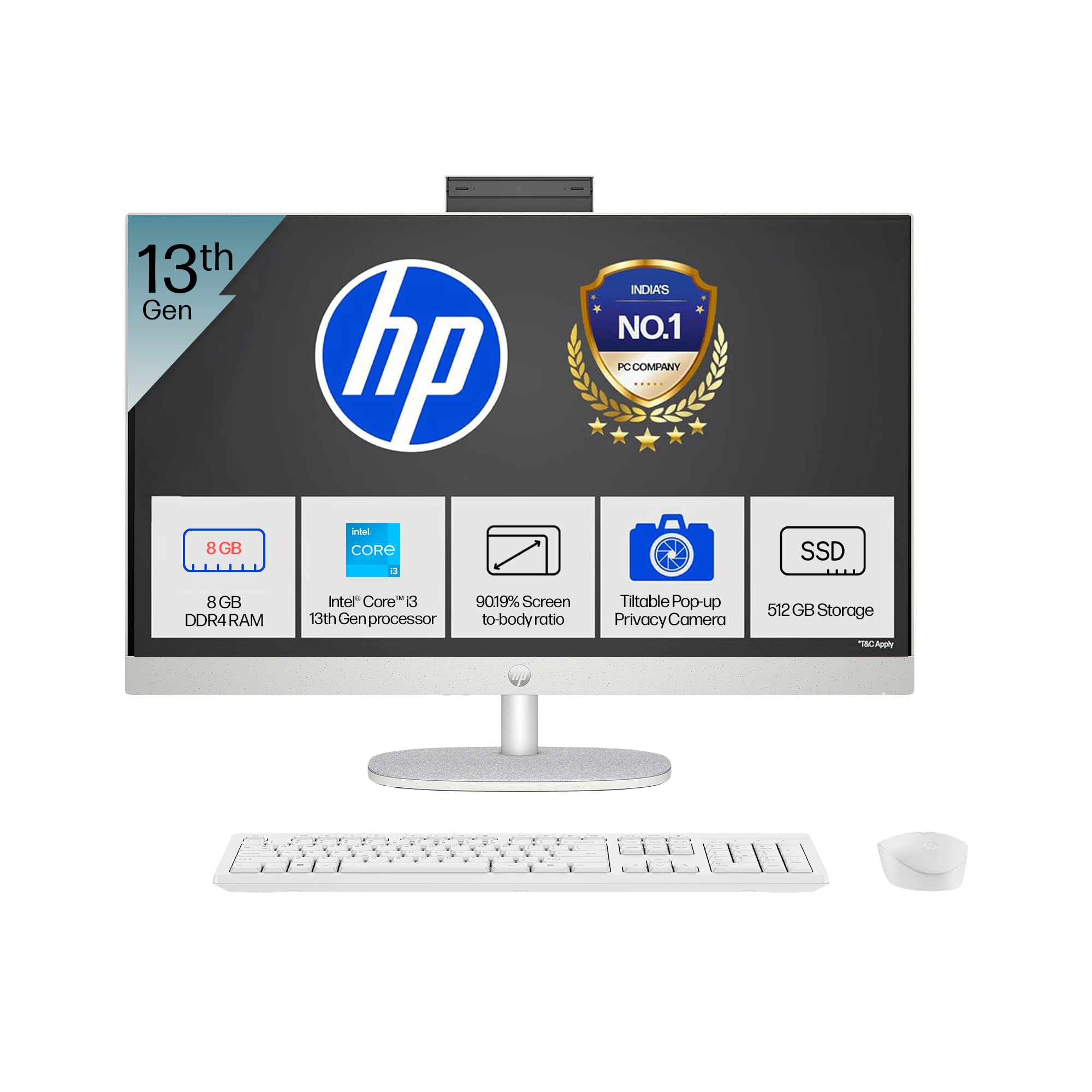
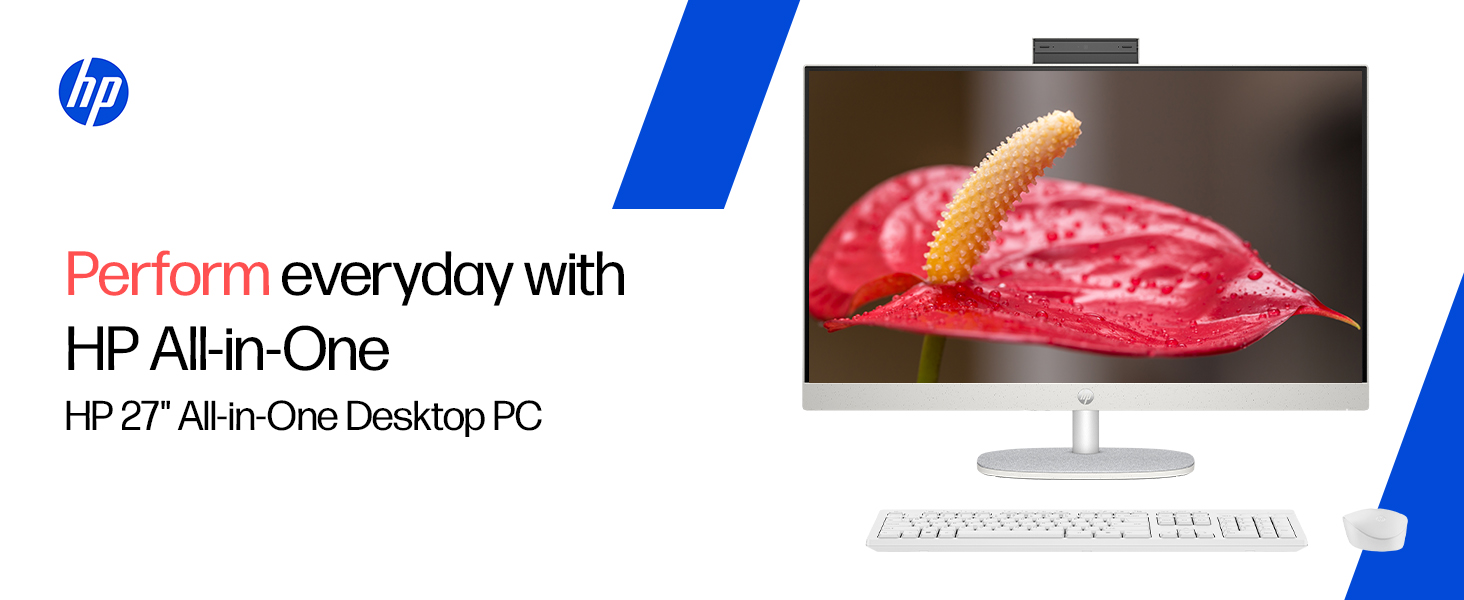
The HP All-in-One PC models 27-cr0902in and 27-cr0906in are designed for everyday computing tasks, offering a blend of performance and display quality. This manual provides essential information for setting up, operating, maintaining, and troubleshooting your device.
Características principales
- Procesador: Intel Core i3-1315U (up to 4.5 GHz with Intel Turbo Boost Technology, 6 cores, 8 threads)
- Memoria: 8 GB DDR4-3200 MT/s RAM
- Almacenamiento: SSD PCIe NVMe M.2 de 512 GB
- Mostrar: 27-inch (68.6 cm) diagonal, FHD (1920 x 1080), touch, IPS, three-sided microedge, anti-glare, 300 nits, 99% sRGB
- Gráficos: Gráficos Intel UHD integrados
- Sistema operativo: Idioma único de Windows 11 Home en modo S
- Cámara: HP True Vision 1080p FHD IR tilt privacy camera with temporal noise reduction and integrated dual array digital microphones
- Conectividad: Wi-Fi 6 (2x2), Bluetooth 5.3, 1 USB Type-C 5Gbps, 2 USB Type-A 5Gbps, 2 USB 2.0 Type-A, 1 headphone/microphone combo, 1 RJ-45
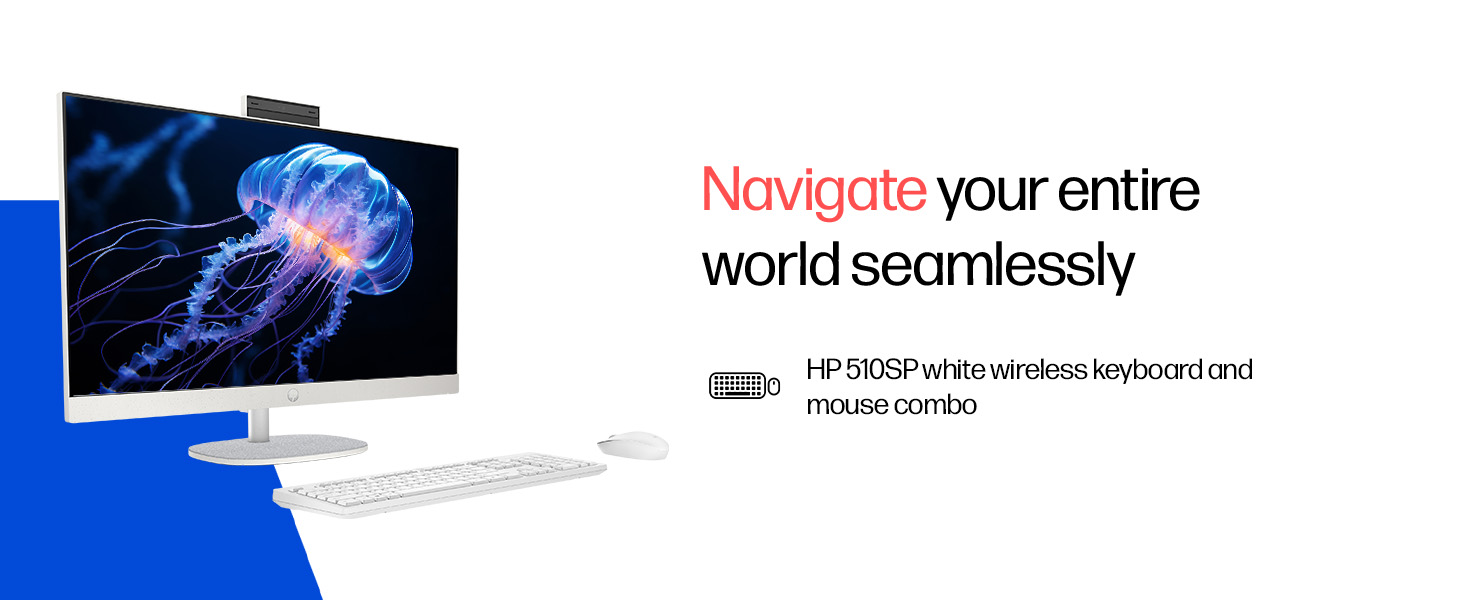
- Periféricos incluidos: HP 510SP White Wireless Keyboard and Mouse Combo
2. Guía de configuración
Follow these steps to set up your HP All-in-One PC.
2.1 Desembalaje de la caja
Retire con cuidado todos los componentes del embalaje. Asegúrese de que estén presentes los siguientes elementos:
- HP All-in-One PC unit
- Adaptador de corriente y cable
- HP 510SP White Wireless Keyboard
- HP 510SP White Wireless Mouse
- Documentación (este manual, información de garantía)
2.2 Conexión de periféricos
- Conecte el teclado y el ratón: Insert the USB receiver for the wireless keyboard and mouse into an available USB port on the back of the All-in-One PC. Ensure batteries are installed in both the keyboard and mouse.
- Conecte la electricidad: Connect the power adapter to the power input port on the back of the All-in-One PC, then plug the power cable into a wall outlet.
- Conexiones opcionales:
- Dispositivos externos: Connect any external USB devices (e.g., external hard drives, printers) to the available USB ports.
- Cable de red: Si utiliza una conexión de red cableada, conecte un cable Ethernet al puerto RJ-45.

2.3 Encendido inicial
Press the power button, usually located on the side or back of the display. The PC will boot up, and you will be guided through the Windows 11 setup process. Follow the on-screen instructions to configure your operating system, network, and user accounts.
3. Instrucciones de funcionamiento
3.1 Encendido/apagado y modo de suspensión
- Encendido: Presione el botón de encendido.
- Cerrar: Haga clic en el botón Inicio en Windows, luego seleccione Energía > Apagar.
- Reanudar: Haga clic en el botón Inicio en Windows, luego seleccione Energía > Reiniciar.
- Dormir: Click the Start button in Windows, then select Power > Sleep. You can also configure power settings in Windows to automatically enter sleep mode after a period of inactivity.
3.2 Uso de la pantalla táctil
Your HP All-in-One PC features a touch-enabled display. You can interact with the operating system and applications using touch gestures similar to a tablet or smartphone. Common gestures include tapping, swiping, pinching to zoom, and stretching to zoom out.
3.3 Using the HP True Vision Camera
The integrated HP True Vision 1080p FHD IR tilt privacy camera is suitable for video calls and facial recognition login (Windows Hello). The camera can be tilted for optimal viewing angles and includes a privacy shutter for security. To use the camera, open an application that requires camera access (e.g., Camera app, video conferencing software).
3.4 Audio and Microphones
The PC includes integrated dual 2W speakers and dual array digital microphones with temporal noise reduction for clear audio input during calls or recordings. You can adjust volume settings through the Windows sound controls.
4. Mantenimiento
Proper maintenance ensures the longevity and optimal performance of your HP All-in-One PC.
4.1 Limpieza del dispositivo
- Mostrar: Utilice un paño suave y sin pelusa ligeramente seco.ampLimpie con agua o una solución limpiadora de pantallas. Evite productos químicos agresivos o materiales abrasivos.
- Chasis: Limpie las superficies exteriores con un paño suave y seco.
- Teclado y ratón: Use a soft brush or compressed air to remove dust and debris.
- Siempre apague y desenchufe el PC antes de limpiarlo.
4.2 Actualizaciones de software
Regularly check for and install Windows updates and HP driver updates to ensure system stability, security, and performance. You can find Windows updates in the Settings app under "Windows Update." HP drivers can be found on the official HP support websitio.
4.3 Copia de seguridad del sistema
Se recomienda realizar periódicamente copias de seguridad de sus datos importantes en una unidad externa o en un almacenamiento en la nube para evitar la pérdida de datos.
5. Solución de problemas
This section addresses common issues you might encounter with your HP All-in-One PC.
5.1 No hay energía/El sistema no se enciende
- Asegúrese de que el cable de alimentación esté conectado de forma segura tanto a la PC como a la toma de pared.
- Verifique que el tomacorriente de pared funcione enchufando otro dispositivo.
- Pruebe con una toma de corriente diferente.
5.2 Problemas de visualización
- No hay imagen en la pantalla: Ensure the PC is powered on. If connected to an external monitor, check the input source on the monitor.
- Imagen parpadeante o distorsionada: Actualice los controladores de gráficos. Si el problema persiste, contacte con el soporte técnico.
- La pantalla táctil no responde: Restart the PC. Ensure there are no obstructions on the screen. Check for driver updates for the touch display.
5.3 System Performance Issues (Slowdown, Hanging)
- Cierre las aplicaciones innecesarias que se ejecutan en segundo plano.
- Consulte el Administrador de tareas (Ctrl+Shift+Esc) para ver si hay procesos que consuman mucho CPU, memoria o disco.
- Asegúrese de que su sistema operativo y sus controladores estén actualizados.
- Ejecute un análisis completo del sistema en busca de malware o virus.
- Consider freeing up disk space on your SSD.
5.4 Peripheral Connectivity Problems (Keyboard/Mouse)
- Asegúrese de que el receptor USB esté conectado de forma segura a un puerto USB.
- Check the batteries in the wireless keyboard and mouse and replace them if necessary.
- Intente conectar el receptor USB a un puerto USB diferente.
- Reinicie la PC.
6. Especificaciones técnicas
Detailed specifications for the HP All-in-One PC 27-cr0902in/cr0906in.
| Característica | Detalle |
|---|---|
| Marca | HP |
| Números de modelo | 27-cr0902in, 27-cr0906in |
| Procesador | Intel Core i3-1315U (hasta 4.5 GHz, 6 núcleos, 8 subprocesos, 10 MB de caché L3) |
| Sistema operativo | Idioma único de Windows 11 Home en modo S |
| Memoria (RAM) | 8 GB DDR4-3200 MT/s (1 x 8 GB) |
| Almacenamiento | SSD PCIe NVMe M.2 de 512 GB |
| Mostrar | 27-inch (68.6 cm) FHD (1920 x 1080) IPS, touch, anti-glare, 300 nits, 99% sRGB |
| Gráficos | Gráficos Intel UHD (integrados) |
| Cámara | HP True Vision 1080p FHD IR tilt privacy camera with temporal noise reduction |
| Audio | Integrated dual array digital microphones, Dual 2W speakers |
| Conectividad inalámbrica | Realtek RTL8852BE Wi-Fi 6 (2x2), Bluetooth 5.3 |
| Puertos | 1 USB Type-C 5Gbps, 2 USB Type-A 5Gbps, 2 USB 2.0 Type-A, 1 headphone/microphone combo, 1 RJ-45 |
| Teclado y ratón | HP 510SP White Wireless Keyboard and Mouse Combo |
| Dimensiones (An x Pr x Al) | 61.2 x 18.6 x 44.1 cm (24.11 x 7.33 x 17.36 pulgadas) |
| Peso | 6.42 kilogramos |
| Color | Shell White |
| Certificaciones ambientales | EPEAT Gold Registered, ENERGY STAR certified |
7. Garantía y soporte
7.1 Información de garantía
Your HP All-in-One PC comes with a Garantía del fabricante por 1 año on the device from the date of purchase. Please retain your purchase receipt for warranty claims.
7.2 Soporte técnico
For any technical or product-related queries, please contact HP customer support:
- Números gratuitos: 1800-258-7170 or 1860-258-3079
- Contacto del fabricante: HP India Sales Pvt. Ltd.
- Contacto del importador: HP India Sales Private Limited, No. 24, Kothari Arena, Hosur Main Road, Adugodi, Bangalore, Karnataka, India, 560030
You can also visit the official HP support website for drivers, documentation, and further assistance.