
Introducción
This manual provides detailed instructions for the setup, operation, and maintenance of your ProtoArc Wired USB Trackpad T1. Designed for enhanced productivity and comfort, this trackpad offers high-precision multi-gesture support for Windows 10 and 11 systems.
Compatibilidad
The ProtoArc T1 Wired Trackpad is compatible with Windows 11, Windows 10, PCs, laptops, and desktop computers. Please note that it is not compatible with Mac, Chrome OS, or Linux operating systems. Use on unsupported systems may result in missing gestures or functions.

Contenido del paquete
Asegúrese de que todos los elementos estén presentes al desembalar:
- ProtoArc Wired USB Trackpad T1
- USB-C to USB-A Connection Cable
- Manual de usuario
- Tarjeta de garantía
Características del producto
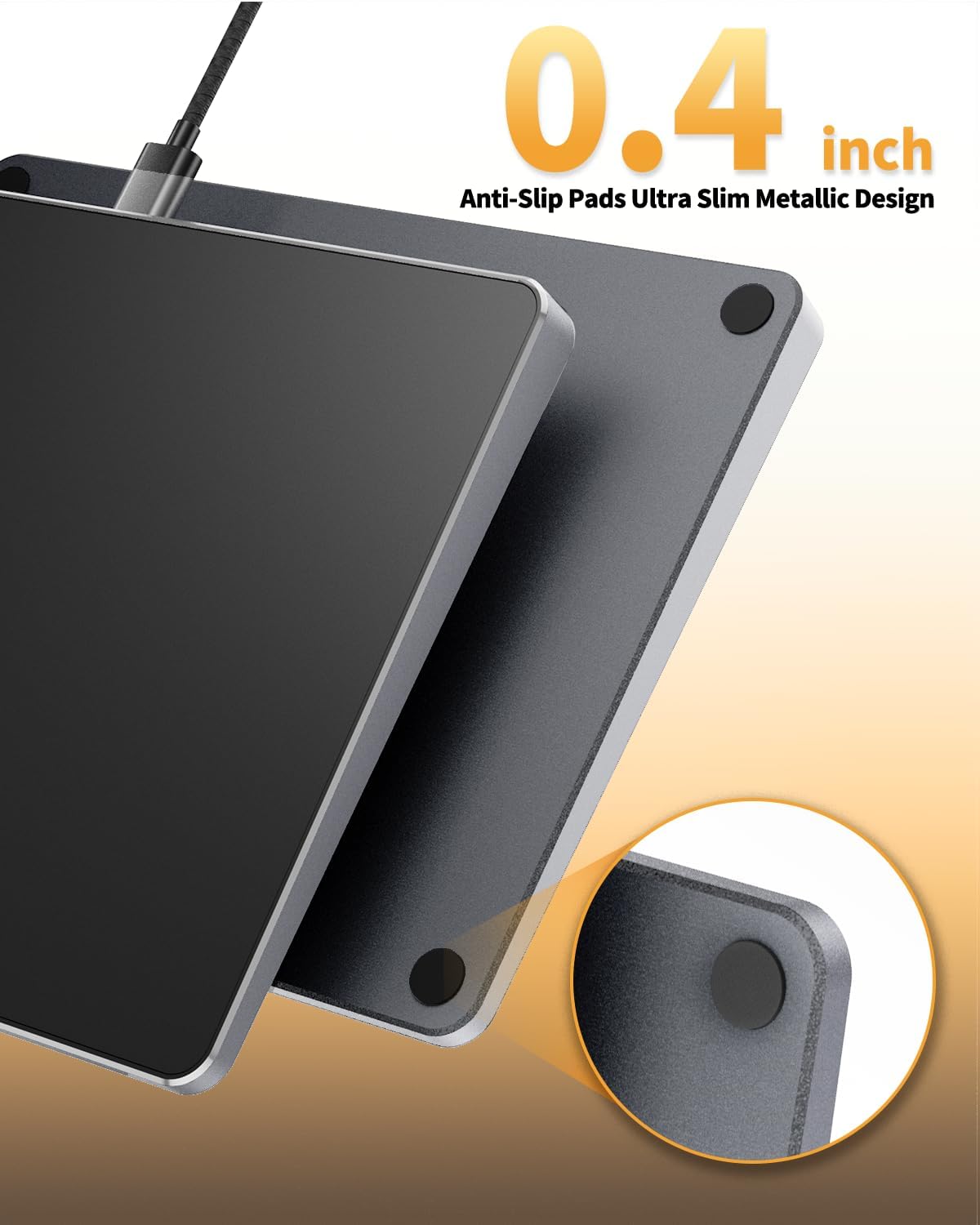
- Extra Large Metal Touchpad: Features a spacious 6.4 x 4.8 inch touch surface with an ultra-slim design (0.19in-0.39in thickness), providing ample room for comfortable navigation.
- High Precision & Sensitive Response: Engineered for fast and sensitive response, ensuring smooth and accurate cursor control and gesture recognition.
- Ultra Slim Metallic Design: Constructed with durable aluminum, giving it a sleek and modern aesthetic. Includes anti-slip pads on the bottom for stability.


Configuración
The ProtoArc T1 Trackpad is designed for plug-and-play functionality, requiring no additional drivers for most Windows 10/11 systems.
- Localice un puerto USB disponible en su computadora (PC, portátil o de escritorio).
- Connect the USB-C end of the provided cable to the USB-C port on the trackpad.
- Conecte el extremo USB-A del cable al puerto USB de su computadora.
- The trackpad should be automatically recognized by your Windows 10/11 system and ready for use. A small red indicator light on the trackpad will illuminate when connected and active.

Instrucciones de funcionamiento
The ProtoArc T1 Trackpad supports various multi-touch gestures for intuitive navigation and control.
Basic Clicks
- Click izquierdo: Single-tap anywhere on the trackpad surface, or use the physical left button at the bottom.
- Botón derecho del ratón: Two-finger single-tap on the trackpad surface, or use the physical right button at the bottom.

Multi-Gesture Support
The trackpad supports up to four-finger operations, offering smoother navigation than many laptop touchpads. Functions include:
- Desplazamiento: Use two fingers to scroll up or down pages.
- Zoom: Pinch with two fingers to zoom in or out of photos and documents.
- Arrastrando Files/Selecting Text: Double-click with one finger and hold/slide to drag files or select text.
- Toque con tres dedos: Buscando función.
- Deslizar tres dedos hacia arriba: Tarea abierta View.
- Deslizar tres dedos hacia abajo: Regresar al escritorio.
- Three-Finger Slide Left/Right: Switch between active windows.

Adjusting Cursor Speed
To customize your trackpad experience, you can adjust the cursor speed:
- Open "Windows Settings".
- Navigate to "Bluetooth & other devices".
- Select "Touchpad".
- Adjust the "Cursor Speed" slider to your preferred setting (slower ← → faster).
Mantenimiento
To ensure the longevity and optimal performance of your ProtoArc T1 Trackpad, follow these simple maintenance guidelines:
- Keep the trackpad surface clean and free from dust and debris. Use a soft, lint-free cloth for cleaning.
- Avoid exposing the trackpad to extreme temperatures or direct sunlight.
- Do not spill liquids on the device. If liquid contact occurs, disconnect immediately and allow to dry completely before re-connecting.
- Manipule el dispositivo con cuidado para evitar caídas o impactos.
Solución de problemas
If you encounter issues with your ProtoArc T1 Trackpad, consider the following solutions:
- El trackpad no responde: Ensure the USB-C cable is securely connected to both the trackpad and your computer's USB port. Check if the red indicator light on the trackpad is illuminated.
- Laptop's Built-in Touchpad Disabled: If you have disabled your laptop's built-in touchpad, any external wired or wireless touchpad may also be disabled. Re-enable your laptop's touchpad settings if necessary.
- Windows 11 Touchpad Settings: For Windows 11 users, verify that the touchpad settings are enabled. Go to "Windows Settings" → "Bluetooth & other devices" → "Touchpad" and ensure the touchpad is turned 'on'.
- Conexión intermitente: Try connecting the trackpad to a different USB port on your computer. Ensure you are using the original USB-C cable provided, as some generic cables may lack data transfer capabilities.
- Gesture Issues: Confirm your operating system is Windows 10 or 11. Some touchpad gestures or functions may not work on other systems.
Presupuesto
| Marca | ProtoArc |
| Modelo | T1 |
| Color | Negro |
| Tecnología de conectividad | USB (con cable) |
| Tecnología de detección de movimiento | Óptico |
| Característica especial | Portable, Multi-Gesture Support |
| Dispositivos compatibles | Laptop, Personal Computer, Tablet (Windows only) |
| Sistema operativo | Windows 10/11 |
| Fuente de poder | Cableado |
| Material del recinto | Aluminio |
| Peso del artículo | 10.8 onzas |
| Dimensiones | 6.4 x 4.8 x 0.19-0.39 inches |
Garantía y soporte
The ProtoArc T1 Wired USB Trackpad comes with a 2 año de garantía from the date of purchase. For technical support, troubleshooting assistance, or warranty claims, please contact ProtoArc customer service through their official websitio o la información de contacto proporcionada en su tarjeta de garantía.
Para obtener recursos adicionales e información sobre el producto, visite el sitio web oficial ProtoArc Store.