
1. Introducción
This manual provides essential information for setting up, operating, and maintaining your Thunderobot Storm 17 5060 Gaming Laptop. Please read this guide thoroughly to ensure proper usage and to maximize your product's performance and longevity. Keep this manual for future reference.
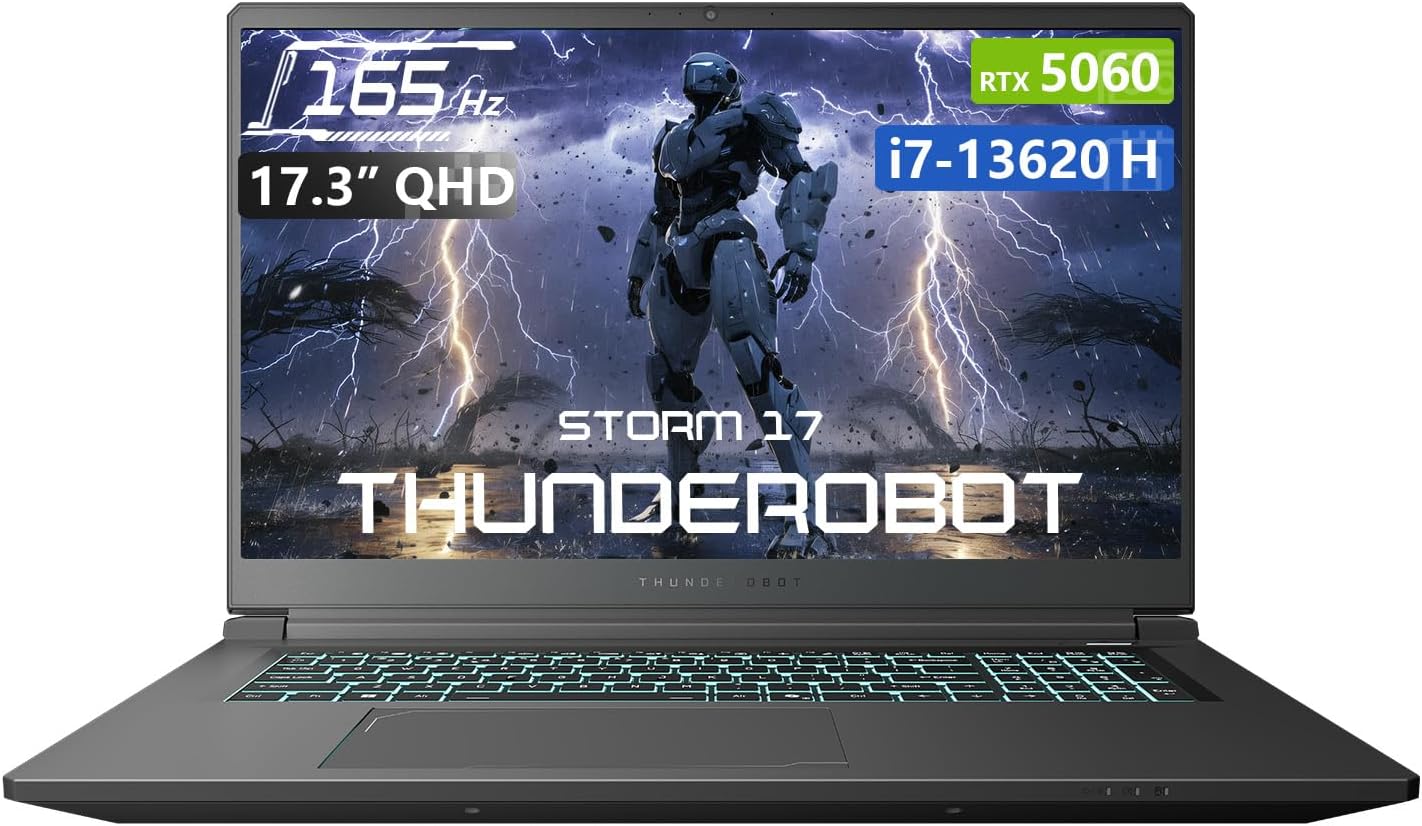
Figura 1.1: Frente view of the Thunderobot Storm 17 5060 Gaming Laptop.
2. Producto terminadoview
The Thunderobot Storm 17 5060 is a high-performance gaming laptop designed for immersive experiences. It features advanced components and a robust cooling system.
2.1 Características principales
- Mostrar: 17.3-inch QHD (2560x1440) display with a 165Hz refresh rate, 100% sRGB color accuracy, and 1000:1 contrast ratio for crisp visuals.
- Procesador: Intel Core i7-13620H processor, featuring 10 cores and 16 threads, with a base frequency of 1.80GHz and a max turbo frequency of up to 4.9GHz.
- Gráficos: NVIDIA GeForce RTX 5060 dedicated graphics card for high-fidelity gaming and creative tasks.
- Memoria: 16GB DDR5 RAM, providing fast multitasking capabilities.
- Almacenamiento: 1TB PCIe M.2 SSD for rapid boot times and ampEl espacio de almacenamiento.
- Sistema de enfriamiento: Advanced thermal design with ultra-thin 0.2mm copper fins (245pcs) and dual 12V turbofans (60mm, 164 LCP blades, 19.8CFM) for efficient heat dissipation. Features four omnidirectional outlets and a dual-zone air duct.
- Conectividad: Multiple ports including 3x USB 3.0 Type-A, 1x USB Type-C, 1x HDMI, 1x RJ-45 Ethernet, and 1x Audio Port. Supports Wi-Fi 6 and Bluetooth.
- Teclado: RGB Backlit Keyboard with a full-size numeric keypad.
- Batería: 53Wh battery with support for 100W PD fast charging.
2.2 Componentes visuales

Figura 2.1: Rendimiento a lo largo deview highlighting the RTX 5060 graphics and Intel Core i7-13620H processor capabilities.

Figura 2.2: detallada view of the 17.3-inch QHD 165Hz display specifications.
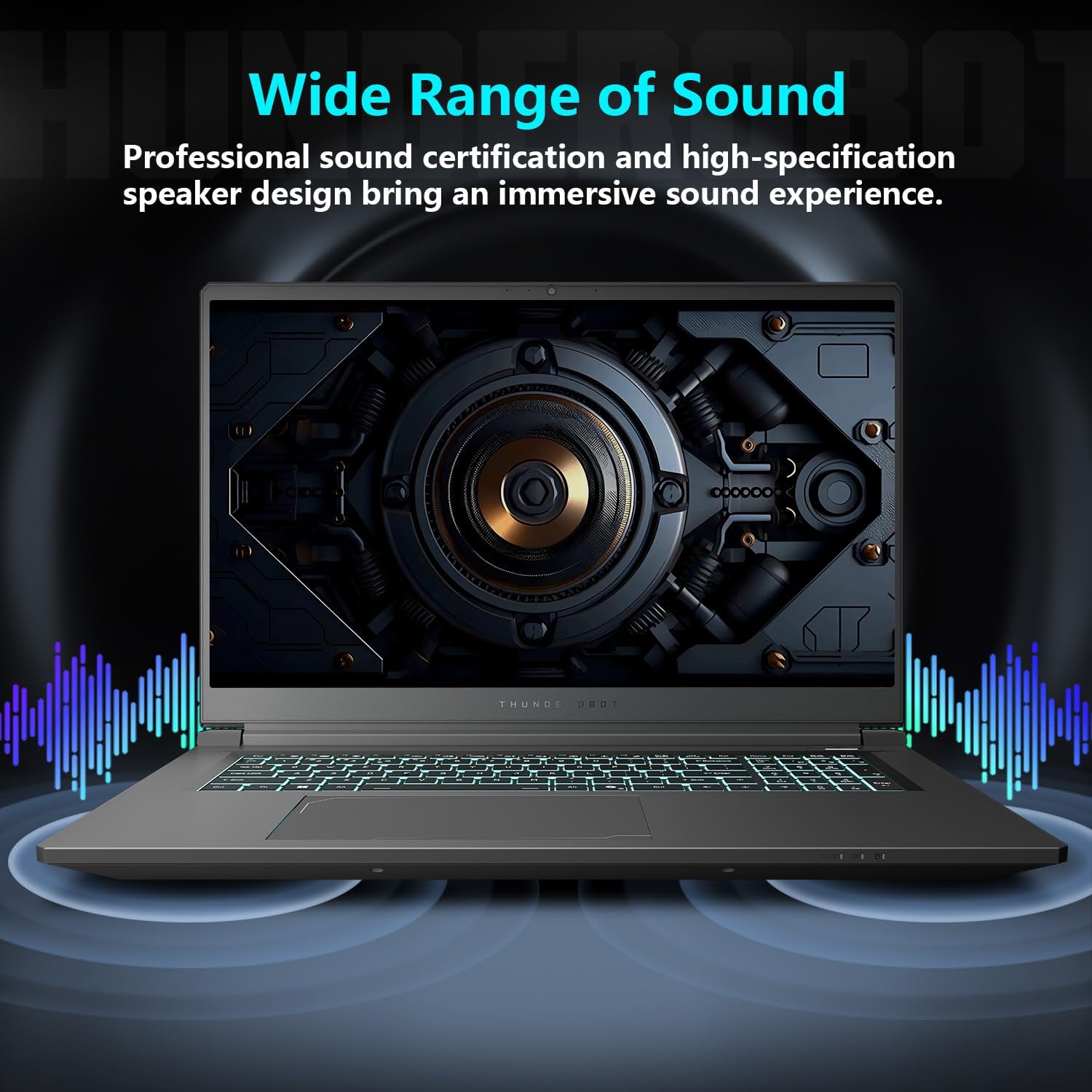
Figure 2.3: Diagram illustrating the various ports and slots on the Thunderobot Storm 17 laptop.

Figure 2.4: Illustration of the Direct-Flow Cooling Technology with pure copper heat pipes, high-speed fans, and four air outlets.
Vídeo 2.1: Terminadoview of the THUNDEROBOT Series Display, showcasing visual features and design.
Video 2.2: THUNDEROBOT Gaming Gear showcase, featuring various peripherals and laptops in a gaming setup.
Video 2.3: THUNDEROBOT Storm 17 product highlights, demonstrating key features and design elements.
3. Configuración
3.1 Desembalaje e inspección inicial
Carefully remove the laptop and its accessories from the packaging. Verify that all components listed in the "What's in the Box" section are present and undamaged. The box should contain:
- THUNDEROBOT Storm 17 Laptop
- Adaptador de corriente y cable
- Manual de usuario (este documento)
Si falta algún artículo o está dañado, comuníquese con atención al cliente de inmediato.
3.2 Conexión del adaptador de corriente
- Conecte el cable de alimentación al adaptador de corriente.
- Enchufe el adaptador de corriente en un tomacorriente con conexión a tierra.
- Connect the DC-in plug from the adapter to the DC-in port on the laptop. The DC-in port is typically located on the side or rear of the laptop.
It is recommended to fully charge the laptop before its first use.
3.3 Encendido inicial y configuración de Windows
- Abra la tapa de la computadora portátil.
- Presione el botón de encendido, generalmente ubicado en la plataforma del teclado.
- Sigue las instrucciones en pantalla para completar la configuración de Windows 11 Home. Esto incluye seleccionar tu región e idioma, conectarte a una red Wi-Fi y crear una cuenta de usuario.
4. Instrucciones de funcionamiento
4.1 Gestión de energía
- Encendido: Presione el botón de encendido.
- Modo de sueño: Close the lid or press the power button briefly. You can also select "Sleep" from the Windows Start menu.
- Cerrar: Seleccione “Apagar” en el menú Inicio de Windows.
- Reanudar: Seleccione “Reiniciar” en el menú Inicio de Windows.
4.2 Teclado y panel táctil
The laptop features an RGB backlit keyboard and a precision touchpad.
- Control de luz de fondo: Utilice el Fn + barra espaciadora combination to cycle through different backlight modes or turn it off.
- Teclado numérico: The full-size numeric keypad is integrated for convenient data entry.
- Panel táctil: Admite gestos multitáctiles para la navegación. Consulta la configuración de Windows para personalizarla.

Figure 4.1: The RGB backlit keyboard of the Storm 17 laptop.
4.3 Conexiones externas
Conecte dispositivos externos utilizando los puertos disponibles:
- Puertos USB tipo A: Para conectar dispositivos USB como ratones, teclados y unidades externas.
- Puerto USB tipo C: Para conectar dispositivos USB-C compatibles.
- Puerto HDMI: Conéctese a un monitor externo o televisor para una visualización extendida.
- Puerto Ethernet RJ-45: Para conexiones de red por cable.
- Puerto de audio: Para conectar auriculares o altavoces externos.
4.4 Conectividad inalámbrica
- Wifi 6: Connect to wireless networks for internet access. Manage Wi-Fi settings through Windows.
- Bluetooth: Pair with Bluetooth-enabled devices such as headphones, speakers, or game controllers. Manage Bluetooth settings through Windows.
4.5 Control Center Software
The Thunderobot Control Center software allows you to customize various laptop settings for optimal performance and user experience. This includes:
- System Performance Modes: Switch between performance, entertainment, and low-noise modes based on your usage. Note: System mode switching requires the device to be connected to a power source.
- LED Keyboard Customization: Ajusta los colores y efectos de iluminación RGB.
- FlexiCharger: Manage battery charging settings to extend battery lifespan.
- Flexikey: Customize key and mouse functions.

Figure 4.2: Interface of the Thunderobot Control Center software.
5. Mantenimiento
5.1 Limpieza de su computadora portátil
- Utilice un paño suave y sin pelusaampLimpie con agua o un limpiador de pantalla especializado para limpiar la pantalla.
- Para el teclado y el chasis, use un paño suave. Una lata de aire comprimido puede ayudar a eliminar el polvo entre las teclas y las rejillas de ventilación.
- Evite utilizar productos químicos agresivos, disolventes o materiales abrasivos.
5.2 Cuidado de la batería
- Evite descargar completamente la batería con frecuencia.
- Si va a guardar la computadora portátil durante un período prolongado, cargue la batería hasta aproximadamente el 50-60 % y guárdela en un lugar fresco y seco.
- Utilize the FlexiCharger feature in the Control Center to optimize battery health.
5.3 Actualizaciones de software y controladores
Actualice periódicamente su sistema operativo y controladores para garantizar un rendimiento y una seguridad óptimos.
- Actualizaciones de Windows: Ir a Configuración > Actualización de Windows para buscar e instalar actualizaciones.
- Actualizaciones de controladores: Visit the official Thunderobot support website for the latest drivers for your Storm 17 model. NVIDIA graphics drivers can also be updated via the GeForce Experience application.
5.4 Gestión térmica
Para mantener un rendimiento de refrigeración óptimo:
- Ensure the laptop's vents are unobstructed. Avoid placing the laptop on soft surfaces like beds or carpets during heavy use.
- Limpie periódicamente el polvo de las rejillas de ventilación utilizando aire comprimido.
- Use the "One-click forced cooling" feature in the Control Center during intensive tasks if needed.
6. Solución de problemas
This section addresses common issues you might encounter with your Thunderobot Storm 17 laptop.
6.1 No Power or Laptop Not Turning On
- Asegúrese de que el adaptador de corriente esté conectado de forma segura tanto a la computadora portátil como a una toma de corriente que funcione.
- Verifique que la toma de corriente funcione enchufando otro dispositivo.
- If the battery is completely drained, allow the laptop to charge for at least 30 minutes before attempting to power it on.
6.2 Problemas de visualización
- No hay imagen en la pantalla: Conecte un monitor externo al puerto HDMI para verificar si el problema está con la pantalla interna de la computadora portátil.
- Imagen parpadeante o distorsionada: Actualice los controladores de gráficos. Compruebe las conexiones del cable de pantalla si usa un monitor externo.
- Resolución o frecuencia de actualización incorrecta: Adjust display settings in Windows (Configuración > Sistema > Pantalla).
6.3 Problemas de rendimiento
- Rendimiento lento: Close unnecessary applications. Check for background processes consuming high CPU/RAM in Task Manager. Ensure the laptop is in a high-performance mode via the Control Center (when plugged in).
- Calentamiento excesivo: Ensure vents are clear. Use the forced cooling feature. Consider using a laptop cooling pad.
- Game stuttering: Update graphics drivers. Lower in-game graphics settings. Ensure the laptop is using the dedicated RTX 5060 GPU for games.
6.4 Connectivity Issues (Wi-Fi, Bluetooth, USB)
- Wi-Fi no se conecta: Restart your router and modem. Check Wi-Fi settings in Windows. Ensure Wi-Fi is enabled.
- El dispositivo Bluetooth no se empareja: Ensure the Bluetooth device is in pairing mode. Check Bluetooth settings in Windows. Restart the laptop.
- Dispositivo USB no reconocido: Prueba con otro puerto USB. Asegúrate de que los controladores del dispositivo estén instalados.
For persistent issues, refer to the Thunderobot support websitio o póngase en contacto con el servicio de atención al cliente.
7. Especificaciones
The following table outlines the key technical specifications for the Thunderobot Storm 17 5060 Gaming Laptop:
| Característica | Detalle |
|---|---|
| Nombre del modelo | Tormenta 17 |
| Tamaño de pantalla | 17.3 pulgadas |
| Resolución de pantalla | 2560 x 1600 píxeles (QHD) |
| Resolución máxima de pantalla | 2560x1440 |
| Procesador | Intel Core i7-13620H (hasta 4.9 GHz) |
| RAM | 16 GB DDR5 (4800 MHz) |
| Disco duro | SSD de 1 TB (PCIE x 4) |
| Coprocesador gráfico | GeForce RTX 5060 (Dedicada) |
| Sistema operativo | Inicio de Windows 11 |
| Tipo inalámbrico | 802.11ax (Wi-Fi 6) |
| Puertos USB 3.0 | 4 (3x Type-A, 1x Type-C) |
| Peso del artículo | 11 libras |
| Dimensiones del producto | 15.59 x 10.86 x 1.05 pulgadas |
| Color | Gris |
| Característica especial | Teclado numérico |
8. Garantía y soporte
8.1 Garantía del producto
Cada computadora portátil Thunderobot incluye un Garantía de 12 meses from the date of purchase. This warranty covers manufacturing defects and provides expert support, thorough diagnostics, and genuine parts for necessary repairs. Additionally, a Garantía de 90 días Se incluye en todas las piezas de repuesto en garantía, lo que garantiza reparaciones sin complicaciones. Su completa satisfacción es nuestro compromiso.
8.2 Atención al cliente
For technical assistance, warranty claims, or general inquiries, please visit the official Thunderobot support webSitio web o contacte con el departamento de atención al cliente. Tenga a mano el recibo de compra y el número de serie del producto cuando necesite ayuda.
Puede encontrar más información y recursos de apoyo en Thunderobot Store on Amazon.

Figura 8.1: Sobreview of Thunderobot's warranty and service commitment.