
1. Producto terminadoview
The WAVLINK AX5400 WiFi 6E USB Adapter is designed to add or upgrade WiFi capabilities to your desktop or laptop computer. It supports the latest WiFi 6E standard, offering tri-band connectivity across 2.4GHz, 5GHz, and 6GHz frequencies for enhanced speed and performance. This adapter is compatible with Windows 10 and Windows 11 operating systems.
Nota importante: This device is a WiFi adapter for your computer and is not a WiFi booster, extender, or repeater. It cannot strengthen existing signals from your router.

Image: The WAVLINK AX5400 WiFi 6E USB Adapter, showcasing its design and included USB 3.0 cable.
2. Instrucciones de configuración
2.1 Requisitos del sistema
- Operating System: Windows 10 (Version 1909 or later) or Windows 11 (Version 21H2 or later).
- USB Port: USB 3.0 port recommended for optimal performance.
- To utilize WiFi 6E capabilities, your system requires Windows 11 (Version 21H2 or later) and a WiFi 6E compatible router.
2.2 Instalación del controlador
The WAVLINK AX5400 WiFi 6E USB Adapter features a built-in driver for Windows 10 and Windows 11, simplifying the installation process.
- Conecte el adaptador: Insert the adapter's USB 3.0 cable into an available USB port on your desktop or laptop computer.
- Automatic Driver Activation: In most cases, the built-in driver will activate automatically upon connection. A pop-up window may appear in the lower right corner of the taskbar indicating driver installation.
- Instalación manual del controlador (si es necesario): If the pop-up window does not appear, open "This PC" (or "My Computer"), locate the "CD Drive" labeled "WAVLINK_693X2F". Double-click this drive and follow the on-screen instructions to install the driver. If your computer already has the driver installed, the "CD Drive" will not be displayed.

Image: Visual guide for connecting the adapter and installing the driver from the virtual CD drive.

Image: Simplified three-step setup process for the WAVLINK AX5400 adapter.
3. Modos de funcionamiento
El adaptador admite dos modos de funcionamiento principales:
3.1 Wi-Fi Mode (Receive Signal)
In Wi-Fi Mode, the adapter connects your computer to an existing wireless network. It can receive signals from your router on the 2.4GHz, 5GHz, or 6GHz bands, providing high-speed internet access.
- After driver installation, click the network icon in your system tray.
- Seleccione la red Wi-Fi deseada de la lista.
- Ingrese la contraseña de red si se le solicita y haga clic en "Conectar".
3.2 Soft AP Mode (Transmit Signal)
In Soft AP Mode, the adapter can transform your computer's wired internet connection into a Wi-Fi hotspot. This allows other wireless devices (smartphones, tablets, laptops) to connect to the internet through your computer.
- Asegúrese de que su computadora tenga una conexión a Internet por cable.
- Access the adapter's utility software or Windows network settings to enable Soft AP mode.
- Configure el nombre del punto de acceso (SSID) y la contraseña.
- Other devices can then connect to this new Wi-Fi hotspot.

Image: The two operating modes: Receive Mode for connecting to WiFi and Launch Mode (Soft AP) for creating a hotspot.

Image: Detailed diagrams of Station Mode (receiving signal) and Soft AP Mode (transmitting signal).
4. Mantenimiento
Proper maintenance ensures the longevity and optimal performance of your WAVLINK AX5400 WiFi 6E USB Adapter.
- Colocación: Position the adapter in an open area, away from obstructions and other electronic devices that may cause interference. The included 1-meter USB 3.0 cable and magnetic base allow for flexible and stable placement on metal surfaces.
- Limpieza: Utilice un paño suave y seco para limpiar el adaptador. Evite usar limpiadores líquidos o disolventes.
- Temperatura: Operate the device within its specified temperature range. Avoid extreme heat or cold.
- Actualizaciones de firmware: Revise periódicamente el sitio oficial de WAVLINK webSitio para obtener actualizaciones de firmware disponibles para garantizar el mejor rendimiento y seguridad.
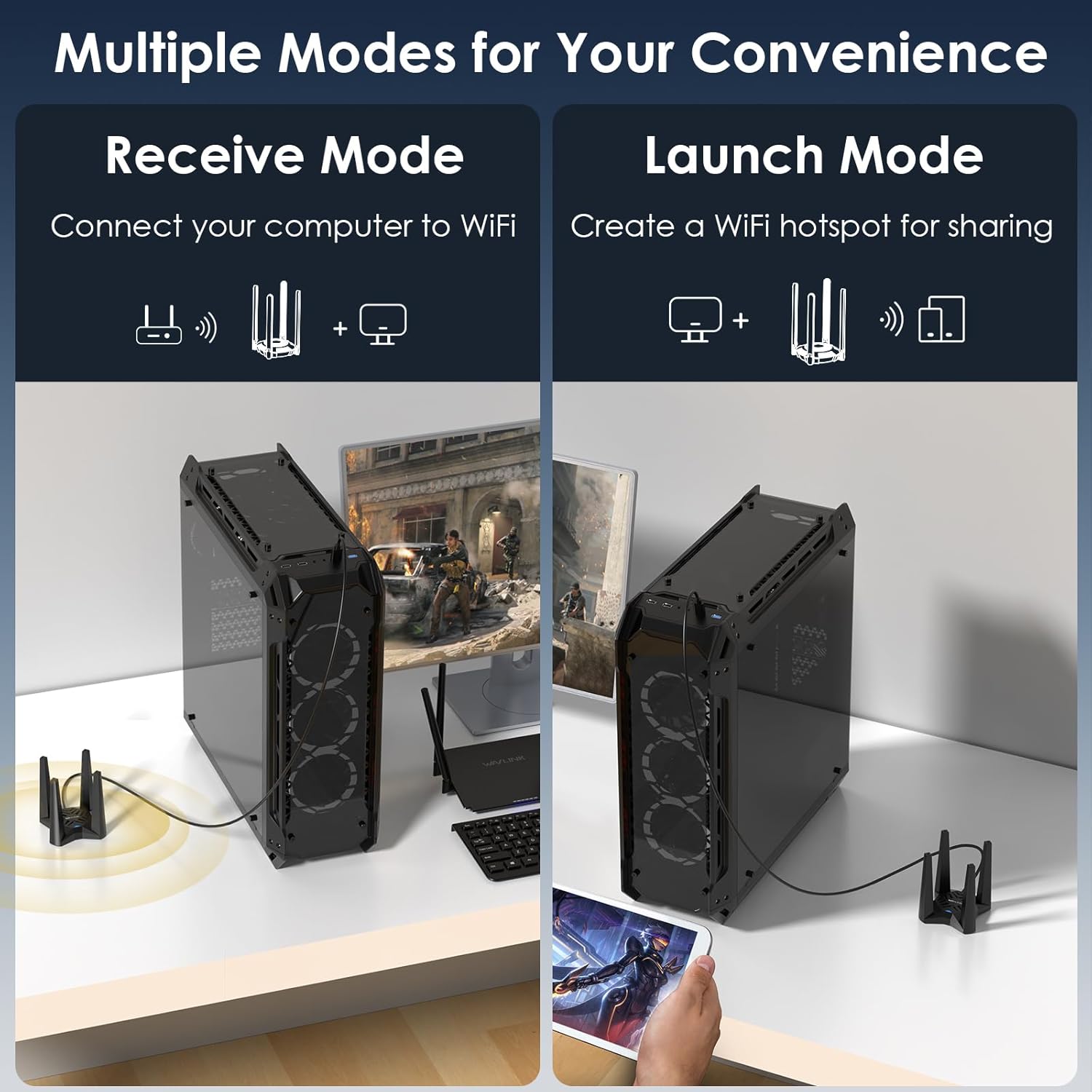
Image: Illustration of optimal placement for the adapter to maximize signal reception with its high-performance antennas.

Image: Representation of the adapter's ability to provide wide, deadzone-free WiFi coverage within a home environment.
5. Solución de problemas
If you encounter issues with your WAVLINK AX5400 WiFi 6E USB Adapter, refer to the following common solutions:
- Controlador no instalado/reconocido:
- Asegúrese de que el adaptador esté conectado de forma segura a un puerto USB.
- Check "This PC" for the "CD Drive" and manually run the installer.
- If issues persist, download the latest driver from the official WAVLINK websitiowww.wavlink.com) under the Support-Driver section, searching for model WL-WN693X2F.
- Frequent Disconnections or Unstable Connection:
- Verify the USB cable is not faulty. Try using a different USB 3.0 cable if available.
- Relocate the adapter to an area with better signal reception, away from obstacles or interference sources.
- Asegúrese de que los controladores USB de su computadora estén actualizados.
- Slow Speeds or Limited Performance:
- Confirm the adapter is connected to a USB 3.0 port on your computer.
- For optimal WiFi 6E speeds, ensure you are connected to a WiFi 6E compatible router on the 6GHz band. Performance gains will be limited with standard WiFi 5/6 routers.
- Compruebe si hay interferencias de otros dispositivos que funcionen en frecuencias similares.
- El modo AP suave no funciona:
- Ensure your computer has an active wired internet connection.
- Verify that Soft AP mode is correctly configured in your system's network settings or the adapter's utility.
6. Especificaciones
Detailed technical specifications for the WAVLINK AX5400 WiFi 6E USB Adapter.
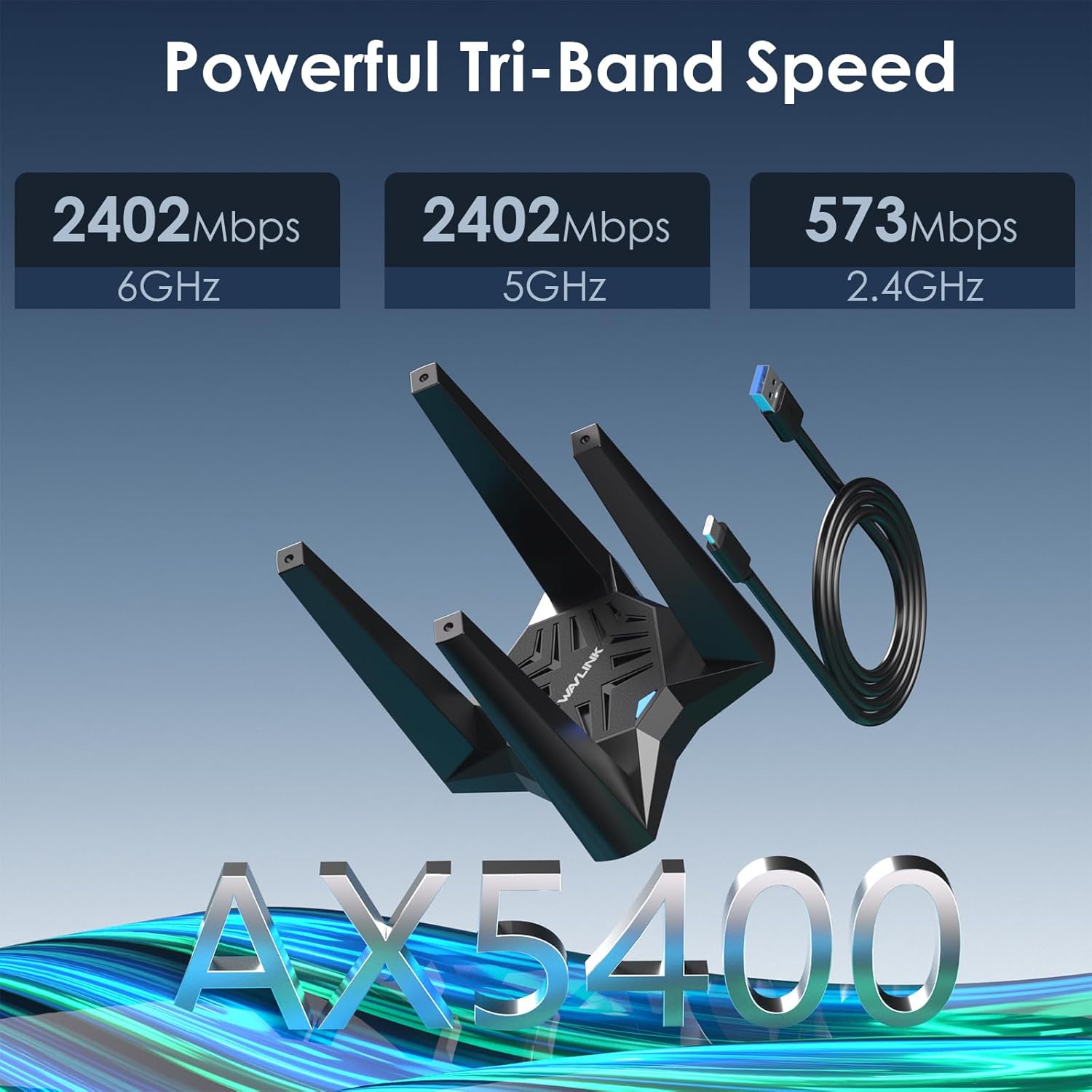
Imagen: Más alláview of the adapter's tri-band speed capabilities across 2.4GHz, 5GHz, and 6GHz frequencies.
| Característica | Especificación |
|---|---|
| Número de modelo | 693X2F |
| Estándar inalámbrico | Wi-Fi 6E (802.11ax) |
| Bandas de frecuencia | 2.4 GHz, 5 GHz, 6 GHz (tribanda) |
| Max Data Rate (2.4GHz) | Hasta 573 Mbps |
| Max Data Rate (5GHz) | Hasta 2402 Mbps |
| Max Data Rate (6GHz) | Hasta 2402 Mbps |
| Total Aggregate Speed | AX5400 |
| Interfaz | USB 3.0 |
| Antenas | Quad High Gain Antennas |
| Seguridad inalámbrica | WPA3, WPA2, WPA |
| Características | MU-MIMO, OFDMA, Beamforming, Soft AP Mode |
| Sistema operativo compatible | Windows 10, Windows 11 (32/64-bit) |
| Dimensiones del producto | 4.72 x 4.72 x 3.54 pulgadas (aprox. 12 x 12 x 9 cm) |
| Peso del artículo | 10.6 onzas (aprox. 0.3 kg) |
7. Garantía y soporte
WAVLINK provides customer support for its products. For any questions or assistance, please use the contact information below.
Información de contacto de 7.1
- Soporte telefónico: +1 8889730883 (UTC-5) Monday - Friday, 7 AM - 4 PM
- Soporte por correo electrónico: contacto@wavlink.com
- Oficial Websitio: For the latest drivers and support resources, visit www.wavlink.com. Buscar model WL-WN693X2F in the Support-Driver section.
- You may also contact us via Amazon messaging.
We aim to provide solutions within 24 hours.

Image: WAVLINK customer support information for assistance.
7.2 Información de garantía
Please refer to the product packaging or the official WAVLINK website for specific warranty terms and conditions applicable to your region. Typically, products come with a manufacturer's warranty covering defects in materials and workmanship.