
Introducción
Thank you for choosing the Acer Wireless Keyboard and Mouse Combo (Model OCC331). This manual provides essential information for setting up, operating, and maintaining your new wireless peripherals. Please read these instructions carefully before use to ensure optimal performance and longevity of your product.
Producto terminadoview & Caracteristicas
The Acer Wireless Keyboard and Mouse Combo is designed for comfort, efficiency, and broad compatibility, offering a seamless and clutter-free computing experience.
Diseño ergonómico para mayor comodidad
The full-size keyboard features a built-in wrist rest and two adjustable tilt legs, allowing you to customize your typing angle for reduced wrist strain. The mouse is designed to fit comfortably in your palm, promoting a natural hand position during extended use.

Image: Acer Wireless Keyboard and Mouse Combo highlighting its wrist-friendly design with ergonomic palm support and mouse grip, along with illustrations of 8-degree, 4-degree, and natural tilt options for the keyboard.
Reliable 2.4GHz Wireless Connectivity
Experience stable and lag-free connection with the 2.4GHz wireless technology. The unifying USB receiver, conveniently stored inside the mouse, connects both the keyboard and mouse to your device. Enjoy a wireless range of up to 33 feet for the keyboard and 26 feet for the mouse.
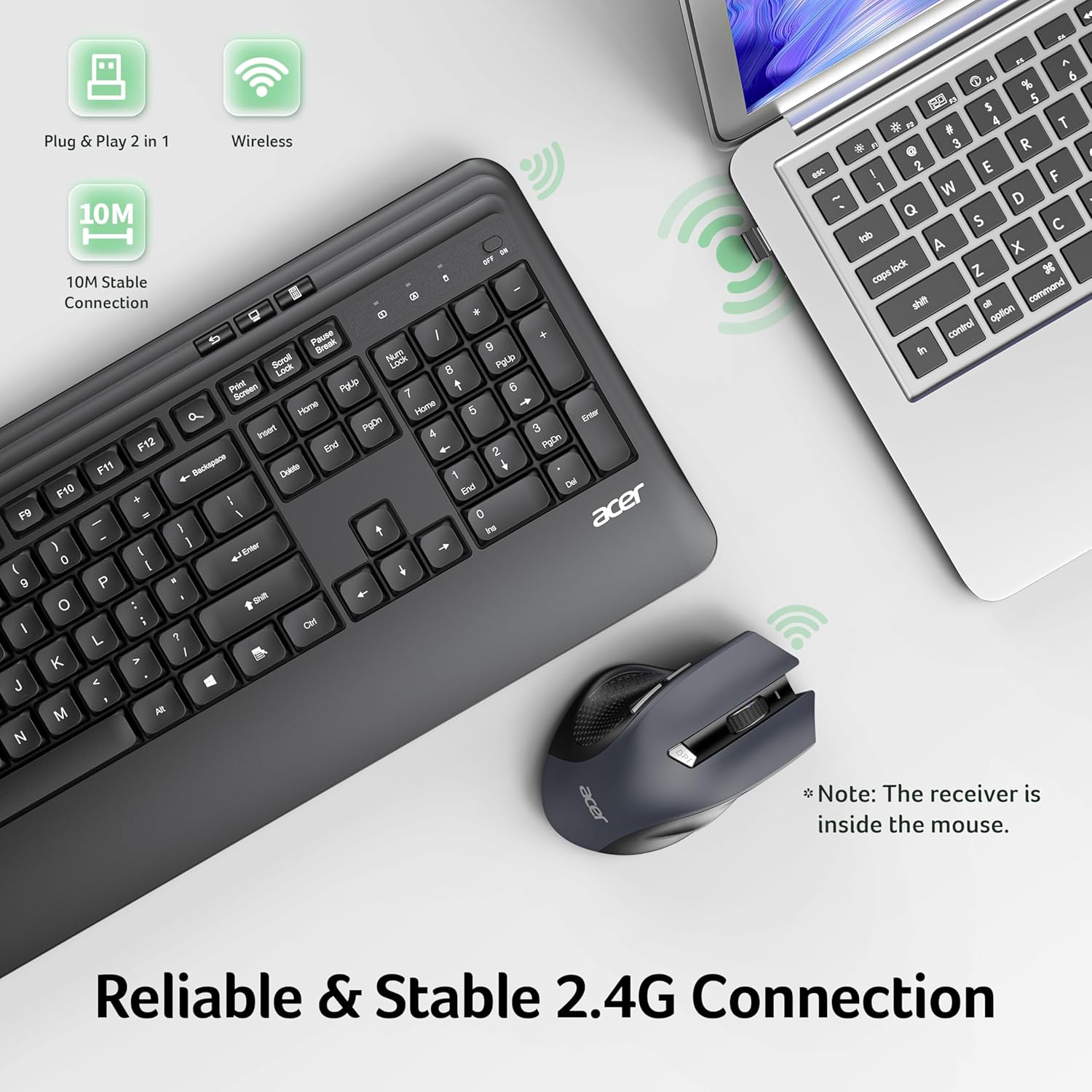
Image: Acer Wireless Keyboard and Mouse Combo illustrating the reliable and stable 2.4G connection, showing the keyboard and mouse wirelessly connected to a laptop, with the USB receiver highlighted as being stored inside the mouse.
Multimedia Hotkeys & Adjustable DPI
The keyboard includes 7 multimedia hotkeys for quick access to common functions such as desktop, show windows, email, homepage, back, file explorer, and calculator. The mouse features forward/back buttons and three adjustable DPI levels (800/1200/1600) for precise cursor control tailored to your needs.

Image: Acer Wireless Keyboard Layout displaying 7 shortcut keys for functions like Multi-task Window, To Desktop, Mail, Homepage, Back, This PC, and Calculator, along with indicators for Number Lock, Caps Lock, and Power Switch.
Quiet Operation & Energy Efficiency
Enjoy a near-silent typing experience, ideal for quiet environments. The mouse enters sleep mode after 15 minutes of inactivity to conserve battery life. Both devices are equipped with power switches and battery alerts for convenience.

Image: Acer Wireless Keyboard and Mouse Combo showing Intelligent Power Saving features, including ON/OFF switches for both devices and battery requirements (Keyboard: 1xAA, Mouse: 2xAAA, batteries not included) and 10 minutes auto-sleep for the mouse.
Amplia compatibilidad
This combo supports a broad range of devices, including Windows PCs, laptops, and other computers with USB-A ports. Its plug-and-play design requires no additional drivers for easy setup and seamless use.

Image: Acer Wireless Keyboard and Mouse Combo illustrating wide compatibility with Android, Windows, and macOS operating systems, connected to various devices.
Guía de configuración
Follow these steps to quickly set up your Acer Wireless Keyboard and Mouse Combo:
- Desempaquetado: Carefully remove the keyboard, mouse, and any included documentation from the packaging.
- Instalación de la batería:
- For the keyboard: Open the battery compartment on the underside of the keyboard and insert 1 AA battery (not included).
- For the mouse: Open the battery compartment on the underside of the mouse and insert 2 AAA batteries (not included).
- Recuperar receptor USB: El receptor USB de 2.4 GHz se guarda dentro del compartimento de la batería del ratón. Retírelo con cuidado.
- Conecte el receptor USB: Conecte el receptor USB a un puerto USB-A disponible en su computadora, computadora portátil o dispositivo compatible.
- Encendido: Turn on the keyboard and mouse using their respective ON/OFF switches. The devices should automatically connect to your computer.

Image: Three images demonstrating the easy setup process: 1. Taking out the USB-A receiver from the bottom of the mouse. 2. Inserting the USB-A receiver into a laptop. 3. Turning on the keyboard and mouse.
Instrucciones de funcionamiento
Uso de teclas de acceso rápido multimedia
The keyboard features 7 dedicated multimedia hotkeys located above the function keys (F1-F12). Press these keys to instantly access functions such as:
- Multi-task Window
- To Desktop
- Correo
- Página principal
- Atrás
- This PC (File Explorador)
- Calculadora
Adjusting Mouse DPI
The mouse offers three adjustable DPI levels (800/1200/1600) to control cursor sensitivity. Press the DPI button located on top of the mouse, below the scroll wheel, to cycle through the settings. A red light will flash once for 800 DPI, twice for 1200 DPI, and three times for 1600 DPI.
Forward/Backward Mouse Buttons
Utilize the dedicated forward and backward buttons on the side of the mouse for quick navigation in web navegadores o file exploradores.
Funciones de ahorro de energía
To conserve battery life, ensure both the keyboard and mouse are switched OFF when not in use. The mouse automatically enters sleep mode after 15 minutes of inactivity.
Adjusting Keyboard Tilt
Flip out the adjustable tilt legs on the underside of the keyboard to achieve your preferred typing angle (natural, 4-degree, or 8-degree tilt).
Presupuesto
| Característica | Descripción |
|---|---|
| Marca | Acer |
| Número de modelo | OCC331 |
| Tecnología de conectividad | 2.4 GHz inalámbrico (receptor USB-A) |
| Disposición del teclado | Full-size, Ergonomic with Wrist Rest |
| Características especiales del teclado | 7 Multimedia Hotkeys, Silent Structure, Adjustable Tilt Legs |
| Niveles de DPI del ratón | 800/1200/1600 |
| Botones del ratón | Left/Right, Scroll Wheel, DPI Button, Forward/Backward |
| Compatibilidad | Windows PCs, Laptops, other USB-A devices |
| Batería del teclado | 1 pilas AA (no incluidas) |
| Batería del ratón | 2 x AAA (no incluido) |
| Peso del artículo | 2.35 libras |
| Dimensiones del paquete | 17.8 x 12.71 x 2.05 pulgadas |
Solución de problemas
- Sin conexión: Ensure the USB receiver is securely plugged into a USB-A port. Check that both the keyboard and mouse are switched ON. Replace batteries if necessary.
- Conexión retardada/intermitente: Move the keyboard and mouse closer to the USB receiver. Avoid placing the receiver near large metal objects or other devices that may cause interference.
- El cursor del mouse no se mueve: Check battery levels. Ensure the mouse is on a suitable surface (not clear glass). Adjust DPI settings if the cursor is too slow or fast.
- Las teclas del teclado no responden: Check battery levels. Ensure the keyboard is switched ON.
Mantenimiento
To ensure the longevity and optimal performance of your Acer Wireless Keyboard and Mouse Combo, follow these maintenance tips:
- Limpieza: Utilice un paño suave y sin pelusa ligeramente seco.ampened with water or a mild cleaning solution to wipe down the surfaces. Avoid harsh chemicals or abrasive materials. For keyboard keys, use compressed air to remove debris.
- Reemplazo de batería: Replace batteries promptly when the low battery alert appears to avoid interruption. Always use fresh, high-quality batteries.
- Almacenamiento: When not in use for extended periods, turn off both devices and store them in a dry, cool place away from direct sunlight. Consider removing batteries if storing for several months.
- Receptor USB: Store the USB receiver inside the mouse when traveling or not in use to prevent loss.
Garantía y soporte
For warranty information and customer support, please refer to the documentation included in your product packaging or visit the official Acer support webSitio. Conserve su recibo de compra como comprobante de compra para cualquier reclamación de garantía.
Producto terminadoview Video
Vídeo: Un producto másview demonstrating the features and functionality of the Acer Wireless Keyboard and Mouse Combo.