
1. Introducción
This manual provides essential information for setting up, operating, and maintaining your XIXIMENG M15 Retro Game Stick. Please read it thoroughly to ensure optimal performance and longevity of your device. The M15 Retro Game Stick is a compact gaming console designed to bring classic gaming experiences to your 4K Ultra HD TV, monitor, or projector.
2. Contenido del paquete
Verifique que todos los artículos enumerados a continuación estén incluidos en su paquete:
- 1 x M15 Game Console (Game Stick)
- 2 x Wireless Gamepads
- 1 x HD Cable (HDMI Extension Cable)
- 1 x cable de alimentación (USB)
- Receptor 1 x USB
- 1 x TF Card (64GB, pre-installed in the game stick)
- 1 x Manual de usuario

Figura 2.1: Contenido del paqueteview
This image displays the M15 Game console, two wireless gamepads, an HD cable, a power cable, and a USB receiver, which are all included in the product package.
3. Instrucciones de configuración
Follow these steps to connect your M15 Retro Game Stick to your display device:
- Inserte la tarjeta TF: Ensure the 64GB TF card is already installed in the card slot of the game stick. Do not remove or format the SD card, as it contains games and system files.
- Conecte el receptor USB: Plug the 2.4GHz USB wireless receiver into the USB port on the game stick.
- Conecte el cable de alimentación: Connect the USB power cable to the game stick. The power supply should be 5V/1A or above.
- Conectar al televisor/monitor: Plug the game stick (via the extended HDMI cable if needed) into an available HDMI input port on your TV, monitor, or projector.
- Encendido: Connect the USB power cable to a 5V/1A power source (e.g., a USB wall adapter, not included, or a TV USB port if it provides sufficient power).
- Seleccionar fuente de entrada: On your display device, switch the input source to the corresponding HDMI channel where the game stick is connected. The game list screen should appear.
- Insertar las pilas del controlador: Insert 2 AAA batteries (not included) into each wireless gamepad.

Figura 3.1: Diagrama de conexión
This diagram illustrates the step-by-step process of connecting the game stick to a television, including the game stick, USB cable, HD cable, and wireless controllers.
Video 3.1: Retro Game Console Overview
Este vídeo ofrece una breve descripciónview of the retro game console, demonstrating its components and basic functionality.
4. Instrucciones de funcionamiento
4.1 Navegación por el menú
Once connected and powered on, the main game selection menu will appear on your screen. Use the wireless controllers to navigate through the game list and emulator categories.
4.2 Selecting and Starting Games
Use the directional pad or left joystick on your controller to browse through the available games. Press the A button (or equivalent action button) to select a game and start playing.
4.3 Returning to the Main Menu
To exit a game and return to the main menu, simultaneously press the SELECCIONAR y COMENZAR buttons on your controller.
4.4 Game Collections and Favorites
The console supports game collections. You can use the COMENZAR button for three seconds to add or remove your favorite games from a dedicated collection for quick access.
Controladores inalámbricos 4.5
The M15 comes with two 2.4GHz wireless controllers, allowing for two-player gaming. The wireless control range is up to 8 meters, providing flexibility and comfort during gameplay. These controllers require 2 AAA batteries each (not included).
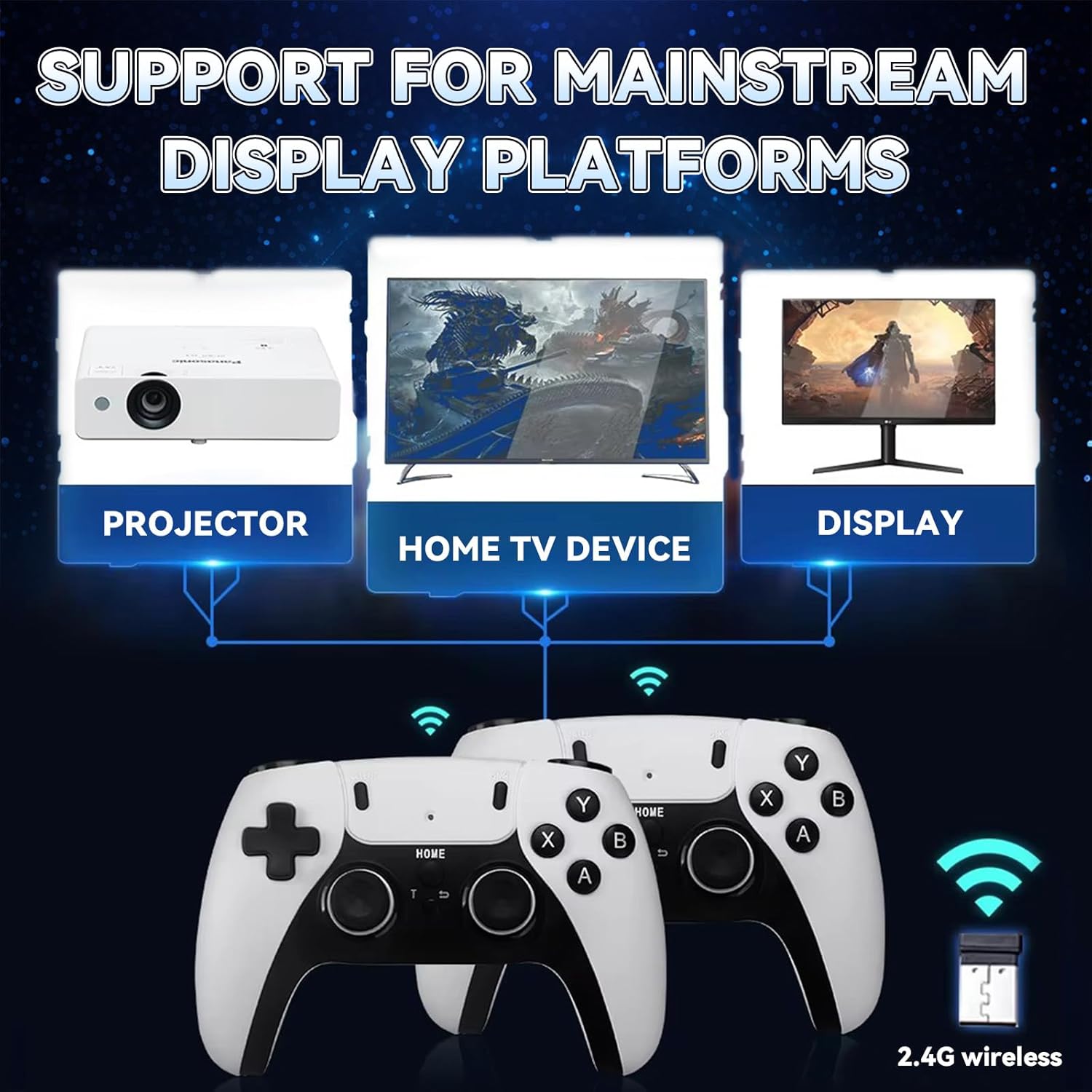
Figure 4.1: Wireless Game Controllers
This image shows the two wireless gamepads included with the M15 Retro Game Stick, highlighting their design and dual-player capability.
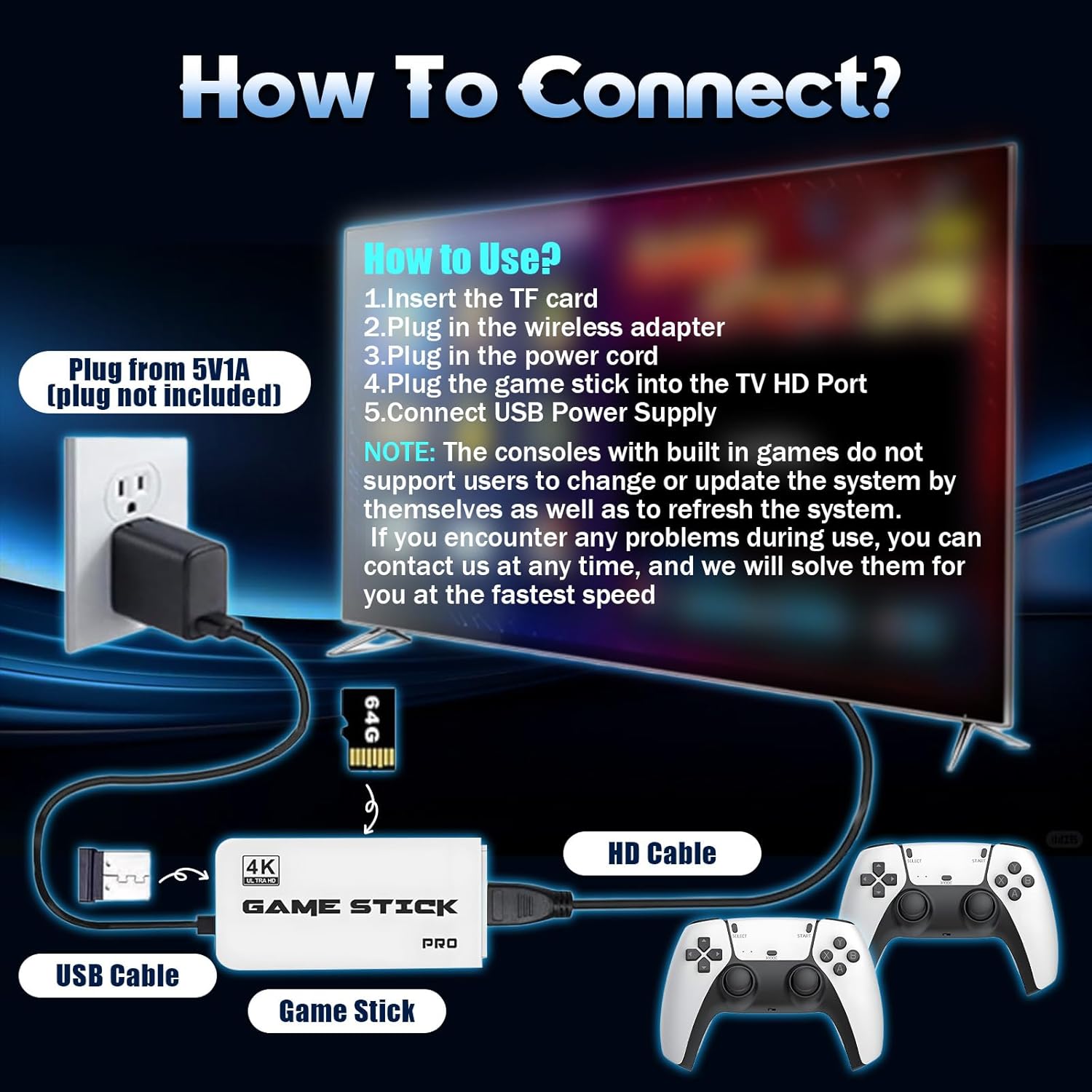
Figura 4.2: Características del controlador
This image details the ergonomic design, comprehensive key controls, and sensitive joysticks of the wireless gamepads.
5. Display and Connectivity
The M15 Retro Game Stick supports 4K Ultra HD TV video output (1080p/720p), providing crisp and vibrant visuals. It is compatible with various devices that have an HDMI input port, including:
- Televisores
- Monitores
- Computers (with HDMI input)
- Proyectores
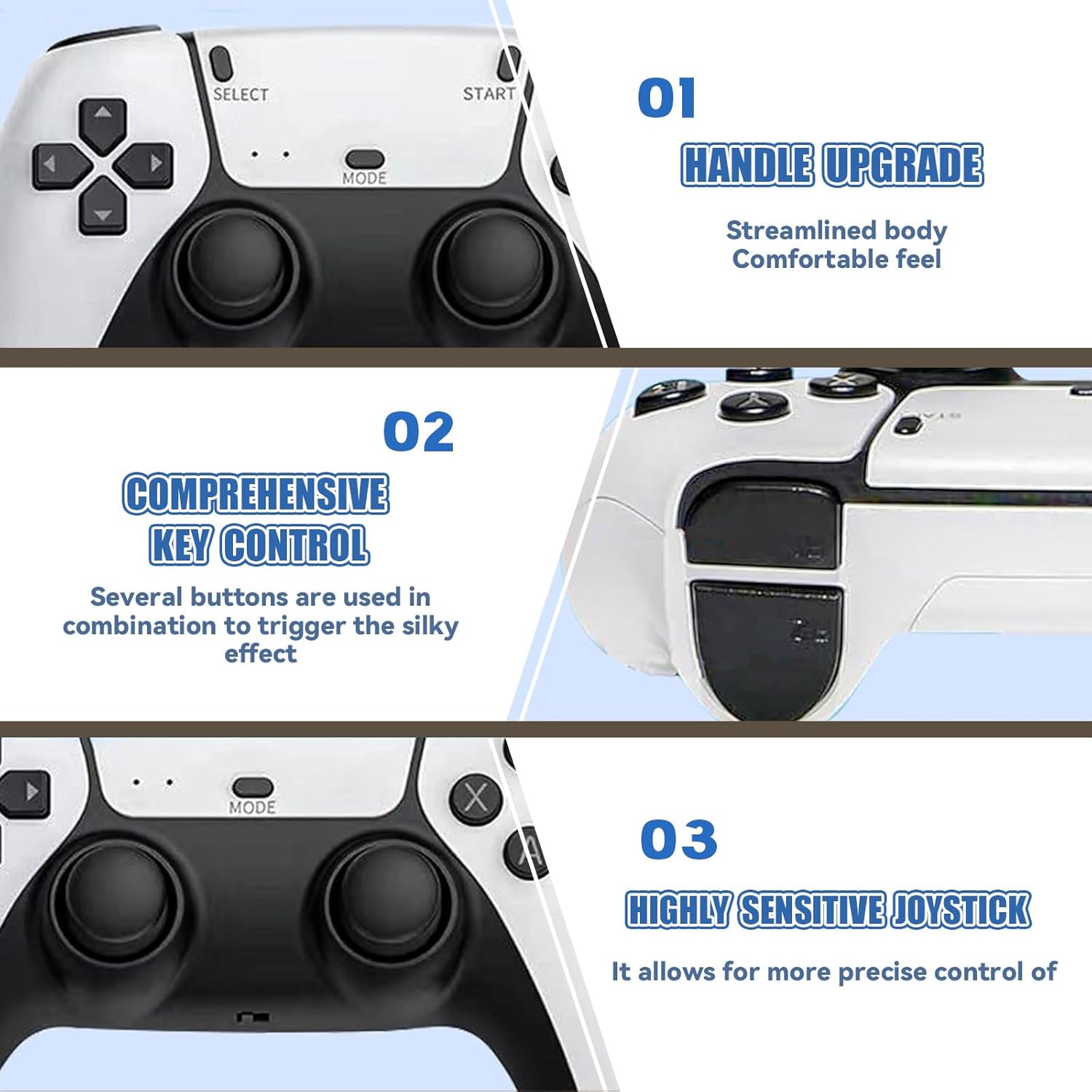
Figure 5.1: 4K HD TV Video Output
This image demonstrates the 4K HD video output capability of the game stick when connected to a television.

Figure 5.2: Support for Mainstream Display Platforms
This image highlights the game stick's compatibility with various display devices such as projectors, TVs, and monitors.
6. Mantenimiento
Proper care ensures the longevity of your M15 Retro Game Stick:
- Manejo de tarjetas TF: Do not remove the TF card while the device is powered on. Avoid formatting the SD card, as it contains essential system files and games. If the card is damaged, the host may become unusable.
- Limpieza: Keep the console clean by using a soft, dry cloth. Avoid using harsh chemicals that may damage the screen or body of the console.
- Condiciones ambientales: Avoid exposing the console to extreme temperatures or direct sunlight for long periods, as this can affect performance and lifespan.
- Cargando: When charging, use the original USB Type-C cable or a high-quality compatible cable to ensure safe and efficient charging.
7. Solución de problemas
Si encuentra problemas, consulte los siguientes problemas y soluciones comunes:
- No hay pantalla en el televisor:
- Ensure the game stick is securely plugged into the TV's HDMI port.
- Confirm the TV input source is set to the correct HDMI channel.
- Verify the USB power cable is connected to a 5V/1A power source. Insufficient power (e.g., from a TV USB port that doesn't provide enough current) can prevent display.
- Check if the TF card is properly inserted and not damaged.
- El controlador no responde:
- Ensure fresh AAA batteries are correctly installed in the controllers.
- Verify the USB receiver is securely plugged into the game stick.
- Try unplugging and re-plugging the USB receiver.
- If the controller fails to connect, try resetting the controller or refer to the manufacturer for specific operation video.
- Game Lag or Performance Issues:
- Ensure the game stick has adequate ventilation to prevent overheating.
- Some larger or more complex games may experience minor performance variations due to emulation.
If you encounter any problems during use, please contact customer support for assistance. We aim to respond and solve issues within 12 hours.
8. Especificaciones
| Característica | Detalle |
|---|---|
| Número de modelo | M15 |
| Capacidad de almacenamiento | Tarjeta TF de 64 GB (preinstalada) |
| Juegos precargados | 30,000+ |
| Emuladores compatibles | 23 tipos |
| Salida de vídeo | 4K Ultra HD (1080p/720p) |
| Conectividad | HDMI |
| Controladores | Dual 2.4GHz Wireless Gamepads |
| Batería del controlador | 2 x AAA batteries per controller (not included) |
| alcance inalámbrico | Hasta 8 metros |
| Entrada de potencia | USB de 5 V / 1 A |
| Dimensiones del producto | 6.5 x 4.7 x 4.3 pulgadas |
9. Información de seguridad
Tenga en cuenta las siguientes pautas de seguridad:
- Avoid exposing the console to extreme temperatures or direct sunlight for long periods, as this may affect the performance and lifespan of the device.
- When charging, use the original USB Type-C cable or a high-quality compatible cable to ensure safe and efficient charging.
- Keep the console clean by using a soft, dry cloth. Avoid using harsh chemicals that may damage the screen or body of the console.
- Mantener fuera del alcance de los niños pequeños para evitar la ingestión accidental de piezas pequeñas.
10. Garantía y soporte
Your XIXIMENG M15 Retro Game Stick comes with a 1-month return service. If you are not satisfied, you may return the product for a refund within this period. Additionally, we offer a lifetime worry-free warranty. For any issues or support, please contact us. We are committed to responding and resolving problems within 12 hours.
Video 10.1: BELOPERA Retro Gamestick for Holiday (Preview)
This short video provides a quick look at the BELOPERA Retro Gamestick, showcasing its appearance and highlighting its suitability as a holiday gift.