
Macally BTZKEYA
MACALLY BTZKEYA Bluetooth Wireless Keyboard for Mac (JIS Layout) - Rechargeable, Multi-Device Pairing Instruction Manual
Model: BTZKEYA
Introducción
Welcome to the Macally family. Thank you for purchasing the ACEBTKEY series keyboard. Our mission is to provide visually appealing, high-quality, and affordable peripherals and accessories to satisfy our customers. To achieve this, we create innovative and practical products, prioritizing ease of use above all else.
This manual provides comprehensive instructions for setting up, operating, and maintaining your new Macally BTZKEYA Bluetooth Wireless Keyboard. Please read it thoroughly to ensure optimal performance and longevity of your device.
Contenido del paquete
- Macally BTZKEYA Bluetooth Wireless Keyboard
- Cable de carga USB-C a USB-A
- Guía del usuario
Requisitos del sistema
- Bluetooth-enabled computer, laptop, smartphone, or tablet.
- Mac OS X or later.
- A USB-A port on your laptop or desktop PC for charging the keyboard.
- If your laptop or desktop PC only has USB-C ports, a USB-C to USB-A hub or adapter is required for charging.
Producto terminadoview
The Macally BTZKEYA keyboard is designed for efficiency and comfort, featuring a full-size layout with a numeric keypad and dedicated macOS shortcut keys. Its slim profile and scissor-switch keys provide a quiet and responsive typing experience.

Figura 1: The Macally BTZKEYA keyboard's slim profile and integrated kickstand. The keyboard is only 0.8 inches (approx. 2cm) thick.

Figura 2: The keyboard features 111 scissor-switch keys and 14 dedicated shortcut keys for macOS, enhancing productivity.

Figura 3: Scissor-switch keycaps provide a smooth, tactile, and quiet typing experience.

Figura 4: The keyboard supports multi-sync Bluetooth, allowing pairing with up to three devices like MacBook, iMac, iPad, and iPhone, with a wireless range of 30 feet.
Configuración
Cargando el teclado
Before initial use, ensure the keyboard is fully charged. The built-in rechargeable battery provides extended usage.
- Connect the USB-A end of the included cable to a USB-A port on your computer, laptop, or a USB-compatible AC adapter.
- Connect the USB-C end to the USB-C charging port located on the side of the keyboard.
- Nota: This cable is for charging only. The keyboard will not function as a wired device when connected via this cable.
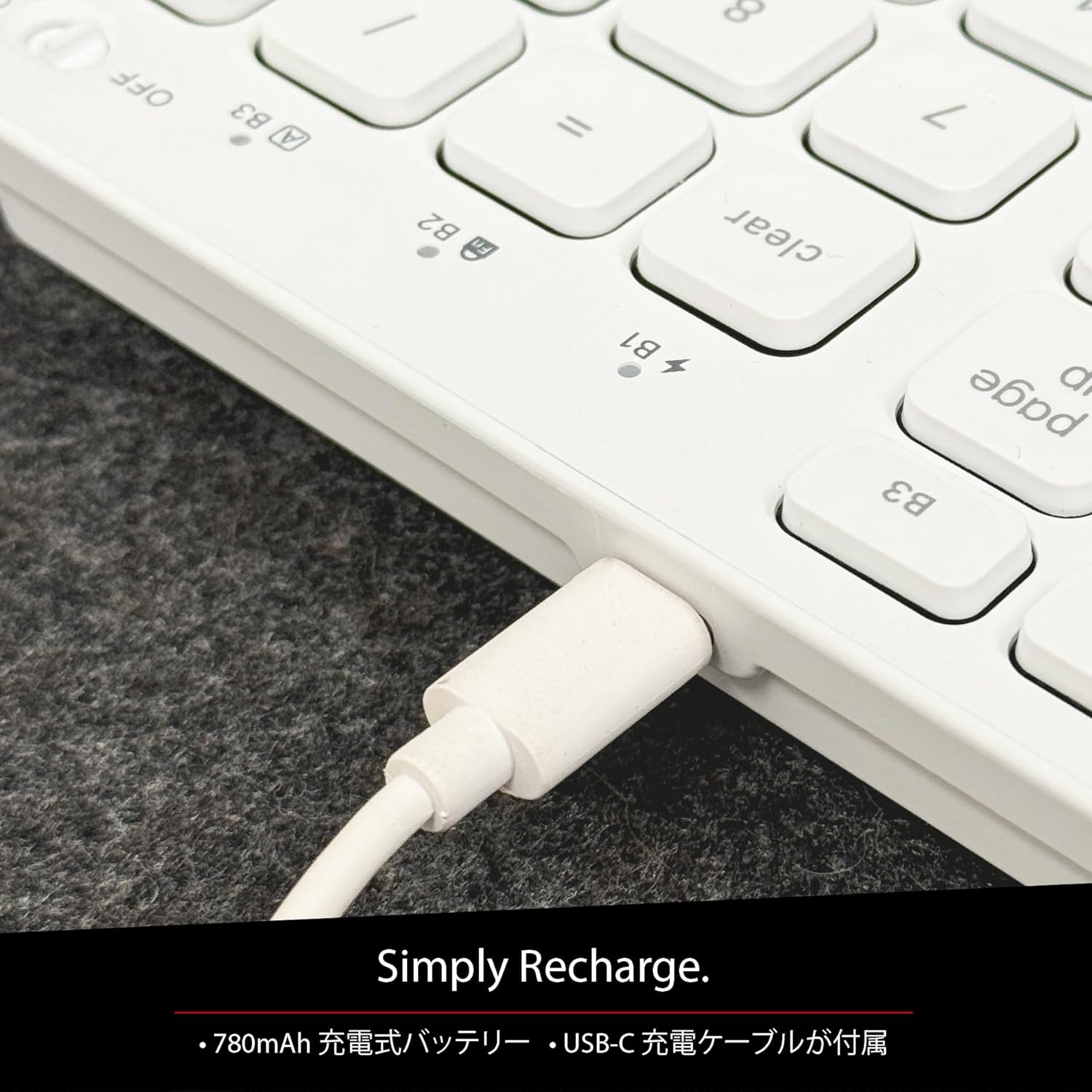
Figura 5: The USB-C charging port for easy recharging. The keyboard includes a 780mAh rechargeable battery.
Indicadores LED de carga:
- LED rojo: Carga en curso.
- LED verde: Completamente cargado.
- All Bluetooth Channel LEDs flashing: La batería está baja.
Procedimiento de emparejamiento de Bluetooth
The keyboard can be paired with up to three Bluetooth-enabled devices. The number keys 1, 2, and 3 on the top row (not the numeric keypad) are labeled B1, B2, and B3, representing the Bluetooth channels.
Ensure the keyboard is powered on and sufficiently charged before starting the pairing process. The power switch is a slide button located on the side of the keyboard (Red for Off, Green for On).
Steps to Pair (using Bluetooth Channel 1 (B1) as an example):
- On the device you wish to connect (laptop, desktop, tablet, smartphone, etc.), open the Bluetooth settings screen.
- En el teclado, mantenga presionada la tecla fn tecla, luego presione la 1 key (B1) to select Bluetooth Channel 1.
- Next, press and hold the fn key and simultaneously press the P key. This will put the keyboard into pairing mode, and the B1 LED will flash rapidly.
- On your device's Bluetooth settings screen, click or tap the device name "ACEBTKEY" to initiate pairing.
- Once pairing is complete, the B1 LED on the keyboard will remain steadily lit in blue.
To connect to a second or third device, follow the same procedure using B2 (fn+2) or B3 (fn+3).
Keyboard Setup Assistant (For Mac Users)
If your Bluetooth keyboard is not immediately recognized by macOS, the Keyboard Setup Assistant will automatically launch, prompting you to specify the keyboard type. Follow the on-screen instructions.
- When prompted, press the Z llave.
- Luego, presione el ? llave.
- Confirm that "ANSI" is selected as the keyboard type and click "Done".
If keys do not respond or different characters are entered than printed, you may need to manually launch the Keyboard Setup Assistant:
- Open "System Settings" or "System Preferences".
- Select "Keyboard" and click "Change Keyboard Type".
- When the "Keyboard Setup Assistant" window appears, click "Continue" and follow the on-screen instructions.
Instrucciones de funcionamiento
Cambiar entre varios dispositivos
After pairing all your devices with the keyboard, you can easily switch between them:
- Mantenga pulsado el fn llave.
- Mientras sostenía fn, press the desired Bluetooth channel key (B1, B2, o B3).
- Release both keys. The keyboard will switch to the selected device.
Shortcut and Function Keys
The F-row (function key row) at the top of the keyboard defaults to shortcut mode. These keys perform functions indicated by the small white icons or text printed on them (e.g., play, pause, cut, copy).
To use standard function keys (F1, F2, etc.), press the desired function key while holding down the fn llave.
You can toggle between shortcut mode and standard F1-F12 function keys at any time by pressing fn + esc. After switching, if you wish to use a shortcut function, press the desired shortcut key while holding down the fn llave. Prensado fn + esc again will return the keyboard to shortcut mode.
F-Key Functions:
| Función | Mac OS X | Ventanas | iOS | Androide |
|---|---|---|---|---|
| fn+esc (Toggle F-row mode) | ✓ | ✓ | ✓ | ✓ |
| Bajar el brillo de la pantalla | ✓ | ✓ | ||
| Aumento del brillo de la pantalla | ✓ | ✓ | ||
| Cortar | ✓ | ✓ | ✓ | ✓ |
| Copiar | ✓ | ✓ | ✓ | ✓ |
| Pasta | ✓ | ✓ | ✓ | ✓ |
| Pista anterior | ✓ | ✓ | ✓ | ✓ |
| Reproducir/Pausa | ✓ | ✓ | ✓ | ✓ |
| Pista siguiente | ✓ | ✓ | ✓ | ✓ |
| Silenciar | ✓ | ✓ | ✓ | ✓ |
| Bajar volumen | ✓ | ✓ | ✓ | ✓ |
| Subir volumen | ✓ | ✓ | ✓ | ✓ |
| Imprimir | ✓ | |||
| Mac: Eject Mac / Windows: Media Eject | ✓ | ✓ | ||
| Area Capture (Screenshot) | ✓ | |||
| Teclado en pantalla | ✓ | |||
| Buscar | ✓ | ✓ | ✓ | ✓ |
| Botón de inicio | ✓ | ✓ | ||
| Menú | ✓ | |||
| Cerrar | ✓ | ✓ | ✓ | ✓ |
Nota importante: Standard function keys (F1-F12) may have special functions assigned by the connected operating system or currently running programs.
Modo de ahorro de energía
The keyboard is designed with power-saving features. Based on an average of 3 hours of daily use, the built-in rechargeable battery can last up to 3 months on a single charge.
Mantenimiento
To ensure the longevity and optimal performance of your Macally BTZKEYA keyboard, please follow these maintenance guidelines:
- Keep the device away from liquids, moisture, and water.
- Use the device only within the specified temperature range of 0°C (32°F) to 40°C (104°F).
- Clean the keyboard regularly with a soft, dry cloth. Avoid using harsh chemicals or abrasive materials.
- Do not disassemble the device. Disassembly will void the warranty.
- When disposing of the product, do not treat it as general waste. Take it to your nearest recycling center for proper disposal.
Solución de problemas
Problemas de emparejamiento:
- If pairing fails, delete all existing pairing records for the keyboard on your device and attempt to reconnect.
- Asegúrese de que el teclado esté completamente cargado y encendido.
- Asegúrese de que el Bluetooth de su dispositivo esté habilitado y sea detectable.
Key Response Issues:
- If keys do not respond or different characters are entered than printed, manually launch the Keyboard Setup Assistant on your Mac (refer to the "Keyboard Setup Assistant" section under Setup).
- Ensure the keyboard is within the 30-foot wireless range of your device.
Compatibilidad general:
- While designed for Mac, this keyboard is also compatible with Windows PCs. However, some functions may behave differently depending on the operating system or running programs.
Presupuesto
| Característica | Detalle |
|---|---|
| Marca | macally |
| Número de modelo | BTZKEYA |
| Número de llaves | 111 keys (Mac layout) |
| Tipo de interruptor de llave | Interruptor de tijera |
| Tecnología de conectividad | Bluetooth |
| Soporte multidispositivo | Hasta 3 dispositivos |
| Capacidad de la batería | 780 mAh (recargable) |
| Puerto de carga | USB-C |
| Dimensiones del producto | 42 x 14 x 2 cm |
| Peso del producto | 650 gramos |
| Uso recomendado | Multimedia, Everyday Use, Personal, Education, Student, Business |
Información de garantía
Macally Peripherals warrants this product against defects in title, materials, and workmanship for a period of un año a partir de la fecha de compra. If a defect is found in the product, Macally's sole obligation and your sole remedy will be to repair or replace the product.
This is a limited warranty applicable only to the product accompanied by this user guide. This warranty does not apply in the following cases:
- Abuso o mal uso del producto.
- Exposure to abnormal electrical or environmental conditions.
- Use under conditions not considered normal use.
- Disassembly of the device.
Macally Peripherals' liability arising from this warranty and sale is limited to a refund of the purchase price. Macally is not responsible for the cost of procuring substitute products or services, lost profits, or any other consequential, incidental, direct, or indirect damages. These limitations apply even if the limited remedies fail of their essential purpose.
Apoyo técnico
For technical assistance, please contact Macally support during the following hours:
- Horario de atención: Monday to Friday, 9 AM to 5 PM (Pacific Standard Time)
- Correo electrónico: soporte técnico@macally.com
When contacting support, please have your product model number (BTZKEYA) and purchase information ready.
Declaración de cumplimiento de la FCC
Este dispositivo cumple con la Parte 15 de las Normas de la FCC. Su funcionamiento está sujeto a las dos condiciones siguientes: (1) Este dispositivo no puede causar interferencias perjudiciales y (2) este dispositivo debe aceptar cualquier interferencia que reciba, incluidas las interferencias que puedan causar un funcionamiento no deseado.
Los cambios o modificaciones no aprobados expresamente por la parte responsable del cumplimiento podrían anular la autoridad del usuario para operar el equipo.
Este equipo ha sido probado y se ha determinado que cumple con los límites establecidos para dispositivos digitales de Clase B, de conformidad con la Parte 15 de las Normas de la FCC. Estos límites están diseñados para proporcionar una protección razonable contra interferencias perjudiciales en una instalación residencial. Este equipo genera, utiliza y puede irradiar energía de radiofrecuencia y, si no se instala y utiliza de acuerdo con las instrucciones, puede causar interferencias perjudiciales en las comunicaciones por radio. Sin embargo, no existe garantía de que no se produzcan interferencias en una instalación en particular. Si este equipo causa interferencias perjudiciales en la recepción de radio o televisión, lo que se puede determinar encendiendo y apagando el equipo, se recomienda al usuario que intente corregir la interferencia mediante una o más de las siguientes medidas:
- Reorientar o reubicar la antena receptora.
- Aumente la separación entre el equipo y el receptor.
- Conecte el equipo a una toma de corriente de un circuito diferente al que está conectado el receptor.
- Consulte al distribuidor o a un técnico de radio/TV experimentado para obtener ayuda.
Este dispositivo ha sido evaluado para cumplir con los requisitos generales de exposición a radiofrecuencia. El dispositivo puede utilizarse en condiciones de exposición portátiles sin restricciones.
Vídeos de productos
Macally BTZKEYA Bluetooth Keyboard Overview
Este vídeo ofrece una visión generalview of the Macally BTZKEYA Bluetooth keyboard, highlighting its features and design.
Macally Mac Bluetooth Keyboard - Premium Multi-Device
A detailed look at the Macally Bluetooth keyboard for Mac, emphasizing its premium build and multi-device capabilities.
Macally SLIMKEYPROA Keyboard Features
This video showcases the features of the Macally SLIMKEYPROA keyboard, which shares similar design and functionality with the BTZKEYA model.
Macally BLSlimkeyproA Keyboard Demonstration
A demonstration of the Macally BLSlimkeyproA keyboard, highlighting its compact design and key features.
Macally ACEBTKEYSGCB Keyboard Overview
Este video proporciona un resumenview of the Macally ACEBTKEYSGCB keyboard, showcasing su diseño y funcionalidad.
Macally SLIMKEYPRO Manual Guide
A visual guide to the Macally SLIMKEYPRO, offering insights into its usage and features.