
1. Producto terminadoview
This manual provides detailed instructions for the SANWA GMAWBT204BK Bluetooth + 2.4G Wireless Handheld Mouse. This versatile device functions as a handheld mouse, a presentation clicker, and a remote media controller, offering flexible control across various devices and scenarios.
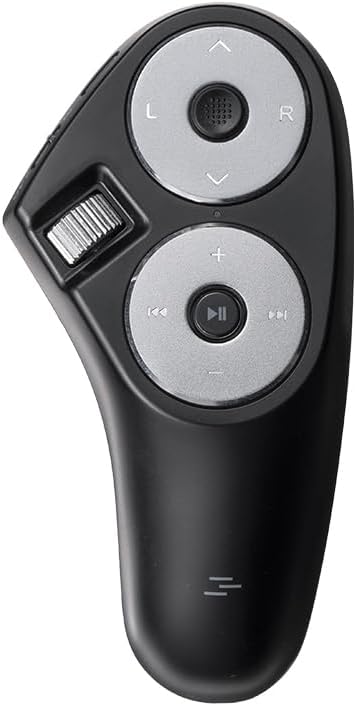
Image 1.1: The SANWA GMAWBT204BK Handheld Mouse, showcasing su diseño ergonómico y botones de control.
Características principales:
- Funcionalidad 3 en 1: Operates as a mouse, presentation clicker, and media controller.
- Conectividad dual: Admite conexiones inalámbricas Bluetooth 5.0 y 2.4 GHz.
- Batería recargable: La batería incorporada de 500 mAh proporciona un uso prolongado.
- Diseño ergonómico: Designed for comfortable handheld use, reducing wrist strain.
- Amplia compatibilidad: Compatible with Windows, macOS, Chrome OS, Android, iOS, and iPadOS.
2. Configuración y conexión
2.1 Carga del dispositivo
Before initial use, ensure the mouse is fully charged.
- Connect the included Type-C charging cable to the mouse's charging port.
- Connect the USB-A end of the cable to a USB-A port on your computer or a compatible USB power adapter.
- The notification LED will blink during charging. Charging is complete when the LED turns off (approximately 3 hours).
- When the battery is low, the notification LED will flash rapidly.

Image 2.1: Illustration of connecting the Type-C charging cable to the mouse and a USB-A port for charging.
2.2 Conexión mediante Bluetooth 5.0
- Turn on your connected device (e.g., laptop, tablet) and ensure its operating system is fully booted.
- Navigate to the Bluetooth settings on your device to add a new Bluetooth device.
- Slide the mouse's power/connection switch to the BT position. The notification LED will flash blue slowly.
- Press and hold both the left and right buttons on the mouse simultaneously for 3 seconds. The mouse will enter pairing mode, and the notification LED will flash more rapidly.
- On your device's pairing screen, select "SANWA MAWBT204" to complete the connection.
For subsequent connections, if the power/connection switch is set to BT, the mouse will automatically connect to the last paired device.

Image 2.2: Visual guide for connecting the mouse via Bluetooth, showing the switch position and LED indicator.
2.3 Conexión inalámbrica de 2.4 GHz
- Turn on your connected device and ensure its operating system is fully booted.
- Remove the receiver storage cover on the back of the mouse and take out the USB receiver.
- Connect the USB receiver to an available USB-A port on your device.
- Slide the mouse's power/connection switch to the 2.4G position. The notification LED will flash green slowly.
- La conexión se establecerá automáticamente.
For subsequent connections, if the power/connection switch is set to 2.4G, the mouse will automatically connect to the device with the receiver.

Image 2.3: Visual guide for connecting the mouse via 2.4GHz wireless, showing the USB receiver and switch position.
3. Instrucciones de funcionamiento
The SANWA GMAWBT204BK offers multiple modes of operation for various tasks.

Image 3.1: The handheld mouse in use with a laptop, demonstrating its portability and ease of control.
3.1 Funcionalidad del ratón
- Control del cursor: Use the cursor sensor (joystick-like control) to move the pointer on the screen.
- Click izquierdo: Press the 'L' button for left-click actions.
- Botón derecho del ratón: Press the 'R' button for right-click actions.
- Desplazamiento: Use the scroll wheel located on the side for vertical scrolling.
- Arrastrar y soltar: Long press the 'L' (Left) key for 3 seconds, then move the cursor using the sensor to drag and drop files or elements.
3.2 Presentation Clicker Functionality
This mouse supports presentation software such as PowerPoint, Keynote, and Google Slides.
- Page Up / Next Slide: Press the 'Up Arrow' button.
- Page Down / Previous Slide: Press the 'Down Arrow' button.
- Full Screen / Black Screen: The 'Up Arrow' button can also activate full screen, and the 'Down Arrow' button can activate a black screen during presentations. Note: Full screen functionality may not be available on Google Slides.

Image 3.2: Diagram illustrating the buttons for PowerPoint clicker functions, including Page Up/Down and Full/Black Screen.
3.3 Media Control and eBook Page Turning
Control your media playback and navigate eBooks with ease.
- Reproducir/Pausa: Presione el botón 'Reproducir/Pausa'.
- Last/Next Episode: Use the 'Previous Track' and 'Next Track' buttons.
- Control de volumen: Utilice los botones '+' y '-' para ajustar el volumen.
- eBook Page Turning: The page up/down functions can be used to turn pages in compatible eBook applications (e.g., Kindle app). Note: This device works with the Kindle app, not directly with Kindle e-readers like Oasis or Paperwhite.

Image 3.3: The mouse being used for remote video control and eBook page turning on a tablet.
3.4 Cambio entre dispositivos
The mouse allows seamless switching between Bluetooth and 2.4GHz connected devices.
- Use the side switch button to toggle between BT (Bluetooth) y 2.4G (2.4GHz wireless) modes.
- The LED mode indicator will show blue for Bluetooth and green for 2.4GHz wireless, confirming the active connection mode.

Image 3.4: Illustration of the dual device connection capability, showing the mouse connected to a laptop via 2.4G and a tablet via Bluetooth.
4. Mantenimiento
4.1 Gestión de la batería
- Recharge the mouse when the notification LED flashes rapidly, indicating a low battery.
- A full charge provides approximately 75 hours of constant use or 2000 hours (83 days) of standby time.
- Avoid exposing the mouse to extreme temperatures or moisture, which can affect battery life.
4.2 Modo de suspensión
To conserve battery, the mouse will enter sleep mode if not operated for a certain period, even when the power switch is ON. To recover from sleep mode, simply click any button on the mouse. Operation may be unstable immediately after recovery but will stabilize quickly.
4.3 Limpieza
Wipe the mouse with a soft, dry cloth. Avoid using harsh chemicals or abrasive cleaners.
5. Solución de problemas
5.1 Problemas de conexión
- El ratón no se conecta: Ensure the power/connection switch is in the correct position (BT for Bluetooth, 2.4G for wireless). Check the notification LED for flashing blue (Bluetooth pairing) or green (2.4G connection).
- El emparejamiento de Bluetooth falló: Make sure your device's Bluetooth is enabled and discoverable. Re-enter pairing mode on the mouse by holding the left and right buttons simultaneously.
- 2.4G wireless not working: Asegúrese de que el receptor USB esté bien conectado a su dispositivo. Pruebe con otro puerto USB.
5.2 Problemas de movimiento del cursor
- Cursor is slow or erratic: Adjust the cursor speed in your operating system's mouse settings. For Windows 11, search for "Mouse settings" and adjust the "Mouse pointer speed" slider.

Image 5.1: Steps to adjust cursor speed in Windows 11 mouse settings.
5.3 Limitaciones de funcionalidad
- Las funciones de presentación no funcionan: Ensure you are using compatible software (PowerPoint, Keynote, Google Slides). Note that full screen functionality may vary with Google Slides.
- eBook page turning not working: This feature is designed for eBook applications (e.g., Kindle app) and is not compatible with dedicated e-reader devices.
6. Especificaciones
| Característica | Detalle |
|---|---|
| Número de modelo | GMAWBT204BK |
| Conectividad | Bluetooth 5.0, inalámbrico de 2.4 GHz |
| Distancia de trabajo | Hasta 32 pies (10 metros) |
| DPI predeterminado | 2000 |
| Tipo de batería | Iones de litio recargables |
| Capacidad de la batería | 500 mAh |
| Constant Work Time | Aproximadamente 75 horas |
| Tiempo de espera | Aprox. 2000 horas (83 días) |
| Puerto de carga | USB tipo C |
| Dimensiones del producto | 11.4 x 5.8 x 0.04 pulgadas (aproximadamente) |
| Peso del artículo | 3.52 onzas (aproximadamente) |
| Color | Negro |
| Sistema operativo compatible | Windows 11/10, macOS 14/13/12, Chrome OS, Android 13-14, iOS 14-17, iPadOS 14-17 |
| Software compatible | PowerPoint, Keynote, Google Slides |

Image 6.1: Product dimensions and a list of included accessories: receiver, charging cable, and USB receiver storage.
7. Información de garantía
Specific warranty details for the SANWA GMAWBT204BK Handheld Mouse are not provided within this manual. For information regarding warranty coverage, terms, and conditions, please refer to the official SANWA websitio o comuníquese con el minorista donde compró el producto.
8. Atención al cliente
For technical assistance, product inquiries, or further support, please visit the official SANWA webSitio web o comuníquese con su departamento de atención al cliente. La información de contacto suele estar disponible en el empaque del producto o en la etiqueta del fabricante. websitio.