
1. Introducción
The AutoSky Ai Box Lite Air is an innovative device designed to upgrade your in-car entertainment and connectivity. It seamlessly converts your vehicle's existing wired Apple CarPlay system into a wireless CarPlay or Android Auto experience. Additionally, it enables direct streaming of popular services like Netflix and YouTube on your car's infotainment screen.
Nota importante: This device requires your vehicle to have a factory-installed wired CarPlay system. A mobile hotspot or Wi-Fi connection is necessary for streaming applications such as Netflix and YouTube. A valid subscription and account login are also required for these streaming services.

Image 1.1: The AutoSky Ai Box Lite Air, a compact device enabling in-car streaming and wireless connectivity.
2. Guía de configuración
The AutoSky Ai Box Lite Air is designed for a simple plug-and-play installation. Follow these steps to get started:
- Verificar CarPlay con cable: Ensure your vehicle is equipped with a functional wired Apple CarPlay system. This device utilizes the wired CarPlay protocol for connection.
- Conectar el dispositivo: Locate an available USB port in your vehicle (USB-A or USB-C). Connect the AutoSky Ai Box Lite Air to this port using the provided cable.
- Arranque inicial: Once connected, the device will power on automatically. The AutoSky interface should appear on your car's infotainment screen within a few seconds.
- Establish Internet Connection (for Streaming): For access to streaming apps like Netflix and YouTube, you must connect the Ai Box Lite Air to a mobile hotspot or a Wi-Fi network. Navigate to the device's settings menu on your car screen to configure the Wi-Fi connection.
- Log In to Streaming Services: Open the desired streaming application (e.g., Netflix, YouTube) from the device's home screen and log in with your existing account credentials.

Image 2.1: Illustration emphasizing the requirement for an existing wired CarPlay system in the vehicle.

Image 2.2: The compact design of the AutoSky Ai Box Lite Air, highlighting its memory card port and versatile USB connectivity.
3. Instrucciones de funcionamiento
3.1. Navegación por el menú de inicio
Upon successful setup, the AutoSky Ai Box Lite Air will display its custom home menu on your car's screen. This menu provides access to various functions and applications.

Image 3.1: The AutoSky home menu, providing access to various features and applications.
3.2. CarPlay inalámbrico y Android Auto
Para utilizar CarPlay o Android Auto de forma inalámbrica:
- From the AutoSky home menu, select the 'CarPlay' or 'Android Auto' icon.
- En su teléfono inteligente, asegúrese de que Bluetooth y Wi-Fi estén habilitados.
- Pair your phone with the AutoSky device via Bluetooth (usually named 'AutoSky' or similar).
- Follow any on-screen prompts on your phone and car display to complete the connection.

Image 3.2: Accessing favorite applications through wireless CarPlay or Android Auto on the car's display.
3.3. Streaming Netflix and YouTube
Once connected to a Wi-Fi hotspot and logged into your accounts:
- Select the 'Netflix' or 'YouTube' icon from the AutoSky home menu.
- Browse and select your desired content.
- Playback will begin on your car's screen.
Nota: For safety, video streaming functionality is typically restricted while the vehicle is in motion.
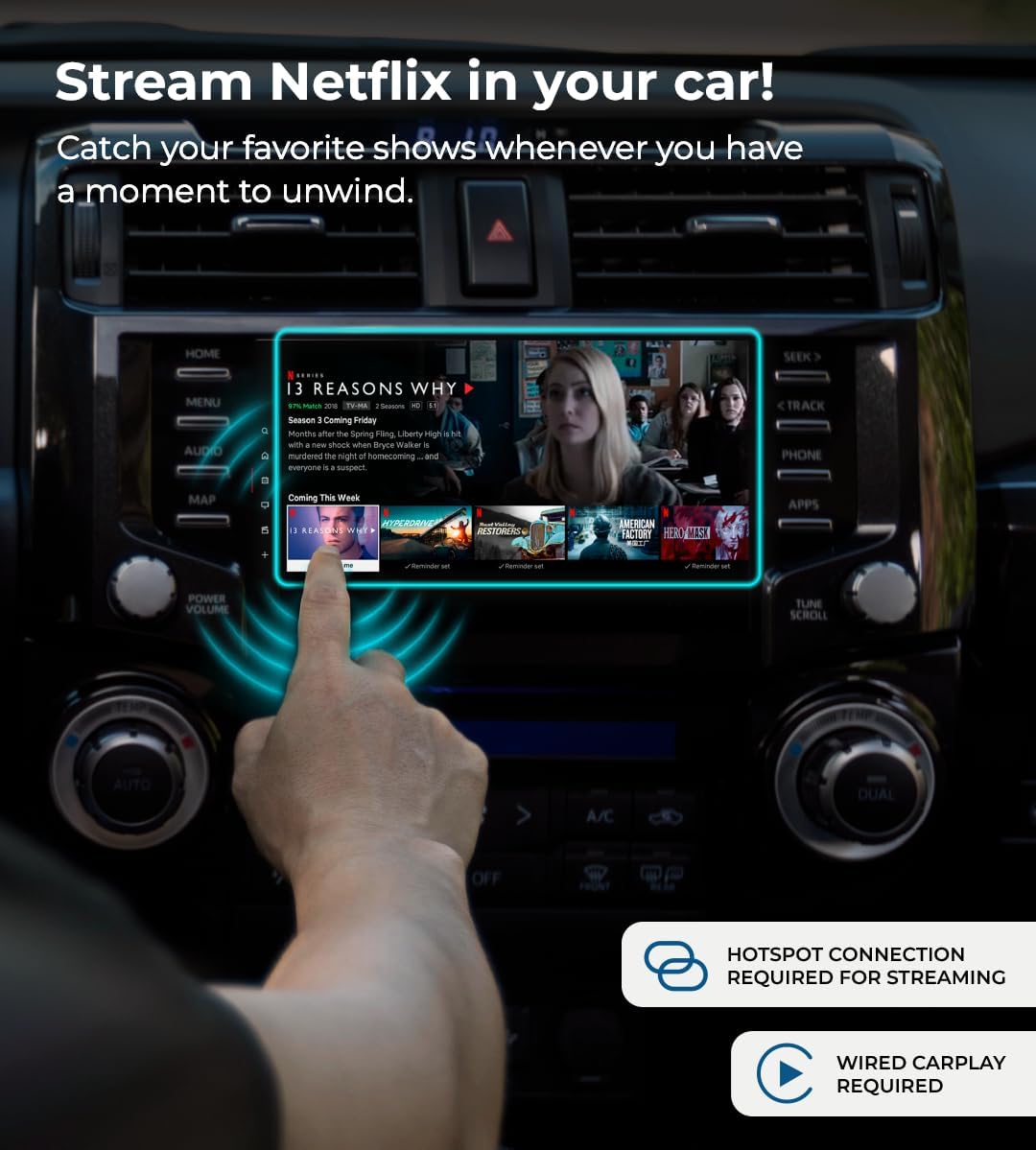
Image 3.3: Streaming Netflix content directly on the car's screen.

Image 3.4: Enjoying YouTube videos and channels on the car's display.
3.4. Navigation and Other Features
Through wireless CarPlay or Android Auto, you can utilize your phone's navigation applications directly on your car's screen. The device also supports hands-free calls and is compatible with most steering wheel controls for a seamless user experience.

Image 3.5: Navigating with freedom using the car's infotainment system via the AutoSky device.
4. Mantenimiento
To ensure optimal performance and longevity of your AutoSky Ai Box Lite Air, consider the following maintenance guidelines:
- Manténlo limpio: Limpie el dispositivo regularmente con un paño suave y seco para eliminar el polvo y la suciedad. Evite el uso de productos químicos agresivos o materiales abrasivos.
- Control de temperatura: Store and operate the device within recommended temperature ranges. Avoid prolonged exposure to extreme heat or cold, which can affect performance and lifespan.
- Actualizaciones de software (OTA): The device supports Over-The-Air (OTA) firmware updates. Periodically check for updates via the 'Update' option in the device's home menu to ensure you have the latest features and performance improvements. A stable internet connection is required for updates.
- Conexión segura: Ensure the USB connection to your vehicle is secure to prevent accidental disconnections.
5. Solución de problemas
If you encounter issues with your AutoSky Ai Box Lite Air, refer to the following common problems and solutions:
| Problema | Posible causa | Solución |
|---|---|---|
| El dispositivo no se enciende. | Loose USB connection, insufficient power from USB port. | Ensure the USB cable is securely connected to both the device and the car's USB port. Try a different USB port if available. |
| No aparece nada en la pantalla del coche. | Wired CarPlay not active, incorrect input selected on car screen. | Confirm your car's infotainment system is set to the CarPlay input. Ensure wired CarPlay functions normally without the device. Restart the car and the device. |
| Streaming apps (Netflix/YouTube) not working. | No internet connection, weak Wi-Fi signal, incorrect login credentials. | Verify the device is connected to a stable mobile hotspot or Wi-Fi network. Check Wi-Fi signal strength. Ensure you are logged into your streaming accounts correctly. |
| CarPlay/Android Auto inalámbrico no se conecta. | Bluetooth/Wi-Fi issues on phone, device pairing problem. | Ensure Bluetooth and Wi-Fi are enabled on your phone. Forget the device from your phone's Bluetooth settings and re-pair. Restart both your phone and the AutoSky device. |
| Lagging or slow performance. | Outdated firmware, network congestion, device overheating. | Check for and install any available OTA updates. Ensure a strong Wi-Fi signal. Allow the device to cool if it feels warm. Restart the device. |
6. Especificaciones
| Característica | Detalle |
|---|---|
| Marca | AutoSky |
| Nombre del modelo | AutoSky Ai Box Lite Air |
| Número de modelo del artículo | WCPAA-1TA |
| Peso del artículo | 2.46 onzas (aprox. 70 gramos) |
| Dimensiones del paquete | 4.33 x 3.9 x 0.87 pulgadas (aprox. 11 x 9.9 x 2.2 cm) |
| Color | Negro |
| Tecnología de conectividad | Bluetooth, wifi |
| Tipo de conector | USB tipo A, USB tipo C |
| Resolución de salida de video | Up to 2560x1440 (2K), also supports 1080p, 720p |
| Servicios de Internet compatibles | Netflix, YouTube |
| Dispositivos compatibles | Smartphone, Car Infotainment System (with wired CarPlay) |
| Características especiales | Hands-Free Calls, Steering Wheel Compatible, In-car Streaming (Netflix/YouTube) |
7. Garantía y soporte
For detailed warranty information, please refer to the documentation included with your purchase or visit the official AutoSky webSitio. Los términos y condiciones de la garantía pueden variar según la región y el minorista.
For technical support, frequently asked questions, or further assistance, please visit the AutoSky support page or contact their customer service directly. Contact information can typically be found on the product packaging or the official AutoSky websitio.