
1. Introducción
This manual provides detailed instructions for setting up, operating, and maintaining your MOFII Wireless Keyboard and Mouse Combo. Please read this manual thoroughly before use to ensure optimal performance and longevity of your device.

Image 1.1: MOFII Wireless Keyboard and Mouse Combo, showcasing the full-sized keyboard, ergonomic mouse, and the compact 2.4G USB receiver.
2. Contenido del paquete
- MOFII Wireless Keyboard
- MOFII Wireless Mouse
- USB Nano Receiver (located in the mouse battery compartment)
- Manual de usuario
Nota: AA batteries are not included and must be purchased separately for both the keyboard and mouse.
3. Instrucciones de configuración
3.1 Instalación de la batería
- Para el ratón: Open the battery compartment cover located on the underside of the mouse. Insert one (1) AA battery, ensuring correct polarity (+/-). Close the cover. The USB Nano receiver is typically stored in this compartment for safekeeping during transport.
- Para el teclado: Abra la tapa del compartimento de las pilas, situada en la parte inferior del teclado. Inserte una (1) pila AA, asegurándose de que la polaridad sea correcta (+/-). Cierre la tapa.

Image 3.1: Illustration of battery installation for both the keyboard and mouse, highlighting the AA battery slots.
3.2 Conexión a su dispositivo
- Locate the USB Nano receiver. It is usually stored in the battery compartment of the mouse.
- Plug the USB Nano receiver into an available USB port on your computer (PC, Laptop, Desktop, Mac, Smart TV, etc.).
- Your operating system will automatically detect and install the necessary drivers. This is a plug-and-play device, so no additional software installation is required.
- Una vez instalados los controladores, el teclado y el mouse están listos para usarse.

Image 3.2: The USB Nano receiver connected to a laptop, demonstrating the single receiver solution for both keyboard and mouse.
The wireless connection operates on a 2.4GHz frequency, providing a stable connection up to 10 meters (33 feet).
4. Instrucciones de funcionamiento
4.1 Funciones del teclado
- Escritura estándar: The keyboard features a full 104-key layout with round keycaps for comfortable typing.
- Teclas de acceso rápido multimedia: The F1-F12 keys have secondary multimedia functions. These can be accessed by pressing the Fn key simultaneously with the desired F-key. Refer to the keycap legends for specific functions (e.g., volume control, media playback).

Image 4.1: The keyboard layout highlighting the multimedia hotkeys (F1-F12) for quick access to various functions.
4.2 Funciones del ratón
- Clic izquierdo/derecho: Botones de ratón estándar.
- Rueda de desplazamiento: Para desplazamiento vertical.
- Ajuste de PPP: The mouse features adjustable DPI settings (800/1200/1600). Press the DPI button (usually located near the scroll wheel) to cycle through the sensitivity levels.
- Clic silencioso: El mouse está diseñado para un funcionamiento silencioso, reduciendo el ruido del clic.

Image 4.2: Diagram illustrating the mouse's adjustable DPI settings (800/1200/1600) and silent click feature, along with its ergonomic design.
4.3 Función de suspensión automática
To conserve battery life, both the keyboard and mouse will enter an auto-sleep mode after approximately one minute of inactivity. To wake the devices, simply click the mouse or press any key on the keyboard.

Image 4.3: Visual representation of the auto-sleep function, indicating that pressing any key or clicking the mouse will wake the devices.
5. Mantenimiento
5.1 Reemplazo de batería
When the keyboard or mouse stops responding or exhibits intermittent connectivity, it is likely time to replace the batteries. Follow the battery installation steps in Section 3.1.
5.2 Limpieza
- Use a soft, dry cloth to wipe the surfaces of the keyboard and mouse.
- Para suciedad difícil, ligeramente dampEnjuague el paño con agua o una solución limpiadora suave. Evite la humedad excesiva.
- Do not use harsh chemicals, abrasive cleaners, or solvents, as these may damage the finish.
- The keycaps are removable for deeper cleaning if necessary. Gently pry them off, clean, and then press them back into place.
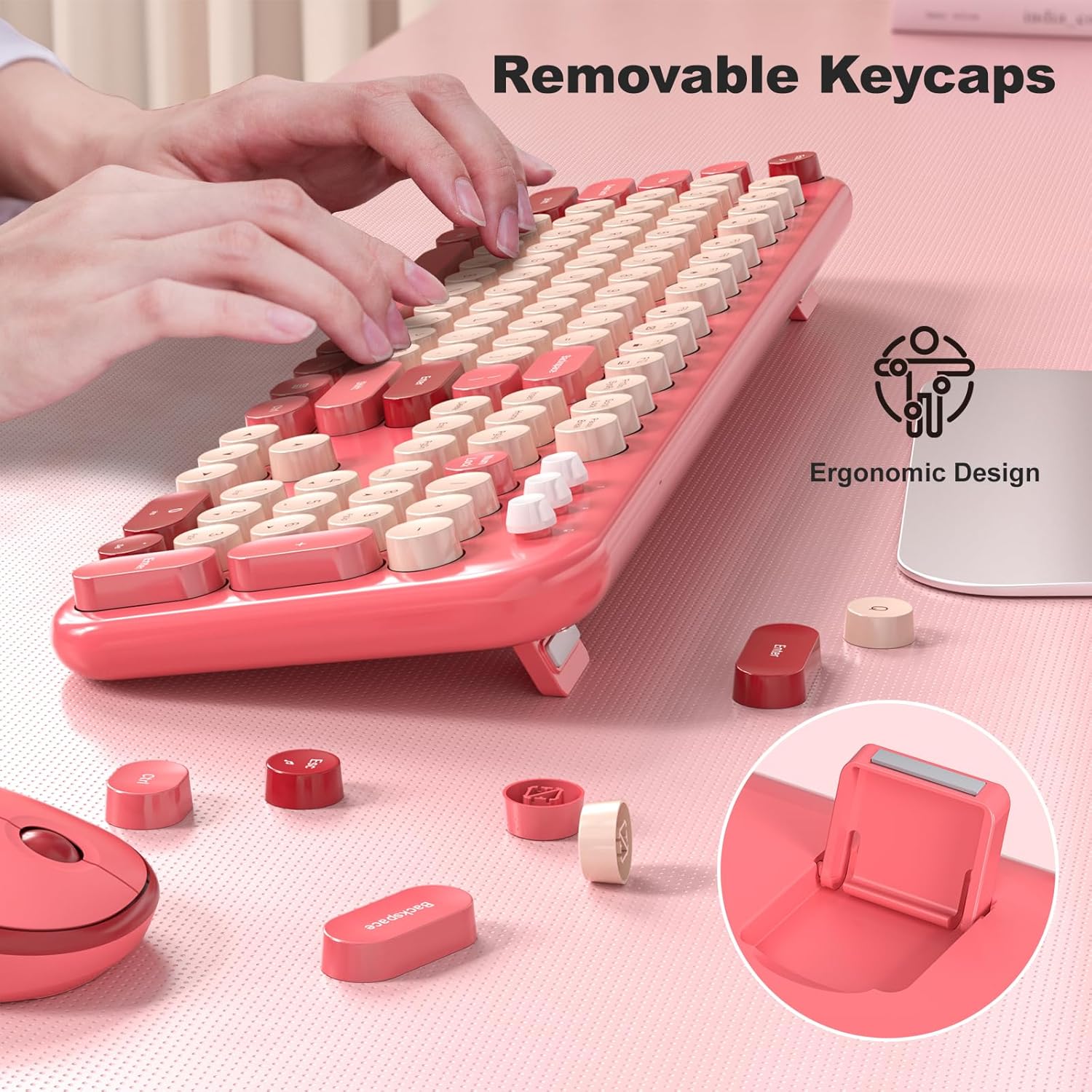
Image 5.1: The keyboard featuring removable keycaps for easy cleaning and adjustable feet for ergonomic positioning.
6. Solución de problemas
- No hay respuesta del teclado/ratón:
- Ensure fresh AA batteries are correctly installed in both devices.
- Verify the USB Nano receiver is securely plugged into a working USB port on your computer.
- Intente conectar el receptor a un puerto USB diferente.
- Acerque el teclado y el mouse al receptor para descartar problemas de alcance.
- Reinicie su computadora.
- Conectividad intermitente:
- Reemplace las baterías.
- Ensure there are no large metal objects or other wireless devices causing interference between the devices and the receiver.
- Keys Not Registering / Mouse Not Moving Smoothly:
- Clean the keycaps or mouse sensor.
- Asegúrese de utilizar el ratón sobre una superficie adecuada.
7. Especificaciones
| Característica | Detalle |
|---|---|
| Marca | Ministerio de Finanzas |
| Modelo | Combo de teclado y ratón inalámbricos |
| Tecnología de conectividad | 2.4G inalámbrico |
| alcance inalámbrico | Hasta 10 m (33 pies) |
| Disposición del teclado | Full-sized, 104 keys, Round Keycaps |
| Configuración de DPI del mouse | 800 / 1200 / 1600 |
| Dispositivos compatibles | Laptop, Personal Computer, Desktop, Chrome-Book, Mac, Smart TV |
| Sistemas operativos | Windows XP/X/7/8/10/2000/ME Vista, iOS OS |
| Fuente de poder | 1x AA battery for Keyboard, 1x AA battery for Mouse (not included) |
| Peso del artículo | 1.98 libras (aprox. 0.9 kg) |
| Dimensiones del paquete | 17.95 x 5.55 x 2.83 pulgadas |

Image 7.1: The MOFII Wireless Keyboard and Mouse Combo is compatible with a wide range of devices and operating systems, including Desktop, Laptop, and Windows.
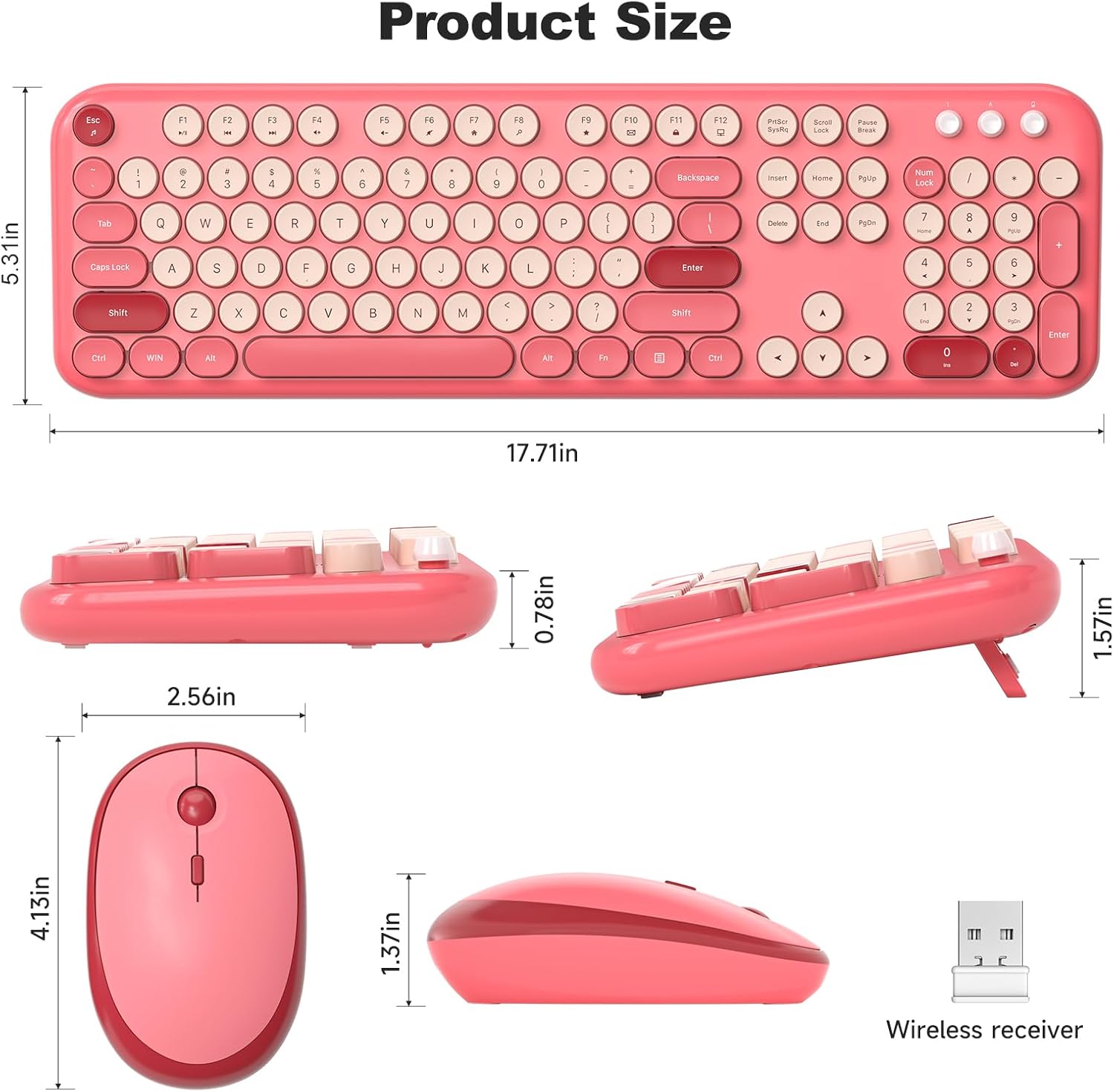
Image 7.2: Detailed product dimensions for both the keyboard and mouse, including height, width, and depth measurements.
8. Información de soporte
If you encounter any issues or have questions regarding your MOFII Wireless Keyboard and Mouse Combo that are not addressed in this manual, please contact MOFII customer support via Amazon email. We aim to respond within 24 hours and provide satisfactory solutions.