
Introducción
The MCHOSE V9 PRO Wireless Gaming Headset delivers an immersive audio experience with 7.1 surround sound, low-latency wireless connectivity, and an AI noise-canceling microphone. This manual provides detailed instructions for setup, operation, and maintenance to ensure optimal performance.
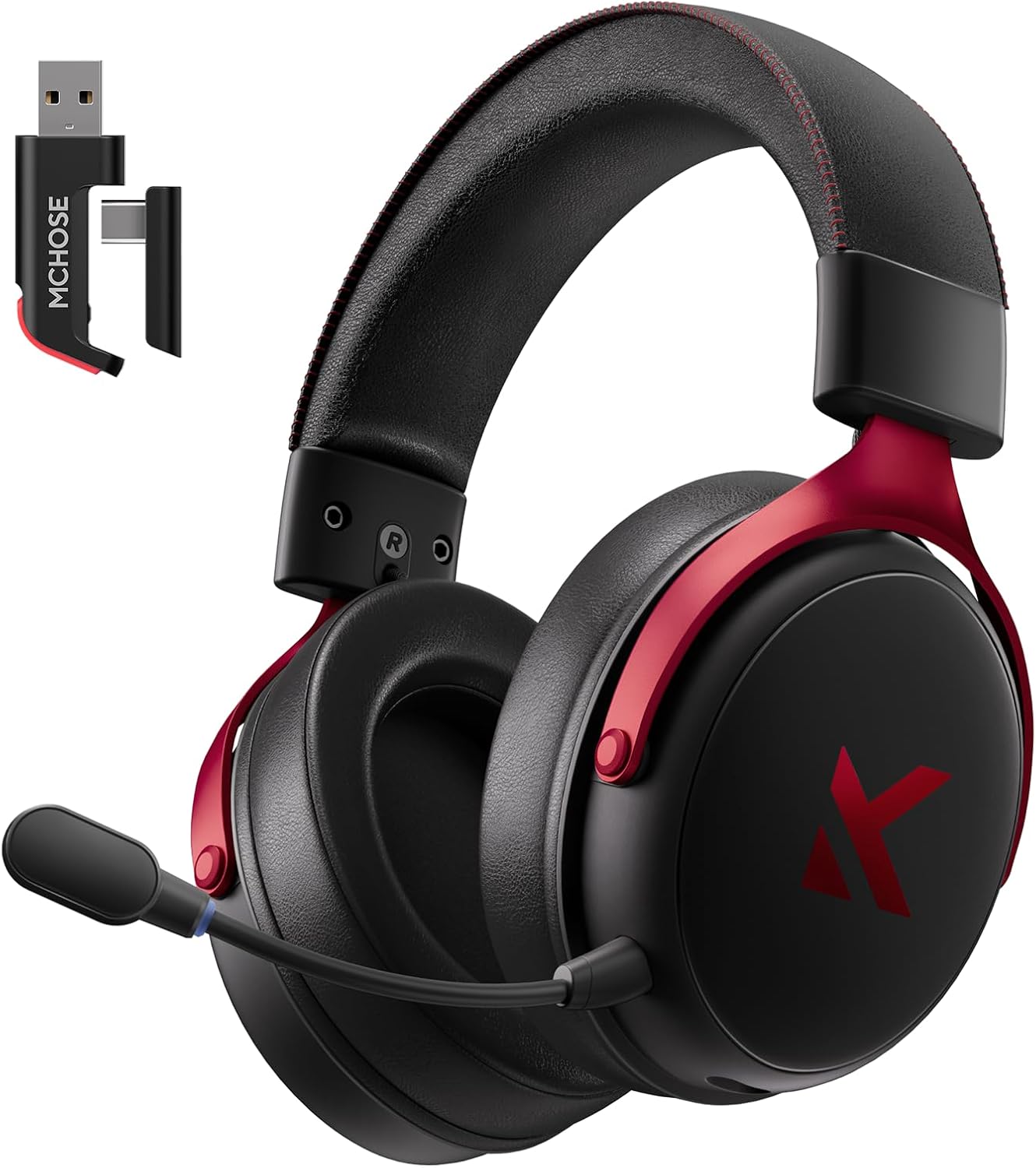
Image: MCHOSE V9 PRO Wireless Gaming Headset with its 2.4GHz USB receiver.
Contenido del paquete
Verifique que todos los artículos enumerados a continuación estén incluidos en su paquete:
- MCHOSE V9 PRO Wireless Gaming Headset
- 2.5GHz Receiver (USB-A & Type-C compatible)
- Cable de carga USB-C
- Micrófono desmontable
- Foam Windscreen (pre-installed on microphone)
- Manual de usuario

Image: Diagram illustrating the headset, receiver, cables, microphone, and user manual.
Producto terminadoview
Controles e indicadores

Image: Handy guide showing the location and function of buttons and indicator lights on the headset.
- Botón de encendido: Long press for approximately 3 seconds to power on/off.
- Interruptor de modo de conexión: Double-click the power button to switch between 2.4GHz wireless, Bluetooth, and wired modes.
- Cambio de modo de juego/música: Triple-click the power button to switch between Game Mode 1, Game Mode 2, and Music Mode.
- Reproducir/Pausa: Haga un solo clic en el botón de encendido.
- Responder/Finalizar llamada: Haga un solo clic en el botón de encendido.
- Rechazar llamada: Long press the power button for approximately 1.5 seconds.
- Botón de micrófono: Un solo clic para activar o desactivar el micrófono.
- Rueda de volumen: Slide upwards to increase volume, slide downwards to decrease volume.
Luces indicadoras
- Bluetooth (BT) Waiting for Connection: Las luces rojas y azules parpadean alternativamente.
- 2.4G Waiting for Connection: Red and green lights flash alternately.
- Cargando: La luz roja permanece encendida.
- Completamente cargado: La luz azul permanece encendida.
- 2.4G Mode Active: Luz verde.
- Bluetooth Mode Active: Luz azul.
- Microphone Active: Blue light on microphone tip.
Configuración y conexión
2.4GHz Wireless Connection (PC, PS5, PS4, Switch)
- Remove the 2.4GHz USB receiver from its storage slot on the headset.
- Plug the 2.4GHz receiver into an available USB-A port on your computer or gaming console. For devices with only USB-C ports, detach the USB-A adapter from the receiver and plug in the USB-C end.
- Press and hold the power button on the headset for approximately 3 seconds to power it on.
- Double-click the power button to ensure the headset is in 2.4GHz wireless mode (indicated by a green light). The headset should automatically connect to the receiver.
Bluetooth Wireless Connection (Mobile Phone, Tablet, PC, Switch)
- Press and hold the power button on the headset for approximately 3 seconds to power it on.
- Double-click the power button to switch the headset to Bluetooth mode (indicated by a blue light flashing alternately with red).
- On your device (phone, tablet, PC, Switch), navigate to Bluetooth settings and search for "MCHOSE V9 PRO".
- Select the headset to pair. Once connected, the blue light will remain steady.
Wired Connection (PC, PS5, PS4, Switch, Mobile Phone, Tablet)
The headset supports a wired connection via the included USB-C cable. This mode is primarily for charging and can also be used for audio if wireless options are not preferred or available.
- Connect the USB-C cable to the headset's charging port.
- Conecte el otro extremo del cable USB-C a su dispositivo.
- The headset will function as a wired device.
Configuración del micrófono
- Plug the detachable microphone into the designated port on the left earcup of the headset. Ensure it is securely inserted.
- Ajuste la posición del micrófono para una captación de voz óptima.
- Single-click the microphone button on the headset to toggle the microphone on or off. A blue light on the microphone tip indicates it is active.
Video: This video demonstrates the initial setup of the MCHOSE V9 PRO Wireless Gaming Headset, including connecting the 2.4GHz receiver, powering on, switching modes, and attaching the microphone.
Software Installation and Customization (MCHOSE HUB)
The MCHOSE HUB software allows for advanced customization of your headset's audio settings. It is compatible with Windows 10 and above.
Pasos de instalación
- Visita el MCHOSE oficial websitiomchose.store).
- Navigate to the 'Support' section and click on 'Drivers & Firmwares'.
- Locate the 'V9 / V9 Pro Driver' and download the desktop driver.
- Before installing the driver, ensure the 2.4GHz receiver is plugged into your computer.
- Install the downloaded driver and follow the on-screen instructions.
- Once installed, open the MCHOSE HUB application. You can switch the application language to English from the settings.
Video: This video guides you through the process of connecting and installing the MCHOSE desktop driver for your headset.
Audio Equalizer Customization
The MCHOSE HUB features a customizable equalizer to fine-tune your audio output.
- In the MCHOSE HUB, right-click on 'Speakers' and select 'Equalizer'.
- Enable the equalizer.
- Adjust the frequency bands as needed to create your desired sound profile.
- You can save your custom settings as a preset or choose from official presets like Dance, Rap, Metal, Jazz, etc.
- You can also restore the default equalizer settings.

Image: Screenshot of the MCHOSE HUB software interface displaying the audio equalizer settings.
Sonido envolvente 7.1
Enable 7.1 surround sound for enhanced spatial awareness in games and movies.
- In the MCHOSE HUB, right-click on 'Speakers' and select 'Xear Surround Headphone'.
- Enable Xear Surround.
- Choose between 'Music/Gaming mode' or 'Movie mode' based on your content.
- Adjust the 'Room Size' for optimal effect.

Image: Visual representation of 7.1 surround sound technology with the MCHOSE V9 PRO headset.
Voice Effects (Magic Voice)
The software includes various voice effects for fun or specific communication needs.
- In the MCHOSE HUB, right-click on 'Mic' and select 'Xear Magic Voice'.
- Enable 'Magic Voice' and choose from different voice effects.
Reducción de ruido con IA para micrófono
Enhance microphone clarity by enabling AI noise reduction.
- In the MCHOSE HUB, right-click on 'Mic' and select 'AI NoiseReduction'.
- Enable 'AI NoiseReduction' to filter out background noise.
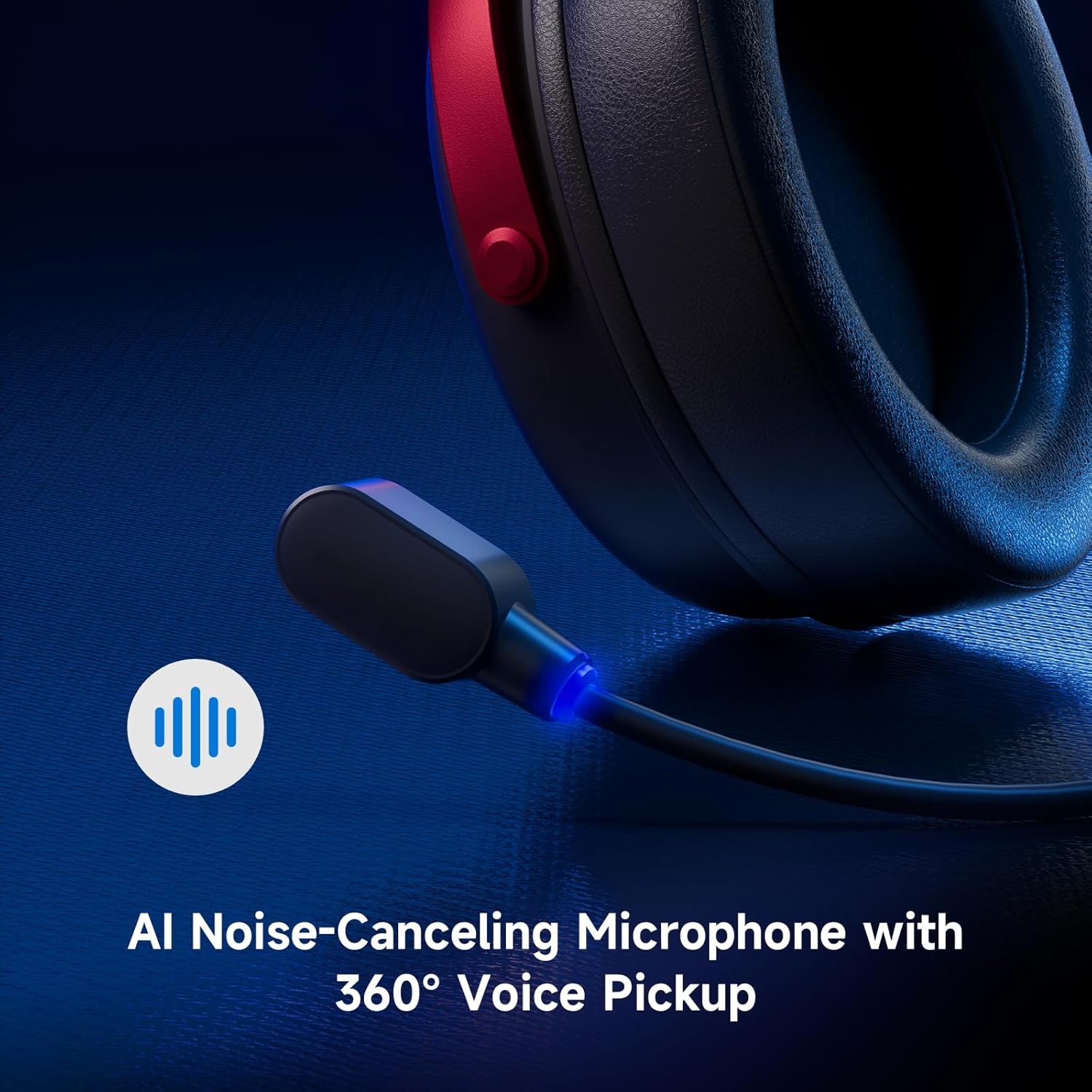
Image: Close-up of the AI Noise-Canceling Microphone on the MCHOSE V9 PRO headset.
Instrucciones de funcionamiento
Encendido/apagado
To power on the headset, press and hold the power button for approximately 3 seconds. To power off, repeat the action.
Modos de conmutación
Double-click the power button to cycle through 2.4GHz wireless, Bluetooth, and wired connection modes. The indicator light color will change accordingly (Green for 2.4GHz, Blue for Bluetooth).
Triple-click the power button to switch between Game Mode 1, Game Mode 2, and Music Mode, optimizing audio profiles para diferentes contenidos.
Control de volumen
Use the volume wheel located on the earcup to adjust the audio output level. Slide up to increase volume, slide down to decrease volume.
Silenciar micrófono
Single-click the microphone button to mute or unmute the microphone. The blue light on the microphone tip indicates its active status.
Mantenimiento
- Limpieza: Utilice un paño suave y seco para limpiar los auriculares. Evite utilizar productos químicos agresivos o materiales abrasivos.
- Almacenamiento: Guarde los auriculares en un lugar fresco y seco, alejado de la luz solar directa y de temperaturas extremas.
- Cuidado de la batería: Para una duración óptima de la batería, evite descargar completamente los auriculares con frecuencia. Cárguelos regularmente.
- Micrófono: Handle the detachable microphone carefully. Ensure the foam windscreen is properly seated.
Solución de problemas
- Sin sonido/volumen bajo:
- Check headset volume wheel and device volume settings.
- Ensure the headset is correctly connected (2.4GHz receiver, Bluetooth, or wired).
- Verifique que el dispositivo de salida de audio correcto esté seleccionado en la configuración de sonido de su computadora.
- El micrófono no funciona:
- Asegúrese de que el micrófono esté conectado de forma segura al auricular.
- Check if the microphone is muted (blue light on tip should be on).
- Verifique que el dispositivo de entrada de micrófono correcto esté seleccionado en la configuración de sonido de su dispositivo.
- If using MCHOSE HUB, check AI Noise Reduction settings.
- Problemas de conexión (2.4 GHz/Bluetooth):
- Ensure the headset is in the correct connection mode (green light for 2.4GHz, blue for Bluetooth).
- For 2.4GHz, try plugging the receiver into a different USB port.
- Para Bluetooth, intente desvincular y volver a vincular el auricular con su dispositivo.
- Asegúrese de que los auriculares estén cargados.
- Software Not Detecting Headset:
- Ensure the 2.4GHz receiver is plugged into the computer before launching the MCHOSE HUB.
- Restart the MCHOSE HUB application and/or your computer.
Presupuesto
| Nombre del modelo | V9 Pro |
| Marca | MCHOSE |
| Tecnología de conectividad | 2.4GHz Wireless, Bluetooth (BT 5.1), Wired |
| Controladores de audio | 53mm Neodymium Drivers with Bio-cellulose Diaphragm |
| Sonido envolvente | Sonido envolvente 7.1 |
| Micrófono | AI Noise-Canceling Microphone with 360° Voice Pickup |
| Latencia inalámbrica | 15ms (TOPSPEED 2.4GHz) |
| Duración de la batería | Hasta 250 horas de tiempo de juego |
| Versión de Bluetooth | 5.1 |
| Alcance de Bluetooth | Hasta 40 metros |
| Dispositivos compatibles | PC, Laptop, Switch, PS5, PS4, Mobile Phone, Tablet |
| Peso | 0.60 libras (aproximadamente 275 g) |
| Material | Metal, Plastic, Polyurethane (PU) |
| Colocación de orejas | Sobre la oreja |
Garantía y soporte
MCHOSE products are designed for quality and reliability. For warranty information, technical support, or to contact customer service, please visit the official MCHOSE websitio en mchose.store. You can find detailed warranty policies and support contact information in the 'Support' section of the websitio.