
1. Introducción
This manual provides comprehensive instructions for the setup, operation, maintenance, and troubleshooting of your HKOORLAMULS S40 Pro Game Projector. Please read this manual thoroughly before using the product to ensure proper functionality and to maximize your user experience. Keep this manual for future reference.
2. Contenido del paquete
Al abrir el paquete, verifique que estén incluidos todos los siguientes elementos:
- 1x S40 Pro Projector
- 1x control remoto
- 1x cable de alimentación
- 1x Manual de usuario (este documento)
- 1x TF Card
- 2x Wireless Controllers (Gamepads)
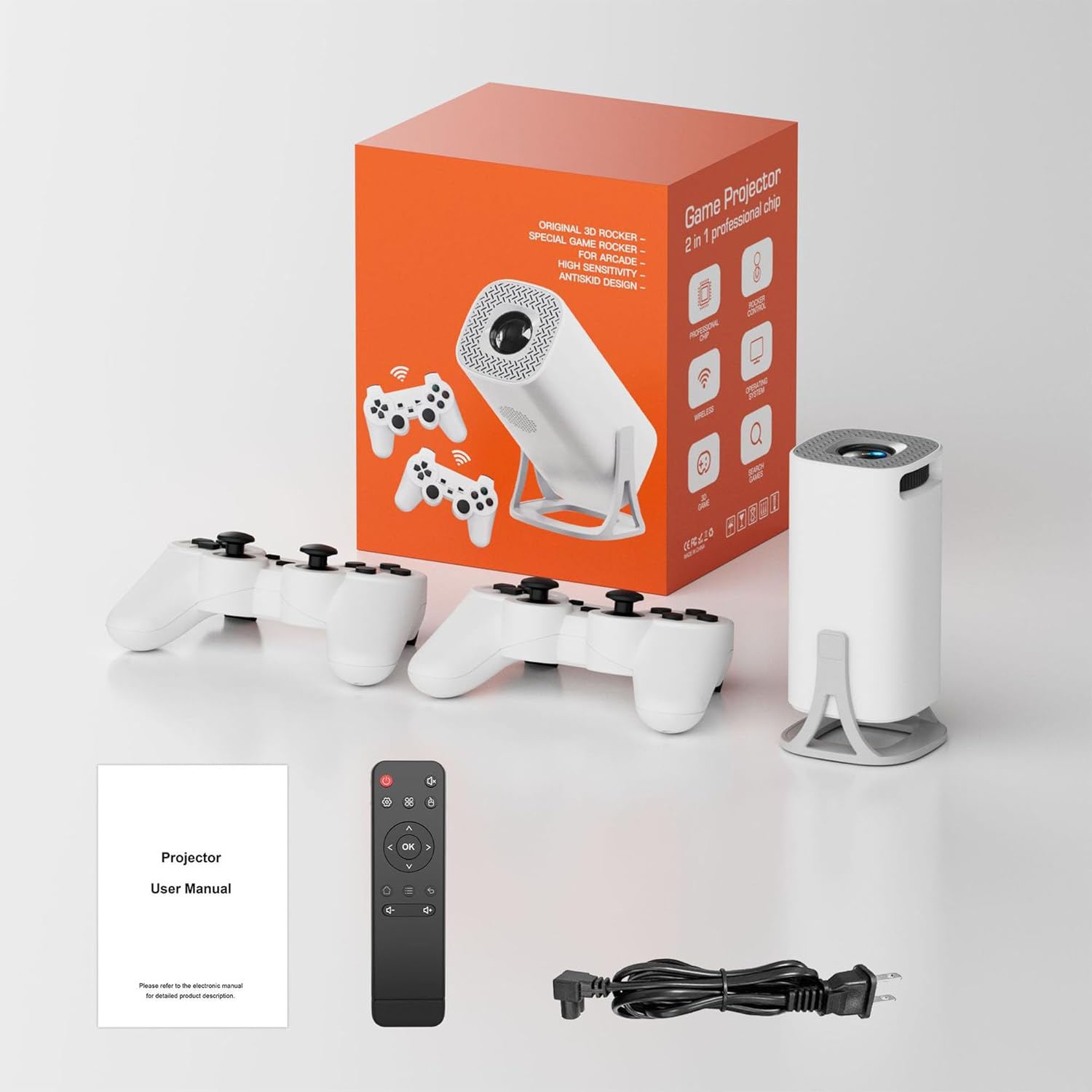
Image: The S40 Pro Game Projector, two wireless gamepads, a remote control, power cable, and user manual laid out, representing the complete package contents.
3. Producto terminadoview
3.1 Componentes y puertos del proyector
The S40 Pro projector features a compact design with essential ports for connectivity and control buttons. Familiarize yourself with the layout for optimal use.

Image: A technical diagram illustrating the dimensions (103x103x204mm) and port locations on the HKOORLAMULS S40 Pro projector, including USB, HDMI, AUX, and IR receiver ports.
- HDMI-IN Port: Connect external devices such as laptops, gaming consoles, or media players.
- Puerto USB: Para conectar dispositivos de almacenamiento USB u otros periféricos.
- Puerto AUX: Para conectar dispositivos de audio externos.
- Receptor IR: Para recibir señales del control remoto.
- Entrada de energía: Conecte el cable de alimentación provisto.
- Rueda de enfoque: Ajuste manual para la claridad de la imagen.
- Panel de control: On-device buttons for basic navigation and settings.
3.2 Wireless Gamepads
The S40 Pro includes two wireless gamepads for an enhanced gaming experience. These controllers feature standard button layouts for intuitive gameplay.
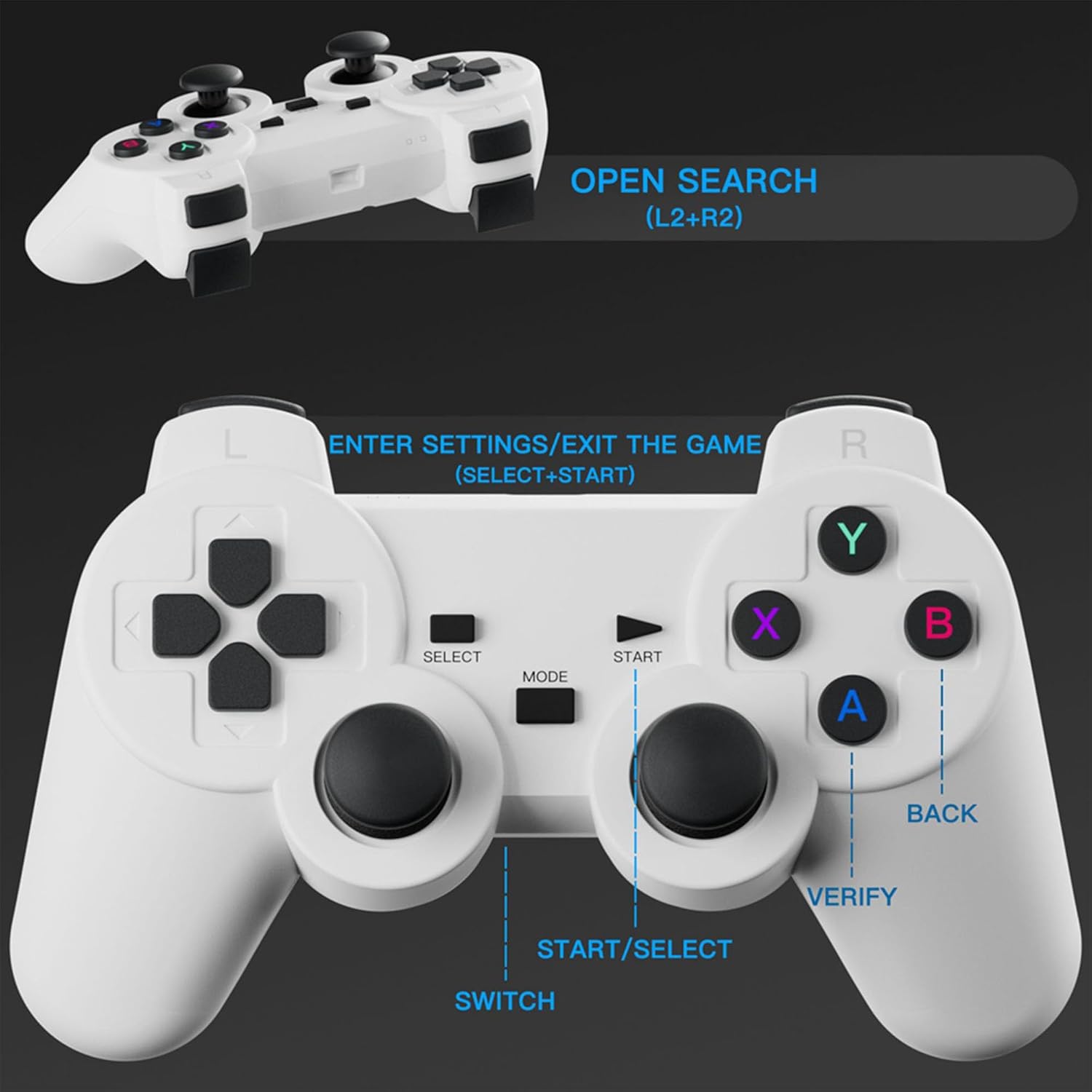
Imagen: Un detalle view of the wireless gamepad, highlighting buttons such as SELECT, START, MODE, SWITCH, A, B, X, Y, BACK, VERIFY, and instructions for OPEN SEARCH (L2+R2) and ENTER SETTINGS/EXIT THE GAME (SELECT+START).
- Pad direccional (D-Pad): Para movimiento y navegación por el menú.
- Botones de acción (A, B, X, Y): Para acciones dentro del juego.
- Joysticks analógicos: For precise control in 3D environments.
- Botones de hombro (L1, L2, R1, R2): For additional in-game functions.
- Botones INICIO/SELECCIONAR: For pausing games, accessing menus, or confirming selections.
- MODE/SWITCH Button: For changing controller modes or functions.
4. Configuración
4.1 Colocación
Position the projector on a stable, flat surface. The optimal projection distance is 1.68 meters, allowing for a clear image. The projector supports a projection distance range of 1.2 to 4 meters, yielding a screen size of 40 to 120 inches.
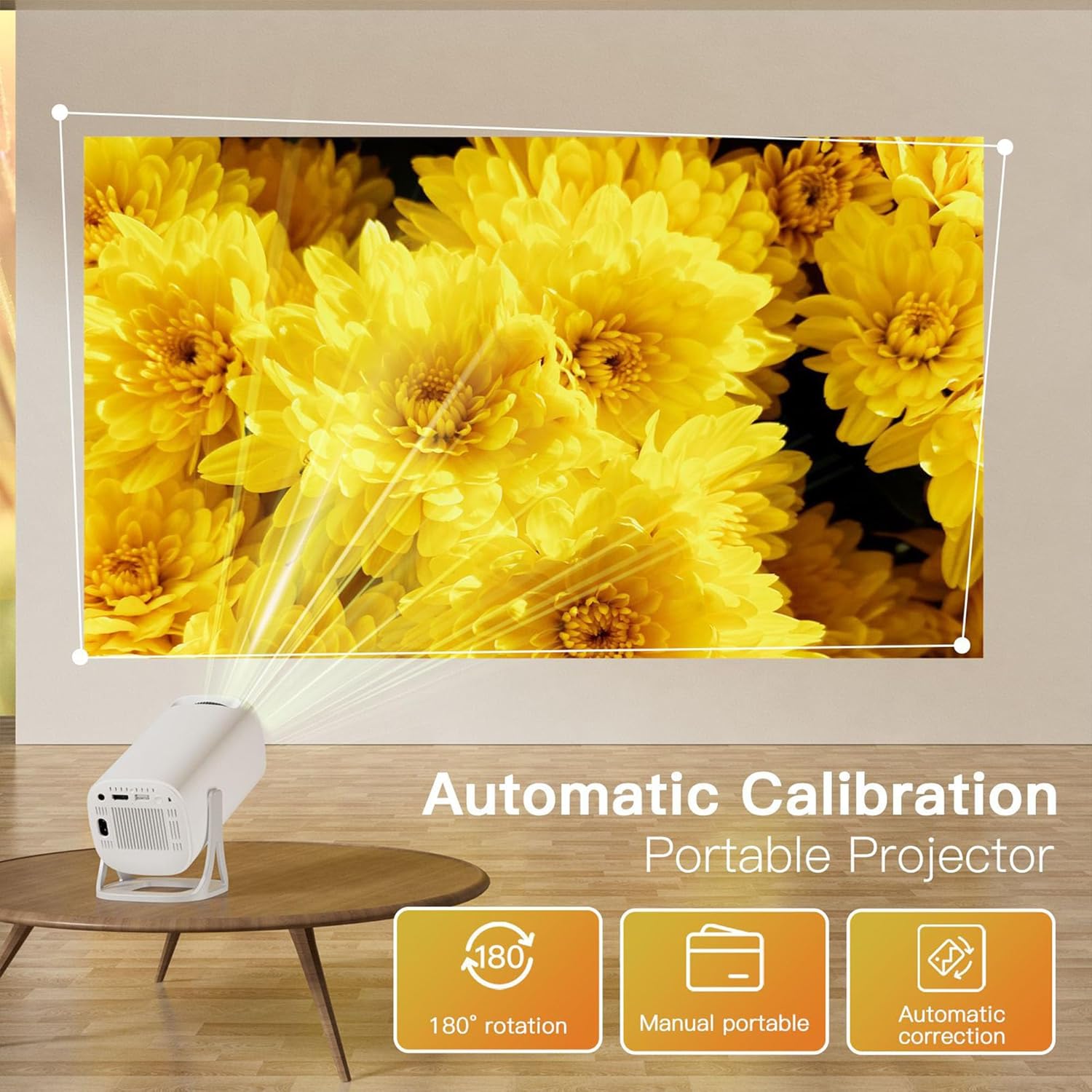
Image: The S40 Pro projector positioned on a table, projecting a large image onto a wall. Text overlays highlight "Automatic Calibration" and "180° rotation" capabilities, demonstrating its flexible placement options.
The projector features a 180° rotating stand, allowing for flexible projection angles, including from the floor to the ceiling.
4.2 Conexión de alimentación
- Connect the provided power cable to the power input port on the projector.
- Conecte el otro extremo del cable de alimentación a una toma eléctrica adecuada.
4.3 Encendido inicial
Presione el botón de encendido del proyector o el control remoto para encender el dispositivo. El proyector se iniciará y mostrará la interfaz de Android 11.
4.4 Gamepad Connection
The wireless gamepads are typically pre-paired. If they do not connect automatically, refer to the on-screen instructions or the projector's settings menu for Bluetooth device pairing.
5. Instrucciones de funcionamiento
5.1 Navegación y control
You can navigate the projector's interface using the included remote control or the wireless gamepads. The on-device button panel offers basic controls.
5.2 Game Console Functionality
The S40 Pro comes pre-loaded with over 22,000 classic and modern 3D games. Access the game library from the main menu. Use the wireless gamepads for an immersive gaming experience.
5.3 Duplicación de pantalla (conexión inalámbrica)
Para reflejar la pantalla de su teléfono inteligente o tableta:
- Asegúrese de que su proyector y dispositivo móvil estén conectados a la misma red Wi-Fi.
- On the projector's interface, select the "Screen Mirror" or "Wireless Display" option.
- On your iPhone, use AirPlay; on Android, use Cast or Smart View to find and connect to the projector.

Image: The S40 Pro projector projecting a large image, with a smartphone, tablet, and laptop shown nearby, illustrating the "Convenient Screen Mirror" feature via WiFi for various devices.
5.4 Corrección trapezoidal y enfoque
The projector features automatic keystone correction to adjust the image shape for a rectangular display, even if the projector is not perfectly aligned. For image clarity, use the manual focus wheel located on the projector body.
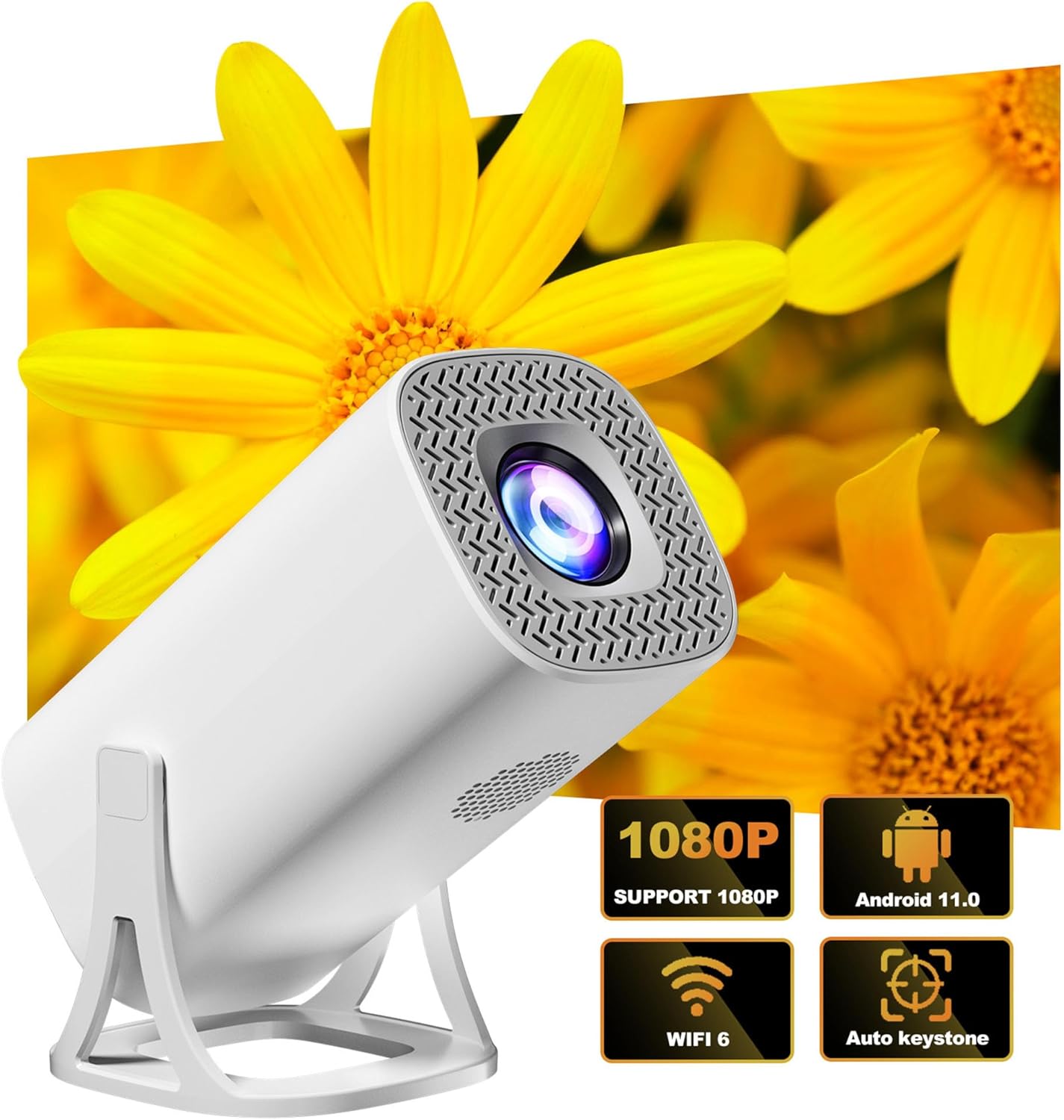
Image: The S40 Pro projector shown with graphical icons indicating its key features: 1080P support, Android 11 operating system, WiFi 6 connectivity, and automatic keystone correction.
5.5 salida de audio
The projector has a built-in 1*3W speaker. For enhanced audio, you can connect external Bluetooth speakers or headphones using Bluetooth 5.4 technology. Alternatively, use the AUX port for wired audio connections.
5.6 Conectividad
The S40 Pro supports various connectivity options:
- Wi-Fi 6 (2.4G+5G): For internet access and wireless screen mirroring.
- Bluetooth 5.4: For connecting wireless audio devices and gamepads.
- Entrada HDMI: For wired connection to external video sources.
- USB: Para conectar dispositivos de almacenamiento USB.
6. Mantenimiento
Para garantizar la longevidad y el rendimiento óptimo de su proyector, siga estas pautas de mantenimiento:
- Limpieza: Utilice un paño suave y seco para limpiar el exterior del proyector. Para la lente, utilice un paño y una solución especiales para limpiar lentes. Evite los limpiadores abrasivos.
- Ventilación: Asegúrese de que las aberturas de ventilación del proyector no estén bloqueadas para evitar el sobrecalentamiento.
- Almacenamiento: Cuando no utilice el proyector durante períodos prolongados, guárdelo en un lugar fresco y seco, alejado de la luz solar directa y del exceso de polvo.
- Apagar correctamente: Always power off the projector using the designated power button or remote control to ensure a proper shutdown sequence.
7. Solución de problemas
If you encounter issues with your S40 Pro Projector, refer to the following common problems and solutions:
| Problema | Posible causa | Solución |
|---|---|---|
| No se muestra ninguna imagen | Power cable loose, input source not selected, device not powered on. | Check power connection. Ensure the projector is on. Select the correct input source (HDMI, Screen Mirror). |
| La imagen es borrosa | Enfoque no ajustado, proyector demasiado cerca/lejos, lente sucia. | Adjust the manual focus wheel. Ensure projector is within optimal projection distance. Clean the lens. |
| La imagen está distorsionada (forma trapezoidal) | Proyector no perpendicular a la pantalla. | The projector has automatic keystone correction. Ensure it is enabled in settings. Adjust projector position if necessary. |
| Sin sonido | Volumen demasiado bajo, dispositivo de audio externo no conectado/seleccionado, silencio habilitado. | Increase volume. Check Bluetooth connection for external speakers. Ensure projector is not muted. |
| Wireless gamepad not responding | Batería baja, no emparejado, interferencia. | Replace gamepad batteries. Re-pair the gamepad via Bluetooth settings. Reduce distance to projector. |
| La duplicación de pantalla no funciona | Not on same Wi-Fi network, device compatibility, network issues. | Ensure both devices are on the same 2.4G or 5G Wi-Fi network. Restart both devices. Check device compatibility. |
8. Especificaciones
| Característica | Detalle |
|---|---|
| Marca | HKOORLAMULS |
| Modelo | S40 PRO |
| Resolución nativa | 1280*720P |
| Resolución admitida | 720P (supports 4K Video Playback) |
| UPC | Allwinner H713 64-bit quad core ARM Cor-tex A53 CPU |
| RAM | LPDDR4 de 1 GB |
| Almacenamiento | 8GB (internal) + 64GB (TF Card included) |
| Sistema operativo | Androide 11 |
| Brillo | Lúmenes 130 ANSI |
| Relación de contraste | 1500:1 |
| Temperatura de color | 8000K ±(1000K) |
| Image flip | Giro de 360 grados |
| Corrección trapezoidal | Automático |
| Ajuste de enfoque | Enfoque manual |
| Distancia de proyección | 1.2 - 4 metros |
| Distancia de proyección óptima | 1.68 metros |
| Tamaño de proyección | 40 - 120 pulgadas |
| Vocero | 1*3 W |
| Conectividad | Wi-Fi 6 (2.4G+5G), Bluetooth 5.4, HDMI-IN |
| Dimensiones del producto | 20.4 x 10.3 x 10.3 cm (aprox. 8 x 4 x 4 pulgadas) |
| Modo de operación | Panel de botones y control remoto |
| Soporte de idioma | Varios idiomas |
9. Garantía y soporte
HKOORLAMULS is committed to providing quality products and customer satisfaction. For any queries, concerns, or technical assistance regarding your S40 Pro Game Projector, please contact our dedicated professional technical support team. Refer to your purchase documentation or the HKOORLAMULS brand store on Amazon for contact information.
Tenga en cuenta que los términos y condiciones específicos de la garantía pueden variar según la región y el vendedor. Conserve su comprobante de compra para reclamaciones de garantía.