
XunFox K30 Pro
Manual de usuario del teclado mecánico transparente XunFox K30 Pro
Modelo: K30 Pro
Brand: XunFox
Introducción
Welcome to the XunFox K30 Pro Transparent Mechanical Keyboard user manual. This guide provides detailed instructions for setting up, operating, and maintaining your new keyboard. The K30 Pro features a unique transparent design, 61-key layout, RGB backlighting, and versatile 3-mode connectivity (2.4GHz wireless, Bluetooth 5.1, and wired USB).
Contenido del paquete
- XunFox K30 Pro Mechanical Keyboard
- Cable USB-C a USB-A (para conexión y carga por cable)
- Receptor inalámbrico de 2.4 GHz
- Manual de usuario (este documento)
Producto terminadoview
The XunFox K30 Pro keyboard features a compact 61-key layout with transparent keycaps and a translucent bottom shell, showcasing its internal mechanical components.
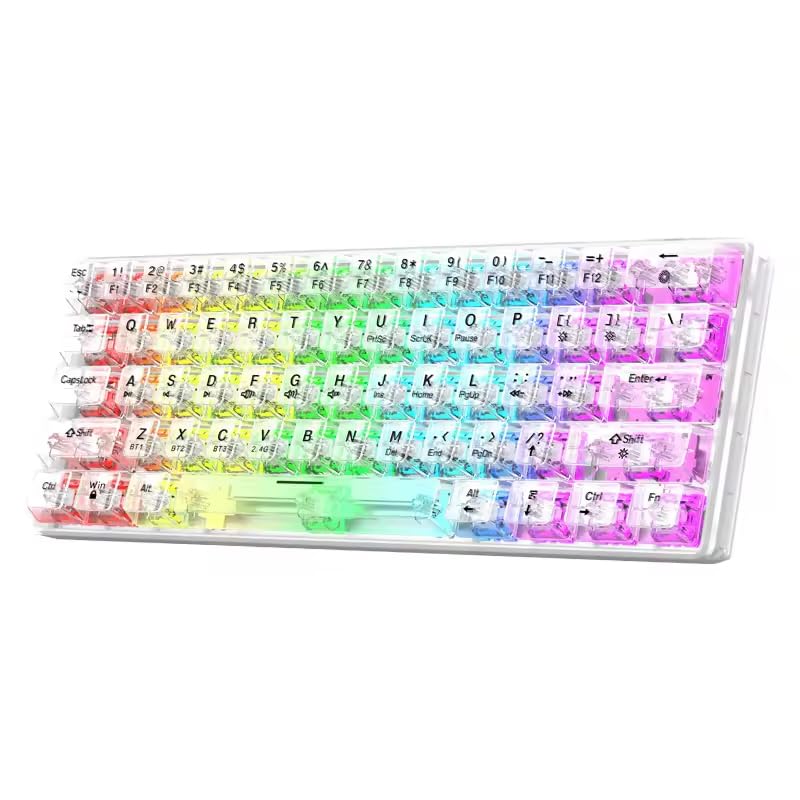
Imagen: Frente view of the XunFox K30 Pro Transparent Mechanical Keyboard, showcasing its compact 61-key layout and vibrant RGB backlighting through transparent keycaps.

Image: Diagram highlighting the 61-key minimalist layout of the XunFox K30 Pro keyboard, emphasizing space-saving design compared to traditional 104-key keyboards.

Image: Exploded diagram illustrating the internal layers of the keyboard, including transparent keycaps, customized mechanical shafts, positioning plate, PCB board, and translucent bottom shell.
Características principales:
- Diseño minimalista de 61 teclas: Diseño que ahorra espacio.
- Diseño transparente: Crystal clear hard shell and keycaps.
- Conectividad de 3 modos: 2.4GHz Wireless, Bluetooth 5.1, and Wired USB.
- Retroiluminación RGB: Customizable colorful lighting effects.
- Hot-Swappable Mechanical Axis: Allows for easy switch replacement.
- Batería recargable de 2000 mAh: For extended wireless use.
- Diseño ergonómico: Agarre cómodo para uso prolongado.
Configuración
1. Carga de la batería
Before first use, or when the battery is low, connect the keyboard to a USB power source (e.g., computer USB port, USB wall adapter) using the provided USB-C cable. The charging port is typically located on the back or side of the keyboard.
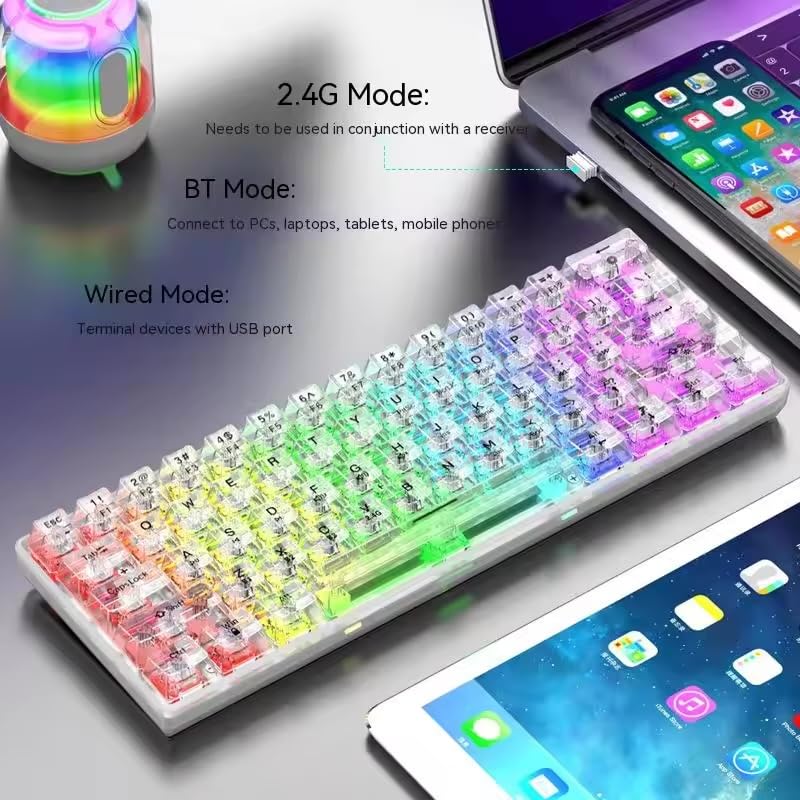
Image: The XunFox K30 Pro keyboard connected via a USB-C cable to a laptop, illustrating the charging process and highlighting the 2000mAh battery capacity.
Una carga completa proporciona aproximadamente 2000 mAh de duración de batería.
2. Conexión inalámbrica de 2.4 GHz
- Locate the 2.4GHz wireless receiver, usually stored in a compartment on the keyboard or included separately.
- Conecte el receptor de 2.4 GHz a un puerto USB disponible en su computadora.
- Switch the keyboard's connection mode to 2.4GHz. This is typically done using a switch on the keyboard or an FN key combination (e.g., FN+V).
- El teclado debería conectarse automáticamente a su dispositivo.
3. Conexión mediante el modo Bluetooth
- Switch the keyboard's connection mode to Bluetooth. This is typically done using a switch on the keyboard or an FN key combination (e.g., FN+Z para BT1, FN+X para BT2, FN+C for BT3).
- For first-time pairing, long-press the corresponding FN key combination (e.g., FN+Z for 3 seconds) to enter pairing mode. The keyboard's indicator light will flash.
- On your device (computer, laptop, tablet, phone), open Bluetooth settings and search for new devices.
- Select "XunFox K30 Pro" (or similar name) from the list of available devices to pair.
- Una vez emparejado, la luz indicadora dejará de parpadear.
4. Connecting via Wired USB Mode
- Conecte un extremo del cable USB-C provisto al puerto USB-C del teclado.
- Conecte el otro extremo del cable USB-A a un puerto USB disponible en su computadora.
- Switch the keyboard's connection mode to Wired. This is typically done using a switch on the keyboard or an FN key combination.
- The keyboard will be recognized as a standard USB keyboard and is ready for use.

Image: Diagram illustrating the three connection modes: Bluetooth (BT), 2.4GHz Wireless (with receiver), and Wired (USB-C cable). Shows the keyboard connected to various devices.
Instrucciones de funcionamiento
Cambiar modos de conexión
The keyboard supports three connection modes. Use the dedicated switch or FN key combinations to switch between them:
- 2.4 GHz inalámbrico: Prensa FN+V (short press to switch, long press for 3 seconds to enter pairing mode). Requires the 2.4GHz receiver.
- Bluetooth 1 (BT1): Prensa FN+Z (short press to switch, long press for 3 seconds to enter pairing mode).
- Bluetooth 2 (BT2): Prensa FN+X (short press to switch, long press for 3 seconds to enter pairing mode).
- Bluetooth 3 (BT3): Prensa FN+C (short press to switch, long press for 3 seconds to enter pairing mode).
- Modo con cable: Connect the USB-C cable. The keyboard will automatically switch to wired mode or may require a specific FN key combination (refer to specific product documentation if FN key is needed).
Control de retroiluminación RGB
The XunFox K30 Pro features customizable RGB backlighting. Specific FN key combinations are used to control lighting effects, brightness, and speed. Please refer to the quick start guide or product packaging for exact FN key combinations for RGB control, as these can vary.
Special Function Keys (FN Combinations)
The 61-key layout utilizes the FN Tecla para acceder a funciones secundarias impresas en las teclas.
- FN + [Number Keys]: Acceda a las funciones F1-F12.
- FN + [Other Keys]: Access multimedia controls, volume, and other system functions.
A detailed list of FN key combinations can usually be found in the quick start guide or on the product's official support page.
Mantenimiento
Limpieza
Para limpiar su teclado:
- Desconecte el teclado de todas las fuentes de alimentación y dispositivos.
- Utilice un paño suave y sin pelusa ligeramente seco.ampLimpie con agua o una solución de limpieza suave las teclas y el chasis.
- Para eliminar el polvo y los residuos entre las teclas, utilice aire comprimido.
- Evite utilizar productos químicos agresivos o materiales abrasivos.
Conmutadores intercambiables en caliente
The K30 Pro features hot-swappable mechanical switches, allowing you to change switches without soldering. Use a switch puller tool (not included unless specified) to carefully remove and insert compatible 3-pin or 5-pin mechanical switches.
Solución de problemas
Teclado no responde
- Asegúrese de que el teclado esté cargado.
- Check the connection mode (2.4GHz, Bluetooth, Wired) and ensure it matches your device's connection.
- Para 2.4 GHz, asegúrese de que el receptor esté correctamente enchufado.
- For Bluetooth, ensure it's paired correctly and within range. Try re-pairing.
- For wired, ensure the USB cable is securely connected to both the keyboard and the computer.
- Intente conectarse a un puerto o dispositivo USB diferente.
Problemas de conexión Bluetooth
- Asegúrese de que el teclado esté en modo de emparejamiento Bluetooth (luz indicadora parpadeando).
- Elimina el teclado de la lista de Bluetooth de tu dispositivo e intenta emparejarlo nuevamente.
- Asegúrese de que el Bluetooth de su dispositivo esté habilitado.
- Reduce distance between keyboard and device.
Las luces RGB no funcionan
- Asegúrese de que el teclado esté encendido y cargado.
- Check if the backlight has been turned off via an FN key combination.
- Adjust brightness settings using FN key combinations.
Presupuesto
| Característica | Especificación |
|---|---|
| Marca | XunFox |
| Modelo | K30 Pro |
| Tipo de teclado | Mecánico |
| Disposición | 61 teclas |
| Conectividad | Conexión inalámbrica de 2.4 GHz, Bluetooth 5.1, con cable (USB-C) |
| Capacidad de la batería | 2000 mAh |
| Iluminar desde el fondo | RGB |
| Características especiales | Backlit, Ergonomic, Rechargeable, Hot-swappable mechanical axis |
| Dimensiones del producto | 40 x 8 x 4 cm |
| Peso del artículo | 900 gramos |
| Dispositivos compatibles | Laptop, PC, Tablet, Phone |
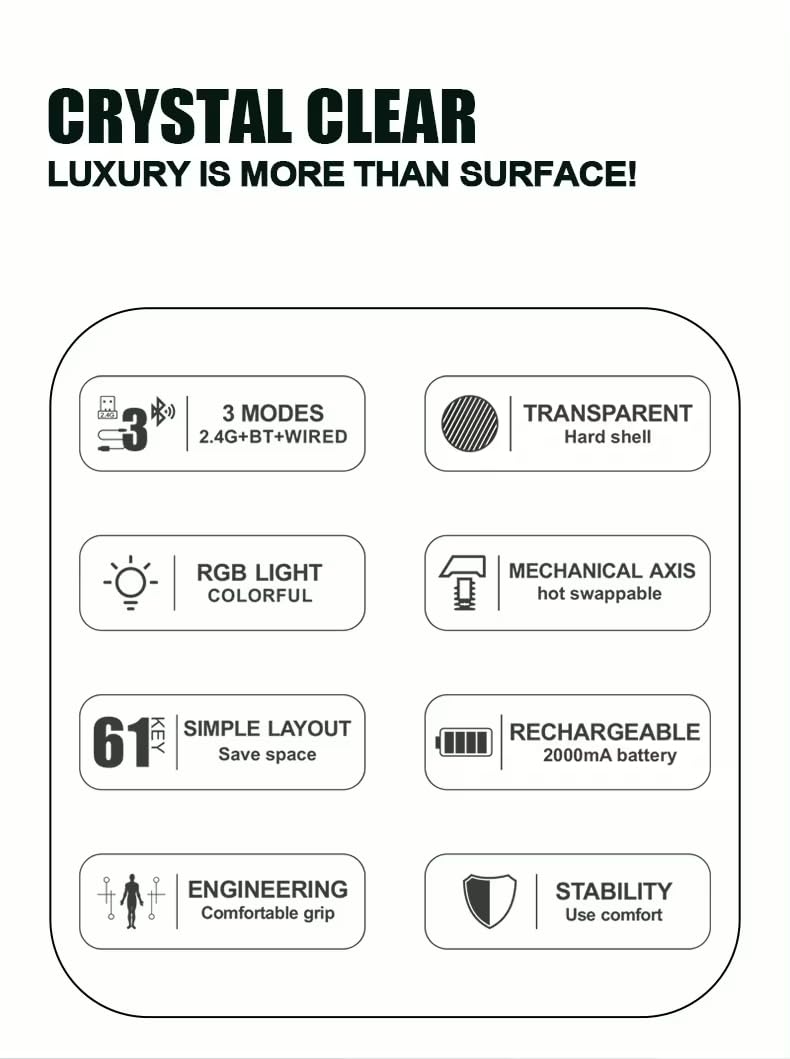
Imagen: de arriba hacia abajo view of the XunFox K30 Pro keyboard with key dimensions (292mm length, 102mm width, 40mm height) indicated.
Garantía y soporte
This XunFox K30 Pro keyboard comes with a Garantía de 2 años.
Para obtener asistencia técnica, reclamos de garantía o asistencia adicional, comuníquese con:
- Atención al cliente: +91 9906910066
- Importador/Envasador: Tecnología de información de Nueva Jersey
Conserve su comprobante de compra para fines de garantía.