
Introducción
This manual provides essential instructions for setting up, operating, and maintaining your Plimpton PlimPad Kids20 tablet. This device is designed for children, featuring Android 14, an Octa-core processor, 8GB RAM (expandable), 64GB ROM (expandable to 1TB), and a durable EVA shockproof case. It includes pre-installed Google Kids Space and parental control features to ensure a safe and educational experience.
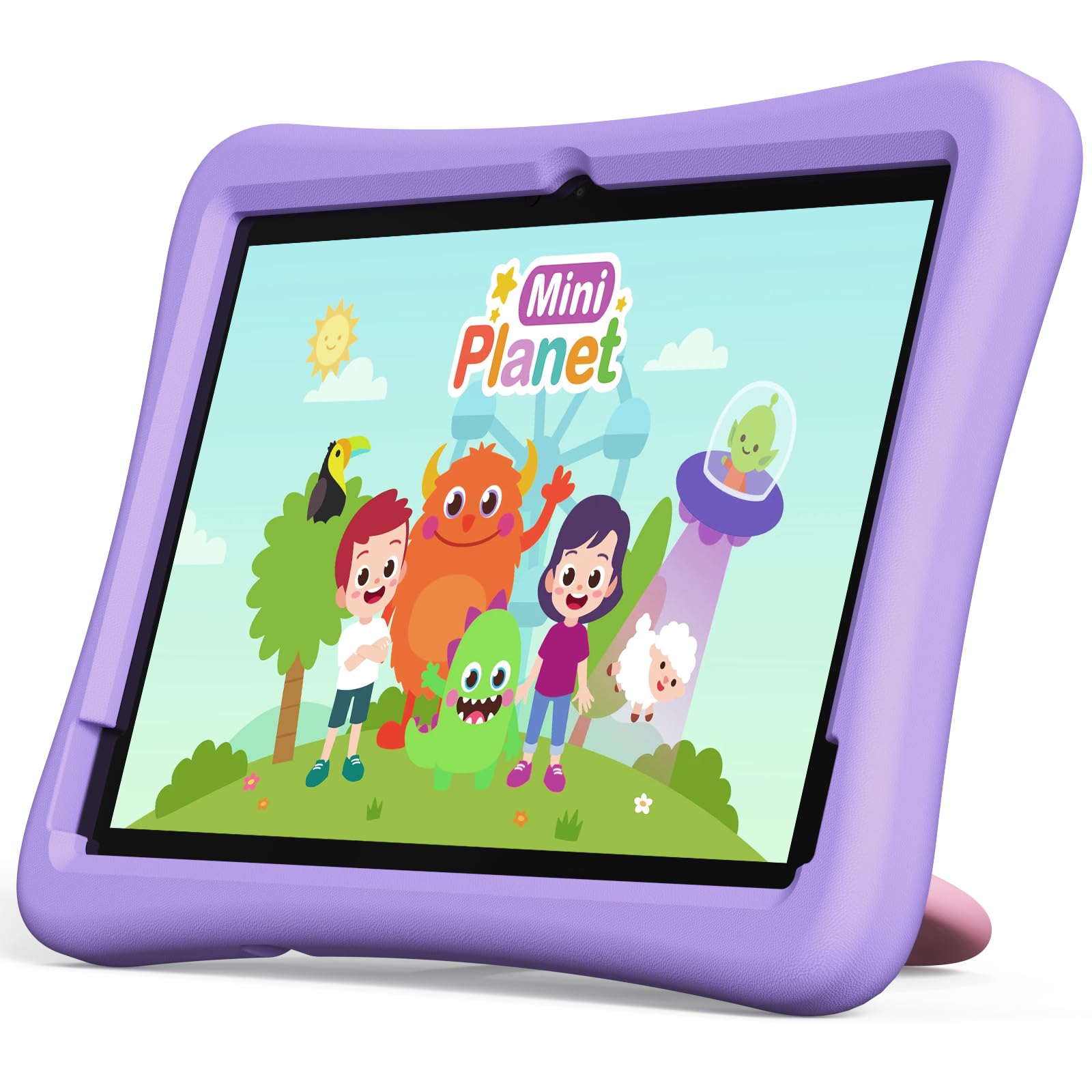
Image: The Plimpton PlimPad Kids20 tablet in its violet shockproof EVA case.
¿Qué hay en la caja?
Verifique que todos los elementos estén presentes en el paquete antes de continuar con la configuración.
- 1x Plimpton PlimPad Kids20 Tablet
- 1 adaptador USB
- 1x 1.8m Charging Cable
- 1x Manual de usuario
Configuración
1. Carga de la tableta
Antes del primer uso, cargue completamente la tableta.
- Connect the USB charging cable to the tablet's USB Type-C port.
- Conecte el adaptador USB a una toma de corriente.
- El indicador de carga se iluminará. Espere varias horas para que se cargue por completo.
2. Encendido / apagado
- Para encender: Mantén presionado el botón de encendido hasta que se encienda la pantalla.
- Para apagar: Mantenga presionado el botón de Encendido, luego seleccione “Apagar” de las opciones en la pantalla.
- Para reiniciar: Mantenga presionado el botón de Encendido, luego seleccione “Reiniciar” de las opciones.
3. Configuración inicial
Upon first power-on, follow the on-screen prompts to configure your tablet. This typically includes:
- Seleccionando su idioma.
- Connecting to a Wi-Fi network (supports Wi-Fi 6, 2.4GHz + 5.0GHz).
- Setting up a Google account. This is crucial for accessing Google Kids Space and downloading apps.
- Configurar fecha y hora.
4. Inserción de una tarjeta Micro SD
La tableta admite tarjetas Micro SD de hasta 1 TB para almacenamiento ampliado.
- Localice la ranura para tarjeta Micro SD en el costado de la tableta.
- Inserte con cuidado la tarjeta Micro SD en la ranura hasta que encaje en su lugar.
- The tablet will detect the new storage. You may be prompted to format it for use as portable or internal storage.
Operar la tableta
1. Navegación básica
The PlimPad Kids20 uses a capacitive touchscreen for interaction.
- Grifo: Seleccione un elemento o abra una aplicación.
- Toque y mantenga: Acceder a los menús contextuales o mover iconos.
- Golpe fuerte: Navigate through screens or scroll within applications.
- Pellizcar para hacer zoom: Enlarge or reduce content (e.g., photos, web páginas).
2. Google Kids Space
The tablet comes with Google Kids Space pre-installed, offering a curated selection of educational and entertaining content.

Image: A child and adult interacting with the tablet, showing the Google Kids Space interface.
- Access Kids Space from the home screen or app drawer.
- Content includes interactive educational apps, books, games, and videos.
- Content is teacher-approved and designed to promote learning and creativity.
3. Parental Controls (Google Family Link)
Manage your child's tablet usage and ensure a safe online environment using Google Family Link.

Image: A child using the tablet, with an overlay indicating Google Family Link for parental control.
- Download the Google Family Link app on your own device.
- Link your child's Google account on the tablet to your Family Link account.
- Through Family Link, you can:
- Establecer límites de tiempo frente a la pantalla.
- Approve or block app downloads.
- Administrar webacceso al sitio.
- Track device location.
4. Conectividad
- Wifi: Connect to wireless networks via Settings > Network & internet > Wi-Fi. The tablet supports dual-band Wi-Fi (2.4/5 GHz) for fast and stable connections.
- Bluetooth 5.3: Empareje con dispositivos Bluetooth como auriculares o parlantes a través de Configuración > Dispositivos conectados > Bluetooth.
5. Uso de la cámara
La tableta cuenta con una cámara trasera de 5MP y una cámara frontal de 2MP.
- Abra la aplicación Cámara desde la pantalla de inicio o el cajón de aplicaciones.
- Cambie entre las cámaras frontal y trasera según sea necesario.
- Toque el botón del obturador para tomar fotografías o grabar videos.
Mantenimiento
1. Limpieza de la tableta
- Utilice un paño suave que no suelte pelusa para limpiar la pantalla y el cuerpo.
- Para manchas difíciles, un poco deampEnjuague el paño con agua o un limpiador de pantallas.
- Evite productos químicos agresivos o materiales abrasivos.
2. Actualizaciones de software
Compruebe e instale periódicamente actualizaciones de software para garantizar un rendimiento y una seguridad óptimos.
- Vaya a Configuración > Sistema > Actualización del sistema.
- Siga las instrucciones en pantalla para descargar e instalar las actualizaciones disponibles.
3. Gestión del almacenamiento
To maintain performance, periodically manage the tablet's storage.
- Vaya a Configuración > Almacenamiento para view Uso de almacenamiento.
- Desinstala las aplicaciones que no uses.
- Eliminar innecesario files, fotos o vídeos.
- Mueva grande files to an inserted Micro SD card.
Solución de problemas
Si encuentra problemas, pruebe las siguientes soluciones antes de contactar al soporte técnico.
| Problema | Solución |
|---|---|
| La tableta no se enciende. | Ensure the tablet is fully charged. Connect it to the charger for at least 30 minutes, then try powering on again. |
| Problemas de conexión Wi-Fi. | Reinicie la tableta y el router Wi-Fi. Compruebe la configuración de Wi-Fi para asegurarse de que la red seleccionada sea la correcta y de que la contraseña esté correctamente introducida. |
| Las aplicaciones fallan o se congelan. | Close and reopen the app. Clear the app's cache (Settings > Apps > [App Name] > Storage & cache > Clear cache). If the problem persists, uninstall and reinstall the app. |
| Rendimiento lento. | Cierra las aplicaciones que no uses. Borra la caché y los archivos temporales. files. Consider uninstalling large, unused applications or moving data to an SD card. Restart the tablet. |
| La pantalla no responde. | Perform a forced restart by holding the Power button for approximately 10-15 seconds until the tablet restarts. |
Presupuesto
Key technical specifications for the Plimpton PlimPad Kids20 tablet.
| Característica | Detalle |
|---|---|
| Nombre del modelo | Plimpad Kids20 |
| Sistema operativo | Androide 14 |
| Procesador | Allwinner A523 Octa-core (up to 2.0 GHz) |
| RAM | 8 GB (4 GB + 4 GB extended virtual memory) |
| Almacenamiento interno (ROM) | 64 GB |
| Almacenamiento expandible | Hasta 1 TB mediante tarjeta Micro SD |
| Tamaño de pantalla | 10.1 pulgadas |
| Resolución de pantalla | 1280 x 800 píxeles (HD IPS) |
| Tipo de pantalla | LCD, G+G wear-resistant glass |
| Capacidad de la batería | 6000 mAh Lithium-ion (22.8 Wh) |
| Cámara trasera | 5 megapíxeles |
| Cámara frontal | 2 megapíxeles |
| Wifi | Wi-Fi 6 (802.11ax), Dual-band (2.4 GHz + 5.0 GHz) |
| Bluetooth | Bluetooth 5.3 |
| Puertos | USB Type-C, 3.5mm Headphone Jack, Micro SD slot |
| Características especiales | Stereo Speakers, USB OTG support, Eye-care screen, EVA shockproof case with 360-degree rotating handle |
| Dimensiones | 24 de largo x 16.1 de ancho x 0.9 de alto cm |
Garantía y soporte
The Plimpton PlimPad Kids20 tablet comes with a 2 año de garantía de reemplazo gratuito.
For any issues, including screen damage or operational problems, please contact our professional after-sales customer service. Refer to the contact information provided with your purchase or on the official Plimpton websitio.
Importante: Do not attempt to repair the device yourself, as this may void your warranty.