
1. Introducción
This manual provides detailed instructions for the OMOTON Magnetic Keyboard Case, Model KC011. This accessory is designed to enhance the functionality of your iPad Pro 13-inch (M4) 2024, offering a keyboard, multi-touch trackpad, and protective case. Please read this manual thoroughly before use to ensure proper operation and maintenance.
2. Contenido del paquete
Verifique que todos los artículos que se enumeran a continuación estén presentes en su paquete:
- OMOTON Magnetic Keyboard Case
- Cable de carga USB-C (1 metro)
- Manual de instrucciones
3. Compatibilidad
This keyboard case is specifically designed for the Apple iPad Pro 13-inch (M4) 2024 model. It is compatible with iPad models A2925, A2926, and A3007.

Figura 3.1: iPad Pro 13-inch (M4) 2024 compatibility. This image illustrates the 13-inch screen size and lists the compatible iPad model numbers (A2925, A2926, A3007) found on the back of the device.
To confirm your iPad model number:
- Ir a Ajustes en tu iPad.
- Seleccionar General, entonces Acerca de, and look for Nombre del modelo.
- Alternatively, locate the model number printed on the back of your iPad.
4. Configuración
4.1 Attaching the iPad
The keyboard case features strong magnets for secure attachment of your iPad. Align your iPad with the magnetic panel on the case until it snaps into place.

Figura 4.1: Magnetic attachment. This image demonstrates how the iPad magnetically connects to the keyboard case, highlighting the strong magnetic attraction for secure placement.
4.2 Emparejamiento Bluetooth
Follow these steps to pair your keyboard case with your iPad via Bluetooth:
- Asegúrese de que el teclado esté cargado (consulte la Sección 5.4 para obtener instrucciones de carga).
- Encienda el teclado presionando el botón de encendido. El indicador de Bluetooth parpadeará.
- En tu iPad, ve a Ajustes > Bluetooth.
- Activa el Bluetooth. Tu iPad buscará los dispositivos disponibles.
- Select "OMOTON Keyboard" (or similar name) from the list of devices.
- If prompted, enter the pairing code displayed on your iPad and press Ingresar en el teclado.
- Once paired, the Bluetooth indicator light on the keyboard will turn off, and your iPad will show the keyboard as "Connected."
5. Operación
5.1 Funciones del teclado
The keyboard features a standard QWERTY layout with additional function keys and backlighting.
- Iluminar desde el fondo: The keyboard offers 12 backlight modes and 4 brightness levels. Use the dedicated backlight key (often represented by a light bulb icon) to cycle through modes and adjust brightness. This feature provides visibility in low-light conditions.
- Teclas multimedia: A row of 14 function keys provides quick access to iPadOS features such as screen brightness adjustment, volume control, media playback, and more.
- Claves de la estructura de tijera: The 1-millimeter keystroke scissor structure is designed for a quiet and responsive typing experience.
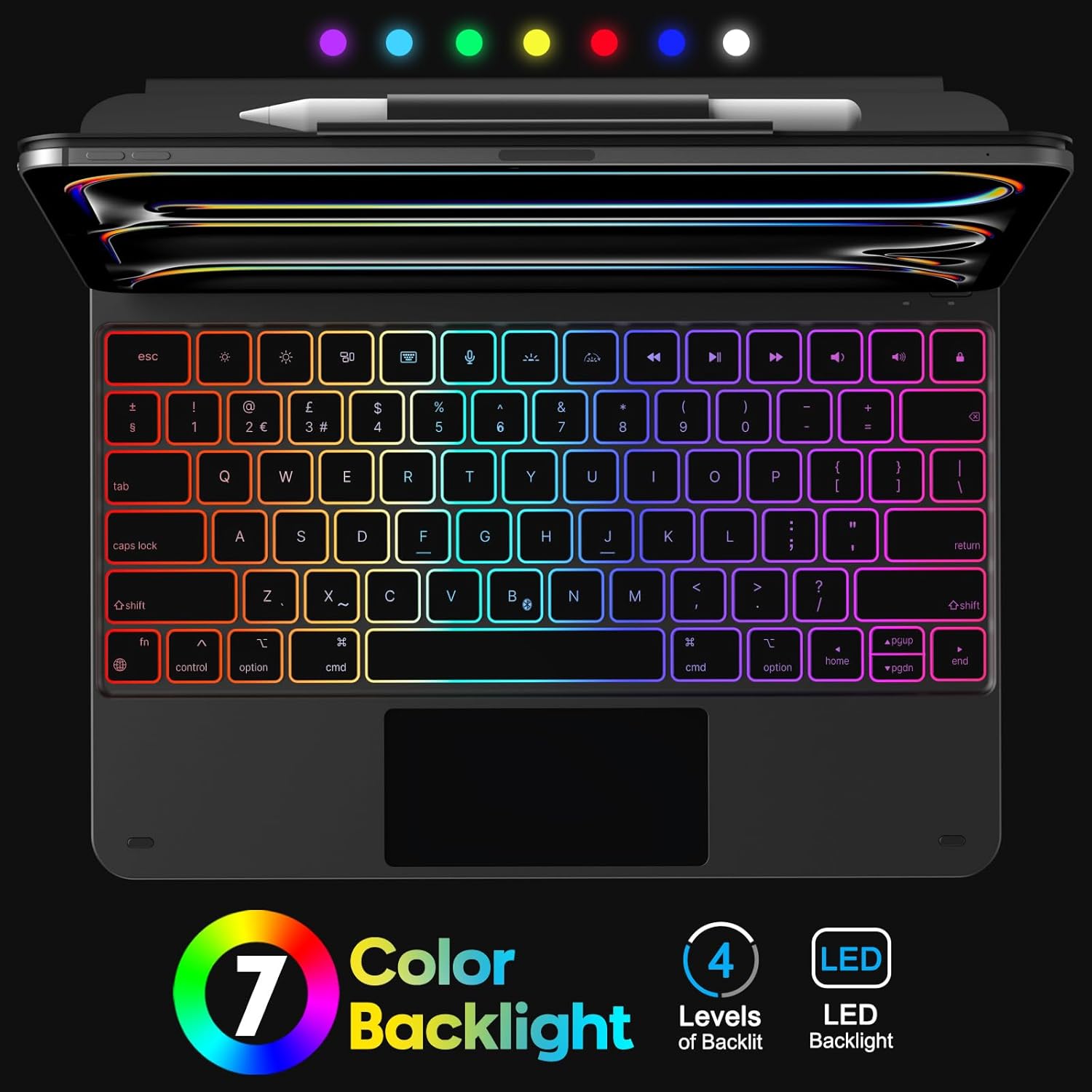
Figura 5.1: Keyboard Backlight. This image displays the keyboard with its customizable 7-color backlight options and indicates the 4 available brightness levels, enhancing typing visibility.

Figura 5.2: Key Mechanism. A close-up view of a keyboard key, illustrating the internal scissor-switch mechanism designed for comfortable and quiet typing.
5.2 Uso del panel táctil
The integrated multi-touch trackpad supports various iPadOS gestures for navigation and interaction.
- Un solo dedo: Tap to click, drag to move cursor.
- Dos dedos: Scroll up/down/left/right, pinch to zoom.
- Tres dedos: Deslice hacia arriba para ir a la pantalla de inicio, deslice hacia arriba y mantenga presionado para view app switcher, swipe left/right to switch between open apps.
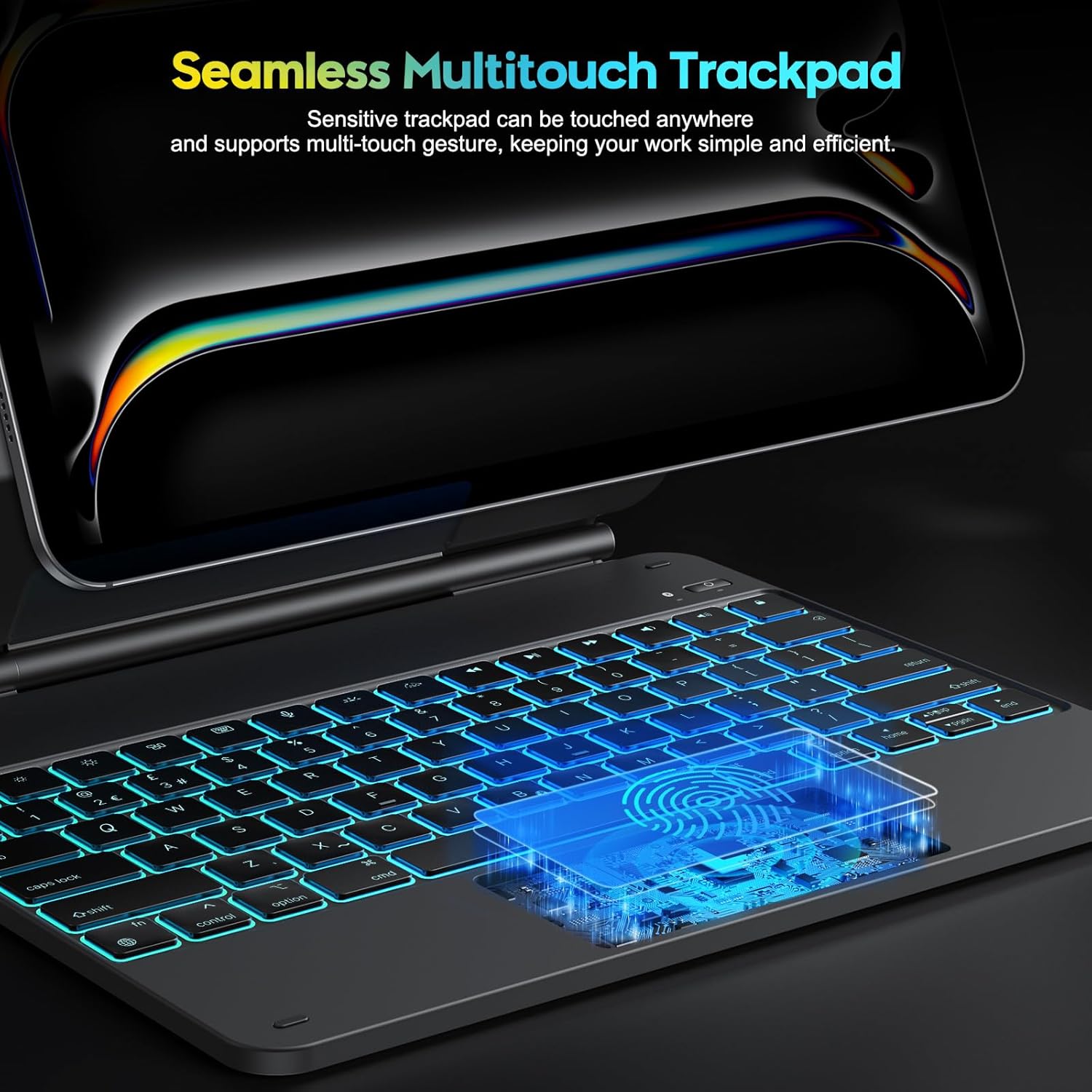
Figura 5.3: Multi-Touch Trackpad. This image highlights the sensitive multi-touch trackpad, indicating its capability to register various gestures for efficient iPadOS interaction.
5.3 Ajuste del soporte
The floating stand design allows for flexible viewing angles. Gently adjust the iPad's position on the magnetic stand to achieve your desired angle.

Figura 5.4: Floating Stand Design. This image illustrates the adjustable floating stand, demonstrating how the iPad's viewing angle can be smoothly set to various positions, up to 120 degrees.
5.4 Carga del teclado
The keyboard case is equipped with a built-in rechargeable battery. Use the provided USB-C cable to charge the device.
- Conecte el extremo USB-C del cable al puerto de carga del teclado.
- Conecte el otro extremo del cable a un adaptador de corriente USB (no incluido) o al puerto USB de una computadora.
- La luz indicadora de carga se iluminará durante la carga y se apagará cuando esté completamente cargada.
- A full charge takes approximately 3 hours. The battery provides up to 260 hours of use without backlight and 9 hours with backlight.

Figura 5.5: Charging and Battery Life. This image highlights the Type-C charging port on the keyboard and provides information on battery life, including 3 hours fast charging, 800mAh lithium battery, and over 1000 hours standby time.
6. Mantenimiento
Para garantizar la longevidad y el rendimiento óptimo de su funda de teclado, siga estas pautas de mantenimiento:
- Keep the device away from liquids and extreme temperatures.
- Clean the keyboard and trackpad surfaces with a soft, dry, lint-free cloth. Avoid abrasive cleaners.
- Do not attempt to disassemble the keyboard case, as this may void the warranty and cause damage.
- Store the keyboard case in a clean, dry environment when not in use.
7. Solución de problemas
If you encounter issues with your keyboard case, refer to the following common solutions:
- El teclado no se conecta: Ensure Bluetooth is enabled on your iPad and the keyboard is powered on and charged. Try re-pairing the keyboard (Section 4.2).
- Las teclas no responden: Check if the keyboard is charged. Restart both the keyboard and your iPad.
- El trackpad no funciona: Ensure the keyboard is connected via Bluetooth. Check iPadOS settings for trackpad functionality. Restart the keyboard and iPad.
- La luz de fondo no funciona: Ensure the keyboard is charged. Press the backlight key to cycle through modes and brightness levels.
- Lag in keyboard response: Ensure the keyboard is fully charged. Minimize interference from other Bluetooth devices.
If the problem persists after trying these steps, please contact OMOTON customer support.
8. Especificaciones
| Característica | Especificación |
|---|---|
| Marca | OMOTON |
| Nombre del modelo | KC011 |
| Dispositivos compatibles | iPad Pro 13-inch (M4) 2024 (Models A2925, A2926, A3007) |
| Tecnología de conectividad | Bluetooth |
| Disposición del teclado | QWERTY (UK-Layout) |
| Número de llaves | 78 |
| Características especiales | Backlit (12 modes, 4 brightness levels), Hotkeys, Media Keys, Portable, Rechargeable, Multi-Touch Trackpad, Floating Stand Design |
| Capacidad de la batería | 800mAh de iones de litio |
| Duración de la batería (sin luz de fondo) | Hasta 260 horas |
| Duración de la batería (con retroiluminación) | Hasta 9 horas |
| Puerto de carga | USB-C |
| Color | Negro |
9. Garantía y soporte
OMOTON products are designed for reliability and performance. For warranty information or technical support, please refer to the contact details provided with your purchase or visit the official OMOTON webSitio web. Conserve su comprobante de compra para reclamaciones de garantía.