
podofo PODOFO-10.1-AND13-DD
Podofo 10.1 Inch Android 13 Double Din Car Stereo User Manual
Model: PODOFO-10.1-AND13-DD
Introducción
This manual provides comprehensive instructions for the installation, operation, and maintenance of your Podofo 10.1 Inch Android 13 Double Din Car Stereo. This advanced car stereo system features a 10.1-inch 1280x720P IPS touch screen, an 8-core processor with 4GB RAM and 64GB ROM, wireless CarPlay and Android Auto, built-in GPS and WiFi, 32-band DSP audio, and includes an HD backup camera and external microphone.
Please read this manual thoroughly before using the product to ensure proper operation and to maximize your user experience. Keep this manual for future reference.

Image: The Podofo 10.1 Inch Android 13 Double Din Car Stereo unit, accompanied by its included accessories: a wireless CarPlay/Android Auto module, an external microphone, and an HD backup camera.
Información de seguridad
Always prioritize safety when operating your vehicle. Improper installation or use of this device can lead to accidents or injury. Adhere to the following safety guidelines:
- No intente operar la unidad ni view Vídeos mientras conduces. Conducir distraído es peligroso e ilegal.
- Asegúrese de que todo el cableado esté correctamente conectado y aislado para evitar cortocircuitos y riesgos eléctricos.
- Si no está seguro de alguno de los pasos, consulte a un profesional para la instalación.
- Mantenga la unidad alejada del agua y la humedad excesiva.
- No desmonte ni modifique la unidad. Esto podría anular la garantía y causar daños.
- Utilice únicamente fuentes de alimentación y accesorios especificados.
Contenido del paquete
Verifique que todos los elementos estén presentes en el paquete antes de comenzar la instalación:
- Podofo 10.1 Inch Android 13 Double Din Car Stereo Unit
- Cable de alimentación
- Cables de entrada/salida RCA
- USB Cables (Dual USB ports)
- Antena GPS
- Antena de radio
- Micrófono externo
- Cámara de respaldo de alta definición
- Soportes de montaje
- Manual de usuario (este documento)

Image: A visual representation of the package contents, including the main unit, power cable, RCA cables, USB cables, GPS antenna, radio antenna, external microphone, HD backup camera, mounting brackets, and user manual.
Configuración e instalación
1. Comprobación previa a la instalación
- Desconecte el terminal negativo de la batería del vehículo antes de comenzar cualquier trabajo eléctrico.
- Ensure you have the correct dash kit for your vehicle model if required.
2. Conexiones de cableado
Consulte el diagrama de cableado incluido con su unidad para conocer las conexiones específicas. Las conexiones generales incluyen:
- Cable de energía: Connect ACC, B+, and GND wires to the vehicle's corresponding power sources.
- Cables de altavoz: Connect to your vehicle's speaker outputs (ensure correct polarity).
- Cables RCA: Para exterior ampificadores, subwoofers o salida de vídeo.
- Cables USB: Route to a convenient location for connecting USB devices.
- Antena GPS: Móntelo en un lugar despejado. view del cielo (por ejemplo, tablero de instrumentos).
- Antena de radio: Conéctese a la antena de radio existente del vehículo.
- Micrófono externo: Conéctese para mejorar la calidad de las llamadas.
- Cámara de respaldo: Connect the video signal and power wires. The reverse trigger wire should be connected to the vehicle's reverse light positive.
Image: A detailed diagram illustrating the wiring connections for the Podofo car stereo, including the reverse camera wiring. This image is part of the "Package List" image, but also contains the wiring diagram.
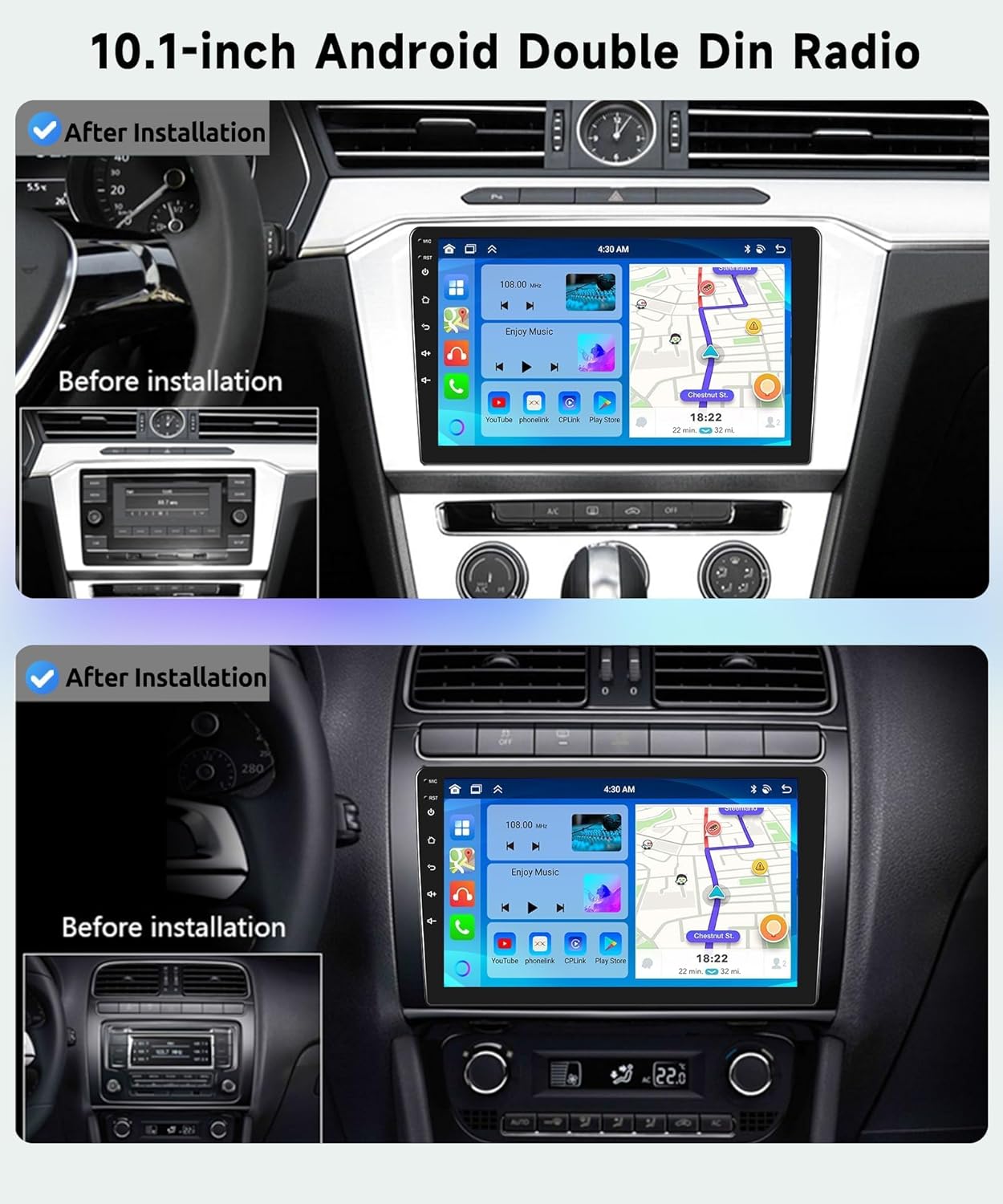
Image: A visual comparison showing the car dashboard before and after the installation of the Podofo 10.1-inch Android Double Din Radio, highlighting the integrated appearance.
3. Encendido inicial
After all connections are secure, reconnect the vehicle's battery. The unit should power on automatically when the ignition is turned on. Follow the on-screen prompts for initial setup.
4. Conexión de red (WiFi)
To access online features, connect the unit to a WiFi hotspot (e.g., from your smartphone):
- Ir a Ajustes > Red e Internet > Wifi.
- Encienda el Wi-Fi y seleccione la red deseada.
- Introduzca la contraseña si se le solicita.

Image: The car stereo display showing active GPS navigation and a WiFi connection, indicating successful network setup.
5. Configuración del GPS
The unit comes with built-in GPS. For offline navigation, ensure map data is downloaded. For real-time navigation, connect to WiFi.
- Asegúrese de que la antena GPS esté correctamente instalada y tenga una vista clara. view del cielo.
- Open the pre-installed navigation app or download your preferred app from the app store.
Instrucciones de funcionamiento
1. Touch Screen and User Interface
The 10.1-inch IPS touch screen provides intuitive control. Swipe gestures and taps are used for navigation. The unit supports multiple wallpaper and UI options for personalization.

Image: A visual breakdown of the IPS HD screen technology, highlighting its 1280x720 resolution, 2.5D curved glass, touch functionality, and the ability to use split-screen mode.

Image: A collage displaying 59 different user interface themes available for customization on the car stereo, allowing users to personalize the look and feel.
2. CarPlay inalámbrico/Android Auto
Conecte su teléfono inteligente de forma inalámbrica para una integración perfecta de navegación, música, llamadas y mensajería.
- Asegúrese de que Bluetooth y Wi-Fi estén habilitados en su teléfono y en el estéreo del automóvil.
- En el estéreo del automóvil, abra la aplicación CarPlay o Android Auto.
- Siga las instrucciones en pantalla para emparejar su teléfono.

Image: An illustration detailing the various connectivity methods for CarPlay (Android System), Android Auto (iOS System), and Mirror Link (Android/iOS System), indicating support for both Bluetooth and USB cable connections.

Image: Displays the user interfaces for both Wireless CarPlay and Android Auto as they appear on the car stereo screen, showcasing app integration and functionality.
3. Conectividad Bluetooth
For hands-free calling and audio streaming:
- Ir a Bluetooth Ajustes en el estéreo.
- Habilitar Bluetooth y buscar dispositivos.
- Select your phone from the list and pair.

Image: The car stereo display showing the Bluetooth interface for hands-free calling and music streaming, alongside the FM/RDS radio tuner with frequency selection.
4. Radio FM/RDS
Access the radio function to listen to FM stations. RDS (Radio Data System) provides station information where available.
- Seleccione el Radio aplicación desde el menú principal.
- Utilice la función de escaneo para encontrar estaciones disponibles o sintonizar manualmente una frecuencia.

Imagen: Una combinación view of the car stereo's Bluetooth interface for hands-free calls and music, and the FM/RDS radio interface for tuning into stations.
5. DSP Audio Adjustment
The 32-band DSP (Digital Sound Processor) allows for precise audio customization.
- Navegar hasta el Procesador de señal digital (DSP) or Igualada ajustes.
- Adjust frequency bands, balance, fader, and sound field settings to optimize audio output.

Image: The car stereo display showing the 32-band DSP (Digital Sound Processor) adjustment interface, allowing users to fine-tune audio settings for an enhanced listening experience.
6. Control del volante (SWC)
Programe los botones del volante de su vehículo para controlar las funciones del estéreo.
- Ir a Ajustes > Control del volante.
- Follow the on-screen instructions to map each button to its desired function (e.g., volume up/down, track skip, answer call).

Image: A visual guide demonstrating how to set up and utilize the Steering Wheel Control feature on the car stereo, showing the on-screen mapping interface and a steering wheel with highlighted control buttons.
7. Enlace espejo
Duplica la pantalla de tu teléfono inteligente directamente en la pantalla del estéreo del automóvil.
- Abrir el Enlace espejo aplicación en el estéreo.
- Follow the instructions to connect your Android or iOS device via Bluetooth or USB cable.

Image: An illustration demonstrating the Mirror Link feature, where a smartphone screen (Android or iOS) is duplicated onto the car stereo display, allowing for content sharing.
8. Control por voz
Utilice comandos de voz para operar varias funciones con manos libres.
- Activate the voice assistant (e.g., "Hey Podofo" or "Hey Google").
- Issue commands for navigation, music playback, calls, and app control.

Image: Displays the voice control interfaces for both Siri Assistant and Google Assistant on the car stereo, illustrating how users can interact with the system using voice commands.

Image: A visual representation of the voice control feature, showing examples of commands like "Play Michael Jackson's Love Yourself," "Call 911," "Open Google," and "Close Play Store," with a friendly robot icon.
9. Función de pantalla dividida
Ejecutar dos aplicaciones simultáneamente en la pantalla.
- Mantenga presionado el botón de inicio o use el ícono de pantalla dividida (si está disponible) para activarlo.
- Seleccione las dos aplicaciones que desea mostrar.

Image: An illustration of the screen partitioning feature, showing the car stereo display split into two sections, for example, displaying FM radio and music on one side and GPS navigation on the other, along with a selection of commonly used apps.
10. Funcionamiento de la cámara de respaldo
Cuando el vehículo se pone en reversa, la pantalla cambiará automáticamente a la cámara de respaldo. view.
- Ensure the backup camera is correctly wired to the reverse trigger.
- The HD night vision camera provides a 170-degree ultra-wide viewángulo de ing.
Image: The car stereo display showing the AHD 1080P reverse camera view, complete with parking guidelines, demonstrating its functionality for safe backing up.
11. USB Ports Usage
The unit features dual USB ports for various functions:
- Reproducción de medios: Connect USB drives for music, video, or photo playback.
- Cargando: Charge compatible devices.
- Transferencia de datos: For certain applications or system updates.
Mantenimiento
Para garantizar la longevidad y el rendimiento óptimo de su estéreo para automóvil Podofo, siga estas pautas de mantenimiento:
- Limpieza de la pantalla: Utilice un paño suave y sin pelusa para limpiar suavemente la pantalla táctil. Para manchas difíciles, limpie ligeramenteampEnjuague el paño con agua o un limpiador de pantallas. Evite materiales abrasivos o productos químicos agresivos.
- Limpieza general: Mantenga la unidad y el área circundante del tablero libres de polvo y residuos. Use un cepillo suave o aire comprimido para limpiar las rejillas de ventilación y las grietas.
- Actualizaciones de software: Compruebe periódicamente si hay actualizaciones de software del fabricante para garantizar que el sistema funcione de manera eficiente y tenga las últimas funciones y parches de seguridad.
- Control de temperatura: Avoid exposing the unit to extreme temperatures for prolonged periods. High heat or extreme cold can affect performance and lifespan.
- Sistema de organización de cables: Asegúrese de que todos los cables estén conectados de forma segura y no estén pellizcados ni expuestos a un desgaste excesivo.
Solución de problemas
Si tiene problemas con el estéreo de su automóvil Podofo, consulte los siguientes problemas y soluciones comunes:
| Problema | Posible causa | Solución |
|---|---|---|
| La unidad no se enciende. | Conexión de alimentación suelta, fusible quemado, problema con la batería del vehículo. | Check power cable connections (ACC, B+, GND). Inspect vehicle fuses. Ensure battery is charged. |
| No hay sonido de los altavoces. | Cableado de altavoz incorrecto, volumen demasiado bajo, silencio activado, configuración DSP. | Verify speaker connections and polarity. Increase volume. Check if mute is on. Adjust DSP settings. |
| La señal GPS es débil o inexacta. | Antena GPS instalada incorrectamente u obstruida. | Ensure GPS antenna is mounted in a clear, unobstructed location (e.g., dashboard). |
| CarPlay/Android Auto no se conecta. | Bluetooth/Wi-Fi off, phone compatibility, incorrect pairing steps. | Ensure Bluetooth and Wi-Fi are on for both devices. Re-attempt pairing. Check phone compatibility. |
| La cámara de respaldo no se muestra. | Incorrect wiring of video signal or reverse trigger. | Verify backup camera video input and reverse trigger wire connection. |
| La pantalla táctil no responde. | Congelamiento del sistema, falla temporal del software. | Perform a soft reset (refer to manual for specific reset button location, usually a small pinhole). If persistent, contact support. |
If the problem persists after trying these solutions, please contact Podofo technical support.
Presupuesto
| Característica | Detalle |
|---|---|
| Tamaño de la pantalla | 10.1 pulgadas |
| Resolución | 1280 x 720P IPS |
| Sistema operativo | Androide 13 |
| Procesador | 8 núcleos |
| RAM | 4 GB |
| ROM (Almacenamiento interno) | 64 GB |
| Conectividad | Wireless CarPlay, Wireless Android Auto, Bluetooth 5.0, Wi-Fi, USB |
| Funciones de audio | 32-Band DSP, Subwoofer Output |
| Componentes incluidos | External Microphone, HD Backup Camera |
| Tipo de montaje | Soporte para tablero (doble DIN) |
| Peso del artículo | 3.09 libras |
| Dimensiones del paquete | 11.8 x 7 x 3.3 pulgadas |

Image: A graphic illustrating the high-performance processor and large memory configuration of the Podofo unit, comparing its 8-core, 4GB RAM, and 64GB ROM specifications against a typical 4-core, 1GB RAM, and 16GB ROM setup.
Garantía y soporte
Información de garantía
Your Podofo 10.1 Inch Android 13 Double Din Car Stereo comes with a Garantía de 2 años A partir de la fecha de compra. Esta garantía cubre defectos de fabricación y garantiza que el producto cumpla con los estándares de rendimiento especificados. Conserve su comprobante de compra para reclamaciones de garantía.
Apoyo técnico
Podofo specializes in car electronics and provides professional technical support. If you have any questions regarding compatibility, installation, operation, or troubleshooting that are not covered in this manual, please contact our customer support team.
You can typically find support contact information through the seller's page on the platform where you purchased the product. Look for options like "Ask a question" or "Contact Seller."

Image: Instructions on how to access 24/7 technical support by navigating to the seller's page and clicking "Ask a question."

Image: A graphic emphasizing Podofo's global presence (available in over 100 countries), the 2-year warranty, and the availability of 24/7 expert customer support.
Ask a question about this manual
Ask about setup, troubleshooting, compatibility, parts, safety, or missing instructions. Manuals+ will review the question and use this page’s manual context to help answer it.