
1. Introducción
This manual provides detailed instructions for the setup, operation, and maintenance of your Browning Defender Vision Pro HD Trail Camera. Designed for outdoor surveillance, this cellular game camera captures high-resolution images and videos, offering remote monitoring capabilities through its dual SIM technology and smartphone app compatibility. Please read this manual thoroughly to ensure proper use and optimal performance of your device.
2. Contenido del paquete
Verifique que todos los artículos enumerados a continuación estén incluidos en su paquete. Si falta algún artículo o está dañado, comuníquese con atención al cliente.
- Browning Defender Vision Pro HD Trail Camera
- Correa de árbol
3. Cámara sobreview
Familiarize yourself with the key components of your Browning Defender Vision Pro HD Trail Camera.
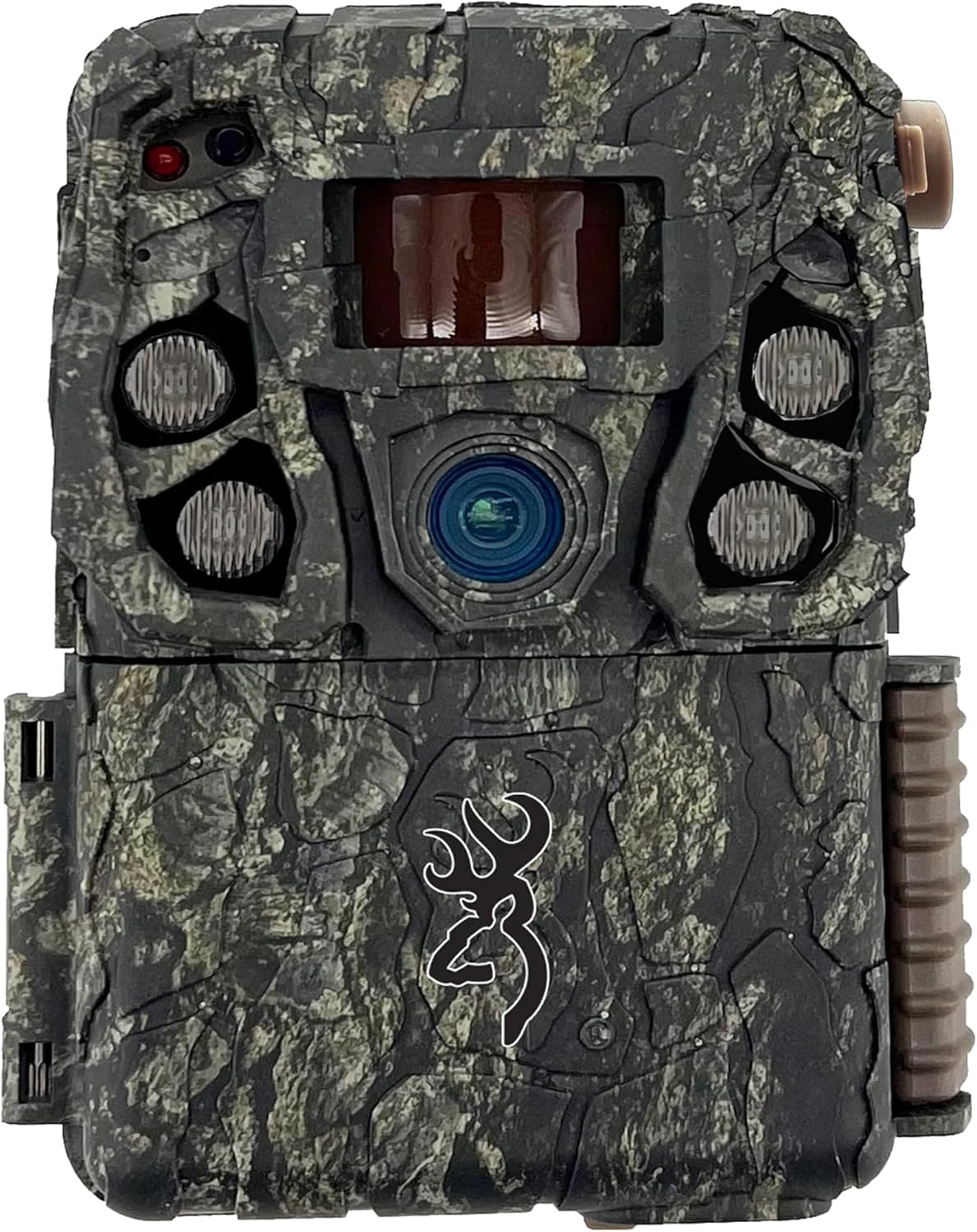
Figura 3.1: Frente View. This image displays the front of the Browning Defender Vision Pro HD trail camera in its original camo finish, showing the main lens, infrared (IR) emitters, and the passive infrared (PIR) motion sensor.

Figura 3.2: Interior View. This image shows the inside of the camera when opened, revealing the control panel with an LCD screen, navigation buttons (ON/OFF, MODE, Eject, E), and the battery compartment.

Figura 3.3: Lado View. Esta imagen ilustra el perfil lateralfile of the trail camera, prominently featuring the attached cellular antenna and the robust casing designed for outdoor use.
4. Configuración
4.1 Instalación de la batería
- Abra la carcasa de la cámara.
- Insert 8 AA batteries (not included) into the battery compartment, ensuring correct polarity (+/-). The camera supports both alkaline and lithium batteries.
- Cierre bien el compartimento de la batería.
4.2 Instalación de la tarjeta SD
- Localice la ranura para tarjeta SD dentro de la carcasa de la cámara.
- Insert an SDXC memory card (up to 512GB, not included) into the slot until it clicks into place.
- It is recommended to format the SD card using the camera's menu system before first use. Refer to Section 5.2 for formatting instructions.
4.3 Activación de la tarjeta SIM
The Defender Vision Pro HD camera comes with pre-installed AT&T and Verizon SIM cards. Activation is managed through the Browning mobile application.
- Download the Browning Trail Cameras mobile application from your smartphone's app store.
- Crea una cuenta o inicia sesión.
- Follow the in-app instructions to add your camera and activate the desired cellular service (AT&T or Verizon).
4.4 Montaje de la cámara
The camera can be mounted using the included tree strap or a standard ¼ inch -20 tripod socket.
- Uso de la correa del árbol: Thread the tree strap through the designated slots on the back of the camera. Securely fasten the camera to a tree or post at the desired height and angle.
- Uso de un soporte para trípode: Attach the camera to any compatible mounting accessory using the ¼ inch -20 tripod socket located at the bottom of the camera.

Figure 4.1: Camera Mounting. A person is shown adjusting the Browning Defender Vision Pro HD trail camera, which is mounted on a tree, while simultaneously interacting with a smartphone to manage settings remotely.
5. Operación
5.1 Encendido / Apagado
- To power on the camera, slide the ON/OFF switch to the 'ON' position. The LCD screen will illuminate.
- To power off the camera, slide the ON/OFF switch to the 'OFF' position.
5.2 Basic Camera Settings
Access the camera's menu system using the control buttons to adjust various settings:
- Velocidad de disparo: Ajustable de 0.135 a 0.7 segundos.
- Tiempo de recuperación: Set the delay between consecutive captures (0.5 seconds for rapid recovery).
- Disparo múltiple: Captura hasta 8 imágenes por evento de activación.
- Fuego rápido: Captura hasta 8 imágenes a gran velocidad.
- Retraso de imagen: Program a delay between detection events.
- Formato de tarjeta SD: Select this option to format your SD card. This will erase all data on the card.
5.3 Cellular Functions and Mobile App
The Browning Defender Vision Pro HD utilizes 4G cellular technology for remote management and data transmission.
- Gestión remota: Use the mobile app to change camera settings, view images, and request on-demand photos or videos from anywhere.
- Photo and Video On Demand: Request immediate picture or video uploads directly from the field to your mobile device.
- Alertas: Receive notifications on your smartphone when activity is detected by the camera.
- HD All the Time: All transmitted images are in 1080p Full HD.

Figure 5.1: Mobile Application Interface. This image displays a screenshot of the Browning trail camera mobile application, showing a photo gallery, filter and sort options, and navigation tabs for home, all photos, and account management.
5.4 Tecnología de visión nocturna
The camera is equipped with advanced night vision capabilities:
- Tecnología Illuma-Smart: Automatically adjusts IR flash intensity for optimal night photos.
- Flash infrarrojo: Adjustable settings for power save, fast motion, and long range.
- Night Detection Range: Up to 110 feet for clear night captures.
5.5 GPS TagImágenes ged
Images captured by the camera are automatically tagged with GPS coordinates, providing location data for each photo.
6. Mantenimiento
6.1 Reemplazo de batería
Regularly check the battery meter via the camera's LCD screen or the mobile app. Replace all 8 AA batteries when the power level is low to ensure continuous operation.
6.2 Gestión de tarjetas SD
Repita periódicamenteview and manage the contents of your SD card. Format the card regularly to maintain optimal performance and prevent data corruption. Always back up important images and videos before formatting.
6.3 Limpieza
To ensure clear images and proper sensor function:
- Limpie suavemente la lente de la cámara y la ventana del sensor PIR con un paño suave que no suelte pelusa.
- Limpiar la cámara casing con anuncioamp Paño para eliminar la suciedad o los residuos. Evite utilizar productos químicos agresivos.
7. Solución de problemas
If you encounter issues with your camera, refer to the following troubleshooting steps:
7.1 La cámara no se enciende
- Asegúrese de que las baterías estén insertadas correctamente con la polaridad apropiada.
- Replace old batteries with a fresh set of 8 AA batteries.
- Verify the ON/OFF switch is fully in the 'ON' position.
7.2 Errores de la tarjeta SD
- Ensure the SD card is not locked. The lock switch on the side of the SD card should be in the unlocked position.
- Format the SD card using the camera's menu system (refer to Section 5.2).
- Try a different, new SDXC card (up to 512GB). Ensure it is formatted to FAT32 or exFAT.
7.3 No Cellular Transmission
- Check the signal strength indicator on the camera's LCD or in the mobile app. Relocate the camera to an area with better cellular coverage if necessary.
- Verify that your SIM card is activated and your data plan is current through the Browning mobile application.
- Ensure the external antenna is securely connected.
7.4 Mala calidad de imagen/vídeo
- Clean the camera lens and IR emitters with a soft cloth.
- Check camera settings for resolution and flash mode.
- Ensure subjects are within the optimal detection and flash range (up to 80ft detection, 110ft night illumination).
7.5 Problemas de detección de movimiento
- Adjust the detection range setting in the camera menu.
- Ensure there are no obstructions (e.g., branches, tall grass) directly in front of the PIR sensor that could cause false triggers or block detection.
8. Especificaciones
Detailed technical specifications for the Browning Defender Vision Pro HD Trail Camera.
| Característica | Especificación |
|---|---|
| Nombre del modelo | Defender Vision Pro HD |
| Resolución de imágenes fijas efectiva | 24 MP |
| Resolución de captura de video | 1080p Full HD (1920 x 1080) |
| Formato de captura de video | Movimiento |
| Velocidad de disparo | 0.135 - 0.7 seconds (Adjustable) |
| Tiempo de recuperación | 0.5 segundos |
| Rango de detección | Up to 80 feet (Adjustable) |
| Night Illumination Range | Hasta 110 pies |
| Tipo de flash | Infrarrojos (IR) |
| Tecnología de conectividad | Wireless, Cellular (4G LTE) |
| Dispositivos compatibles | Teléfono inteligente |
| Fuente de poder | 8 pilas AA (no incluidas), conector de alimentación externo de 12 V |
| SD Card Capacity (Max) | 512GB SDXC |
| Tipo de montaje | Tree Mount, ¼ inch -20 Tripod Socket |
| Dimensiones del producto (L x An x Al) | 5 x 3.5 x 2.5 pulgadas |
| Peso del artículo | 1 libra (16 onzas) |
| Características especiales | HD Resolution, Long Battery Life, Motion Sensor, Night Vision, Ultra High Gain Antenna, GPS Tagged Images, Dual SIM Connectivity, Illuma-Smart Technology |
9. Información de garantía
For specific warranty details regarding your Browning Defender Vision Pro HD Trail Camera, please refer to the warranty card included with your product or visit the official Browning Trail Cameras website. Warranty terms and conditions are provided by the manufacturer and may vary.
10. Soporte
If you require further assistance or have questions not covered in this manual, please contact Browning Trail Cameras customer support:
- Teléfono: 888-618-4496
- Websitio: www.browningtrailcameras.com