
1. Introducción
This manual provides comprehensive instructions for the TIMBOOTECH Wireless HDMI Transmitter and 2 Receivers. This device allows for wireless transmission of HDMI signals from a source device to multiple display units, supporting high-definition video and audio.
2. Contenido del paquete
Verifique que todos los artículos enumerados a continuación estén incluidos en su paquete:
- 1x Wireless HDMI Transmitter
- 2x Wireless HDMI Receivers
- 3 cables HDMI.
- 3 cables de carga USB-C
- 2x Mini/Micro HDMI Adapters
- 1x Manual de usuario

Image: All components included in the TIMBOOTECH Wireless HDMI Transmitter and 2 Receivers package.
3. Producto terminadoview
The TIMBOOTECH Wireless HDMI system consists of a transmitter (TX) and multiple receivers (RX). It operates on a 5.8G chip for stable, low-latency transmission.
3.1 Características principales
- Real-Time Sharing: Supports sharing to 2 TVs and up to 6 mobile devices simultaneously.
- Resolución alta: 4K input decoding and 1080P@60Hz output for clear visuals.
- Conectar y usar: Pre-paired units require no Wi-Fi or Bluetooth setup.
- Compatibilidad con múltiples receptores: One transmitter can connect to up to 8 receivers or touchscreens.
- Funcionalidad de la aplicación: Use a dedicated app to turn iOS/Android devices into wireless monitors.
- Rango extendido: Transmits up to 165ft (50m) with minimal delay.
- Amplia compatibilidad: Works with various devices including laptops, PCs, cameras, and game consoles.

Image: The TIMBOOTECH Wireless HDMI Transmitter (TX) and Receivers (RX).
4. Instrucciones de configuración
The devices are pre-paired at the factory for a plug-and-play experience. Follow these steps for initial setup:
4.1 Conexión básica
- Conectar transmisor (TX): Plug the HDMI end of the transmitter into the HDMI output port of your source device (e.g., laptop, PC, camera). Connect a USB-C charging cable to the transmitter and a power source (e.g., USB port on your device or a USB power adapter).
- Conectar el receptor (RX): For each receiver, plug its HDMI end into an HDMI input port on your display device (e.g., TV, monitor, projector). Connect a USB-C charging cable to the receiver and a power source.
- Encendido: Ensure both the transmitter and all receivers are powered on.
- Duplicación automática: Wait approximately 5 seconds for the screen to automatically mirror from the source device to the displays.

Image: Visual guide for connecting the transmitter and receivers to source and display devices.
4.2 Re-pairing or Adding Multiple Receivers
If the connection is abnormal or you wish to add more receivers (up to 8 total), follow these steps:
- Connect and Power TX: Connect the TX (Transmitter) to your HDMI output device and ensure it is powered.
- Connect and Power RX: Connect the RX (Receiver) to your HDMI input device and ensure it is powered.
- Iniciar emparejamiento: Long press the RX button for 5 seconds, then press the TX button for 10 seconds. Wait for the devices to pair.
- Verificar conexión: After successful pairing, the screen should display the mirrored content.

Image: Visual steps for re-pairing or adding additional receivers.
5. Instrucciones de funcionamiento
5.1 Multi-Screen Display
The system supports displaying content from one transmitter to multiple receivers simultaneously, allowing for multi-screen setups in various environments.
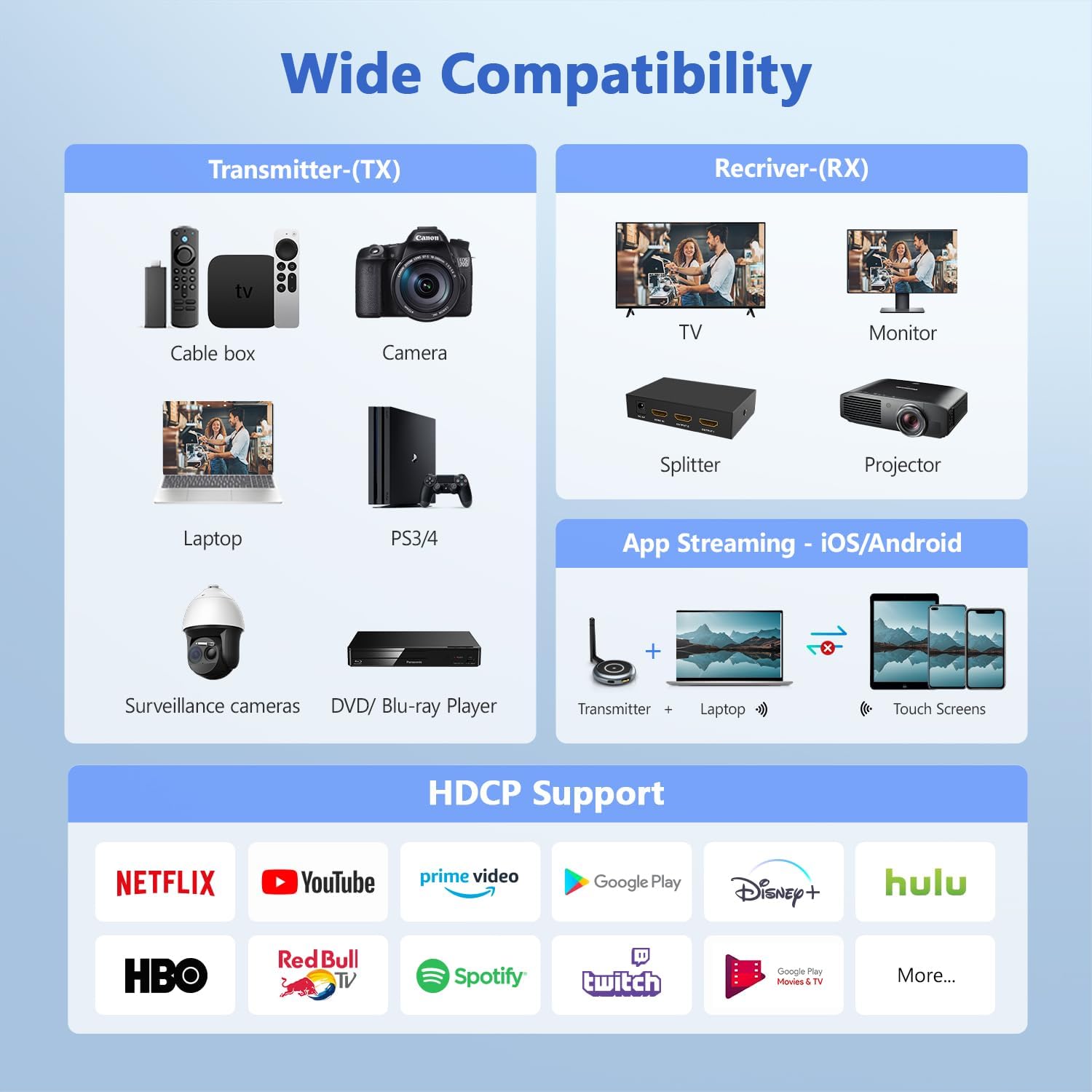
Image: A laptop transmitting to four separate display screens.
5.2 App Functionality (iOS/Android)
Utilize the dedicated app to extend your display to iOS or Android mobile devices. This feature is ideal for monitoring camera feeds or sharing content with nearby users.
- Connect TX: Connect the transmitter to your HDMI output device and power it.
- Instalar aplicación: Download and install the "TuTuLink" app on your iOS/Android device.
- Conectarse a Wi-Fi: Open the app, connect to the Wi-Fi hotspot broadcast by the transmitter (SSID and password usually provided on the screen or manual).
- Iniciar transmisión: Open the app again, and it should automatically sync and display the content.

Image: Guide for using the TuTuLink app to mirror content to mobile devices.
5.3 Adjusting Wireless Channels
In environments with heavy Wi-Fi traffic, you can adjust the wireless channel via the app for optimal performance and signal stability.

Image: Adjusting wireless channels via the app for improved signal.
6. Compatibilidad
The TIMBOOTECH Wireless HDMI system offers broad compatibility with various devices and supports HDCP.
6.1 Compatible Source Devices (Transmitter - TX)
- Computadoras portátiles
- PC
- Cameras (DSLR, Surveillance)
- Reproductores de Blu-ray
- Set-top Boxes / Cable Boxes / Fire TV Stick
- Game Consoles (PS3/4, PS5)
6.2 Compatible Display Devices (Receiver - RX)
- Televisores
- Monitores
- Proyectores
- Divisores HDMI
- iOS/Android Touch Screens (via App)
6.3 Model Compatibility Note
This system is compatible only with the latest TIMBOOTECH receiver models (ASIN: B0DNF72YK1 for blue interface version, B0CSFS69XF for black interface version).

Imagen: Más alláview of compatible devices for both transmitter and receiver, including app functionality.
7. Solución de problemas
Si encuentra problemas, consulte las siguientes soluciones comunes:
- Sin señal/conexión:
- Ensure both transmitter and receivers are properly powered via their USB-C cables.
- Verifique que los cables HDMI estén conectados de forma segura a los dispositivos de fuente y de visualización.
- Perform the re-pairing process (Section 4.2) if devices are not connecting automatically.
- Check if the HDMI input on your display is set to the correct port.
- Señal intermitente/mala calidad:
- Ensure there are no major physical obstructions (walls, large furniture) between the transmitter and receivers.
- Adjust the wireless channel via the TuTuLink app to avoid interference from other Wi-Fi networks (Section 5.3).
- Ensure devices are within the recommended 165ft (50m) transmission range.
- Compruebe si hay interferencias electromagnéticas fuertes de otros dispositivos electrónicos.
- Problemas de sincronización de audio/vídeo:
- Restart both the transmitter and receivers.
- Asegúrese de que todos los cables estén conectados de forma segura.
- Problemas de conexión de la aplicación:
- Ensure your mobile device is connected to the correct Wi-Fi hotspot broadcast by the transmitter.
- Verify the Wi-Fi password (usually provided on the screen or manual).
- Restart the app and the transmitter.
Video: Official TIMBOOTECH video demonstrating smooth and stable wireless HDMI to multiple screens, highlighting the product's functionality.
8. Especificaciones
| Característica | Detalle |
|---|---|
| Marca | TIMBOOTECH |
| Número de modelo | G70 |
| Tecnología de conectividad | Inalámbrico (5.8G) |
| Resolución de entrada | Hasta 4K |
| Resolución de salida | 1080P @ 60Hz |
| Rango de transmisión | Hasta 165 pies (50 m) |
| Estado latente | Low (approx. 0.1s) |
| Compatibilidad con múltiples receptores | Up to 8 receivers/touchscreens |
| Soporte HDCP | Sí |
| Peso del artículo | 7 onzas |
| Dimensiones del producto | 1.97 x 1.57 x 1.18 pulgadas |
9. Garantía y soporte
TIMBOOTECH offers 24/7 support for a worry-free experience. Please contact customer service for any issues.
- Apoyo: La atención al cliente está disponible las 24 horas, los 7 días de la semana.
- Garantía de devolución de dinero: 30-day money-back return and refund guarantee.
- Garantía: 1-year free replacement.
Video: Official TIMBOOTECH video demonstrating the RScreen App for touchscreen devices, showcasing additional features and support.