
Mercusys MR47BE
Manual del usuario del enrutador Wi-Fi 7 tribanda Mercusys BE9300
Model: MR47BE
1. Introducción
This manual provides detailed instructions for setting up, operating, maintaining, and troubleshooting your Mercusys BE9300 Tri-Band Wi-Fi 7 Router. The MR47BE model is designed to deliver high-speed, reliable wireless connectivity utilizing the latest Wi-Fi 7 standard, featuring tri-band operation, 320 MHz channels, 4K QAM, Multi-Link Operation (MLO), and full 2.5 Gbps ports for an enhanced networking experience.
2. Contenido del paquete
Verifique que su paquete contenga los siguientes elementos:
- Mercusys BE9300 Tri-Band Wi-Fi 7 Router (MR47BE)
- Adaptador de corriente
- Cable Ethernet
- Guía de instalación rápida
3. Hardware terminadoview
Familiarícese con los componentes físicos de su enrutador.
Panel frontal

Figura 3.1: Frente View of Mercusys BE9300 Router
The front panel features the Mercusys logo and an LED indicator that displays the router's status. A solid green light typically indicates normal operation.
Panel trasero

Figura 3.2: Posterior View of Mercusys BE9300 Router with Ports
El panel trasero incluye:
- Entrada de energía: Se conecta al adaptador de corriente proporcionado.
- Botón de reinicio: Used to restore factory default settings. Press and hold for approximately 10 seconds while the router is powered on.
- LAN Ports (3x 2.5 Gbps): Connect wired devices such as computers, gaming consoles, or network-attached storage (NAS) for high-speed local network access.
- WAN Port (1x 2.5 Gbps): Connects to your modem or internet service provider's (ISP) device for internet access.
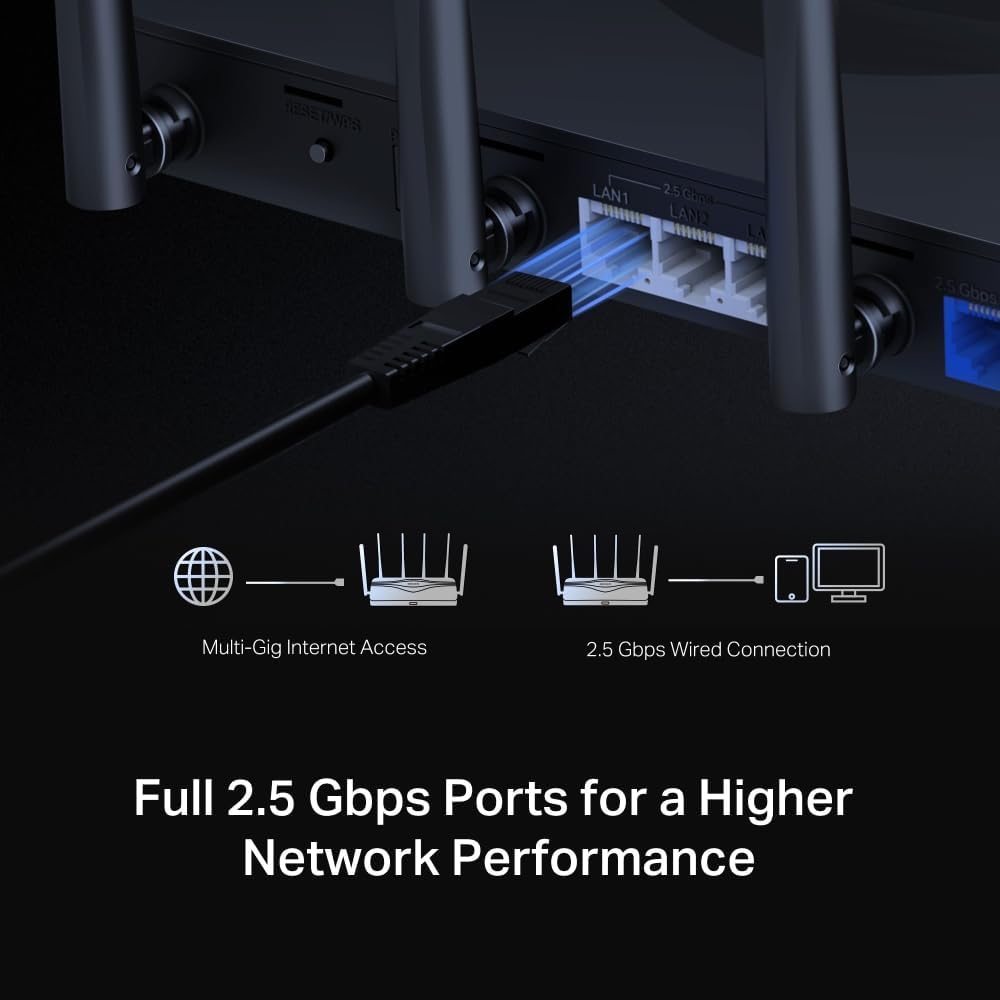
Figure 3.3: Full 2.5 Gbps Ports for Higher Network Performance
4. Guía de configuración
Follow these steps for initial setup of your Mercusys BE9300 router.
4.1 Consideraciones de colocación
For optimal Wi-Fi performance, place the router in a central location in your home, away from obstructions and devices that emit strong electromagnetic interference (e.g., microwaves, cordless phones).
4.2 Conexión de hardware
- Apagado: Desconecte la alimentación de su módem (si corresponde).
- Conectar el puerto WAN: Connect one end of the provided Ethernet cable to the WAN port (blue) of your Mercusys router and the other end to your modem's Ethernet port.
- Conecte la electricidad: Conecte el adaptador de corriente a la entrada de alimentación del enrutador y enchúfelo a una toma de corriente.
- Encendido: Power on your modem first, then wait for it to fully boot up (usually indicated by stable lights). Then, power on your Mercusys router.
- Conectar dispositivos (opcional): For wired connections, connect your computer or other devices to the router's LAN ports (yellow) using Ethernet cables. For wireless connections, proceed to the next step.
4.3 Configuración inicial
You can configure your router via the Mercusys app or a web navegador.
Using the Mercusys App (Recommended)
- Descargar aplicación: Buscar 'Mercusys' in the App Store or Google Play and download the app.
- Conectarse a Wi-Fi: Connect your smartphone to the router's default Wi-Fi network (SSID and password are printed on the label at the bottom of the router).
- Ejecutar aplicación: Open the Mercusys app and follow the on-screen instructions to set up your router, including creating a new Wi-Fi name and password.
Usando un Web Navegador
- Conectarse al enrutador: Conecte su computadora al enrutador a través de un cable Ethernet o de forma inalámbrica a la red Wi-Fi predeterminada.
- Acceso Web Interfaz: Abrir una web navegador y tipo
mwlogin.netor192.168.1.1en la barra de direcciones. - Siga el asistente de configuración: Create a login password, then follow the step-by-step instructions to configure your internet connection and Wi-Fi settings.
5. Instrucciones de funcionamiento
Your Mercusys BE9300 router offers advanced features for optimal network performance.
5.1 Capacidades de Wi-Fi 7

Figure 5.1: Wi-Fi 7 Key Features
The BE9300 leverages Wi-Fi 7 (802.11be) to provide:
- Operación Tri-Banda: Simultaneous 2.4 GHz, 5 GHz, and 6 GHz bands for optimized device connections.
- Canales de 320 MHz: Wider channels for increased data throughput.
- 4K QAM: Higher data density for faster speeds.
- Operación de enlaces múltiples (MLO): Combines multiple bands for improved reliability and speed.
- Menor latencia: Ideal for gaming and real-time applications.

Figure 5.2: Blazing Fast 9.3 Gbps Leads to An Amazing Experience
5.2 Network Security (WPA3)

Figure 5.3: The Latest WPA3 Protects Your Personal Network
The router supports WPA3, the latest Wi-Fi security protocol, providing enhanced encryption and protection against brute-force attacks, ensuring your personal network remains secure.
5.3 Compatibilidad con EasyMesh

Figure 5.4: Cover Your Whole Home with EasyMesh
The BE9300 is EasyMesh compatible, allowing you to create a seamless whole-home mesh Wi-Fi system by adding other EasyMesh-compatible devices. This expands coverage and eliminates Wi-Fi dead zones.
6. Mantenimiento
El mantenimiento regular ayuda a garantizar la longevidad y el rendimiento óptimo de su enrutador.
- Actualizaciones de firmware: Periodically check the Mercusys website or the router's management interface for available firmware updates. Updating firmware can improve performance, add new features, and fix security vulnerabilities.
- Reinicio normal: Reiniciar el enrutador cada pocas semanas puede ayudar a limpiar su memoria y resolver problemas menores de rendimiento.
- Limpieza: Mantenga el router limpio y sin polvo. Utilice un paño suave y seco para limpiar el exterior. No utilice limpiadores líquidos ni aerosoles.
- Mejores prácticas de seguridad: Regularly change your Wi-Fi password and router login password. Use strong, unique passwords.
7. Solución de problemas
Si tiene problemas con su enrutador, pruebe los siguientes pasos de solución de problemas.
7.1 Sin acceso a Internet
- Comprobar cables: Asegúrese de que todos los cables Ethernet estén conectados de forma segura a los puertos correctos (WAN al módem, LAN a dispositivos).
- Reiniciar dispositivos: Power off your modem and router. Wait for 30 seconds, then power on the modem first. Once the modem is fully online, power on the router.
- Comprobar el estado del módem: Verify that your modem is receiving an internet signal from your ISP. Consult your modem's manual or ISP for indicator light meanings.
- Problema del ISP: If all lights are normal but there's still no internet, contact your Internet Service Provider.
7.2 Velocidades lentas de Wi-Fi
- Ubicación del enrutador: Asegúrese de que el enrutador esté ubicado en el centro y libre de obstrucciones.
- Interferencia: Move the router away from other electronic devices that may cause interference (e.g., microwaves, cordless phones, Bluetooth devices).
- Selección de banda: For devices supporting 5 GHz or 6 GHz, connect to those bands for faster speeds and less interference.
- Demasiados dispositivos: Desconecte los dispositivos no utilizados de la red.
- Firmware: Asegúrese de que el firmware de su enrutador esté actualizado.
7.3 No se puede conectar a Wi-Fi
- Contraseña correcta: Verifique nuevamente que está ingresando la contraseña de Wi-Fi correcta.
- Intensidad de la señal: Asegúrese de que su dispositivo esté dentro del alcance Wi-Fi del enrutador.
- Reinicio del enrutador: Reinicie el enrutador.
- Restablecimiento de fábrica: If issues persist, perform a factory reset (refer to Section 3.2 for instructions). Note that this will erase all custom settings.
8. Especificaciones
| Característica | Detalle |
|---|---|
| Marca | Mercusys |
| Nombre del modelo | MR47BE |
| Tipo inalámbrico | 802.11.be (Wi-Fi 7) |
| Clase de banda de frecuencia | Tribanda (2.4 GHz, 5 GHz, 6 GHz) |
| Puertos | 1x 2.5 Gbps WAN, 3x 2.5 Gbps LAN |
| Antenas | 6x Omni-directional Antennas |
| Protocolo de seguridad | WPA3 |
| Sistema operativo | Sistema operativo RouterOS |
| Dimensiones del producto (L x An x Al) | 25.8 x 11.9 x 4.33 cm |
| Peso del artículo | 1 kilogramos |
| Color | Negro |
| Fabricante | Mercusys Technologies Co., Ltd. |
| País natal | Porcelana |
| Fecha de primera disponibilidad | 19 de diciembre de 2023 |
9. Garantía y soporte
9.1 Información de garantía
The Mercusys BE9300 Tri-Band Wi-Fi 7 Router comes with a 2 año de garantía A partir de la fecha de compra. Conserve el comprobante de compra para reclamaciones de garantía. La garantía cubre defectos de materiales y mano de obra en condiciones normales de uso.
9.2 Soporte técnico
For technical support, firmware updates, or additional resources, please visit the official Mercusys website. You can typically find support contact information, FAQs, and troubleshooting guides there.
Mercusys Websitio: www.mercusys.com