
Introducción
This manual provides comprehensive instructions for the Nulea M511 Pro Wired Ergonomic Trackball Mouse. Please read this manual thoroughly before using the product to ensure proper operation and longevity. This device is designed for enhanced precision and comfort, compatible with both Windows and Mac operating systems.
Contenido del paquete
- Nulea M511 Pro Trackball Mouse (with integrated USB cable)
- Manual de usuario

Image: The Nulea M511 Pro Trackball Mouse shown in its retail packaging.
Producto terminadoview
Familiarize yourself with the components and key features of your Nulea M511 Pro Trackball Mouse.

Imagen: de arriba hacia abajo view of the Nulea M511 Pro Trackball Mouse, highlighting its central trackball and button layout.

Image: A diagram illustrating the two main buttons (Left Key, Right Key) and the 360-degree scroll wheel on the Nulea M511 Pro Trackball Mouse.

Image: A visual representation of the 44mm diameter trackball and how it can be removed for cleaning, emphasizing its size for enhanced precision.
Configuración
- Connect the USB cable of the Nulea M511 Pro Trackball Mouse to an available USB port on your computer (Windows PC or Mac).
- El sistema operativo detectará e instalará automáticamente los controladores necesarios. Este proceso puede tardar unos instantes.
- Once the drivers are installed, the trackball mouse is ready for use. No additional software installation is typically required.

Image: The Nulea M511 Pro Trackball Mouse connected via its wired USB cable to a computer setup, demonstrating its plug-and-play functionality.
Instrucciones de funcionamiento
Operación básica
- Control del trackball: Use your fingers (typically index, middle, or ring finger) to roll the red trackball to move the cursor on the screen.
- Click izquierdo: Press the left button (labeled '1' in product overview images) for primary selection and interaction.
- Botón derecho del ratón: Press the right button (labeled '2' in product overview images) for contextual menus and secondary functions.
- Rueda de desplazamiento: Rotate the central scroll wheel (labeled '4' in product overview images) for 360-degree scrolling through documents and web páginas.
Diseño ergonómico
The Nulea M511 Pro features an ergonomic square shape and symmetric design, suitable for both right and left-handed users, designed to reduce stress and pain during extended use.
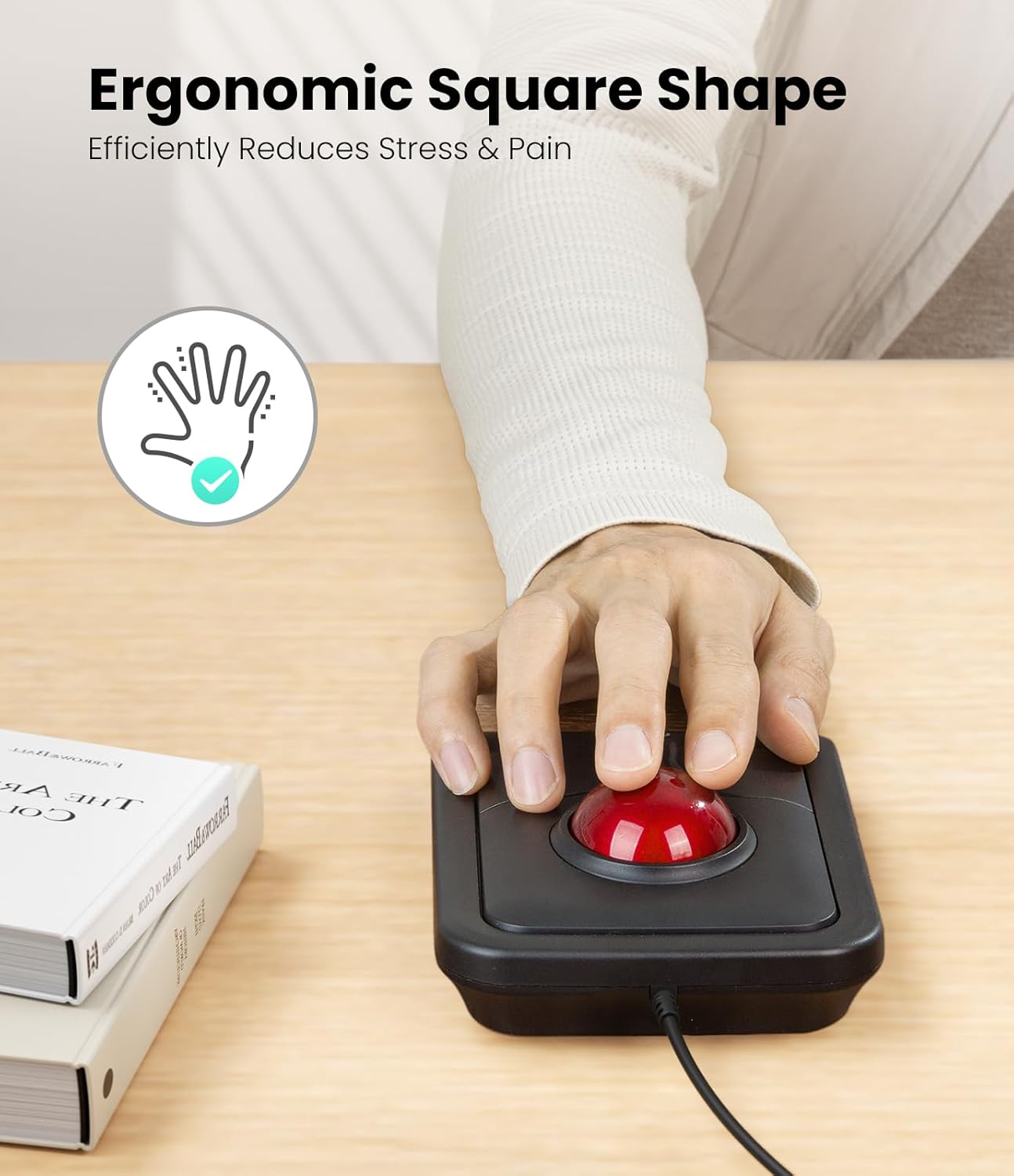
Image: A hand positioned on the Nulea M511 Pro Trackball Mouse, illustrating its ergonomic square shape designed to minimize hand strain.

Image: The Nulea M511 Pro Trackball Mouse positioned for use by a left-handed user, demonstrating its symmetric design.
Mantenimiento
To ensure optimal performance and longevity of your Nulea M511 Pro Trackball Mouse, regular cleaning is recommended.
Limpieza del trackball
- Empuje suavemente el trackball desde la abertura inferior para sacarlo de su alojamiento.
- Use a soft, lint-free cloth or a cotton swab to clean the surface of the trackball and the inside of the trackball cavity, paying attention to the three small support rollers.
- Vuelva a insertar el trackball en su alojamiento hasta que encaje firmemente en su lugar.
Image: A visual guide demonstrating how to remove the 44mm trackball from the mouse for cleaning, showing the trackball and its retaining ring.
Solución de problemas
- Cursor not moving or erratic movement:
- Ensure the USB cable is securely connected to your computer. Try a different USB port.
- Clean the trackball and its internal rollers as described in the "Maintenance" section. Dust or debris can interfere with tracking.
- Reinicie su computadora.
- Buttons or scroll wheel not responding:
- Verifique la conexión USB.
- Pruebe el mouse en otra computadora para determinar si el problema está en el mouse o en la configuración de la computadora.
- Check your operating system's mouse settings for any unusual configurations.
Presupuesto
| Característica | Detalle |
|---|---|
| Número de modelo | M511 Pro |
| Conectividad | USB con cable |
| Detección de movimiento | Bola de seguimiento |
| DPI | 1200 |
| Longitud del cable | 1.8 m |
| Peso | 258 gramos |
| Dimensiones (L×An×Al) | 156 × 115 × 34 mm |
| Compatibilidad | Ventanas, Mac |
| Características especiales | Ergonomic Design, Symmetric Design (Ambidextrous) |
Specifications sourced from product packaging.
Garantía y soporte
For warranty information and technical support, please visit the official Nulea website or contact their customer service using the details below.
Websitio: www.nulea.com
Soporte por correo electrónico: soporte@nulea.com
Fabricante: DONGGUAN IONE ELECTRONIC CO.,LTD.
Dirección del fabricante: Building 3 No.76, Huangjiang Yongjun 2nd Road, Huangjiang Town, Dongguan City, Guangdong Province, P.R.China
Representante en el Reino Unido: CET PRODUCT SERVICE LTD, Beacon House, Stokenchurch Business Park, Ibstone Road, Stokenchurch, High Wycombe HP14 3FE UK. Phone: +44 7429220265
Representante de la CE: EUREP GmbH, Unterlettenweg 1a, 85051 Ingolstadt, Germany. Phone: +49 8418859074