
1. Introducción
Gracias por la compraasing the MEBERRY Tablet M8. This 12-inch Android 13 tablet is designed to provide a versatile and powerful computing experience, whether for work, learning, or entertainment. Featuring a vibrant 2K display, robust Octa-Core processor, and ample memory, the M8 is built for efficiency and enjoyment.
Este manual proporciona información esencial sobre la configuración, el funcionamiento, el mantenimiento y la solución de problemas de su dispositivo para garantizar un rendimiento y una longevidad óptimos.
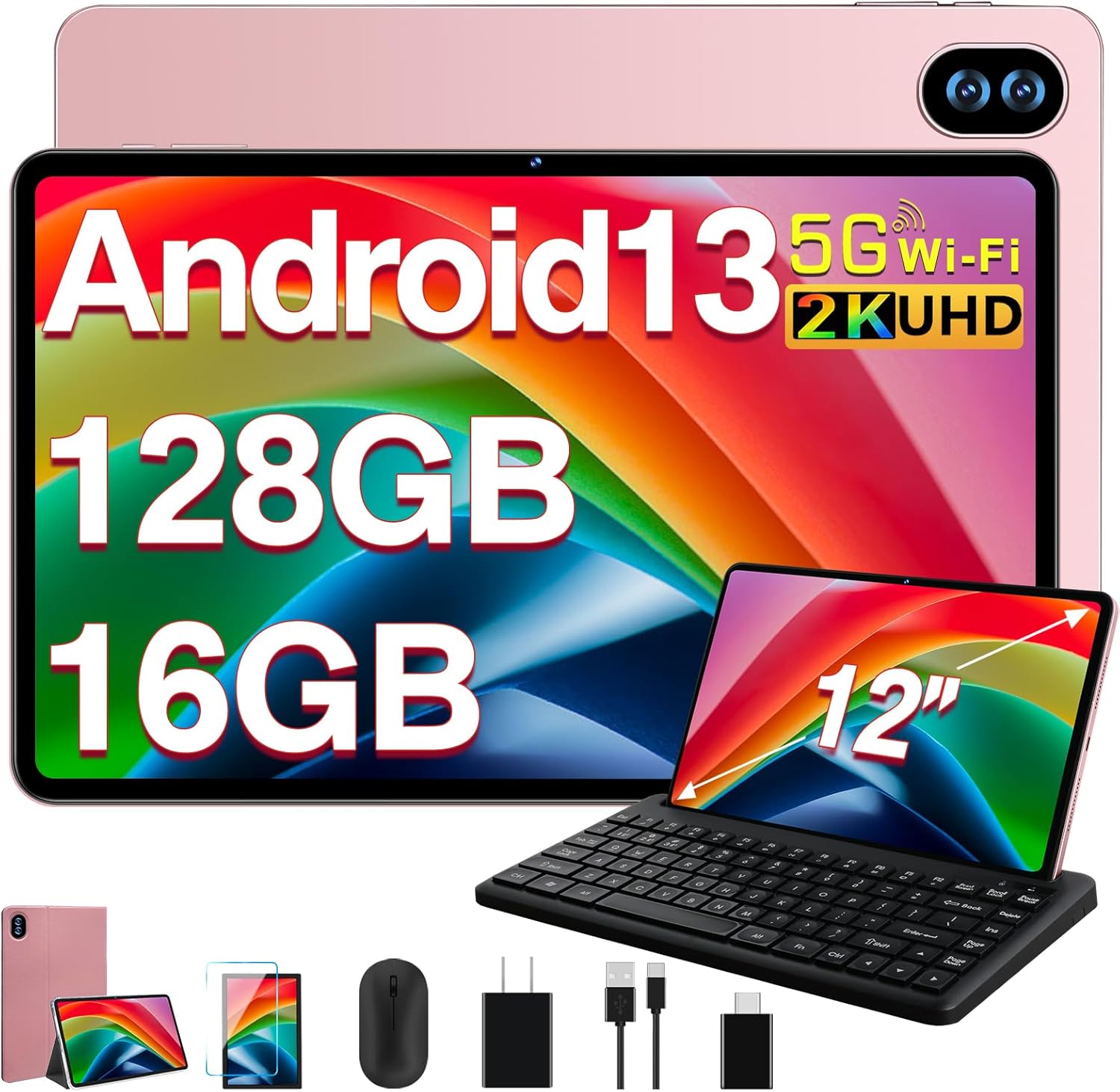
Figure 1.1: MEBERRY Tablet M8 and its accompanying accessories.
2. ¿Qué hay en la caja?
Upon opening your MEBERRY Tablet M8 package, please verify that all the following items are included:
- MEBERRY Tablet M8 (12-inch, Gold)
- Teclado Bluetooth
- Ratón inalámbrico
- Adaptador de corriente
- Cable de carga USB-C
- Adaptador USB-A a USB-C
- Estuche protector
- Protector de pantalla (preaplicado o incluido por separado)
- Manual de usuario (este documento)
3. Guía de configuración
3.1 Carga inicial
Before first use, it is recommended to fully charge your MEBERRY Tablet M8. Connect the provided USB-C charging cable to the tablet's USB-C port and the power adapter, then plug the adapter into a wall outlet. The charging indicator will illuminate.
3.2 Encendido / Apagado
- Para encender: Press and hold the Power button (located on the side of the tablet) for a few seconds until the MEBERRY logo appears on the screen.
- Para apagar: Mantenga pulsado el botón de encendido hasta que aparezca el menú de opciones de encendido. Seleccione "Apagar" y confirme.
- Para reiniciar: From the power options menu, select "Restart."
3.3 Asistente de configuración inicial
Al encenderlo por primera vez, el asistente de configuración de Android 13 lo guiará a través de las configuraciones esenciales:
- Seleccione su idioma preferido
- Conectarse a una red Wi-Fi.
- Acepte los términos y condiciones.
- Inicia sesión con tu cuenta de Google o crea una nueva.
- Configurar bloqueo de pantalla (PIN, patrón o contraseña).
- Review and adjust privacy settings.
3.4 Conexión de accesorios
Your MEBERRY Tablet M8 comes with a Bluetooth keyboard and a wireless mouse for enhanced productivity.
3.4.1 Teclado Bluetooth
- Asegúrese de que el teclado esté cargado y encendido.
- En tu tableta, ve a Ajustes > Dispositivos conectados > Bluetooth.
- Activar Bluetooth.
- Ponga el teclado en modo de emparejamiento (consulte las instrucciones específicas del teclado, generalmente presionando un botón de emparejamiento dedicado o una combinación de teclas).
- Select the keyboard from the list of available devices on your tablet and follow any on-screen prompts to complete pairing.
Ratón inalámbrico 3.4.2
The wireless mouse typically connects via a USB dongle. Use the provided USB-A to USB-C adapter to connect the mouse dongle to the tablet's USB-C port.

Figure 3.1: The MEBERRY Tablet M8 can be used as a 2-in-1 device with keyboard and mouse.
3.5 Inserción de una tarjeta Micro SD
The tablet supports storage expansion up to 1TB via a Micro SD card. Locate the SIM/SD card tray on the side of the tablet. Use the provided SIM ejector tool (if included) or a small paperclip to open the tray. Carefully place the Micro SD card into the designated slot and reinsert the tray.
4. Operación de su tableta
4.1 Pantalla y elementos visuales
The MEBERRY Tablet M8 features a 12-inch 2K HD display with a resolution of 2000*1200 pixels, offering clear and vibrant visuals. The screen incorporates new touch technology for improved viewing angles and touch sensitivity.
- Modo de protección ocular: Reduces blue light emission to minimize eye strain, especially during prolonged use. This can typically be found in Display settings.
- Modo oscuro: Changes the system's color scheme to a darker palette, which can be more comfortable in low-light environments and save battery on some display types.
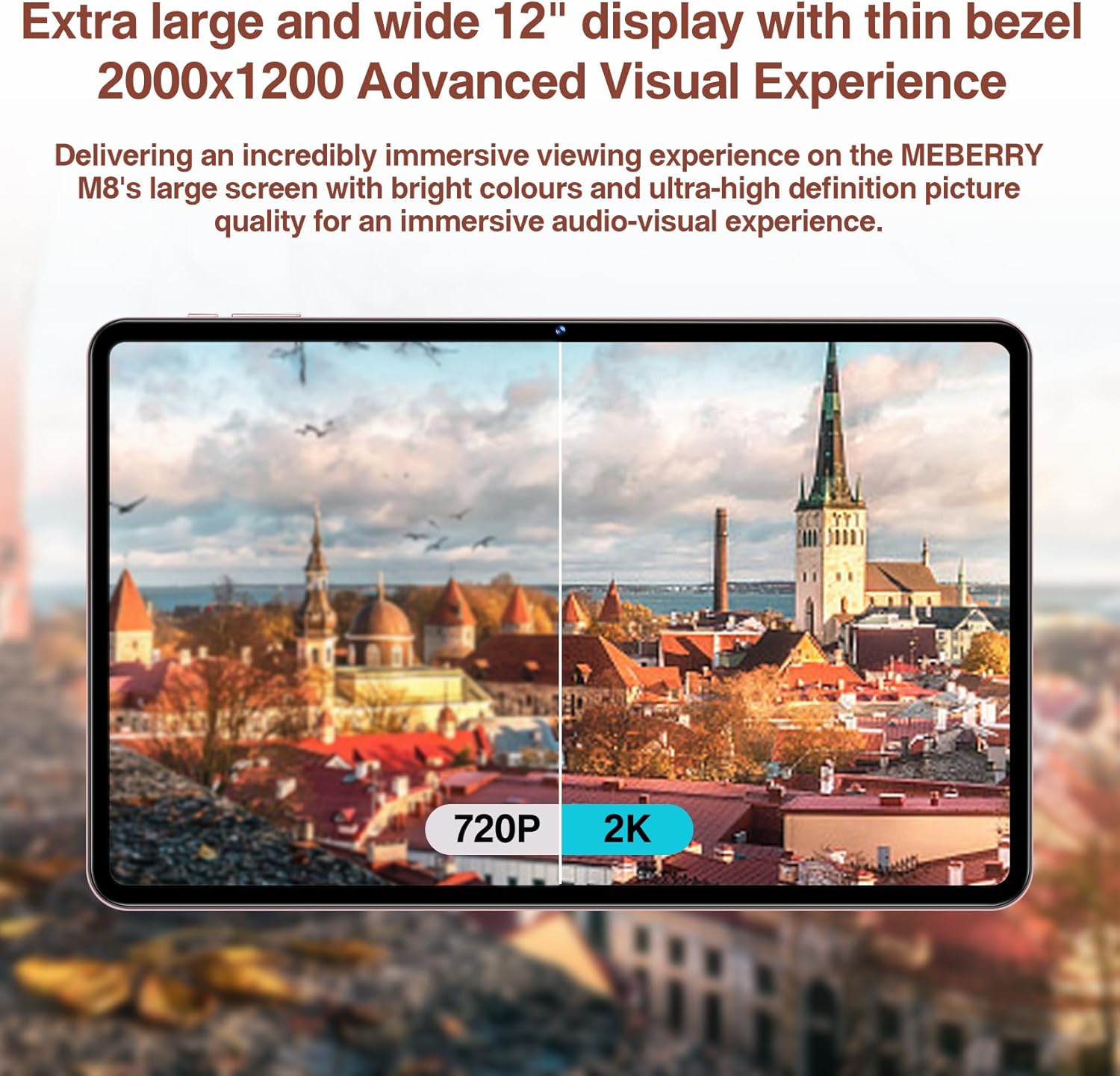
Figure 4.1: The 2K display offers significantly enhanced visual clarity.
4.2 Rendimiento y almacenamiento
The tablet runs on the latest Android 13 operating system, providing enhanced privacy, security, and overall system speed. It is powered by a stable Octa-Core processor (MT8183) with a clock speed of up to 2.0 GHz, ensuring fast application launches and efficient multitasking.

Figure 4.2: The MT8183 Octa-Core processor powers the MEBERRY M8.
The M8 comes with 16GB of RAM (10GB physical + 6GB virtual) and 128GB of internal storage (ROM). This ample memory ensures smooth operation and sufficient space for applications and files. Storage can be expanded by up to 1TB using a Micro SD card.

Figure 4.3: Memory and storage capabilities of the MEBERRY M8.
4.3 Gestión de la batería
Equipped with an 8000mAh battery and intelligent power management, the tablet is designed for extended use. Expected battery life includes:
- Up to 14 hours of game play
- Up to 16 hours of video watching
- Up to 72 hours of standby time

Figura 4.4: Rendimiento de la batería a lo largo deview.
4.4 Uso de la cámara
The MEBERRY M8 features a 13MP rear camera and a 5MP front camera, suitable for capturing photos, recording videos, and engaging in video calls.
- Tomar fotografías y vídeos: Open the Camera application from the home screen or app drawer. Select photo or video mode and tap the shutter button.
- Videollamadas: Use popular communication apps (e.g., Google Meet, Zoom, Skype) that utilize the front camera for video conferencing.
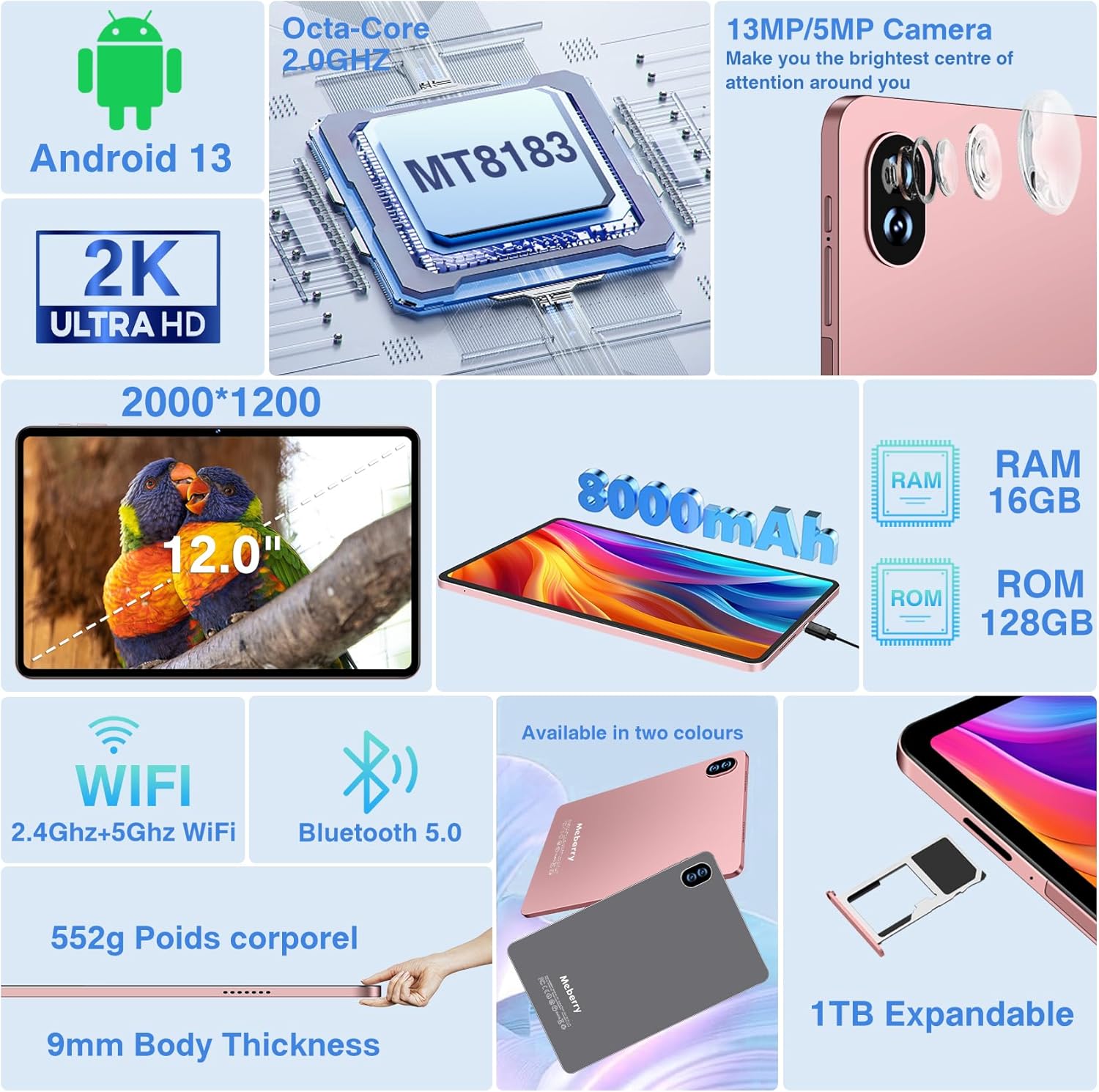
Figure 4.5: Camera specifications are part of the overall product features.
4.5 Conectividad
The tablet supports both 2.4Ghz and 5.0Ghz Wi-Fi networks (802.11a/b/g/n/ac) and Bluetooth 5.0, ensuring stable and fast wireless connections.
- Wifi: Para conectarse a Wi-Fi, vaya a Ajustes > Red e internet > InternetSeleccione la red deseada e ingrese la contraseña si es necesario.
- Bluetooth: To connect Bluetooth devices, go to Ajustes > Dispositivos conectados > Bluetooth. Active el Bluetooth y vincúlelo con su dispositivo.
- Audio: The tablet is equipped with four speakers for high-quality audio output.
5. Mantenimiento
5.1 Limpieza de la tableta
Para limpiar la pantalla y el cuerpo de la tableta, utilice un paño suave que no deje pelusa. Para manchas difíciles, límpielo ligeramente.ampLave el paño con agua o una solución limpiadora específica para pantallas. Evite usar productos químicos agresivos o materiales abrasivos.
5.2 Cuidado de la batería
- Evite exponer la tableta a temperaturas extremas (calor o frío).
- No dejes que la batería se descargue por completo con frecuencia. Cárgala antes de que llegue al 0 %.
- Utilice únicamente el cargador proporcionado o un cargador compatible certificado.
5.3 Actualizaciones de software
Revise e instale periódicamente las actualizaciones del sistema para asegurarse de que su tableta tenga las últimas funciones, parches de seguridad y mejoras de rendimiento. Vaya a Ajustes > Sistema > Actualización del sistema.
5.4 Gestión del almacenamiento
Para mantener un rendimiento óptimo, administre periódicamente el almacenamiento de su tableta. Elimine el almacenamiento innecesario. files, desinstalar aplicaciones no utilizadas y borrar la caché de las aplicaciones. Puedes consultar el uso del almacenamiento en Ajustes > Almacenamiento.
6. Solución de problemas
This section addresses common issues you might encounter with your MEBERRY Tablet M8.
| Problema | Posible causa | Solución |
|---|---|---|
| La tableta no enciende | Batería baja; Fallo del sistema | Cargue la tableta durante al menos 30 minutos. Mantenga presionado el botón de encendido durante 10 a 15 segundos para forzar el reinicio. |
| Problemas de conexión wifi | Contraseña incorrecta; Problema del enrutador; Problema del módulo Wi-Fi de la tableta | Verify Wi-Fi password. Restart your router. Toggle Wi-Fi off/on on the tablet. Forget the network and reconnect. |
| Los accesorios Bluetooth no se conectan | Accessory not in pairing mode; Bluetooth off on tablet | Ensure accessory is in pairing mode. Check tablet's Bluetooth settings. Restart both devices. |
| La tableta es lenta o se congela | Too many apps open; Low storage; Software bug | Close background apps. Clear app caches. Free up storage space. Restart the tablet. |
| La pantalla no responde | Fallo temporal del software | Fuerce el reinicio de la tableta manteniendo presionado el botón de encendido. |
6.1 Restablecimiento de fábrica
Si los problemas persisten, un restablecimiento de fábrica puede resolver muchos problemas relacionados con el software. Advertencia: Esto borrará todos los datos de tu tableta. Haz una copia de seguridad de lo importante. files antes de continuar.
- Ir a Ajustes > Sistema > Opciones de reinicio.
- Seleccionar Borrar todos los datos (restablecer valores de fábrica).
- Confirme su decisión e ingrese su PIN/patrón/contraseña si se le solicita.
- La tableta se reiniciará y comenzará el proceso de reinicio.
7. Especificaciones
Detailed technical specifications for the MEBERRY Tablet M8:
| Característica | Especificación |
|---|---|
| Nombre del modelo | M8 |
| Sistema operativo | Androide 13 |
| Tamaño de pantalla | 12 pulgadas |
| Resolución de pantalla | 2000*1200 Pixels (2K HD) |
| Procesador | Octa-Core (MT8183), 2.0 GHz |
| RAM | 16 GB (10 GB físicos + 6 GB virtuales) |
| Almacenamiento interno (ROM) | 128 GB |
| Almacenamiento expandible | Hasta 1 TB mediante tarjeta Micro SD |
| Cámara trasera | 13 MP |
| Cámara frontal | 5 MP |
| Capacidad de la batería | 8000 mAh |
| Conectividad inalámbrica | 802.11a/b/g/n/ac (2.4Ghz & 5.0Ghz WiFi) |
| Bluetooth | Bluetooth 5.0 |
| Audio | Altavoces duales |
| Dimensiones (LxAnxAl) | 10.9 x 6.85 x 0.35 pulgadas |
| Peso del artículo | 4.62 libras |
| Color | M8 Gold |
8. Garantía y soporte
MEBERRY is committed to providing quality products and customer experience. For any product-related inquiries, technical support, or warranty claims, please refer to the contact information provided with your purchase documentation or visit the official MEBERRY support websitio.
Conserve su comprobante de compra para fines de garantía.