
1. Introducción
This manual provides essential information for setting up, operating, and maintaining your Bmax Y13 13.3-inch 2-in-1 Touchscreen Laptop. Please read this manual thoroughly before using your device to ensure optimal performance and longevity.

Figure 1: The Bmax Y13 2-in-1 laptop showcasing its versatile convertible design.
2. Configuración
2.1 Desembalaje e inspección inicial
Your Bmax Y13 laptop is carefully packaged to prevent damage during transit. Upon receiving your device, inspect the packaging for any signs of damage. Carefully remove the laptop and all accessories from the box.
Vídeo 1: Unboxing y puesta a punto inicialview of the Bmax Y13 laptop, demonstrating its physical features and included accessories.
2.2 Encendido y configuración inicial
Connect the provided power adapter to the laptop's DC port and a power outlet. Press the power button located on the side of the device. Follow the on-screen instructions to complete the initial Windows setup, including language selection, network connection, and user account creation.
2.3 System Updates and Driver Installation
After the initial setup, it is highly recommended to perform the following steps:
- Install All Windows Updates: Ensure your operating system is up-to-date for optimal security and performance.
- Install and Run 'Intel Driver Support Assistant': This tool helps identify and install the latest drivers for your Intel components, ensuring compatibility and peak performance.
3. Hardware terminadoview
3.1 Características físicas
The Bmax Y13 features a sleek, thin all-metal body, weighing approximately 2.8 lbs (1.25 kg) and measuring 12.1" x 8.2" x 0.6". This design makes it highly portable and stylish.

Figure 2: The Bmax Y13's ultra-thin and lightweight metal body, ideal for portability.
3.2 Puertos y conectividad
The laptop is equipped with various ports for versatile connectivity:
- Lado derecho: Audio jack, Type-C data-only port, Micro-SD card slot, Power on/off button.
- Lado izquierdo: 12V-2A Power port, Type-C full functionality port (for data transfer, power delivery, and video out).

Figura 3: detallada view of the right-side ports on the Bmax Y13.
3.3 Teclado y panel táctil
The Bmax Y13 features a full-sized, backlit keyboard with two adjustable brightness levels (On/Off, 2-level adjustable via 'Fn+F2'). The keys offer good tactile feedback and travel for comfortable typing. The touchpad is generously sized and responsive.

Figure 4: The backlit keyboard of the Bmax Y13, illustrating the function key for backlight control.
3.4 Display and Convertible Modes
The laptop boasts a 13.3-inch Full HD (1920 x 1080) IPS multi-touch screen with a narrow bezel, providing an immersive viewing experience and excellent color reproduction. The 360-degree durable hinge allows for six versatile usage modes: Laptop, Stand, Tent, Tablet, Portable, and Drawing.

Figure 5: The Bmax Y13 in various convertible configurations.

Figure 6: Visual representation of the six versatile usage modes.
4. Instrucciones de funcionamiento
4.1 Uso general
The Bmax Y13 is designed for everyday productivity and entertainment. It handles common applications like web browsing, document editing, and media playback efficiently. The Intel Celeron N4120 Quad Core Processor (up to 2.6GHz) combined with 8GB DDR4 RAM and a 256GB SSD ensures smooth operation.
Video 2: Demonstration of the Bmax Y13's performance in web browsing, media streaming, and light gaming.
4.2 Gestos de la pantalla táctil
The multi-touch screen supports 10-finger input with high precision. Common gestures include:
- Deslizar con dos dedos: Desplácese por el contenido.
- Pellizcar con dos dedos: Acercar o alejar.
- Toque con tres dedos: Open search or switch applications.
- Toque con cuatro dedos: Open action center.
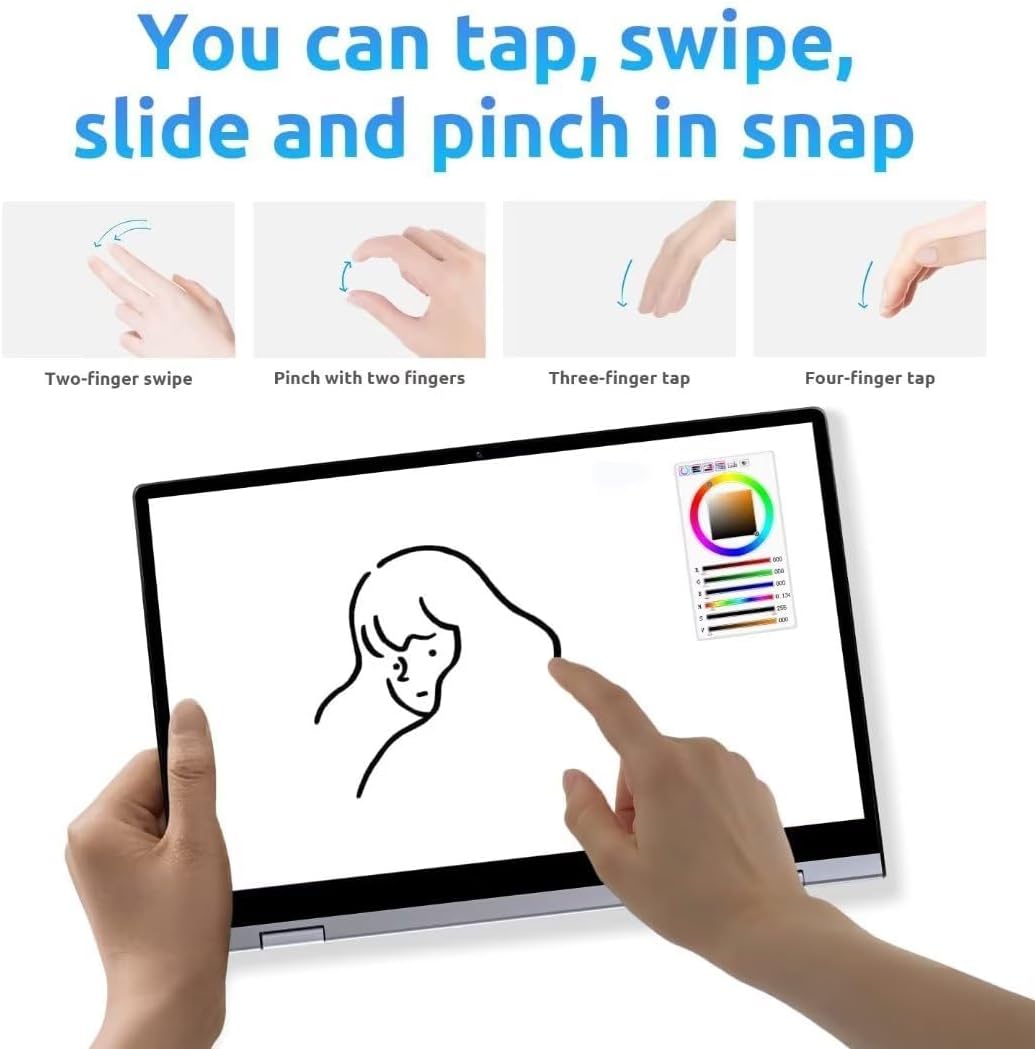
Figure 7: Common touchscreen gestures for navigation and interaction.
4.3 Proyección de pantalla inalámbrica
The Bmax Y13 supports wireless screen projection, allowing you to display content from your laptop onto a larger screen or projector. This feature is particularly useful for presentations or sharing media.

Figure 8: Using the touchscreen for presentations or content display.
5. Especificaciones
| Característica | Especificación |
|---|---|
| Tamaño de pantalla de pie | 13.3 pulgadas |
| Resolución de pantalla | 1920 x 1080 píxeles (FHD) |
| Procesador | Intel Celeron N4120 Quad Core (up to 2.6GHz) |
| RAM | 8 GB LPDDR4 |
| Disco duro | SSD de 256 GB |
| Coprocesador gráfico | Gráficos Intel UHD 600 |
| Tipo inalámbrico | 802.11a/g/n/ac, Bluetooth 5.0 |
| Sistema operativo | Sistema operativo 10 |
| Peso del artículo | 2.75 libras (1.25 kg) |
| Dimensiones del producto | 12.6 x 8.2 x 0.6 pulgadas |
| Duración media de la batería | 6 horas |
6. Mantenimiento
To ensure the longevity and optimal performance of your Bmax Y13 laptop, follow these maintenance guidelines:
- Limpieza: Utilice un paño suave que no deje pelusa para limpiar la pantalla y el exterior. Para manchas difíciles,ampEnjuague el paño con agua o un limpiador de pantallas. Evite productos químicos agresivos.
- Temperatura: Operate the laptop within recommended temperature ranges. Avoid exposing it to extreme heat or cold, and ensure proper ventilation to prevent overheating.
- Actualizaciones de software: Regularly update your operating system and drivers to benefit from performance improvements, security patches, and new features.
- Cuidado de la batería: For optimal battery life, avoid fully discharging the battery frequently. If storing the laptop for an extended period, charge it to about 50-70%.
7. Solución de problemas
If you encounter issues with your Bmax Y13, try the following troubleshooting steps:
- Sin energía: Asegúrese de que el adaptador de corriente esté bien conectado tanto a la computadora portátil como a una toma de corriente que funcione. Compruebe que la toma de corriente funcione.
- Problemas de pantalla: If the screen is blank or flickering, try restarting the laptop. If using an external display, ensure the cable connection is secure.
- Rendimiento lento: Close unnecessary applications, check for malware, and ensure your operating system and drivers are updated. Consider freeing up storage space on the SSD.
- Conectividad Wi-Fi/Bluetooth: Ensure Wi-Fi and Bluetooth are enabled in Windows settings. Restart your router or Bluetooth device if connection issues persist.
- La pantalla táctil no responde: Restart the laptop. If the issue continues, check for driver updates for the touchscreen.
8. Garantía y soporte
Para obtener información sobre la garantía y soporte técnico, consulte la documentación incluida con su producto o visite el sitio web oficial de Bmax. webSitio. Conserve su comprobante de compra para reclamaciones de garantía.