
Controlador de transmisión SOOMFON
Manual de usuario del controlador de transmisión SOOMFON
Modelo: Controlador de flujo
Introducción
The SOOMFON Stream Controller is a versatile studio control deck designed to streamline your workflow for live streaming, content creation, and various digital tasks. Featuring 15 customizable LCD keys, it allows for one-touch operation of complex actions, application control, and system adjustments. This manual provides detailed instructions for setting up, operating, maintaining, and troubleshooting your Stream Controller.

Image: The SOOMFON Stream Controller, showcasing its 15 programmable LCD keys and sleek design.
Características principales
- 15 teclas LCD personalizables: Trigger unlimited actions, control apps, tools, and platforms effortlessly. Each button features an LCD screen for custom image display (minimum 126x126 pixels).
- One-touch Tactile Operation: Launch social posts, adjust audio, mute microphones, turn on lights, and more with a single press. Ideal for streamers, creatives, and users requiring extensive hotkeys.
- Smart Design and User-Friendly: Includes a foldable stand with 3 angle adjustments for ergonomic use. Connects to PC via USB and features rubber feet for stability.
- Amplia compatibilidad: Integrated support for OBS Studio (v27.0.0+), Twitch, YouTube, Twitter, Discord, Spotify, Philips Hue, and many other applications. Compatible with PC and Mac.
- Workflow Streamlining: Designed to enhance productivity by providing quick access to applications and tools, optimizing film editing, music production, and photography workflows.
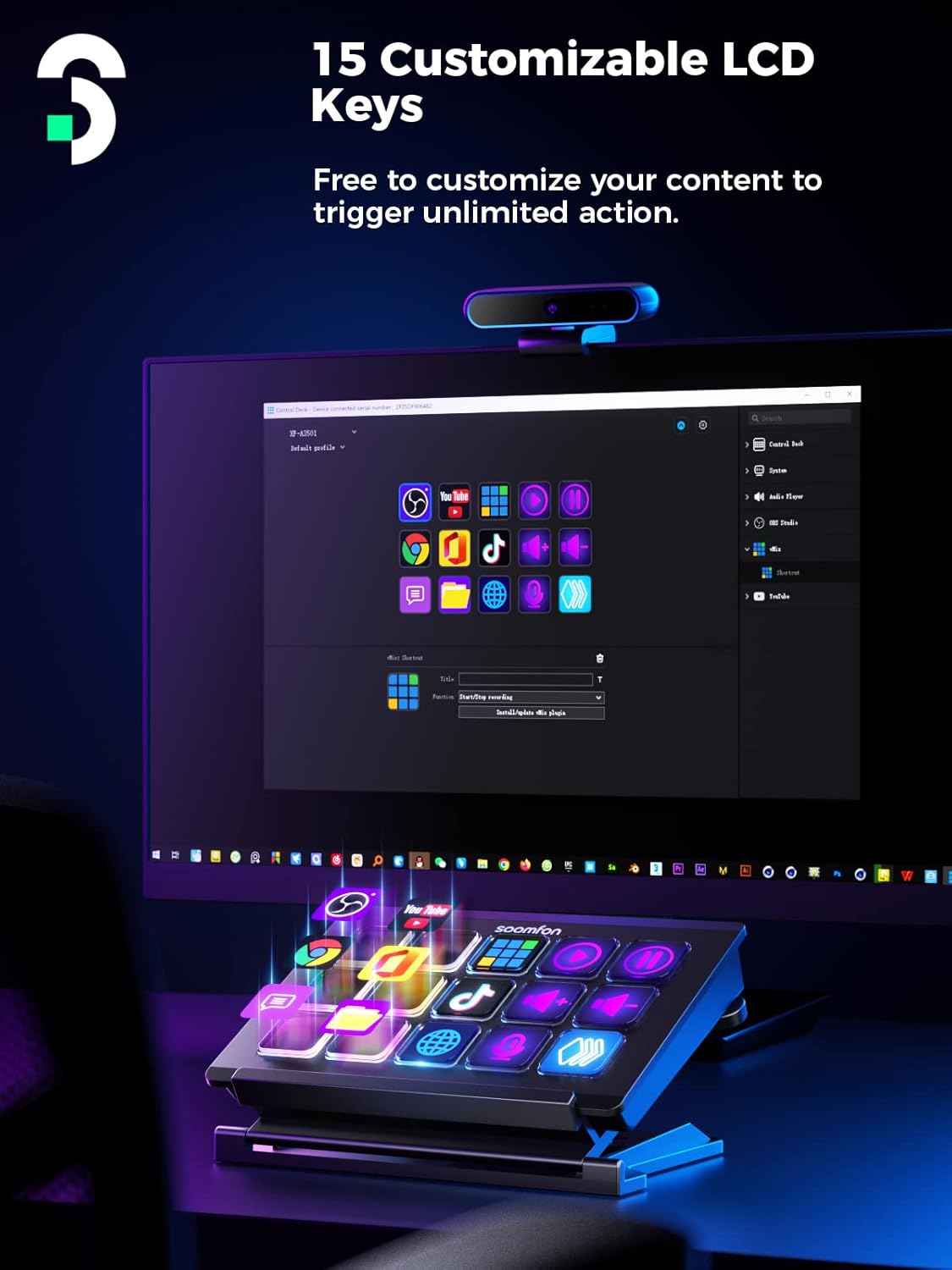
Image: The Stream Controller displaying various customizable icons on its 15 LCD keys, integrated into a desktop setup.
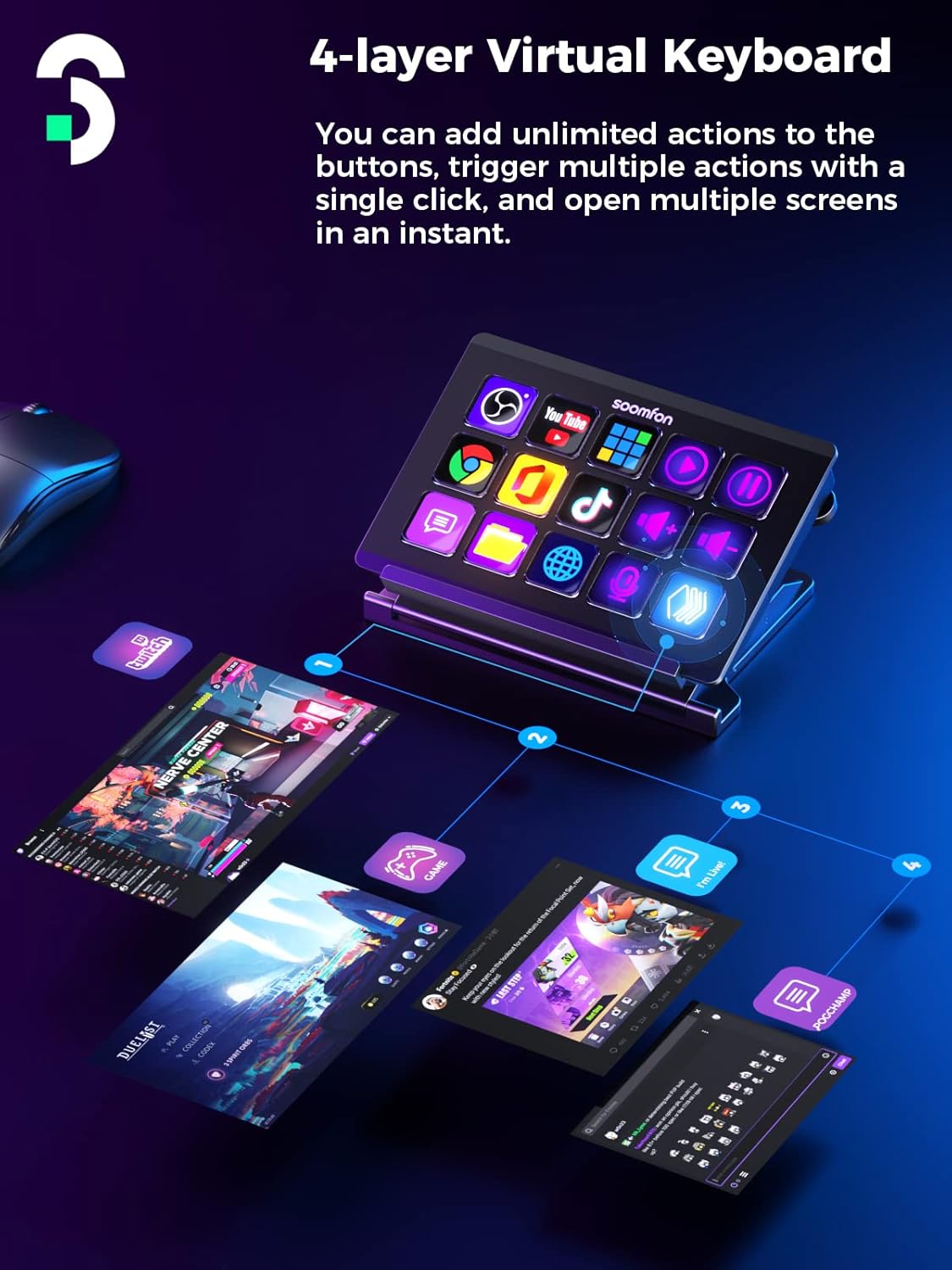
Image: Illustration of the 4-layer virtual keyboard capability, showing how multiple actions can be triggered across different screens.
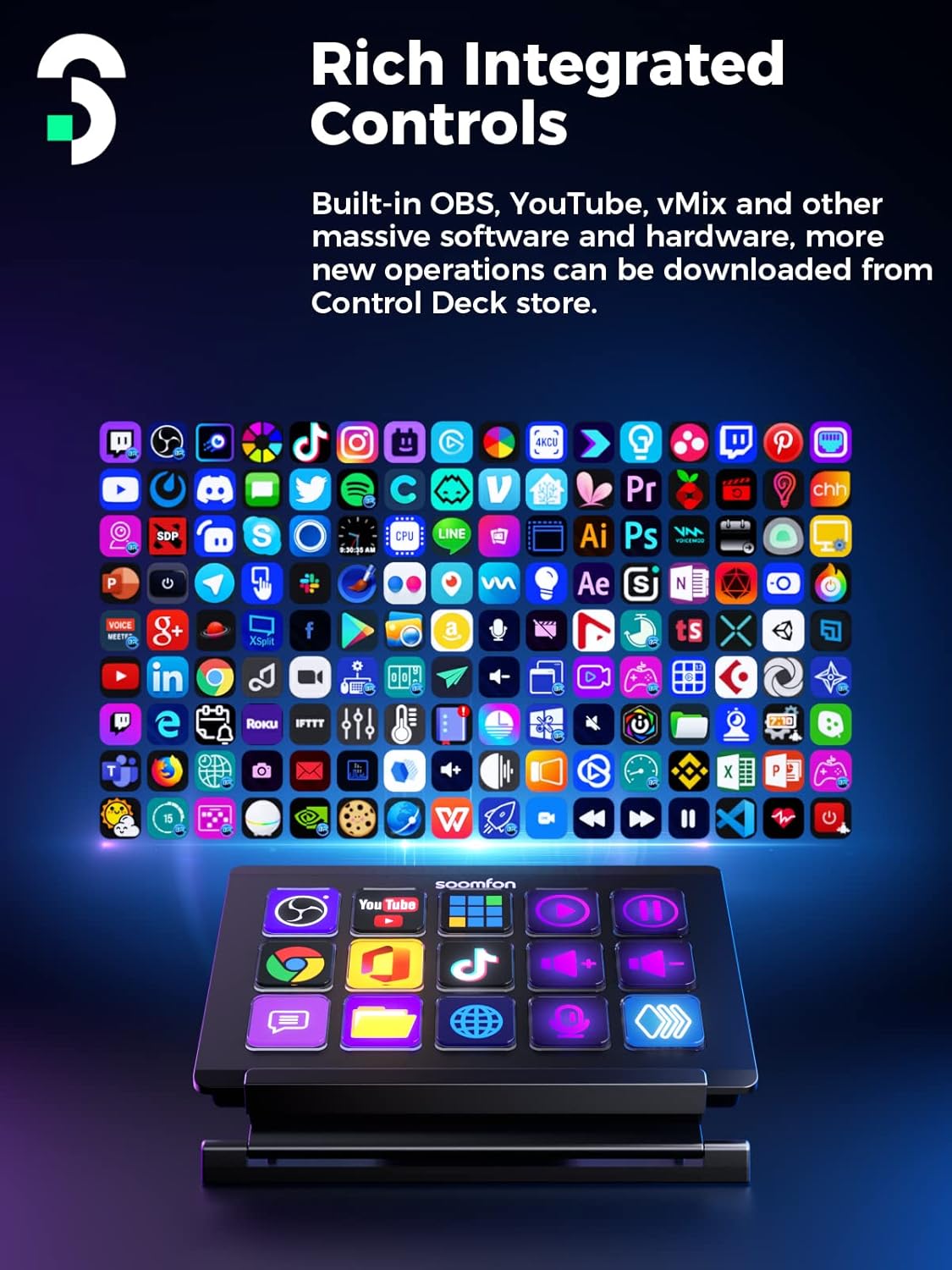
Image: The Stream Controller positioned in front of a screen displaying numerous application icons, highlighting its rich integrated controls.
Guía de configuración
Contenido del paquete
Asegúrese de que todos los artículos estén presentes en el paquete:
- Controlador de transmisión SOOMFON
- Soporte plegable
- Cable USB-C
- Manual de usuario (este documento)
Instalación de software
Before using the SOOMFON Stream Controller, you must download and install the dedicated software on your computer. This software enables customization of the LCD keys and integration with various applications.
- Visit the official download page for the SOOMFON Stream Controller software. The URLLos s son:
- Para Windows: sm.key123.vip/win
- Para macOS: sm.key123.vip/mac
- Download the appropriate software version for your operating system.
- Ejecute el instalador y siga las instrucciones en pantalla para completar la instalación.
- Once installed, launch the Control Deck software.

Image: Instructions for downloading and installing the SOOMFON Control Deck software for Windows and macOS, along with a preview of the software interface.
Conectando el dispositivo
After installing the software, connect the Stream Controller to your computer:
- Place the Stream Controller on your desk, optionally using the foldable stand for desired angle adjustment.
- Connect one end of the provided USB-C cable to the Stream Controller.
- Conecte el otro extremo del cable USB-C a un puerto USB disponible en su computadora.
- The device should be recognized by your computer and the Control Deck software.
Instrucciones de funcionamiento
Personalización de las teclas LCD
The core functionality of the Stream Controller lies in its customizable LCD keys. Use the Control Deck software to assign actions and personalize button icons:
- Open the SOOMFON Control Deck software on your computer.
- The software interface will display a virtual representation of your Stream Controller.
- To assign an action, drag and drop a desired action (e.g., launch application, mute audio, open website) from the software's action library onto a virtual button.
- To customize the button's icon, click on the virtual button and select the option to upload a custom image file (recommended size: 126x126 pixels or larger).
- You can also create folders within the software to organize multiple actions under a single button, effectively creating a multi-layer virtual keyboard.
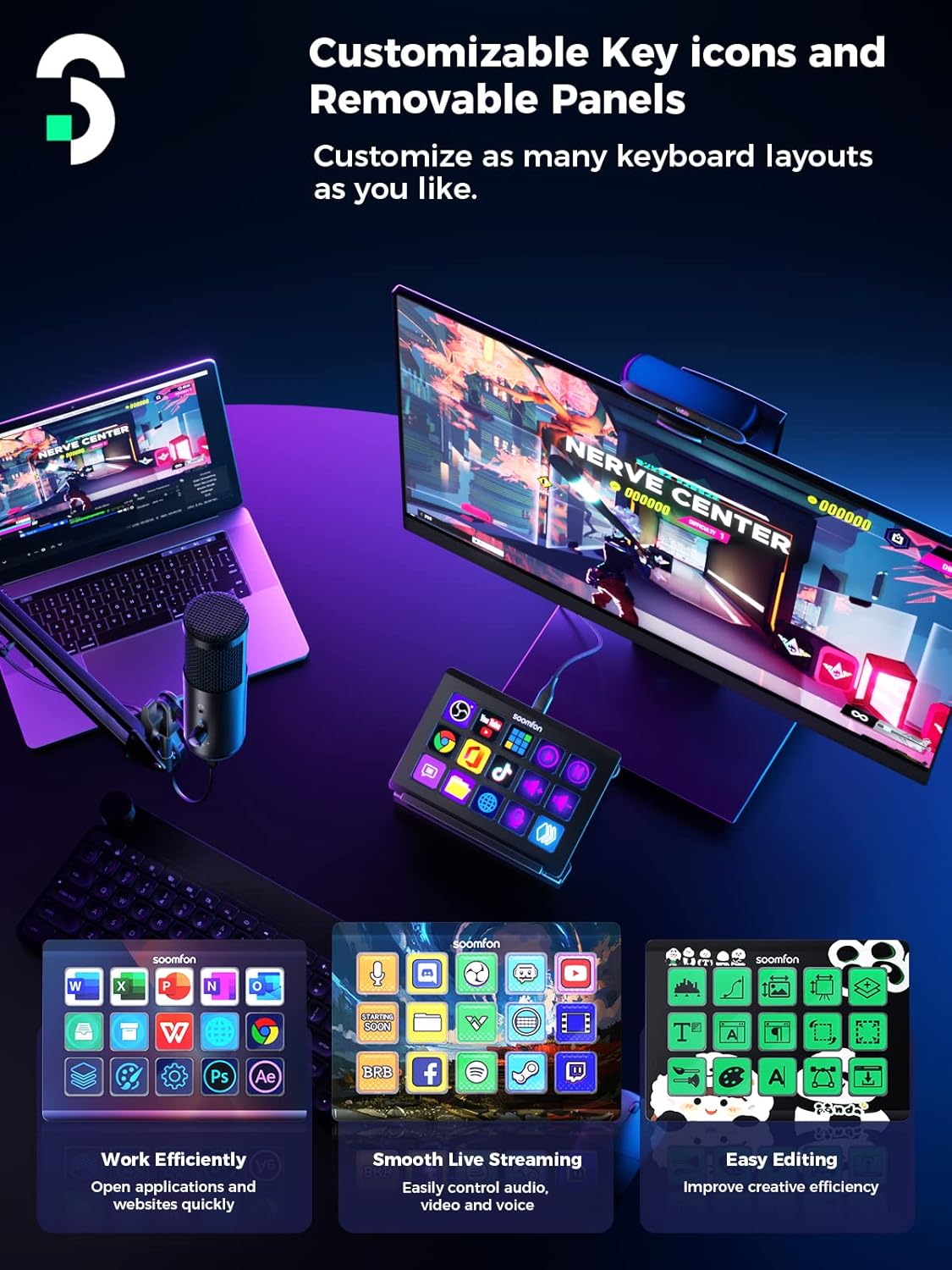
Image: The Stream Controller demonstrating the ability to customize key icons and potentially removable panels for different keyboard layouts.
Creating Multi-Actions and Profiles
The Stream Controller supports complex multi-actions and profiles to further enhance efficiency:
- Multi-Acciones: Combine several actions into a single button press. For example, one button can simultaneously launch OBS, open your streaming software, and send a "going live" tweet.
- Profiles: Crea diferentes profesionalesfiles for various applications or workflows. For instance, you can have a "Streaming Profile" with OBS controls, a "Video Editing Profile" with shortcuts for your editing software, and a "Gaming Profile" for in-game commands. The software can automatically switch profiles when you open a specific application.
Supported Software and Platforms
The SOOMFON Stream Controller offers integrated support for a wide range of popular applications and platforms, including but not limited to:
- OBS Studio (version 27.0.0 and above)
- Contracción nerviosa
- YouTube
- Gorjeo
- Discordia
- Spotify
- Philips Hue
- Other applications for film editing, music production, and photography workflows.
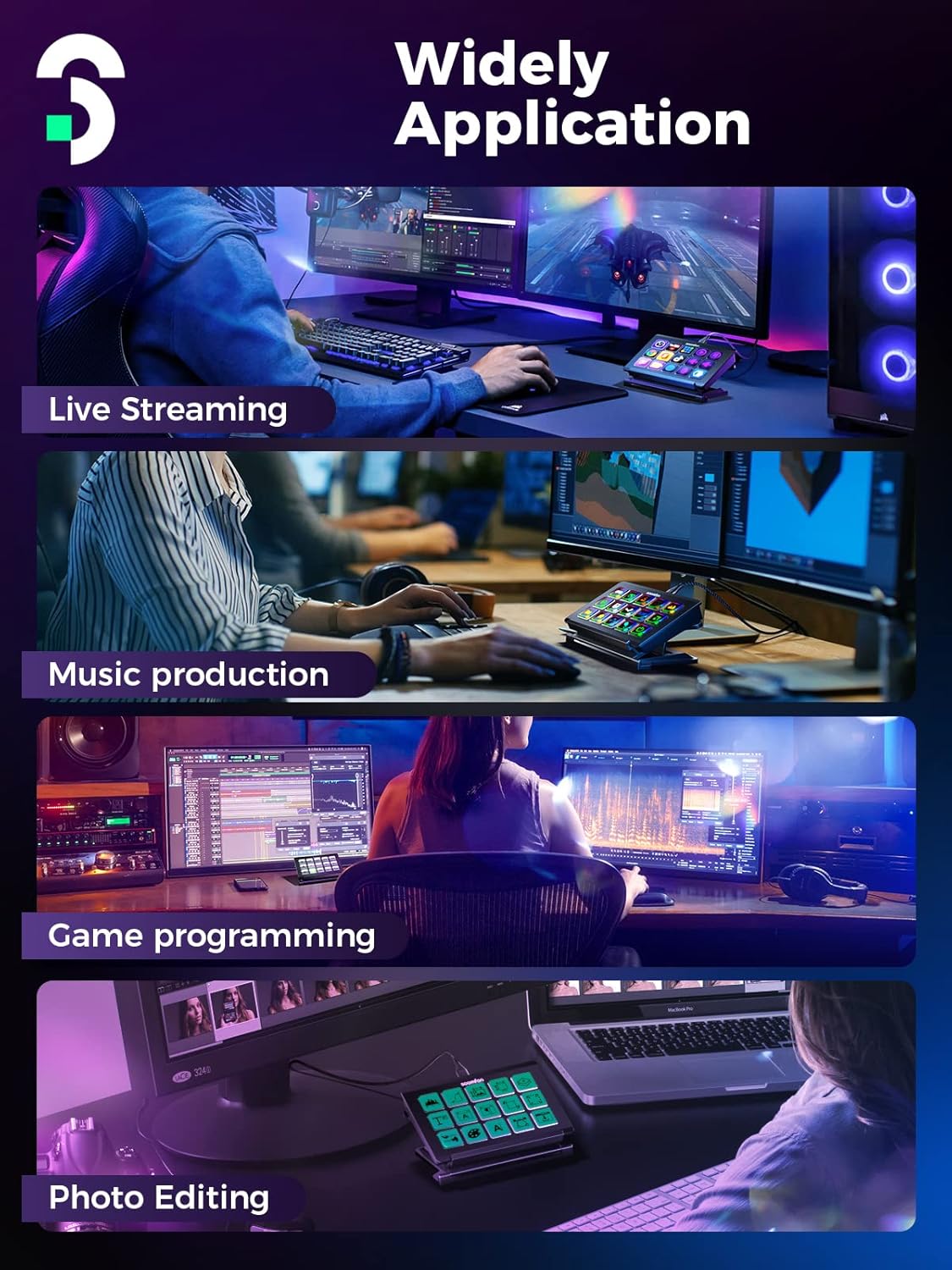
Image: The Stream Controller being used in diverse professional and creative environments, including live streaming, music production, game programming, and photo editing.
Mantenimiento
Para garantizar la longevidad y el rendimiento óptimo de su SOOMFON Stream Controller, siga estas pautas de mantenimiento:
- Limpieza: Use a soft, dry, lint-free cloth to gently wipe the surface of the device and the LCD keys. Avoid using abrasive cleaners, solvents, or aerosol sprays, as these can damage the finish or internal components.
- Almacenamiento: When not in use for extended periods, store the Stream Controller in a cool, dry place away from direct sunlight and extreme temperatures.
- Manejo: Handle the device with care. Avoid dropping it or subjecting it to strong impacts, which can damage the internal electronics or the LCD screens.
- Cuidado de cables: No doble ni doble excesivamente el cable USB-C. Sujete siempre el conector, no el cable, al conectarlo o desconectarlo.
Solución de problemas
If you encounter issues with your SOOMFON Stream Controller, please refer to the following common troubleshooting steps:
- Dispositivo no reconocido:
- Ensure the USB-C cable is securely connected to both the Stream Controller and your computer.
- Intente conectar el dispositivo a un puerto USB diferente en su computadora.
- Restart your computer and the Stream Controller software.
- Verify that the correct drivers are installed. Reinstall the software if necessary.
- Botones que no responden:
- Check the Control Deck software to ensure actions are correctly assigned to the buttons.
- Ensure the software is running and is the active application for the assigned profile.
- Restart the software and the device.
- Software Issues (Crashes, Freezes):
- Ensure your operating system and the Stream Controller software are up to date.
- Desactive temporalmente cualquier software antivirus o firewall que pueda estar interfiriendo con la aplicación.
- Realice una reinstalación limpia del software.
- LCD Screens Not Displaying Correctly:
- Verifica que la imagen files used for customization are not corrupted and meet the recommended size specifications.
- Restart the software and the device.
Si estos pasos no resuelven el problema, consulte la sección de soporte para obtener más ayuda.
Especificaciones técnicas
| Característica | Especificación |
|---|---|
| Peso del artículo | 14.4 onzas |
| Dimensiones del paquete | 6.65 x 6.14 x 2.44 pulgadas |
| Material del cuerpo | Aleación de aluminio |
| Dispositivos compatibles | Ordenador personal |
| Tipo de conector | USB |
| Interfaz de hardware | USB |
| Software compatible | OBS Studio (v27.0.0 and above), Twitch, YouTube, Twitter, Discord, Spotify, Philips Hue |
| Tipo de material | Rubber (for feet) |
| Plataforma de hardware | PC |
| Sistema operativo | Ventanas, MacOS |
| Tecnología de conectividad | USB |
| Fecha de primera disponibilidad | 4 de abril de 2023 |
Garantía y soporte
Information regarding the specific warranty period and detailed support contact methods for the SOOMFON Stream Controller is not available in the provided product data. For warranty claims, technical support, or further inquiries, please refer to the official SOOMFON websitio o contacte directamente al vendedor a través de su plataforma de compra.
Se recomienda conservar el recibo de compra como comprobante de compra para cualquier problema relacionado con la garantía.
Ask a question about this manual
Ask about setup, troubleshooting, compatibility, parts, safety, or missing instructions. Manuals+ will review the question and use this page’s manual context to help answer it.