
SONY VJPK11
Manual del usuario de la computadora portátil SONY VAIO Pro PK VJPK11
Model: VJPK11
1. Introducción
This manual provides essential instructions for the safe and efficient use of your SONY VAIO Pro PK VJPK11 laptop. Please read this manual thoroughly before operating your device and retain it for future reference. It covers setup, operation, maintenance, and troubleshooting to ensure optimal performance and longevity of your laptop.
2. Producto terminadoview
The SONY VAIO Pro PK VJPK11 is a portable computing device designed for productivity and multimedia. Familiarize yourself with its components and features.

Figura 2.1: Frente view of the SONY VAIO Pro PK VJPK11 laptop. This image displays the laptop open, revealing the screen, keyboard, and touchpad. The VAIO logo is visible on the screen, and an Intel Core i5 sticker is on the palm rest.
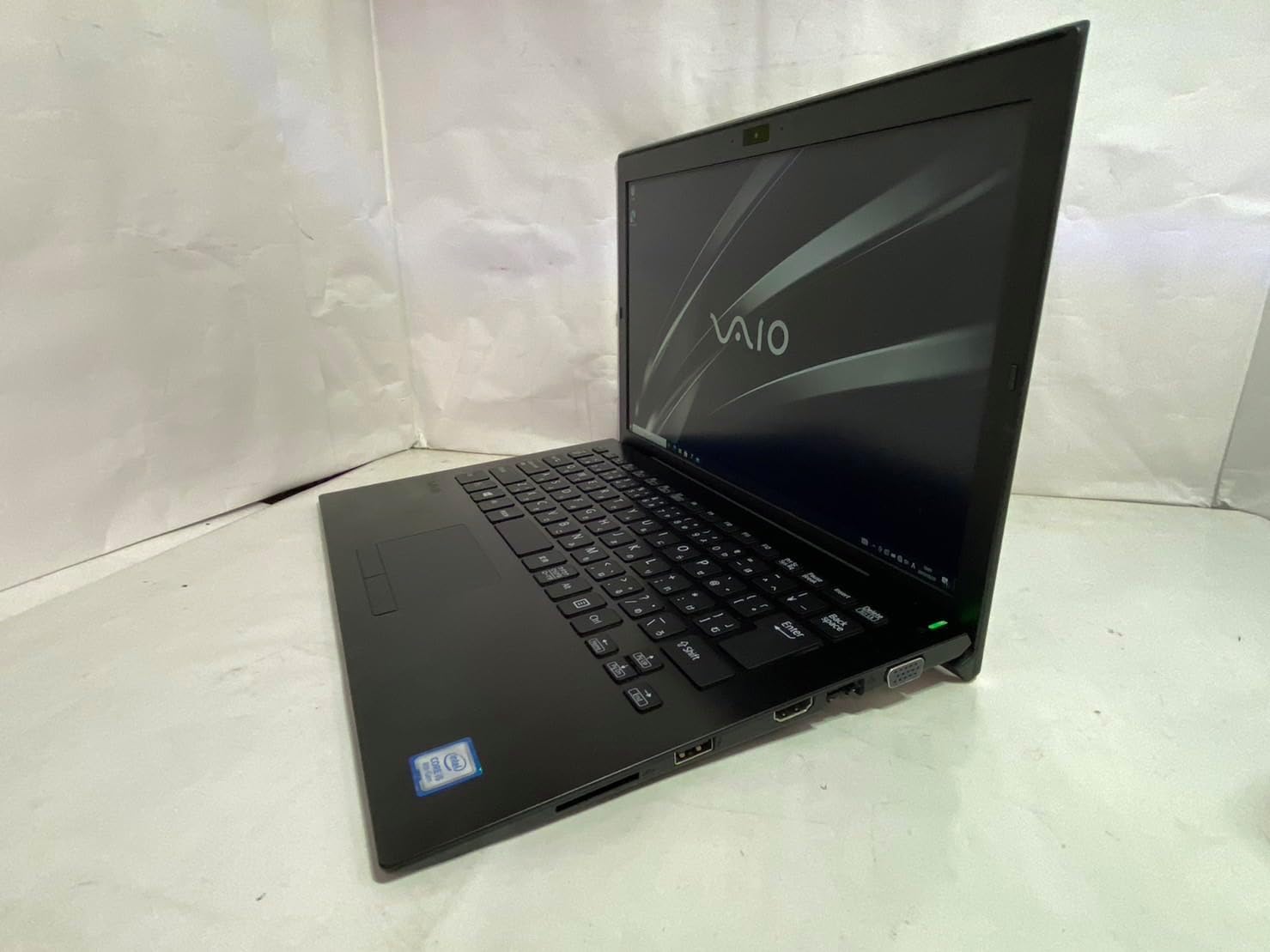
Figura 2.2: Lado izquierdo view of the SONY VAIO Pro PK VJPK11 laptop. This image shows the left side of the laptop, highlighting various ports such as USB, HDMI, and a VGA port, along with a ventilation grille.

Figura 2.3: Arriba view of the SONY VAIO Pro PK VJPK11 laptop with the lid closed. This image displays the sleek black finish of the laptop's lid, featuring the prominent silver VAIO logo in the center.
3. Configuración
3.1 Desembalaje
Carefully remove the laptop and all accessories from the packaging. Ensure all components are present:
- SONY VAIO Pro PK VJPK11 Laptop
- Adaptador de CA y cable de alimentación
- Documentación (este manual, información de garantía)
3.2 Conexión a la alimentación
- Conecte el adaptador de CA al puerto de entrada de energía de su computadora portátil.
- Conecte el cable de alimentación al adaptador de CA.
- Inserte el cable de alimentación en una toma eléctrica con conexión a tierra.
- Allow the battery to charge fully before initial use, or use the laptop while connected to power.
3.3 Initial Boot-Up and Windows Setup
Press the power button to turn on the laptop. Follow the on-screen instructions to complete the Windows 10 Pro setup process. This typically involves selecting your region, language, accepting license agreements, and creating a user account.
4. Instrucciones de funcionamiento
4.1 Encendido y apagado
- Para encender: Presione el botón de encendido ubicado en la computadora portátil.
- Para desconectar: Haga clic en el botón Inicio, luego en Encendido y seleccione “Apagar”.
- Para reiniciar: Haga clic en el botón Inicio, luego en Encendido y seleccione “Reiniciar”.
- Para dormir: Click the Start button, then Power, and select 'Sleep', or close the laptop lid.
4.2 Teclado y panel táctil
The laptop features a standard QWERTY keyboard and a multi-touch touchpad. Use the touchpad for cursor control and gestures. Refer to Windows settings for customizing touchpad sensitivity and gestures.
4.3 Conexión de periféricos
- Dispositivos USB: Connect USB devices (e.g., mouse, external drive) to the available USB 3.0 ports.
- Pantalla externa: Use the HDMI or VGA port to connect an external monitor or projector. Press Tecla de Windows + P para administrar los modos de visualización.
- Red cableada (LAN): Conecte un cable Ethernet al puerto LAN para obtener una conexión a Internet por cable.
- Tarjeta SD: Insert an SD card into the dedicated SD card slot for data transfer.
4.4 Utilizando Webcam and Bluetooth
- Webleva: El integrado webcam can be used for video calls and conferencing. Access it through applications like Camera or communication software.
- Bluetooth: Enable Bluetooth in Windows settings to connect wireless devices such as headphones, speakers, or mice.
5. Mantenimiento
5.1 Limpieza de la computadora portátil
Utilice un paño suave y sin pelusa ligeramente seco.ampened with water or a screen cleaner to clean the display and exterior surfaces. Avoid harsh chemicals or abrasive materials. Ensure the laptop is powered off and unplugged before cleaning.
5.2 Cuidado de la batería
To prolong battery life, avoid extreme temperatures. If storing the laptop for an extended period, ensure the battery is charged to approximately 50%.
5.3 Actualizaciones de software
Regularly check for and install Windows updates and driver updates from the SONY support websitio para garantizar la estabilidad y seguridad del sistema.
5.4 Copia de seguridad de datos
Realice periódicamente una copia de seguridad de sus datos importantes en una unidad externa o en un almacenamiento en la nube para evitar la pérdida de datos.
6. Solución de problemas
This section addresses common issues you might encounter with your SONY VAIO Pro PK VJPK11.
6.1 Sin energía
- Ensure the AC adapter is securely connected to the laptop and a working power outlet.
- Verifique que la toma de corriente funcione enchufando otro dispositivo.
- Si la batería está completamente agotada, déjela cargar durante unos minutos antes de intentar encenderla.
6.2 Problemas de visualización
- If the screen is blank, try adjusting the display brightness using the function keys.
- If an external monitor is connected, ensure the correct display output mode is selected (Windows key + P).
- Reinicie la computadora portátil.
6.3 Problemas de conectividad Wi-Fi
- Asegúrese de que Wi-Fi esté habilitado en la configuración de Windows.
- Reinicie su enrutador y módem.
- Compruebe si otros dispositivos pueden conectarse a la misma red Wi-Fi.
- Actualice sus controladores de red inalámbrica.
6.4 Laptop Running Slow
- Cierre las aplicaciones innecesarias que se ejecutan en segundo plano.
- Verifique el Administrador de tareas para ver si hay procesos que consuman mucho CPU o RAM.
- Ejecute una limpieza y desfragmentación del disco (para HDD, no es necesario para SSD).
- Asegúrese de que Windows y los controladores estén actualizados.
7. Especificaciones
Key technical specifications for the SONY VAIO Pro PK VJPK11 laptop:
| Característica | Especificación |
|---|---|
| Modelo | SONY VAIO Pro PK VJPK11 (VJPK11C11N) |
| Procesador | Intel Core i5-8250U (1.60 GHz) |
| RAM | Memoria SDRAM DDR8.00 de 3 GB |
| Almacenamiento | 256GB SSD (SATA) |
| Mostrar | 14.0-inch Wide (1920x1080 pixels) |
| Gráficos | Gráficos integrados Intel |
| Sistema operativo | Ventanas 10 Pro 64bit |
| Puertos | VGA, HDMI, USB 3.0, LAN, SD Card Slot |
| Conectividad | Red local, Bluetooth |
| Webleva | Integrado Webleva |
8. Garantía y soporte
For information regarding your product's warranty, please refer to the warranty card included with your purchase or visit the official SONY support website. For technical assistance, contact SONY customer support or your authorized dealer.
Soporte en línea: https://www.sony.com/electronics/support