
1. Introducción
Thank you for choosing the EBTOOLS 2.4G Wireless Keyboard and Mouse combo. This product is designed for comfortable and efficient use with its low-noise operation, adjustable DPI settings, and reliable 2.4G wireless connectivity. This manual provides detailed instructions for setup, operation, and maintenance to ensure optimal performance.
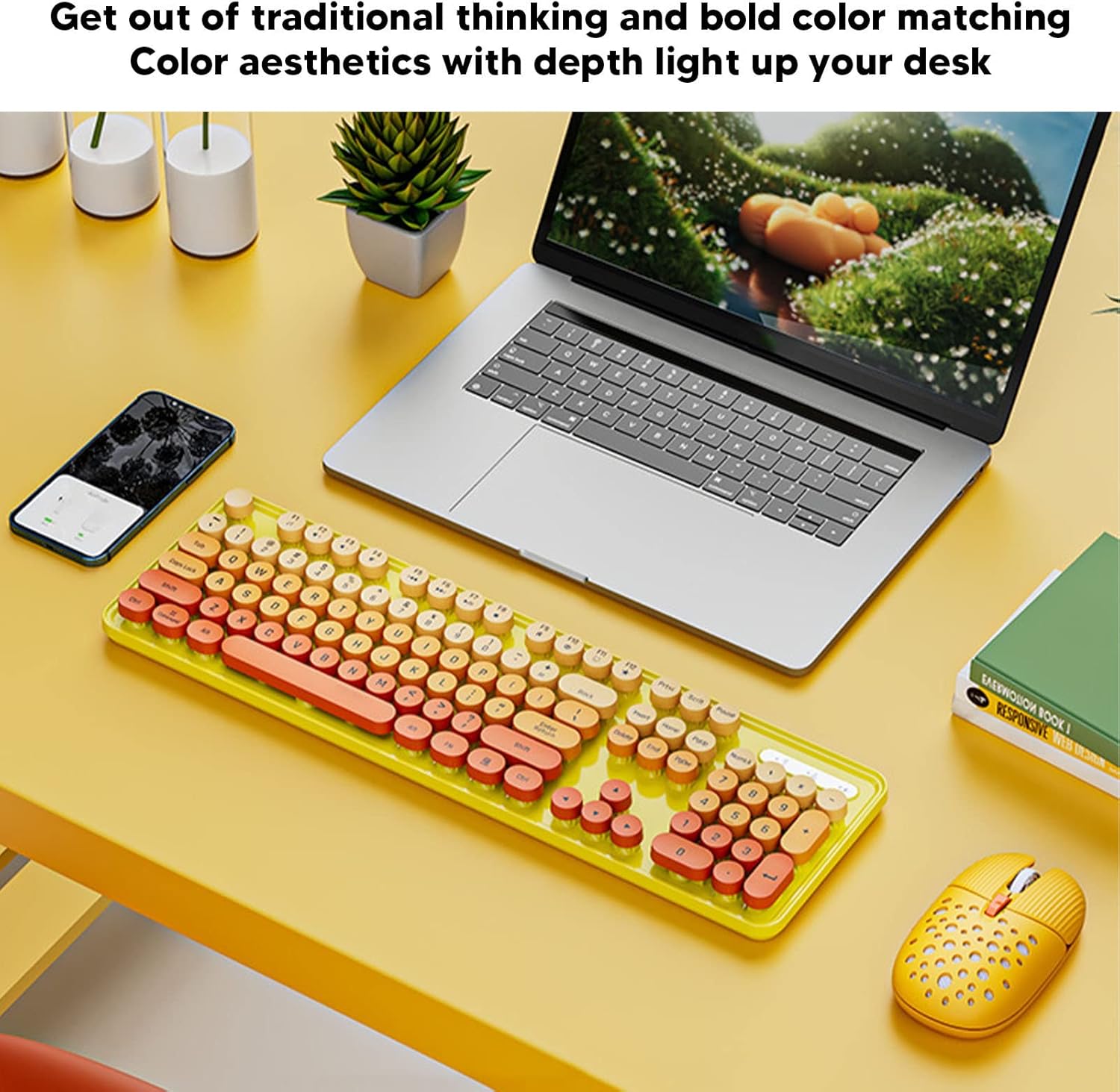
Image: The EBTOOLS 2.4G Wireless Keyboard and Mouse in mixed color yellow, displayed on a desk alongside a laptop and smartphone, showcasing su diseño y factor de forma compacto.
2. Contenido del paquete
- 1 x EBTOOLS 2.4G Wireless Keyboard
- 1 x EBTOOLS 2.4G Wireless Mouse
- 1 x USB Receiver (typically stored in the mouse battery compartment)
- Manual de usuario (este documento)
3. Instrucciones de configuración
3.1. Instalación de la batería
The keyboard and mouse require batteries for operation. Please ensure you have 1 AA battery for the keyboard and 1 AA battery for the mouse (batteries are not included).
- Localice el compartimento de la batería en la parte inferior del teclado.
- Abra la tapa del compartimiento de la batería.
- Inserte la batería AA de acuerdo con los indicadores de polaridad (+/-) dentro del compartimiento.
- Cierre bien la tapa del compartimento de la batería.

Image: The underside of the EBTOOLS keyboard with the battery compartment open, showing where to insert the AA battery.
3.2. Conexión del receptor USB
The keyboard and mouse share a single 2.4G USB receiver for wireless connection.
- Locate the USB receiver. It is typically stored in the battery compartment of the mouse for safekeeping.
- Retire el receptor USB de su ranura de almacenamiento.
- Conecte el receptor USB a un puerto USB disponible en su computadora (PC de escritorio, portátil, etc.).
- El sistema debería detectar e instalar automáticamente los controladores necesarios. Este dispositivo es plug-and-play.

Image: A diagram illustrating the compatibility of the keyboard and mouse with various systems, including desktop PCs, laptops, and other computers, highlighting its plug-and-play functionality.

Image: An illustration demonstrating the 2.4G wireless connection mode for the keyboard and mouse, emphasizing the ability to connect two devices wirelessly with a single receiver.
4. Instrucciones de funcionamiento
4.1. Ajuste del DPI del ratón
The mouse features three adjustable DPI (Dots Per Inch) settings to suit your preference and task requirements. You can cycle through these settings by pressing the DPI button, usually located near the scroll wheel on the mouse.
- 800 ppp: Adecuado para tareas precisas o movimientos de cursor más lentos.
- 1600 ppp: Configuración estándar para uso general.
- 2400 ppp: Ideal para movimientos más rápidos del cursor, como jugar o navegar en pantallas grandes.
4.2. Using Multimedia Keys
The keyboard is equipped with 18 multimedia keys for quick access to various functions. These keys are typically activated by pressing the Fn key in combination with the corresponding function key (F1-F12) or dedicated multimedia keys.

Imagen: Un detalle view of the EBTOOLS keyboard layout, highlighting the standard keys and the 18 multimedia keys, along with their respective functions such as volume control, media playback, and quick access to applications.
Common multimedia functions include:
- Volume Down / Up / Mute
- Play / Pause / Previous Track / Next Track
- Home / My Computer / Mail / Favorites
- Other system-specific functions
5. Mantenimiento
5.1. Limpieza
Para mantener la longevidad y la apariencia de su teclado y mouse:
- Utilice un paño suave y seco para limpiar las superficies.
- Para suciedad difícil, ligeramente dampEnjuague el paño con agua o una solución limpiadora suave. Evite productos químicos agresivos.
- Utilice aire comprimido para eliminar el polvo y los residuos de entre las teclas del teclado.
5.2. Reemplazo de la batería
When the keyboard or mouse becomes unresponsive or exhibits intermittent connectivity, it may be time to replace the batteries. Follow the battery installation steps in Section 3.1.

Image: An illustration depicting the energy-saving features of the keyboard and mouse, emphasizing lower power consumption and extended battery life for continuous use.
6. Solución de problemas
| Problema | Solución |
|---|---|
| El teclado/ratón no responde |
|
| Conexión intermitente |
|
| El cursor del mouse es errático o no se mueve con fluidez |
|
7. Especificaciones
| Característica | Detalle |
|---|---|
| Marca | EBTHERRAMIENTAS |
| Color | Mixed Color Yellow |
| Tecnología de conectividad | 2.4G Radio Frequency Wireless |
| Característica especial | Operación de bajo nivel de ruido |
| Dispositivos compatibles | Personal Computer (Desktop PC, Laptop) |
| Sistema operativo | Major PC Operating Systems |
| Orientación de la mano (ratón) | Ambidextro |
| Pilas necesarias | Yes (1 AA for keyboard, 1 AA for mouse) |
| Número de teclas (Teclado) | 104 |
| Fuente de poder | Funciona con pilas |
| Disposición del teclado | QWERTY |
| Configuración de DPI del mouse | 800, 1600, 2400 (ajustable) |
| Material | abdominales |
8. Vídeos oficiales del producto
8.1. Keyboard and Mouse Overview
Vídeo: Un overview of the EBTOOLS Keyboard and Mouse, demonstrating its features and design. This video is provided by the seller, Zhiyavex-US.
8.2. Yunseity Wireless Keyboard and Mouse Demonstration
Video: A demonstration of the Yunseity Wireless Keyboard and Mouse, showcasing its functionality and user experience. This video is provided by the seller, Zhiyavex-US.
9. Garantía y soporte
Los productos EBTOOLS están diseñados para brindar confiabilidad y rendimiento. Para cualquier pregunta, soporte técnico o consulta sobre la garantía, consulte la información de contacto proporcionada con su compra o visite el sitio web oficial de EBTOOLS. webSitio web. Conserve su comprobante de compra para reclamaciones de garantía.
The product comes with a standard return policy of 30 days from the date of purchase for refund or replacement, as per seller terms.