
CUPEISI CP20
CUPEISI CP20 Android 15 Tablet User Manual
Modelo: CP20
1. Introducción
Thank you for choosing the CUPEISI CP20 Android 15 Tablet. This manual provides essential information for setting up, operating, and maintaining your device. Please read it thoroughly to ensure optimal performance and longevity of your tablet.
2. ¿Qué hay en la caja?
Verifique que todos los artículos estén presentes en su paquete:
- CUPEISI CP20 Android 15 Tablet
- Teclado inalámbrico
- Funda protectora plegable
- Bluetooth Mouse
- Aguja
- Cable tipo C
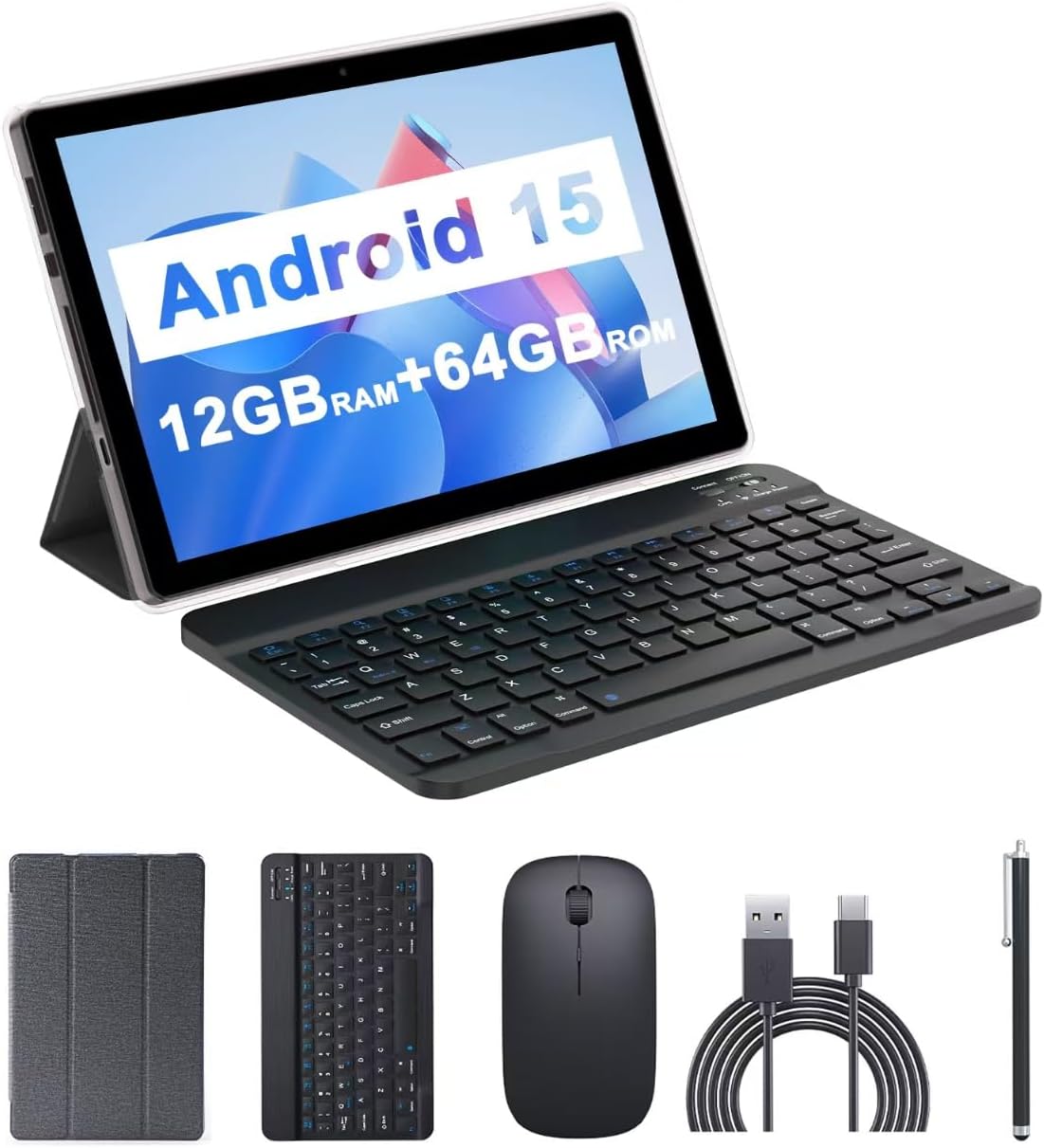
Image: The CUPEISI CP20 Tablet alongside its accessories, including the wireless keyboard, Bluetooth mouse, stylus, and foldable protective cover.
3. Características y componentes del producto
The CUPEISI CP20 Tablet is designed for versatility and performance, offering a seamless user experience for both work and entertainment.
3.1 Características principales
- Sistema operativo: Stable Android 15.0 system.
- Procesador: Built-in 1.8GHz Quad-core CPU for efficient multitasking.
- Almacenamiento de memoria: 12GB RAM (4GB+8GB expansion) and 64GB ROM, expandable up to 1TB via microSD card.
- Mostrar: Stunning 10.1-inch 1280x800 IPS HD touch screen for immersive visuals and eye protection.
- Batería: Powered by a 6000mAh battery, providing approximately 6 hours of regular operation and up to 12 hours of standby time. Charges via 5V2A Type-C port.
- Cámaras: 8MP rear camera with auto-focus and flash, and a 2MP front camera for clear video calls and photos.
- Conectividad: Supports 5G WiFi 6 and Bluetooth 5.0.
- Funcionalidad 2 en 1: Transforms into a laptop or computer mode with the included Bluetooth keyboard, wireless mouse, and foldable protective case.

Imagen: Más alláview de las principales especificaciones y características de la tableta.
3.2 Componentes físicos
Familiarícese con el diseño físico de la tableta:
- Botón de encendido: Ubicado en el lateral, se utiliza para encender/apagar la tableta o activar/desactivar la pantalla.
- Botones de volumen: Ajustar los niveles de audio.
- Puerto Tipo-C: Para carga y transferencia de datos.
- Ranura para tarjeta TF/SIM: Inserte una tarjeta microSD para ampliar el almacenamiento.
- Cámara frontal: Para videollamadas y selfies.
- Cámara trasera y flash: Para fotografías y vídeos de alta calidad.
- Oradores: Two speakers for audio output.

Image: Labeled diagram of the tablet's ports and buttons.
4. Guía de configuración
4.1 Carga inicial
Before first use, fully charge your tablet. Connect the Type-C cable to the tablet's charging port and the other end to a compatible power adapter (5V2A recommended). The battery indicator will show charging status.
4.2 Encendido / Apagado
- Para encender: Mantenga presionado el botón de encendido hasta que la pantalla se ilumine.
- Para apagar: Press and hold the Power Button, then select 'Power off' from the options that appear on the screen.
- Para reiniciar: Press and hold the Power Button, then select 'Restart'.
4.3 Conexión a wifi
- Ir a Ajustes > Red e internet > Wifi.
- Encienda el Wi-Fi.
- Seleccione la red Wi-Fi deseada de la lista.
- Ingrese la contraseña si se le solicita y luego toque Conectar.
4.4 Pairing Bluetooth Accessories
To use the wireless keyboard and Bluetooth mouse, they must be paired with your tablet.
- Asegúrese de que el teclado y el mouse estén cargados y encendidos.
- En tu tableta, ve a Ajustes > Dispositivos conectados > Bluetooth.
- Activar Bluetooth.
- The tablet will scan for available devices. Select the keyboard or mouse from the list.
- Siga las instrucciones en pantalla para completar el proceso de emparejamiento.

Image: Instructions for connecting the wireless keyboard and mouse via Bluetooth.
4.5 Inserción de una tarjeta MicroSD
To expand storage, insert a microSD card (up to 1TB) into the TF/SIM card slot. Ensure the tablet is powered off before inserting or removing the card.
5. Operación de su tableta
5.1 Navegación básica
Navigate the Android interface using touch gestures:
- Grifo: Seleccione un elemento o abra una aplicación.
- Golpe fuerte: Desplácese por páginas o listas.
- Pellizcar para hacer zoom: Ampliar o reducir el contenido.
- Pulsación larga: Acceder a los menús contextuales o mover iconos.
5.2 Using Keyboard and Mouse
Once paired, the keyboard and mouse function similarly to a laptop. The keyboard allows for efficient typing, while the mouse provides precise cursor control, enhancing productivity.

Image: The tablet in laptop mode, demonstrating its use for productivity tasks.
5.3 Uso de la cámara
Open the Camera app to capture photos and videos. Switch between the 2MP front camera and the 8MP rear camera as needed. The rear camera features auto-focus and flash for improved image quality.

Image: Demonstrating the tablet's front and rear camera functionality for video calls and photography.
5.4 Instalación y gestión de aplicaciones
Download and install applications from the Google Play Store. To manage installed apps, go to Ajustes > Aplicaciones.

Image: The tablet running Android 15 OS, showing popular applications like YouTube, Google Play, and Netflix.
6. Mantenimiento
6.1 Limpieza
Utilice un paño suave y sin pelusa para limpiar la pantalla y el cuerpo de la tableta. Evite el uso de productos químicos agresivos o materiales abrasivos. Para manchas difíciles, limpie ligeramente...ampEnjuague el paño con agua o con un limpiador de pantalla diseñado para dispositivos electrónicos.
6.2 Actualizaciones de software
Verifique e instale periódicamente las actualizaciones de software para asegurarse de que su tableta tenga las últimas funciones, parches de seguridad y mejoras de rendimiento. Vaya a Ajustes > Sistema > Actualización del sistema.
6.3 Gestión del almacenamiento
Para mantener un rendimiento óptimo, revise periódicamenteview y administra el almacenamiento de tu tableta. Elimina el almacenamiento innecesario. files, desinstale aplicaciones no utilizadas y mueva archivos multimedia grandes files to external storage (microSD card) if applicable. Go to Ajustes > Almacenamiento a view uso y liberar espacio.
7. Solución de problemas
This section addresses common issues you might encounter with your CUPEISI CP20 Tablet.
7.1 La tableta no se enciende
- Asegúrese de que la tableta tenga suficiente carga. Conéctela al cargador durante al menos 30 minutos.
- Perform a forced restart by pressing and holding the Power Button for 10-15 seconds.
7.2 Rendimiento lento
- Cierre las aplicaciones no utilizadas que se ejecutan en segundo plano.
- Clear cached data for apps (Settings > Apps > [App Name] > Storage & cache > Clear cache).
- Asegúrese de que haya suficiente espacio de almacenamiento libre.
- Reinicie la tableta periódicamente.
7.3 Problemas de conectividad Wi-Fi
- Activa y desactiva el Wi-Fi en Configuración.
- Reinicie su enrutador Wi-Fi.
- Forget the network and reconnect (Settings > Network & internet > Wi-Fi > [Network Name] > Forget).
7.4 Descarga rápida de la batería
- Reducir el brillo de la pantalla.
- Deshabilite Wi-Fi, Bluetooth y GPS cuando no estén en uso.
- Limitar la actualización de aplicaciones en segundo plano.
- Verifique el uso de la batería en Configuración > Batería para identificar aplicaciones que consumen mucha energía.
8. Especificaciones
| Característica | Especificación |
|---|---|
| Marca | CUPEISI |
| Nombre del modelo | CP20 |
| Sistema operativo | Androide 15 |
| Tamaño de pantalla | 10 pulgadas |
| Resolución de pantalla | 1280 x 800 píxeles (IPS HD) |
| Procesador | Cuatro núcleos a 1.8 GHz |
| RAM | 12 GB (4GB+8GB expansion) |
| Tamaño de la memoria flash | 64 GB |
| Almacenamiento expandible | Hasta 1 TB (microSD) |
| Trasero WebResolución de la cámara | 8 MP |
| Resolución de la cámara frontal | 2 MP |
| Tipo inalámbrico | 802.11ax (5G WiFi 6) |
| Bluetooth | Bluetooth 5.0 |
| Capacidad de la batería | Polímero de litio de 6000 mAh |
| Duración media de la batería | 8 horas |
| Peso del artículo | 1 libras |
| Dimensiones del producto | 9.7 x 6.5 x 0.3 pulgadas |
9. Garantía y soporte
For warranty information and technical support, please refer to the documentation included with your purchase or visit the official CUPEISI webSitio. Conserve su comprobante de compra para reclamaciones de garantía.
If you encounter issues not covered in this manual, please contact CUPEISI customer service for assistance.