
1. Introducción
The Phomemo 241BT Thermal Label Printer is designed for efficient and high-quality label printing for various applications, including shipping, small business, and personal use. This printer utilizes advanced thermal direct technology, eliminating the need for ink or toner. It supports both wireless (Bluetooth) and wired (USB) connections, offering versatility across multiple devices and operating systems.

Image: The Phomemo 241BT printer actively printing a shipping label, surrounded by various label types and a smartphone connected via Bluetooth.

Image: The Phomemo 241BT printer demonstrating connectivity with both a laptop via USB and a smartphone via Bluetooth, highlighting its multi-system compatibility.
Las características principales incluyen:
- Impresión sin tinta: Advanced thermal direct technology removes the need for expensive toner or ink.
- Salida de alta velocidad: Prints up to 72 sheets of 4x6 labels per minute.
- Resolución alta: 203 DPI ensures clear and precise printing.
- Conectividad versátil: Supports Bluetooth for mobile devices (iOS/Android) and USB for PC (Windows, Mac OS, Chrome OS, Linux).
- Amplia compatibilidad: Works with major shipping and sales platforms like eBay, Shopify, Amazon, Etsy, UPS, USPS, FedEx, and DHL.
- Adaptable Label Width: Accommodates labels from 1 to 4.6 inches (25.4-117mm).
2. ¿Qué hay en la caja?
Por favor verifique que todos los componentes estén presentes en el paquete:
- 1 x Phomemo 241BT Label Printer
- 10 sheets of 4x6 thermal label paper
- 1 x adaptador de corriente y cable
- 1 x Type C Adapter and USB Cable
- 1 x Manual del usuario

Image: An illustration showing all items included in the Phomemo 241BT printer package.
3. Guía de configuración
3.1. Conexión de hardware
- Conecte la electricidad: Conecte el adaptador de corriente al puerto de alimentación de la impresora y luego a una toma de pared.
- Conectar USB (opcional): For wired printing, connect one end of the USB cable to the printer and the other end to your computer. Use the Type C adapter if your computer requires it.
3.2. Instalación del software
For Mobile Devices (iOS & Android - Wireless Bluetooth)
- Download "Labelife" App: Buscar "Labelife" in the Apple App Store (for iOS) or Google Play Store (for Android) and download the application.
- Habilitar Bluetooth: Encienda el Bluetooth en su teléfono móvil o tableta.
- Conectarse en la aplicación: Open the "Labelife" app and follow the in-app instructions to connect to your Phomemo 241BT printer via Bluetooth.

Image: Visual instructions for downloading the Labelife app, enabling Bluetooth, and connecting to the printer for wireless printing.
For Computers (Windows, Mac OS, Chrome OS, Linux - USB Wired)
- Descargar controlador: Visita labellife.net/pm241 para descargar el controlador apropiado para su sistema operativo (Windows, Mac OS, Linux).
- Instalar controlador: Siga las instrucciones en pantalla para instalar el controlador descargado.
- Para Chrome OS: Enter "Labelife" in the Chrome Web Store and add the extension to your Google Chrome browser.

Image: The Phomemo 241BT printer connected via USB to a laptop, illustrating compatibility with various desktop operating systems and the need for driver installation.
3.3. Carga de etiquetas
The Phomemo 241BT supports thermal labels with widths ranging from 1 inch (25.4mm) to 4.6 inches (117mm). Ensure labels are loaded correctly for optimal printing.
- Abra la cubierta de la impresora.
- Insert the label roll or fan-fold labels into the label compartment, ensuring the printable side faces up.
- Ajuste las guías de etiquetas para que se ajusten perfectamente al ancho de sus etiquetas, sin que queden demasiado apretadas.
- Close the printer cover. The printer will automatically detect the label size and calibrate.

Image: A visual representation of the printer's capability to handle different label widths and types, from small circular labels to standard 4x6 shipping labels.
4. Instrucciones de funcionamiento
4.1. Printing via USB Cable (PC)
- Ensure the printer is connected to your PC via USB and the driver is installed.
- Abrir el documento o la etiqueta file desea imprimir en su computadora.
- Seleccione “Imprimir” en el menú de su aplicación.
- Choose the Phomemo 241BT printer from the list of available printers.
- Adjust print settings (e.g., label size, orientation) as needed in the print dialogue box.
- Click "Print" to start printing.
4.2. Printing Wirelessly (Mobile App)
- Ensure your mobile device is connected to the Phomemo 241BT via Bluetooth through the "Labelife" app.
- Within the "Labelife" app, import the file (PDF, image) you want to print.
- Select the desired label size or crop the content as necessary.
- Preview the label to ensure correct formatting.
- Tap "Print" to send the job to the printer.
4.3. Plataformas y aplicaciones compatibles
The Phomemo 241BT printer is compatible with a wide range of e-commerce and shipping platforms, facilitating label creation for various services.
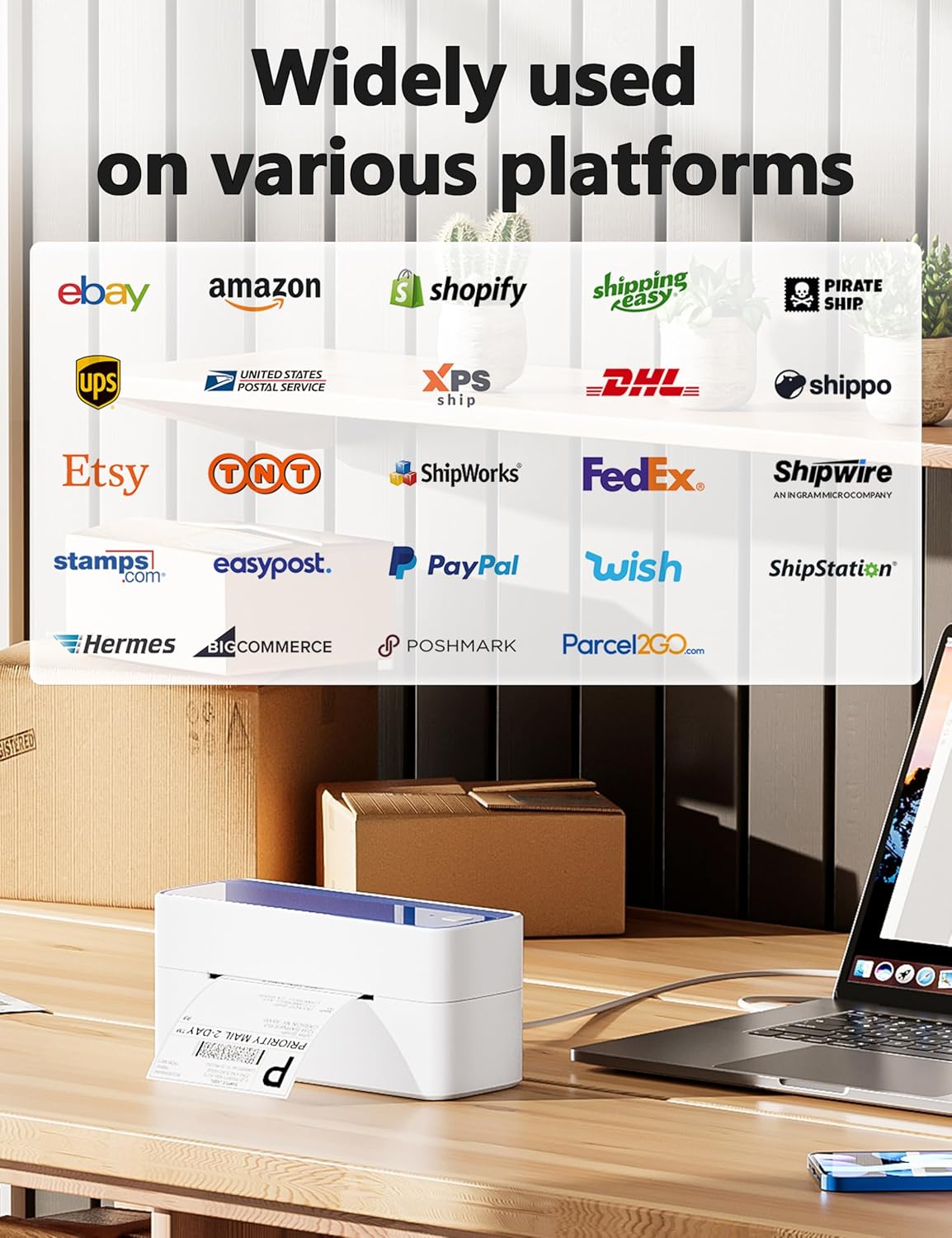
Image: A display of logos from numerous online platforms and shipping carriers that are compatible with the Phomemo 241BT label printer.
Las aplicaciones comunes incluyen:
- Shipping labels for major carriers (UPS, USPS, FedEx, DHL).
- Labels for e-commerce platforms (Amazon, eBay, Shopify, Etsy, Poshmark, Temu).
- Barcode labels for inventory management.
- Product labels and notes for various business needs.

Image: Various applications of the Phomemo 241BT printer, showing labels used for shopping, logos, barcodes, and notes in different settings.
5. Mantenimiento
Regular maintenance ensures the longevity and optimal performance of your Phomemo 241BT printer.
- Limpieza del cabezal de impresión: Use an alcohol wipe or a specialized print head cleaning pen to gently clean the thermal print head. Ensure the printer is off and cooled down before cleaning.
- Limpieza del exterior: Limpie el exterior de la impresora con un paño suave y húmedo.amp paño. Evite el uso de productos químicos agresivos.
- Eliminación de polvo: Keep the label compartment free of dust and debris to prevent paper jams and maintain print quality.
- Almacenamiento: Store the printer in a cool, dry place away from direct sunlight and extreme temperatures when not in use.
6. Solución de problemas
This section addresses common issues you might encounter with your Phomemo 241BT printer.
| Problema | Posible causa | Solución |
|---|---|---|
| Sin poder | Cable de alimentación no conectado; problema con la toma de corriente. | Ensure power cable is securely connected to printer and a working outlet. |
| Mala calidad de impresión | Dirty print head; incorrect label type; low resolution setting. | Clean the print head. Ensure you are using thermal labels. Check print settings for 203 DPI resolution. |
| Las etiquetas no se introducen correctamente | Labels loaded incorrectly; label guides not adjusted; label jam. | Reload labels, ensuring they are straight and guides are snug. Clear any jammed labels. |
| No se puede conectar a través de Bluetooth | Bluetooth not enabled; app not open; printer not discoverable. | Ensure Bluetooth is on your device. Open the "Labelife" app and follow connection steps. Restart printer and device. |
| Cannot Print via USB | Driver not installed; incorrect USB port; cable issue. | Instale el controlador correcto desde labellife.net/pm241Pruebe con un puerto o cable USB diferente. |
7. Especificaciones
| Característica | Detalle |
|---|---|
| Nombre del modelo | 241BT |
| Tecnología de impresión | Térmico |
| Tecnología de conectividad | Bluetooth, USB |
| Tamaño máximo de medios | 4 x 6 inch (117mm width) |
| Máxima resolución de impresión | 203 ppp |
| Velocidad máxima de impresión (monocromo) | 66 ppm (72 hojas de etiquetas de 4x6 por minuto) |
| Dispositivos compatibles | PC (Windows, Mac OS, Chrome OS, Linux), Smartphones (iOS, Android) |
| Dimensiones del producto | 8.66 x 6.3 x 4.41 pulgadas (22 x 16 x 11.2 cm) |
| Peso del artículo | 2.84 libras (1.29 kg) |
| Método de control | App (Labelife) |
| Componentes incluidos | Printer, 10 sheets 4x6 thermal label paper, Power Adapter and Cord, Type C Adapter and USB Cable, User Guide |
8. Garantía y soporte
Phomemo provides a limited warranty for the 241BT Thermal Label Printer. For specific warranty terms and conditions, please refer to the official Phomemo websitio o la documentación incluida con su producto.
For technical support, inquiries, or assistance with your Phomemo product, please contact the professional support team:
- Llamada telefónica: (9:00-17:00 de lunes a viernes EST)
- Correo electrónico: (5x24 Hours Mon-Fri EST)
- Support includes live chat, phone calls, emails, and remote desktop operation.

Image: A customer service representative, representing the available support channels for the product.