
1. Introducción
The Audio Array AI-04 is a professional 2x2 USB audio interface designed for high-fidelity recording and playback. It features premium mic pre-amps, 48V phantom power support, and 24-bit/192kHz audio resolution, making it suitable for various audio production needs. This manual provides essential information for setting up, operating, and maintaining your AI-04 audio interface.
2. Contenido del paquete
Antes de comenzar, asegúrese de que todos los elementos estén presentes en la caja:
- 1 x Audio Array AI-04 Audio Interface
- 1 x USB 2.0 B-Male to A-Male Cable
- 1 x USB 2.0 A-Male to Type-C adapter
- 1 x Type-C to USB A-Male Cable
- 1 x Manual de usuario (este documento)
Image: Contents of the Audio Array AI-04 package, showing the red audio interface, various USB cables, and the user manual.
3. Configuración
3.1 Conexión a su computadora
The Audio Array AI-04 is a plug-and-play device, requiring no additional drivers for most operating systems. It is compatible with Mac OS and Windows XP+.
- Connect the AI-04 to your computer using the provided USB cable. Use the appropriate adapter (USB-A to USB-C) if your computer only has USB-C ports.
- The device will be automatically recognized by your operating system.
3.1.1 Connecting with Windows
- From your Windows taskbar, right-click the Sound Icon and open Sound Settings.
- Choose your output device: 'Headphones (HD USB Audio Device)'.
- Choose your input device: 'Microphone (HD USB Audio Device)'.

Image: Visual guide for configuring the Audio Array AI-04 as the input and output device in Windows Sound Settings.
3.1.2 Connecting with Mac
- On your Mac, choose Apple menu > System Preferences, then select Sound.
- Click Input, then select the 'Microphone (HD USB AUDIO DEVICE)' in the list of sound input devices.
- Click Output, then select the 'Headphones (HD USB AUDIO DEVICE)' in the list of sound output devices.

Image: Visual guide for configuring the Audio Array AI-04 as the input and output device in Mac Sound Preferences.
3.2 Conexión de micrófonos e instrumentos
The AI-04 features versatile input options:
- XLR/MIC/LINE Inputs: Two combo inputs (1L and 2R) support XLR microphones, 1/4" TRS/TS line-level instruments, or Hi-Z instruments.
- Alimentación fantasma de 48 V: Activate the 48V phantom power switch for condenser microphones. Ensure phantom power is off when connecting dynamic microphones or line-level instruments.

Imagen: delantera y trasera views of the Audio Array AI-04, highlighting XLR/MIC/LINE inputs, headphone output, and TRS/TS stereo jacks.
3.3 Conexión de dispositivos de salida
Connect your monitors, PA system, or other playback devices to the independent TRS/TS stereo jacks (1L and 2R) on the rear panel. For private listening, use the dedicated headphone output on the front panel.

Image: Rear panel of the Audio Array AI-04, detailing power input, 48V phantom power switch, and output jacks.
4. Operating the AI-04
4.1 Controles e indicadores
The AI-04 features intuitive controls for managing your audio:
- Perillas de ganancia: Separate gain controls for each input channel (1L and 2R) allow you to adjust the input level.
- Signal & Overload Indicators: LED indicators (PK) next to each gain knob show signal presence and clipping (overload). Adjust gain to avoid clipping.
- Perilla de mezcla de entrada/DAW: Adjusts the balance between direct input monitoring and playback from your Digital Audio Workstation (DAW).
- Interruptor de corte bajo: Activa un filtro de corte bajo para reducir el ruido de baja frecuencia no deseado.
- Interruptor de alta impedancia: Activates high impedance mode for direct connection of guitars and other instruments.
- Interruptor de bucle invertido: Enables the loopback function, allowing you to record computer audio along with your microphone/instrument inputs.
- Perilla de volumen de salida: Controls the overall output volume to your monitors/speakers.
- Perilla de volumen de los auriculares: Controla el volumen de la salida de auriculares.

Imagen: Detallada view of the Audio Array AI-04 front panel, illustrating the function of each knob and switch.
4.2 Grabación y reproducción
The AI-04 provides 24-bit/192kHz high-fidelity recording. Use with popular recording software like Pro Tools, Ableton, Cubase, etc. Low-noise balanced outputs ensure clear audio playback. The headphone output allows for high-fidelity private listening.
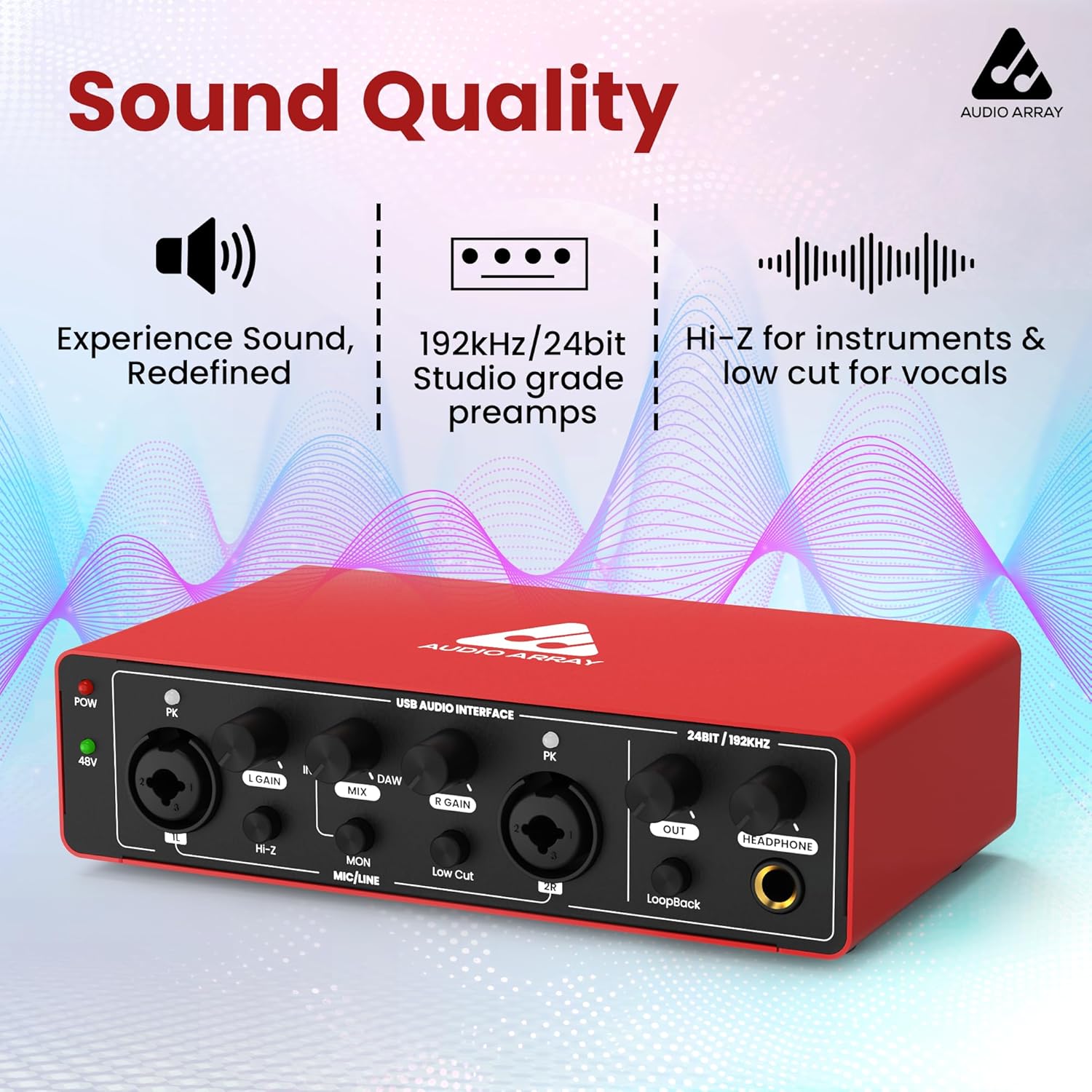
Imagen: Frente view of the Audio Array AI-04, emphasizing its sound quality features like studio-grade preamps and high-resolution audio.
4.3 Vídeo oficial del producto
Watch this official video for a visual guide on the Audio Array AI-04's features and usage:
Video: Official product video for the Audio Array AI-04, demonstrating its key features and applications.
5. Mantenimiento
To ensure the longevity and optimal performance of your Audio Array AI-04, follow these maintenance guidelines:
- Mantenga el dispositivo limpio con un paño suave y seco. Evite el uso de productos químicos agresivos o materiales abrasivos.
- Protect the interface from dust, moisture, and extreme temperatures.
- Evite colocar objetos pesados encima de la unidad.
- Desconecte todos los cables cuando el dispositivo no vaya a utilizarse durante períodos prolongados.
6. Solución de problemas
If you encounter issues with your Audio Array AI-04, try the following steps:
- Sin energía: Ensure the USB cable is securely connected to both the interface and your computer. If using a separate power source (for smartphone use), ensure it is properly connected and functional.
- No Sound Input/Output:
- Verify all cables (microphone, instrument, output, headphone) are securely connected.
- Check the gain knobs for each input and the master output/headphone volume.
- Confirm the correct input/output device is selected in your computer's sound settings (refer to Section 3.1).
- Si utiliza un micrófono de condensador, asegúrese de que la alimentación fantasma de 48 V esté activada.
- Audio distorsionado:
- Reduce the input gain to prevent clipping (indicated by the PK LED).
- Check the audio levels in your recording software.
- Problemas de latencia: Ensure your DAW's buffer size is set appropriately for low-latency monitoring.
Si los problemas persisten, comuníquese con el servicio de atención al cliente.
7. Especificaciones
| Característica | Detalle |
|---|---|
| Número de modelo | AI-04 |
| Resolución de audio | 24 bits / 192kHz |
| Entradas | 2 entradas combinadas XLR/MIC/LINE |
| Salidas | 2 x TRS/TS Stereo Jacks, 1 x Headphone Output |
| Potencia Phantom | 48V switchable |
| Conectividad | USB 2.0 (Type-B), USB Type-C (for power) |
| Compatibilidad | Mac OS, Windows XP+ |
| Peso del artículo | 1.15 libras |
| Dimensiones del producto | 5.71 x 10.55 x 2.64 pulgadas |
8. Garantía y soporte
The Audio Array AI-04 is covered under a Garantía de 3 años. If you have any questions or require assistance, please feel free to contact us. Refer to the contact information provided with your product packaging or visit the official Audio Array webSitio de soporte.